
Fanuc.NET
🦾.NET library to communicate with Fanuc robots. Nothing to install on the robot. 100% managed assembly with no dependencies. Modern alternative to PCDK (FRROBOT.DLL) or Robot IF (FRRJIF.DLL): pay once for a company-wide license, then use forever—no runtime or development fees, unlimited robots, developers, and redistributed software.
Install / Use
/learn @underautomation/Fanuc.NETREADME
Fanuc Communication SDK






🤖 Effortlessly Communicate with Fanuc robots
The Fanuc SDK enables seamless integration with Fanuc robots for automation, data exchange, and remote control. Ideal for industrial automation, research, and advanced robotics applications.
It allows you to connect to a real robot, but also to ROBOGUIDE.
🔗 More Information: https://underautomation.com/fanuc
🔗 Also available for 🟨 LabVIEW & 🐍 Python
👁️ Watch to be notified of latest updates !
🚀 TL;DR (Too Long; Didn’t Read)
- ✔️ PCDK Alternative: No need for Fanuc’s PCDK or Robot Interface
- 📖 Read/Write Variables: Access and modify system variables.
- 🔄 Register Control: Read/write registers for positions, numbers, and strings.
- 🎬 Program Control: Run, abort, and reset programs.
- 🔔 Alarm Management: Reset alarms and view alarm history.
- ⚡ I/O Control: Manage ports and I/O values (UI, UO, GI, GO, etc.).
- 🔍 State Monitoring: Get safety status, position, diagnostics, and more.
- 📂 File Management: Easily manipulate files.
- 🏎️ Remote motion: Remote move the robot
- 📐 Kinematics Calculations: Perform forward and inverse kinematics offline.
No additional installations or Fanuc options are required to use this SDK.
📥 Download Example Applications
Explore the Fanuc SDK with fully functional example applications and precompiled binaries for various platforms. See Github releases
🔹 Windows Forms Application (Full Feature Showcase)
A Windows Forms application demonstrating all the features of the library.
📌 Download: 📥 UnderAutomation.Fanuc.Showcase.Forms.exe
Read variables :

Move the robot :

High speed Read & Write registers :

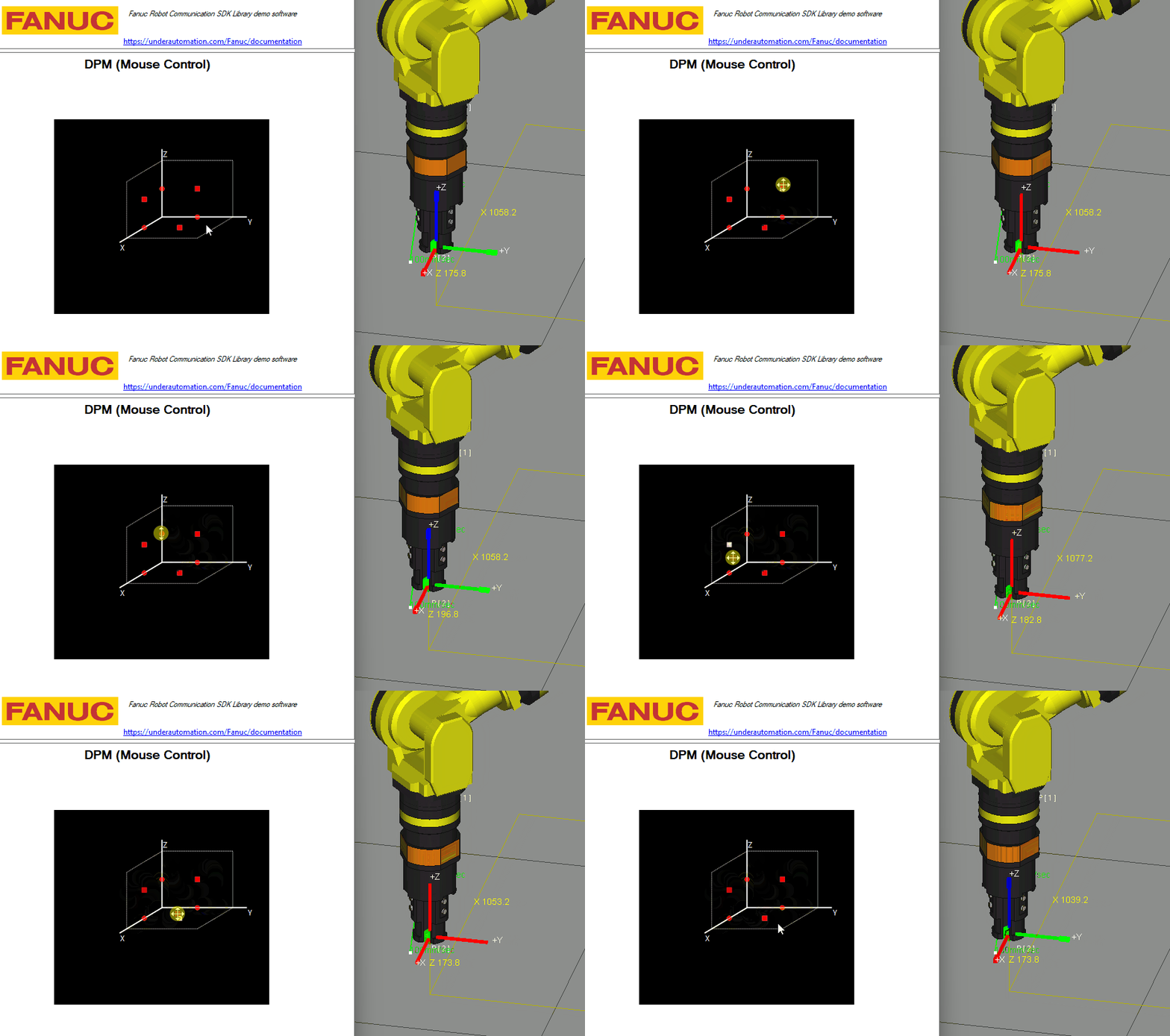
Live remote control with Jostick or 3D Mouse:
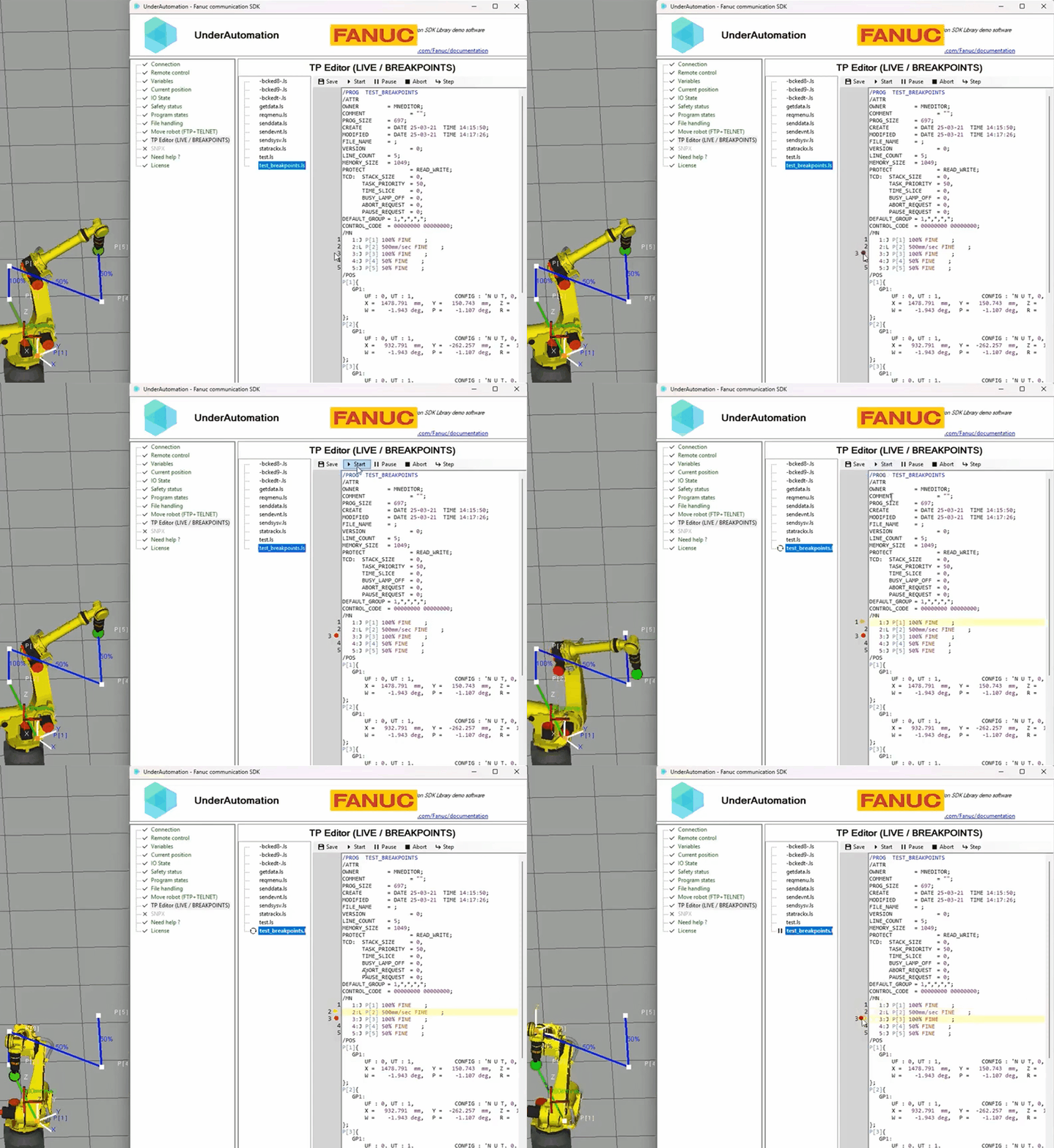
TP Editor with breakpoints:
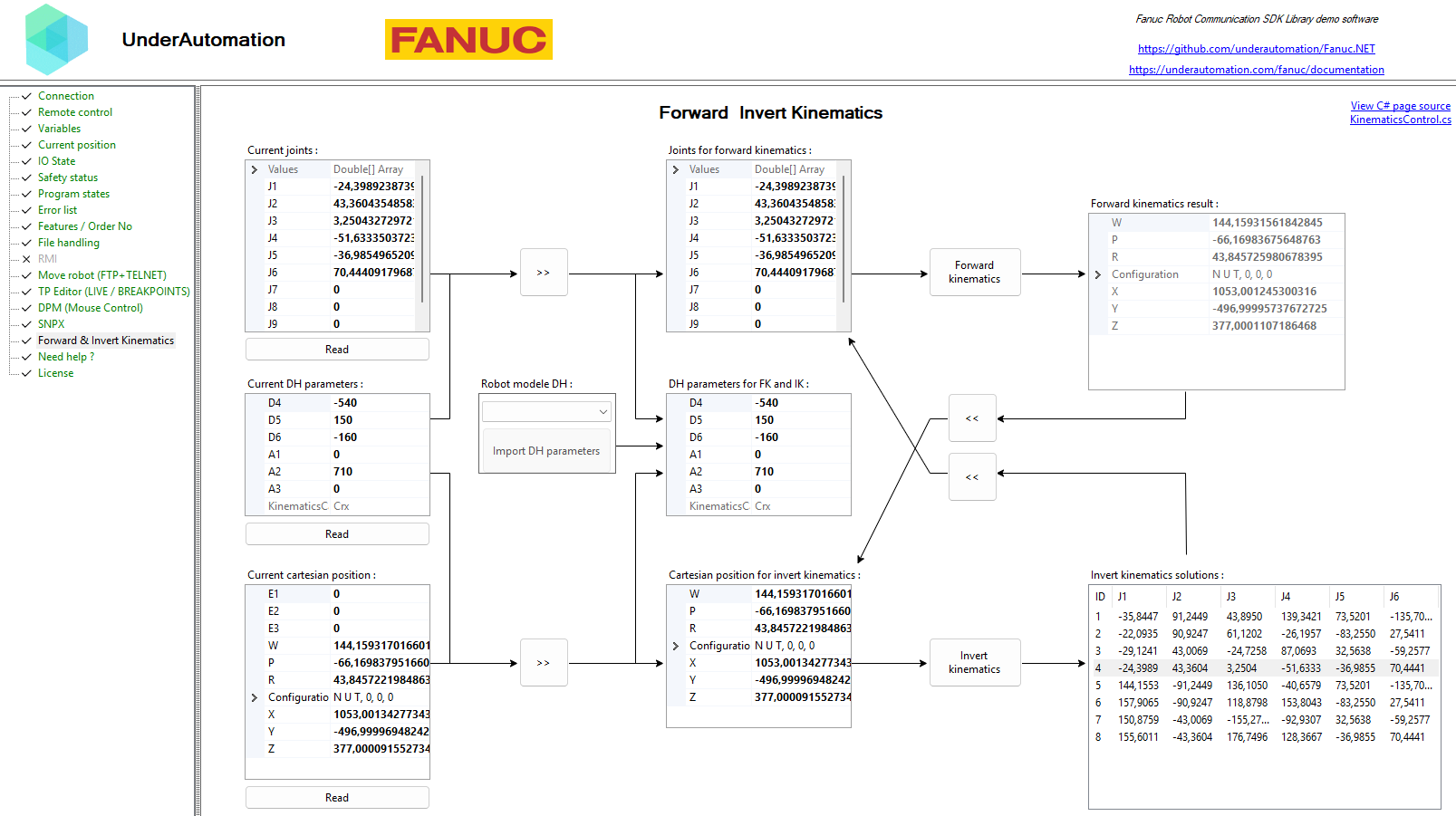
Forward and Inverse Kinematics:
📌 Features
🖥️ 1. Remote Control via Telnet KCL
Telnet KCL (Keyboard Command Line) allows sending commands to control the robot remotely—no additional options needed on the controller.
🔹 Reset alarms
robot.Telnet.Reset();
🔹 Start, pause, hold, abort programs
robot.Telnet.Run("MyProgram");
robot.Telnet.Pause("MyProgram");
robot.Telnet.Hold("MyProgram");
robot.Telnet.Continue("MyProgram");
robot.Telnet.Abort("MyProgram", force: true);
🔹 Set variables dynamically
robot.Telnet.SetVariable("my_variable", 42);
robot.Telnet.SetVariable("$RMT_MASTER", 1);
🔹 Control robot I/O ports
// Set an output port (example: DOUT port 2 = 0)
robot.Telnet.SetPort(KCLPorts.DOUT, 2, 0);

// Simulate an input port (example: DIN port 3 = 1)
robot.Telnet.Simulate(KCLPorts.DIN, 3, 1);
robot.Telnet.Unsimulate(KCLPorts.DIN, 3);
🚀 2. High-Speed Data Exchange via SNPX (RobotIF)
SNPX (also known as SRTP/RobotIF) enables fast, structured data communication with the robot.
It is used to read/write registers, monitor alarms, and check robot status.
🔹 Read & write position registers
// Read position register 1
Position register1 = robot.Snpx.PositionRegisters.Read(1);

// Set a new value for register 2
robot.Snpx.PositionRegisters.Write(2, new Position { X = 100, Y = 50, Z = 25 });
🔹 Read & write numeric registers
// Read register R[1]
double value = robot.Snpx.Registers.Read(1);

// Write a value to R[2]
robot.Snpx.Registers.Write(2, 123.45);
🔹 Read and control robot signals (UI, UO, GI, GO)
// Read a User Input (UI) state
bool UI1 = robot.Snpx.UI.Read(1);

// Set a User Output (UO) signal
robot.Snpx.UO.Write(3, true);
🔹 Read & write variables
// Write a system variable
robot.Snpx.IntegerSystemVariables.Write("$RMT_MASTER", 1);
robot.Snpx.StringSystemVariables.Write("$ALM_IF.$LAST_ALM", "No alarms");
robot.Snpx.PositionSystemVariables.Write("$CELL_FLOOR", cellFloor);

// Write a Karel program variable
robot.Snpx.IntegerSystemVariables.Write("$[KarelProgram]KarelVariable", 1);
Clear alarms
// Clear alarms
robot.Snpx.ClearAlarms();
Get current position
// Read current joint and cartesian position
Position position = robot.Snpx.CurrentPosition.ReadWorldPosition();

// Read User frame cartesian position
robot.Snpx.CurrentPosition.ReadUserFramePosition(1);
📂 3. File & Variable Management via FTP Memory Access
The SDK provides direct FTP access to the robot's memory for file transfer, variable reading, and configuration management.
🔹 Upload, download, and delete files
// Upload a TP program to the controller
robot.Ftp.DirectFileHandling.UploadFileToController(@"C:\Programs\MyPrg.tp", "md:/MyPrg.tp");

// Download a file from the robot
robot.Ftp.DirectFileHandling.DownloadFileFromController("md:/Backup.va", @"C:\Backup\Backup.va");

// Delete a file on the robot
robot.Ftp.DirectFileHandling.DeleteFile("md:/OldProgram.tp");
🔹 Read all declared variables
var allVariables = robot.Ftp.GetAllVariables();
foreach (var variable in allVariables)
{
    Console.WriteLine($"{variable.Name} = {variable.Value}");
}
🔹 Read known system variables
// Read system variable $RMT_MASTER
int remoteMode = robot.Ftp.KnownVariableFiles.GetSystemFile().RmtMaster;
🔹 Check robot safety status
SafetyStatus safetyStatus = robot.Ftp.GetSafetyStatus();
Console.WriteLine($"Emergency Stop: {safetyStatus.ExternalEStop}");
Console.WriteLine($"Teach Pendant Enabled: {safetyStatus.TPEnable}");
🔹 Retrieve the robot's current position
CurrentPosition currentPosition = robot.Ftp.GetCurrentPosition();
Console.WriteLine($"Cartesian Position: X={currentPosition.Cartesian.X}, Y={currentPosition.Cartesian.Y}, Z={currentPosition.Cartesian.Z}");
🔧 Configuration
✅ Enable Telnet KCL
- Go to
SETUP > Host Comm - Select
TELNETand press[DETAIL] - Set a password and restart the robot
✅ Enable FTP Memory Access
- Go to
SETUP > Host Comm > FTP - Set a username & password
- Perform a cold start
✅ Enable SNPX
-
If Your Robot Uses "FANUC America Corp." Parameters (R650 FRA): You need to enable option R553 ("HMI Device SNPX") in the robot's software configuration.
-
If Your Robot Uses "FANUC Ltd." Parameters (R651 FRL): No additional option is required—SNPX is included by default.
📐 Kinematics Calculations:
The SDK includes tools for performing forward and inverse kinematics calculations offline, allowing you to compute the robot's end-effector position based on joint angles and vice versa, from DH parameters.
using UnderAutomation.Fanuc.Kinematics;

JointsPosition position = new JointsPosition(10, 20, 120, 0, 0, 25);

// ---- Get DH parameters ----
// Example: CRX-10iA/L
DhParameters dh = new DhParameters(-540, 150, -160, 0, 710, 0);

// From a known arm model
dh = DhParameters.FromArmKinematicModel(ArmKinematicModels.CRX10iA);

// From OPW parameters: M10iA/7L
dh = DhParameters.FromOpwParameters(0.15, -0.20, 0.60, 0.86, 0.10);

// From an online robot (SYSMOTN file)
dh = DhParameters.FromSymotnFile(_robot.Ftp.KnownVariableFiles.GetSymotnFile())[0];

// ---- Forward kinematics ----
CartesianPosition pose = KinematicsUtils.ForwardKinematics(position, dh);

// ---- Inverse kinematics with multiple solutions ----
JointsPosition[] positions = KinematicsUtils.InverseKinematics(pose, dh);
🛠 Installation
1️⃣ Get the SDK
Choose the installation method that works best for you:
| Method | NuGet (Recommended) | Direct Download | | ------------------ | --------------------------------------------------------------------------------------- | ------------------------------------------------------------------------------------------------------------------ | | How to Install
