
Luxtorpeda
Steam Play compatibility tool to run games using native Linux engines
Install / Use
/learn @luxtorpeda-dev/LuxtorpedaREADME
Luxtorpeda Dev





Steam Play compatibility tool to run games using native Linux engines
Pre-requisites
The compatibility tool will work on any modern 64-bit Linux distribution. All packaged games are compiled for Steam Runtime Sniper environment and any additional dependencies are provided in the download.
Using Luxtorpeda with Steam native runtime may or may not work, but is not supported.
Supported titles
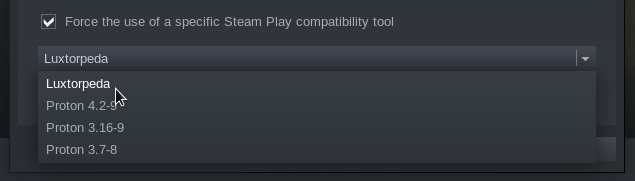
Just click "Play" and Luxtorpeda will download and install the package for you. You need to select Luxtorpeda as a compatibility tool first, of course.
The supported titles are mostly open source engines, like UZDoom, but also include closed-source executables, like for UT99, and recently Windows mod support via Proton.
When you launch a game that supports multiple engines, a prompt will appear asking for the engine that should be downloaded and launched. Once the engine has been picked, a second prompt will ask if the engine should become the default. Launches after this if "Yes" is picked in this dialog will not ask for the engine again. A file can be deleted to restore the engine prompt for a particular game. The file will have the following format: ~/.config/luxtorpeda/<app_id>/default_engine_choice.txt
To go to the main website, go to https://luxtorpeda.org
To see a list of supported titles, go to https://luxtorpeda.org/packages
Proton Mod Support
Alongside the native engines that have been supported for a while, there are also Windows game mods available as well via Proton, with the same ease of use as the native engines, where Luxtorpeda will download and install the mod for you, and setup the launch options. The pieces like changing the WINEDLLOVERRIDES, putting the mod in the correct spots, etc, is all done for you, and then Luxtorpeda will launch the game with Proton for you.
This also lets you pick and choose the Proton version to use in the luxtorpeda client.
Because of the automatic downloads, the mods usually need to come from GitHub, or another public CDN that does not require a login or manual clicking, so stuff hosted on pcgamingwiki or nexus would not be doable.
You can see all of the ones that use Proton by searching for "Engine runs via Proton on the packages list". Some examples include Alpine Faction for Red Faction, various widescreen patches for many games, and the Juiced Patch for Saints Row 2.
<img width="1010" height="581" alt="image" src="https://github.com/user-attachments/assets/b661b3b7-27bf-4787-8b0b-9ce44c82b20f" /> <img width="1010" height="581" alt="image" src="https://github.com/user-attachments/assets/1ed5e8d3-72fb-452c-9fbd-fe24f60080c6" />Getting Help
Want a specific game?
Check issues to see if we are working on it.
You can also make a package request by creating a new issue
You can also create a package yourself
Installation (using tarball)
The packages.json for the supported packages and getting the latest versions will get updated on each launch of luxtorpeda, without any input needed from the user. New releases of the luxtorpeda client will need to be downloaded manually, but a new release of the client is not required when a package is created or updated, unless that package depends on a new feature (which will be noted in the release notes).
-
Close Steam.
-
Download latest version at https://github.com/luxtorpeda-dev/luxtorpeda/releases
-
Move and unpack tarball to compatibilitytools.d directory (create one if it does not exist):
$ cd ~/.local/share/Steam/compatibilitytools.d/ || cd ~/.steam/root/compatibilitytools.d/ $ tar xJf luxtorpeda-<version-number>.tar.xz -
Start Steam.
-
In game properties window select "Force the use of a specific Steam Play compatibility tool" and select "Luxtorpeda".
Installation (using GUI)
- Download ProtonUp-Qt from here: https://davidotek.github.io/protonup-qt/#download
- Run ProtonUp-Qt and select Steam
- Click
Add Version, select Luxtorpeda and pressInstall - Restart Steam
- In Steam game properties window select "Force the use of a specific Steam Play compatibility tool" and select "Luxtorpeda". <img height="220px" src="https://user-images.githubusercontent.com/54072917/139227152-0536ac68-0d4b-44bf-be88-42105f5c3dd6.png" />
Installation (debug build from source)
Prerequisites
You will need Rust, Cargo, OpenSSL, Godot4 and export templates.
1. Install required software
Official method:
- Rust and Cargo: You can install Rust and Cargo using rustup.
- Godot 4: Download and install Godot 4 and export templates from their official webpage.
- OpenSSL: Install OpenSSL from your distribution's package manager.
Terminal installation (for those who prefer the terminal):
-
Debian, Ubuntu, and variants: Open a terminal and run:
$ sudo apt install cargo libssl-dev godot -
Fedora: Use the following command:
$ sudo dnf install openssl-devel rust cargo godot -
Arch Linux: You know what to do:
$ sudo pacman -S openssl rust godot
2. Get export templates for Godot
-
You can either open Godot, go to settings and install the export templates from there.
-
If you prefer to use the terminal these commands should work:
$ mkdir -p ~/.local/share/godot/templates/4.2.2.stable/
$ wget https://github.com/godotengine/godot/releases/download/4.2.2-stable/Godot_v4.2.2-stable_export_templates.tpz
$ unzip -j Godot_v4.2.2-stable_export_templates.tpz -d ~/.local/share/godot/templates/4.2.2.stable/
3. Install and lauch the debug build
-
Close Steam.
-
Clone the repository, then use makefile to trigger
cargo buildand install:$ git clone https://github.com/luxtorpeda-dev/luxtorpeda.git $ cd luxtorpeda $ make user-install GODOT=godot-path-here -
Start Steam.
-
In game properties window select "Force the use of a specific Steam Play compatibility tool" and select "Luxtorpeda (dev)".
Configuration
A configuration json file named config.json will be located in the ~/.config/luxtorpeda/config.json if the application has been run at least once. The defaults can be seen at https://github.com/luxtorpeda-dev/luxtorpeda/blob/master/src/config.rs. It has the following parameters:
- host_url - This is used to determine where the packages.json file is located remotely, for use in automatic updates of this file.
- should_do_update - If this parameter is set to true, then the packages.json file will be updated automatically.
- disable_default_confirm - Disables default engine confirmation dialog. Defaults to false. This can be done globally in the config.json by setting
disable_default_confirmto true, or settingLUX_DISABLE_DEFAULT_CONFIRM=1 %command%in the launch options of a particular game. SettingLUX_DISABLE_DEFAULT_CONFIRM=0 %command%will enable the confirmation if the config variable is set to disabled for that particular game. - enable_steam_cloud - If this parameter is set to true, each engine & game with steam cloud support will enable it. This defaults to false. This can also be done by setting
LUX_STEAM_CLOUD=1 %command%in the launch options of a particular game. - hash_check_install - If this parameter is set to true, hash checking will be enabled for each file the engine needs to run, so that if a file has already been extracted/installed, it won't do it again until there is an update to one of the engine files. This is defaulted to false.
- close_client_on_launch - If this parameter is set to true, the client will close as soon as the game launches, instead of waiting for the engine to complete like normal behavior. This is defaulted to false.
- steam_app_id_install_wait_in_seconds - How long to wait for the install to complete when installing game dependencies. Defaults to 600.
- additional_remote_packages - An array of full URLs of additional JSON files to retrieve package information from. If this is provided, the data will be merged with the official package metadata, only being active for new games, and only looking at the games and engines keys.
Logs will be written to file if LUX_WRITE_LOGGING=1 is set. The log file will be located at ~/.local/state/luxtorpeda/luxtorpeda.log.
User Packages Override
A ~/.config/luxtorpeda/user-packages.json file can be created, which will allow custom package information without having to change the normal packages.json file. This file should have the same format as packages.json, but can have either new games or overrides to existing games. See https://githu
Related Skills
himalaya
344.1kCLI to manage emails via IMAP/SMTP. Use `himalaya` to list, read, write, reply, forward, search, and organize emails from the terminal. Supports multiple accounts and message composition with MML (MIME Meta Language).
node-connect
344.1kDiagnose OpenClaw node connection and pairing failures for Android, iOS, and macOS companion apps
frontend-design
96.8kCreate distinctive, production-grade frontend interfaces with high design quality. Use this skill when the user asks to build web components, pages, or applications. Generates creative, polished code that avoids generic AI aesthetics.
coding-agent
344.1kDelegate coding tasks to Codex, Claude Code, or Pi agents via background process
