
ReBirth
基于C++的Unreal4第三人称游戏学习笔记与制作过程(创建 ~ 架构思想~ 打包) | A third-person game based on ue4.
Install / Use
/learn @Sugar0612/ReBirthREADME
Unreal - ReBirth
English | 简体中文
This is an independently developed game. The purpose is to get started with the virtual 4 game engine, and better compatible with BluePrint and C++ ue4 development. Let us know when to use BluePrint to develop and when to use C++ to develop Unreal 4.
This is a very interesting thing. Of course you can:
git clone https://github.com/Sugar0612/ReBirth.git or git clone git@github.com:Sugar0612/ReBirth.git to get the source code.


Cloud disk download
If GitHub can't clone or clone download can't run, you can now download the package through Baidu cloud disk.
link: https://pan.baidu.com/share/init?surl=j29lQBxlbbym0uaCpKxfzg
password: qwer
Current process
This is the most recent demo when I was learning to develop with C++/BluePrint.
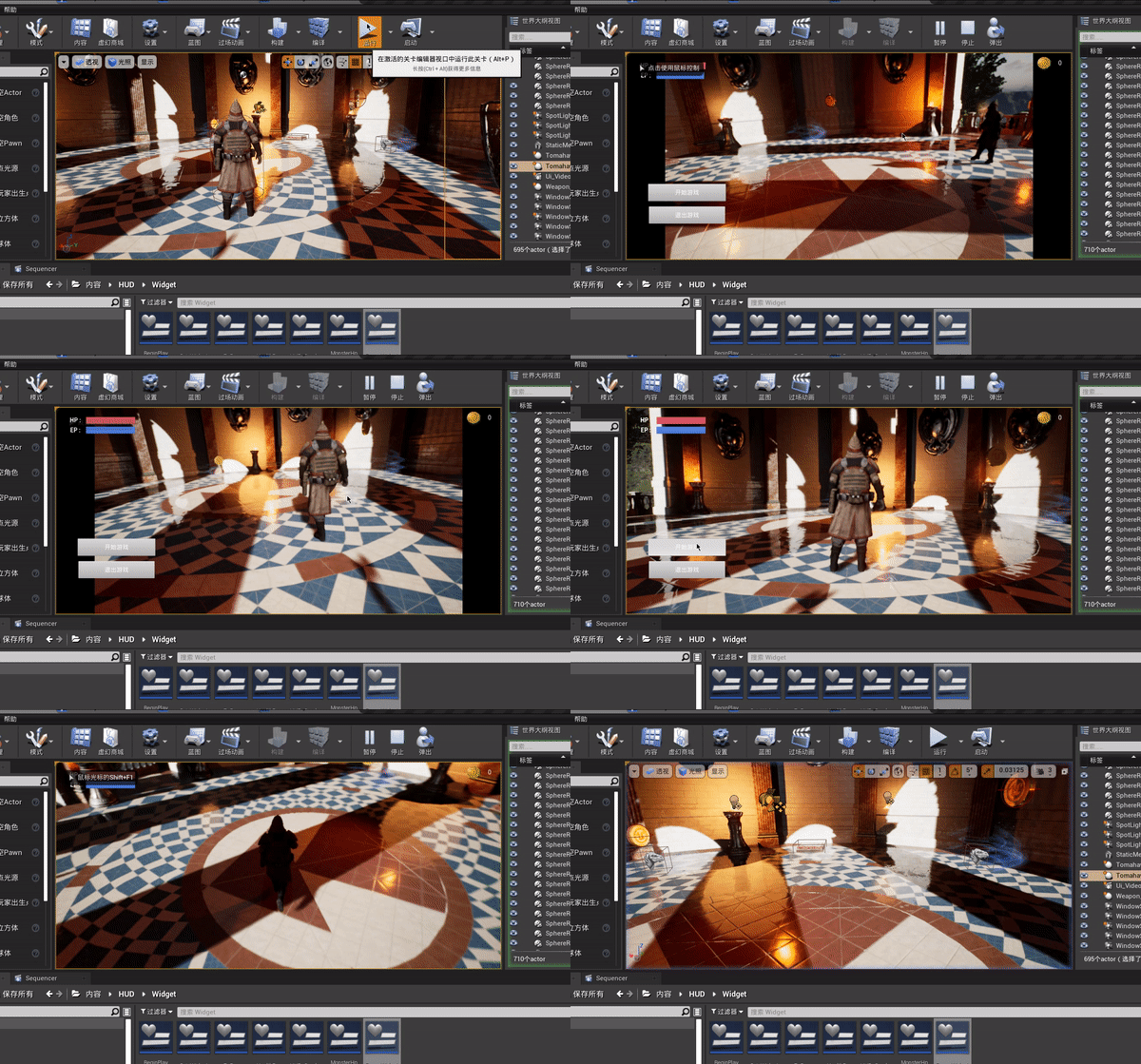
Some interesting functions currently involved
Currently, C++ development is the main focus.
-
Regarding the use and declaration of various components (UStaticMeshComponent, UCameraComponent, USphereComponent, UParticleSystemComponent...), they all need
CreateDefaultSubObject<class* T>(TEXT());To create a statement, you also need
SetupAttachment(GetComponent());To rely on the root component, it is worth noting that the collision component generally becomes the root component, namely:
RootComponent = CollisionComponent; -
Use and rewrite of Tick function and BeginPlay function, rewrite the general template
virtual T function() override; -
Some mechanisms for character control: inherit APawn / ACharacter to use functions
SetupPlayerInputComponent(UInputComponent* PlayerInputComponent); -
Box collision mechanism
void T::BeginPlay() {
/* trigger Box Bind Function */
   TriggerBox->OnComponentBeginOverlap.AddDynamic(this, &T::BeginOverlap);
   TriggerBox->OnComponentEndOverlap.AddDynamic(this, &T::EndOverlap);
}
Of course you also need to rewrite BeginOverlap and EndOverlap
UFUNCTION() void BeginOverlap(UPrimitiveComponent* OverlappedComponent, AActor* OtherActor, UPrimitiveComponent* OtherComp, int32 OtherBodyIndex, bool bFromSweep, const FHitResult& SweepResult); UFUNCTION() void EndOverlap(UPrimitiveComponent* OverlappedComponent, AActor* OtherActor, UPrimitiveComponent* OtherComp, int32 OtherBodyIndex); -
HUD window realizes what he added to the game window in my
MainPlayerController, and set him in the game modePlayer Controller Class. -
Animation blueprint inherit from
UAnimInstance, define a functionUFUNCTION(BlueprintCallable, Category = Animations) void UpdateAnimation();Write some action mechanisms in it so that there are judging criteria for switching between each action. Again, use the
Event Blueprint Update Animationto call it in the blueprint before. -
Weapon equipment is inherited from
AItem. I asked him to provide the most basic functions for new scene objects, such as particle effects and MeshComponent. We need to addSocketto the character skeleton in advance. This will become the slot for weapon insertion . We will define the corresponding bone control to load the weapon model/* *Weapon bone control */ UPROPERTY(EditAnywhere, BlueprintReadWrite, Category = "Skeletal") class USkeletalMeshComponent* SkeletalComponent;After creation, we insert the weapon into the slot
void AWeapon::equipWeapon(AMain* player) { /* *Ignore certain types of collisions */ SkeletalComponent->SetCollisionResponseToChannel(ECollisionChannel::ECC_Camera, ECollisionResponse::ECR_Ignore); SkeletalComponent->SetCollisionResponseToChannel(ECollisionChannel::ECC_Pawn, ECollisionResponse::ECR_Ignore); SkeletalComponent->SetSimulatePhysics(false); /* *Get a weapon slot */ const USkeletalMeshSocket* WeaponSocket = player->GetMesh()->GetSocketByName("WeaponSocket"); if (WeaponSocket) { /* *If the acquisition is successful, attach it to the slot */ WeaponSocket->AttachActor(this, player->GetMesh()); } } -
Montage animation summarizes the basic steps:
1. Create 2. Drag in the animation 3. Segmentation 4. Create slot:'combet'The next step is the setting of AnimInstance_BP. Then modify the state machine according to different standards. Regarding the definition and use of Montage in C++:
Define montage:
Then modify the state machine according to different standards. Regarding the definition and use of Montage in C++:
Define montage:UPROPERTY(EditAnywhere, BlueprintReadOnly, Category = "Anims") class UAnimMontage* CombatMontage;Call the animation of different fragments:
/* *Get examples of montage */ UAnimInstance* AnimInstance = this->GetMesh()->GetAnimInstance(); AnimInstance->Montage_Play(CombatMontage, 1.2f); AnimInstance->Montage_JumpToSection(FName("NAME"), CombatMontage); -
Ai follow/auto attack Use
blackboard + behavior tree + AIContorllerto realize AI's random finding point and see the player's chasing action. Create the variables you need in the blackboard. Variables are used to makeSelectorjudgments in the behavior tree. You need to change The variables of the blackboard are attached to differentSequencewith the attributeBothto implement differentTask(you need to go toNew Taskin the behavior tree). In AIController, you first need to set up the Ai Perception organAi PerceptionForAI Sight Config, then in Blueprint:

Finally, you only need to setAI Controller Class => AIControllerin Monster_BP to achieve the action you want. For the triggering of the attack action, I chose to set the box collision in C++ and created the enemy's emun state:UENUM(BlueprintType) enum class EMonsterState: uint8 { EMS_Ldle UMETA(DeplayName = "Ldle"), EMS_MoveToTarget UMETA(DeplayName = "MoveToPlayer"), EMS_Attacking UMETA(DeplayName = "Attack"), EMS_Default UMETA(DeplayName = "Default") };The collision box changes state:
if (OtherActor) { AMain* Player = Cast<AMain>(OtherActor); if (Player) { if (MonsterController) { bisOverlap = true; SetMonsterState(EMonsterState::EMS_Attacking); } } } -
Particle system, the particle system
ParticleSyetemis not the particle controlParticleSystemComponent. The difference between them is that the particle control will always be attached, while the particle system is triggered under a certain mechanism such as collision.... The code to play the particle control system is different: If it¡¯s a weapon model, most of them don¡¯t haveStaticMeshComponentbut onlySkeletalMeshComponent:const USkeletalMeshSocket* WeaponSocket = SkeletalComponent->GetSocketByName("WeaponSocket"); if (WeaponSocket) { FVector SocketLocation = WeaponSocket->GetSocketLocation(SkeletalComponent); UGameplayStatics::SpawnEmitterAtLocation(GetWorld(), monster->BleedParticles, SocketLocation, FRotator(0.f), false); }If it is a Monster model, I created a Socket in his hand to make him the place to trigger the particle system, because he comes with
StaticMeshComponent:const USkeletalMeshSocket* HandSocket = GetMesh()->GetSocketByName("BloodSocket"); //UE_LOG(LogTemp, Warning, TEXT(" Blood Socket Begin Blood! ")); if (HandSocket) { FVector SocketLocation = HandSocket->GetSocketLocation(GetMesh()); UGameplayStatics::SpawnEmitterAtLocation(GetWorld(), player->BloodParticles, SocketLocation, FRotator(0.f), false); }I also need to declare and define the former in the construction:
SkeletalComponent = CreateDefaultSubobject<USkeletalMeshComponent>(TEXT("Skeletal Mesh")); SkeletalComponent->SetupAttachment(GetRootComponent()); -
Transmission of attack damage. There are many ways to transmit damage from other characters, but ue4 gave us a set of our own ways of transmitting damage:
/* *Damage mechanism */
virtual float TakeDamage(float DamageTaken, struct FDamageEvent const& DamageEvent, AController* EventInstigator, AActor* DamageCauser) override;
You need to rewrite the
TackDamagefunction:float AMonster::TakeDamage(float DamageTaken, FDamageEvent const& DamageEvent, AController* EventInstigator, AActor* DamageCauser) { ReduceHp(DamageTaken); return DamageTaken; }When other characters have the function of causing damage to other characters: You need to create a
TSubclassOf<class T>This is the inherent template of ue4:TSubclassOf<UDamageType> DamageTypeClass;Then call him when causing damage to the character:
if (DamageTypeClass) {
  UGameplayStatics::ApplyDamage(monster, Attack_Power, nullptr, this, DamageTypeClass);
}
This will call
TackDamageof the character that received the damage. -
Show the enemy's health bar. This is relatively simple. First, create a HUD and then add it to the
PlayerControllerand display it in the window. The problem is how to display it directly above the enemy and have a reasonable size: We can obtain the enemy's coordinates and then continuously obtain new coordinates in theTickoverridden by the classPlayerController, and then convert them to the 2d coordinates of the screen for display:if (MonsterHpBar) { FVector2D ScreenPosition; /* *Convert 3d to screen 2d coordinates */ ProjectWorldLocationToScreen(showLocation, ScreenPosition); FVector2D ProgressBarSize(200.f, 25.f); MonsterHpBar->SetPositionInViewport(ScreenPosition); MonsterHpBar->SetDesiredSizeInViewport(ProgressBarSi
