
SimpleRecyclerView
Android RecyclerView 简化使用: 下拉刷新, 加载更多, 加载中/空数据/错误页面, 固定Header, 分割线, 点击监听, Item 动画, 分组显示 Title. (Android RecyclerView easy-to-use: Pull-To-Refresh, load more, Loading/Empty/Error View, sticky headers, divider, click listener, item animation, group display.)
Install / Use
/learn @xingda920813/SimpleRecyclerViewREADME
SimpleRecyclerView
<a href="https://996.icu"><img src="https://img.shields.io/badge/link-996.icu-red.svg"></a>
An enhancement to RecyclerView and SwipeRefreshLayout. Integrated with timehop/sticky-headers-recyclerview for sticky headers.
https://github.com/timehop/sticky-headers-recyclerview
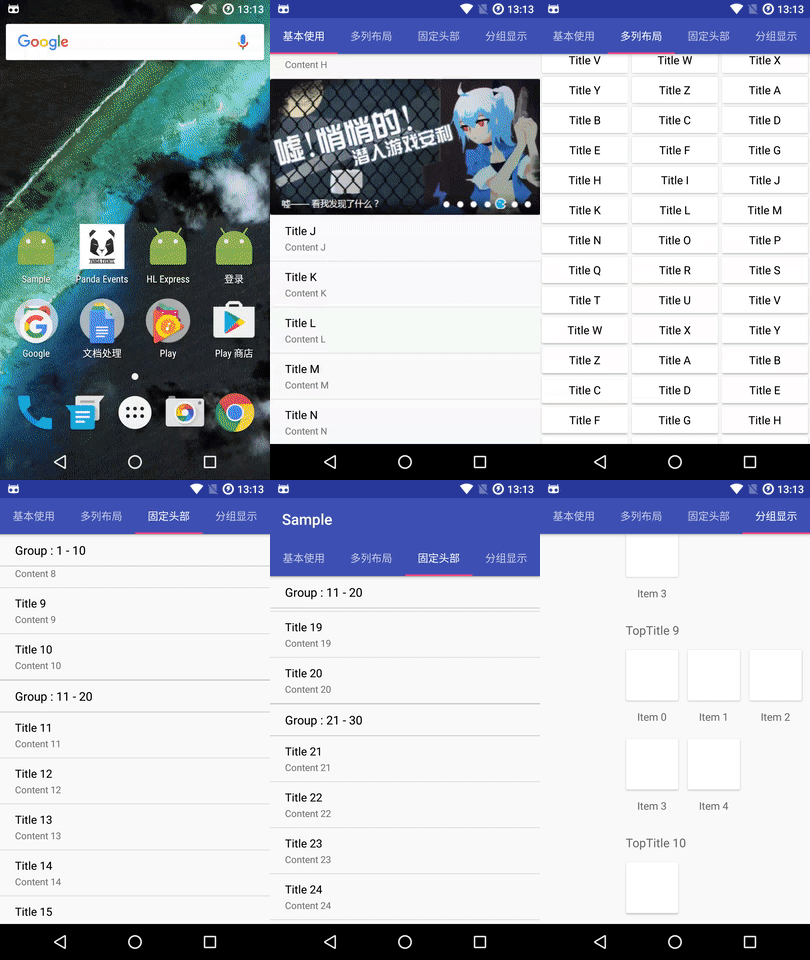
Main Characters:
1. Pull-To-Refresh
An enhancement to SwipeRefreshLayout in 2 aspects:
-
In some versions of android.support library, SwipeRefreshLayout has sliding conflict with AppbarLayout. When you pull down RecyclerView, SwipeRefreshLayout will appear instantly, preventing you from pulling down the list.
-
Now you can invoke setRefreshing(true) to show loading progress in onCreate() while the official's can not.
2.Load more
-
Automatically load more data when there are still ${THRESHOLD} items to the bottom (THRESHOLD customizable)
-
If user slides to the bottom and the loading process is still incomplete, the loading progress animation will be displayed.
-
LayoutManager irrelevant
-
2 indicator styles available: ProgressBar and SwipeRefreshLayout (The SwipeRefreshLayout style is independent of the Android version, with indicator color and background color Customizable. The ProgressBar style is dependent on the Android version. Its Material Design style is only available in API 21+.)
3.Loading View / Empty View / Error View
4.OnItemClickListener / OnItemLongClickListener
5.Sticky headers
- Supports any number of fixed header types
6.Item divider support
-
Customizable divider width and color
-
You can customize the length of the blank area on the left / top / right / bottom of the divider (divider will not draw in blank area)
-
Supports horizontal / vertical LinearLayoutManager
7.Item animation
- Material Design animation when initing RecyclerView, adding / modifying / deleting items
8.Support for group display
9.Get scrolled distance and distance to end
SimpleRecyclerView added 2 methods to get these distances;
Meanwhile, these two distances are passed as parameters in SimpleOnScrollListener.onScrolled.
//Scrolled distance (px)
int SimpleRecyclerView.getScrolledDistance();

//Distance to end (px)
int SimpleRecyclerView.getDistanceToEnd();

abstract class SimpleOnScrollListener extends RecyclerView.OnScrollListener {
  abstract void onScrollStateChanged(int scrolledDistance, int distanceToEnd, int newState);
  /**
  * @param scrolledDistance Scrolled distance (px)
  * @param distanceToEnd Distance to end (px)
  * @param velocity Current scroll velocity (positive or negative indicates the direction)
  */
  abstract void onScrolled(int scrolledDistance, int distanceToEnd, int velocity);
}
Import
1.Add binary
In build.gradle, add
compile 'com.xdandroid:simplerecyclerview:+'
2.Basic usage is the same as official RecyclerView and SwipeRefreshLayout
-
Simple* classes inherit from the official widgets
-
Please refer to the demo for usage
-
If you have multiple viewType (Adapter inherits com.xdandroid.simplerecyclerview.Adapter), The ways of setting data to Adapter are the same as RecyclerView.Adapter. You can pass the data set by the constructor, or you can create a method called setList or so, setting data set to the Adapter and refresh UI using notifyDataSetChanged().
-
If there is only one viewType (Adapter inherits SingleViewTypeAdapter<${JavaBean}>), the method of setting data list to Adapter is:
.
recyclerView.setAdapter(adapter);
void Adapter.setList(List<${JavaBean}> list);
3.Layout XML
<com.xdandroid.simplerecyclerview.SimpleSwipeRefreshLayout
    tools:context="com.xdandroid.sample.MainActivity"
    xmlns:android="http://schemas.android.com/apk/res/android"
    xmlns:app="http://schemas.android.com/apk/res-auto"
    xmlns:tools="http://schemas.android.com/tools"
    app:layout_behavior="@string/appbar_scrolling_view_behavior"
    tools:showIn="@layout/activity_main"
    android:layout_width="match_parent"
    android:layout_height="match_parent"
    android:id="@+id/swipe_container">

    <com.xdandroid.simplerecyclerview.SimpleRecyclerView
        android:layout_width="match_parent"
        android:layout_height="match_parent"
        android:id="@+id/recycler_view"/>

</com.xdandroid.simplerecyclerview.SimpleSwipeRefreshLayout>

<!--Empty View-->
<TextView
    android:layout_width="match_parent"
    android:layout_height="match_parent"
    android:id="@+id/empty_view"
    android:visibility="gone"/>

<!--Error View-->
<TextView
    android:layout_width="match_parent"
    android:layout_height="match_parent"
    android:id="@+id/error_view"
    android:visibility="gone"/>

<!--Loading View-->
<FrameLayout
    android:layout_width="match_parent"
    android:layout_height="match_parent"
    android:id="@+id/loading_view">

    <ProgressBar
        android:layout_width="wrap_content"
        android:layout_height="wrap_content"
        android:layout_gravity="center"
        android:layout_marginBottom="20dp"/>

    <TextView
        android:layout_width="wrap_content"
        android:layout_height="wrap_content"
        android:layout_gravity="center"
        android:text="Hello Loading View"
        android:layout_marginTop="20dp"
        android:textSize="20sp"
        android:textColor="@android:color/black"/>
</FrameLayout>
4. Define Adapter abstract class
4.1 When you only have one viewType, subclass SingleViewTypeAdapter<${JavaBean}>
-
Override onViewHolderCreate, corresponds to onCreateViewHolder in RecyclerView.Adapter
-
Override onViewHolderBind, corresponds to onBindViewHolder in RecyclerView.Adapter
-
Create ViewHolder
-
Override int getItemSpanSize(int position, int viewType, int spanCount) if you use GridLayoutManager
-
Do not override onLoadMore or hasMoreElements, instead implement them when instantiat Adapter in Activity / Fragment.
4.2 Multiple viewType, subclass Adapter
-
Override onViewHolderCreate, corresponds to onCreateViewHolder in RecyclerView.Adapter
-
Override onViewHolderBind, corresponds to onBindViewHolder in RecyclerView.Adapter
-
Override getViewType, corresponds to getItemViewType in RecyclerView.Adapter
-
Override getCount, corresponds to getItemCount in RecyclerView.Adapter
-
Create ViewHolder classes for each viewType
-
Override int getItemSpanSize(int position, int viewType, int spanCount) if you use GridLayoutManager
-
Do not override onLoadMore or hasMoreElements, instead implement them when instantiat Adapter in Activity / Fragment.
Pull-To-Refresh
Resolve a sliding conflict with AppbarLayout: Assign an id to AppBarLayout named "appbar" (android:id="@+id/appbar")
To automatically leave the height for Toolbar and prevent from being blocked by the Toolbar, add app:layout_behavior="@string/appbar_scrolling_view_behavior" to SwipeRefreshLayout or the layout under CoordinatorLayout.
Load more
Implement 2 methods when instantiate Adapter:
1. void onLoadMore(Void please_make_your_adapter_class_as_abstract_class) :
First self-increment pageIndex varible by one, then invoke API to get more data. After new piece of data is parsed:
For SingleViewTypeAdapter, Do NOT call List[E].addAll(Collection[? extends E]) on your data set, instead call void SingleViewTypeAdapter.addAll(List[E]) directly. SingleViewTypeAdapter will update the underlying data set automatically.
For Adapter, first update your data set using List[E].addAll(Collection[? extends E]), then call void Adapter.onAddedAll(int newDataSize) to notify Adapter that some data has been added to the data set.
2. boolean hasMoreElements(Void let_activity_or_fragment_implement_these_methods) :
Tell the Adapter whether there is more data to load.
if needed, you can call void Adapter.setLoadingFalse() to restore the status of not loading more.
Customize style:
adapter.setUseMaterialProgress(true, new int[]{getResources().getColor(R.color.colorAccent)});
When the first parameter (boolean useMaterialProgress) is true, SwipeRefreshLayout style is used, otherwise ProgressBar style is used. The second parameter (int[] colors) is available only if useMaterialProgress is true. You can pass an int[] in the method to set the color set of the loading indicator. If there are more than one color in the int[], the indicator will iterate the colors at the frequency of one color per turn.
adapter.setColorSchemeColors(new int[]{getResources().getColor(R.color.colorAccent)});
Call the method above to change the indicator color at any time.
progressView.setProgressBackgroundColor(Color.parseColor("#FAFAFA"));
Set the background color of indicator.
Set threshold: void Adapter.setThreshold(int threshold);
For GridLayoutManager:
GridLayoutManager gridLayoutManager = new GridLayoutManager(context,SPAN_SIZE);
gridLayoutManager.setSpanSizeLookup(adapter.getSpanSizeLookup(SPAN_SIZE));
recyclerView.setLayoutManager(gridLayoutManager);
Please refer to GridFragment and GridAdapter in the demo.
Loading View / Empty View / Error View
XML prepare (Please refer to Import - Layout XML)
-
Place the LoadingView in parallel with the SwipeRefreshLayout element.
-
Place the ErrorView / EmptyView in parallel with the S
Related Skills
node-connect
339.3kDiagnose OpenClaw node connection and pairing failures for Android, iOS, and macOS companion apps
frontend-design
83.9kCreate distinctive, production-grade frontend interfaces with high design quality. Use this skill when the user asks to build web components, pages, or applications. Generates creative, polished code that avoids generic AI aesthetics.
openai-whisper-api
339.3kTranscribe audio via OpenAI Audio Transcriptions API (Whisper).
commit-push-pr
83.9kCommit, push, and open a PR
