
Hidemyass
Use Raspberry Pi as gateway for Hide My Ass VPN
Install / Use
/learn @wizche/HidemyassREADME
Use Raspberry Pi as gateway for Hide My Ass VPN
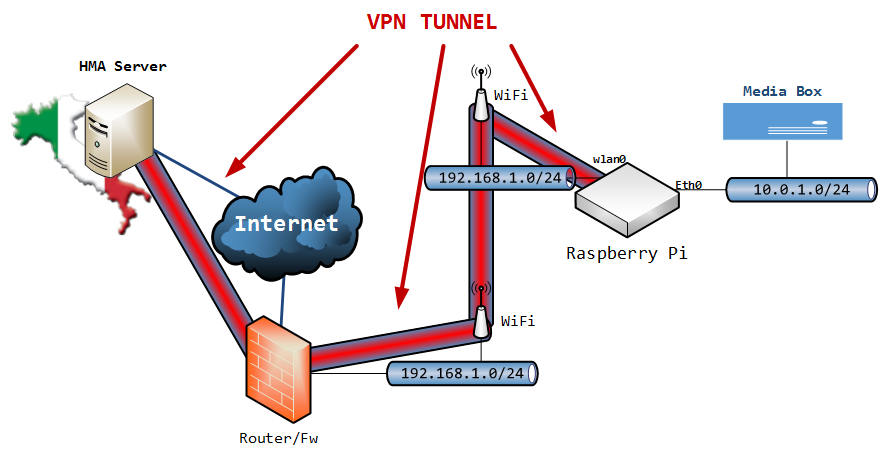
This project contains some bash scripts and a monitoring node.js application that allows the Raspberry Pi to act as a gateway and permit traffic from the wired interface (eth0, where you may connect your media-box) to the wireless interface (wlan0 -> Internet) only through a HideMyAss VPN tunnel.
The hma-vpn script in the config\ directory is based on the official script provided by HMA with a small modification to inject user/password through an authentication file.
The hma-service script in the config\ directory is used to start the VPN connection on startup (init.d service script).
It also add the NAT rules to translate traffic from eth0 to tun0 (vpn interface) and vice-versa.
This scripts also implement a switch [ip] command that is used from the node.js application to switch the VPN server.
The forever_start.sh script in the config\ directory uses forever to start the monitoring application at boot. (add it to rc.local)
Management Application
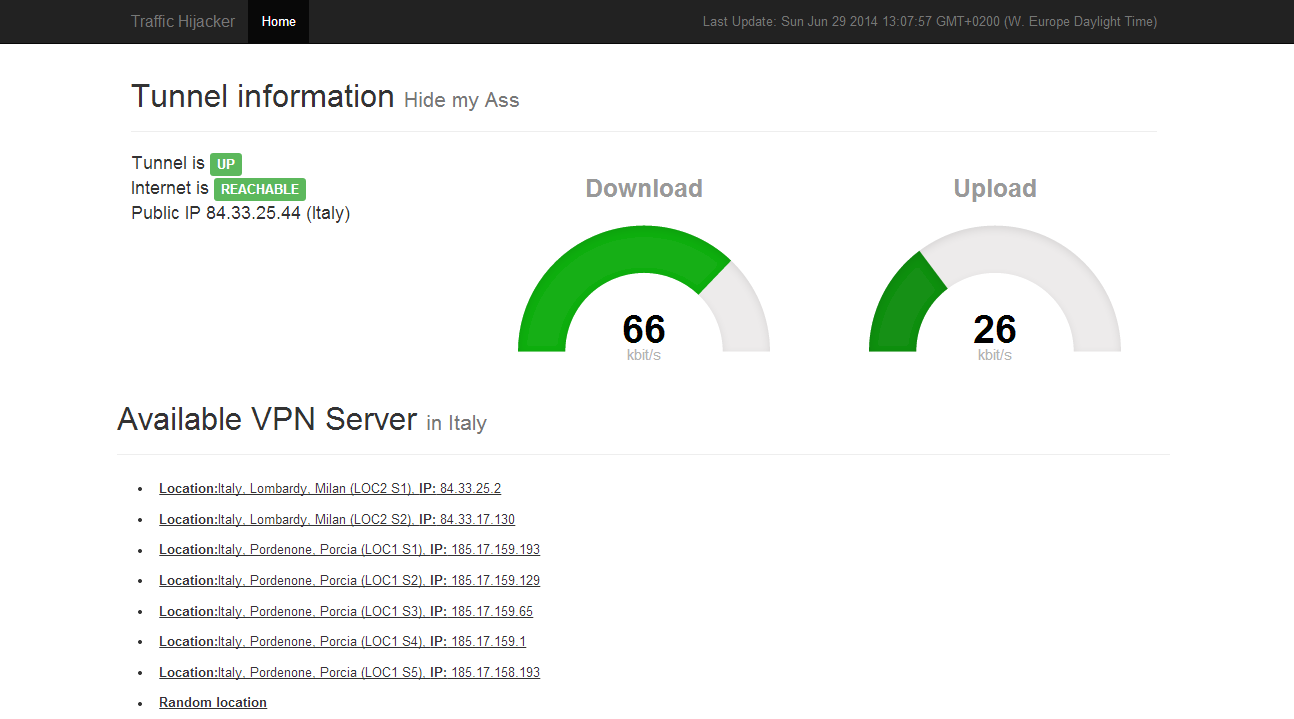
Through the management application you can have a glance on the current VPN tunnel with network usage statistics. Furthermore you can change the VPN server directly from the application just by clicking on the desired server from the list.
Remark: The list of available server is filtered, client-side, to display only HMA servers in Italy.
Setup
- Download the repository somewhere on the Raspberry Pi
- Copy
config\hma-serviceto the/etc/init.d/directory (add the executable permission#chmod +x hma-serviceif needed) - Adjust the default gateway IP in the
hma-servicefile to match yours - Copy
config\hma-vpnsomewhere and add it to the PATH (or create a symbolic link to it#ln -s /bin/hma-vpn config\hma-vpn) - Add the
forever_start.shscript to/etc/rc.local - Add you HMA credentials to the
config\auth.txtfile - Adjust the path to the
auth.txtfile inhma-vpnscript by replacing the sed pattern with the correct one (in this case was/opt/pisky/config/auth.txt) - Install node.js dependencies with
#npm install - Adjust the web-socket URL in the
index.ejsfile (io.connect('http://localhost');) to match your Raspberry IP address - Start the VPN connection with
#/etc/init.d/hma-service start - Start the node.js application with the
#config\forever_start.shcommand - Open the browser and navigate to
http://rasberry-ip/
Demo (Video)
Related Skills
node-connect
349.9kDiagnose OpenClaw node connection and pairing failures for Android, iOS, and macOS companion apps
frontend-design
109.8kCreate distinctive, production-grade frontend interfaces with high design quality. Use this skill when the user asks to build web components, pages, or applications. Generates creative, polished code that avoids generic AI aesthetics.
openai-whisper-api
349.9kTranscribe audio via OpenAI Audio Transcriptions API (Whisper).
qqbot-media
349.9kQQBot 富媒体收发能力。使用 <qqmedia> 标签,系统根据文件扩展名自动识别类型(图片/语音/视频/文件)。
