
Subtitles
Add subtitles into your WordPress posts, pages, custom post types, and themes. No coding required. Simply activate Subtitles and you're ready to go.
Install / Use
/learn @wecobble/SubtitlesREADME
Subtitles WordPress Plugin



Add subtitles into your WordPress posts, pages, custom post types, and themes. No coding required. Simply activate Subtitles and you're ready to go.
Right now WordPress currently presents no easy way for web publishers to add subtitles into their posts, pages, and other custom post types. This leaves users and developers in a bit of a quandary, trying to figure out how best to present subtitles in a beautiful and sensible way. Post excerpts are a very poor choice for subtitles and the only available option outside of custom fields, but custom fields aren't entirely self-explanatory or user-friendly. This simple, straightforward plugin aims to solve this issue.
Simply download Subtitles, activate it, and begin adding subtitles into your posts and pages today. For more advanced usage of the plugin, please see the Frequently Asked Questions.
If you like Subtitles, thank us with coffee :coffee:. If you find it buggy, tell us on GitHub :beetle:. And if you have a cool example of how you're using Subtitles on your website, let us know on Twitter :bird:.
Installation
By default the Subtitles plugin just works. All you should need to do in order to begin using it is activate the plugin and begin adding subtitles into your posts, pages, and Subtitles-enabled custom post types.
There are no custom template tags to add into your theme and, outside of advanced use, there is nothing you need to do to your theme in order to begin using this plugin.
What follows are instructions on how to install the plugin and get it working.
Using The WordPress Dashboard (Recommended)
- Navigate to Plugins → Add New from within the WordPress Dashboard.
- Search for
subtitles. - Click Install Now on Subtitles by We Cobble.
- Activate the plugin.
Uploading in WordPress Dashboard
- Navigate to Plugins → Add New from within the WordPress Dashboard.
- Click on the Upload link underneath the Install Plugins page title.
- Click the Browse... button and choose
subtitles.zipin its download location on your computer. - Click the Install Now button.
- Activate the plugin.
Using FTP (Not Recommended)
- Download
subtitles.zip. - Extract the
subtitlesdirectory to your computer. - Upload the
subtitlesdirectory to your/wp-content/plugins/directory. - Navigate to Plugins → Installed Plugins and activate the plugin.
Frequently Asked Questions
There are two types of questions that are anticipated: user questions and developer questions. I'll address the user questions first, and then dive into more detailed information about customizing Subtitles.
How to Use Subtitles
Subtitles lets you easily add subtitles into your WordPress posts, pages, custom post types, and themes.
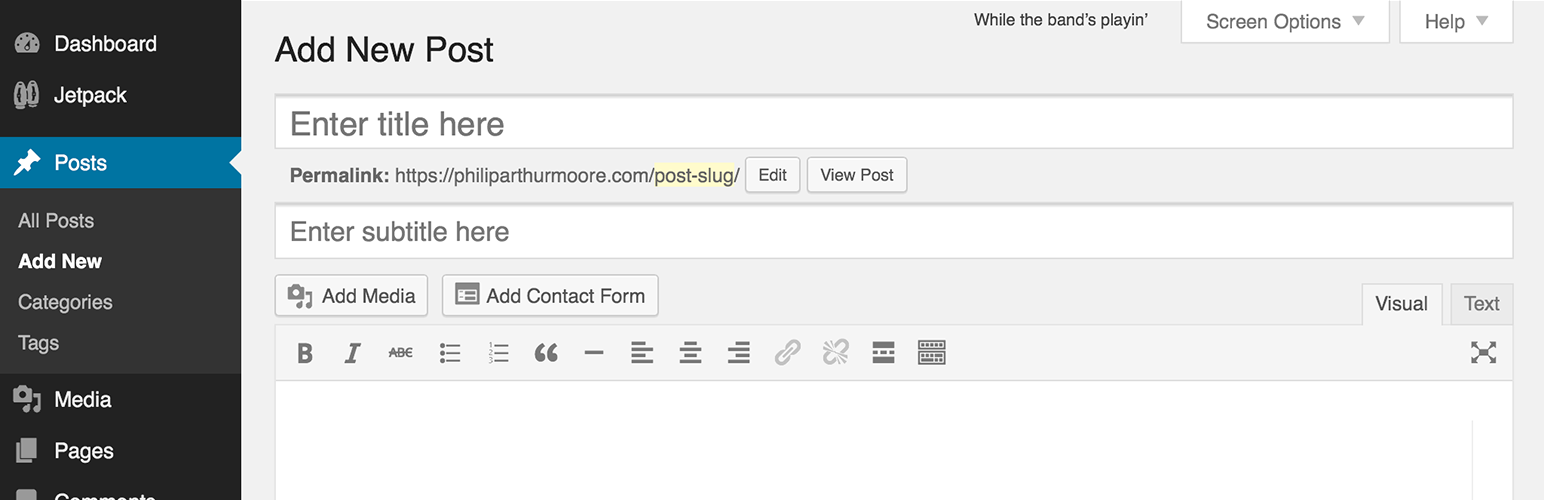
After plugin activation, you should see an input field labeled Enter subtitle here immediately under your Enter title here input field. After adding a subtitle into your post, simply hit publish and then view your post. There's nothing else to do.
Uninstalling Subtitles
When you uninstall Subtitles, nothing will happen to your subtitles post meta. They'll still be retained in your database, so if you ever decide to use Subtitles again, you'll be able to activate the plugin and have your subtitles show up. In a future release, there may be the option to clean subtitles out of your database, but it didn't make the cut for the initial release, and auto-deleting the data on uninstallation would have been a bad move, as subtitles are non-trivial post meta.
Subtitles Doesn't Work!
There are two primary issues that may cause users to think that Subtitles doesn't work: 1) no subtitles show on the site or 2) weird HTML begins to appear around titles on a site. We will address both of those here.
Subtitles Don't Show Up On My Site!
Subtitles relies on two things to work properly: 1) the_title being present in your theme and 2) the WordPress Loop. This plugin works by automatically filtering all appropriate post titles so that you are not put in the position of needing to open your theme files manually and using the custom template tags that are available in this plugin.
Some themes use titles outside of the standard WordPress Loop, which means that Subtitles won't touch those. If you would like to use subtitles in a non-standard area of your site, outside of the Loop, then you can either change the views that are supported by the plugin or manually use the template tags that are available to you in this plugin.
The reason this approach has been taken is because if titles outside of the Loop were touched so liberally, you would end up seeing subtitles in places on your site that you wouldn't want them, like in sidebars, navigation menus, and admin screens.
There's Weird HTML Showing Up On My Site!
I can almost guarantee that the reason this is happening is because your theme developer is using either the_title or get_the_title in places where they should not be used. This is a theme bug, not a plugin bug. When titles are used as attributes, the appropriate template tag to use is the_title_attribute, never the_title.
Please see these long threads as examples of what happens when themes conflict with Subtitles.
SEO
Will Subtitles ruin your SEO? That's a fair question. The answer is no. We've made a note of exactly why <spans> are the default wrappers for subtitles in the inline developer docs for the plugin, which I'll reiterate here:
 * 4. Visually, we have made a major assumption that subtitles belong immediately after titles. The very
 *    definition of a subtitle is that it is a subordinate title of a published work that often gives
 *    explanatory details about the immediately preceeding title. It's for this reason that we've chosen
 *    to filter the output of the_title() with the expectation that post titles will be wrapped in
 *    primary heading (h1) tags. So post titles will be H1, while their subtitles will be spans.
 *    Multiple H1 tags in the HTML5 age are okay.
 * 5. The reason that <spans> are being used is because HTML does not have a dedicated mechanism for
 *    marking up subheadings, alternative titles, or taglines. There are suggested alternatives from
 *    the World Wide Web Consortium (W3C); among them are spans, which work well for what we're trying
 *    to do with titles in WordPress. See the linked documentation for more information.
 *    @link http://www.w3.org/html/wg/drafts/html/master/common-idioms.html#sub-head
If you're worried about SEO and the markup of Subtitles, then roll your own markup.
Front-End Performance
As of version 2.0.0, Subtitles outputs its CSS via wp_head. This is to load sensible CSS that will ensure your subtitle is always scaled properly alongside your website title and never shown in comment areas.
/**
 * Plugin Name: Subtitles
 * Plugin URI: http://wordpress.org/plugins/subtitles/
 * Description: Easily add subtitles into your WordPress posts, pages, custom post types, and themes.
 * Author: We Cobble
 * Author URI: https://wecobble.com/
 * Version: 2.1.1
 * License: GNU General Public License v2 or later
 * License URI: http://www.gnu.org/licenses/gpl-2.0.html
 */

/**
 * Be explicit about this styling only applying to spans,
 * since that's the default markup that's returned by
 * Subtitles. If a developer overrides the default subtitles
 * markup with another element or class, we don't want to stomp
 * on that.
 *
 * @since 1.0.0
 */
span.entry-subtitle {
	display: block; /* Put subtitles on their own line by default. */
	font-size: 0.53333333333333em; /* Sensible scaling. It's assumed that post titles will be wrapped in heading tags. */
}
/**
 * If subtitles are shown in comment areas, we'll hide them by default.
 *
 * @since 1.0.5
 */
#comments .comments-title span.entry-subtitle {
	display: none;
}
If you'd like to remove this additional CSS, then simply add a similar function to the following in your plugin or theme's primary setup file:
if ( class_exists( 'Subtitles' ) && method_exists( 'Subtitles', 'subtitle_styling' ) ) {
	remove_action( 'wp_head', array( Subtitles::getInstance(), 'subtitle_styling' ) );
}
After doing this, no styling should be loaded on the front end of your site and you'll need to style subtitles using your own CSS.
Adding Subtitles Support into Custom Post Types
If you'd like to add Subtitles supp
