
ExplorerTabUtility
🚀 Supercharge Windows 11's File Explorer: Auto-convert windows to tabs, duplicate tabs, reopen closed ones, and more!
Install / Use
/learn @w4po/ExplorerTabUtilityREADME
Explorer Tab Utility
<div align="center"> <img src="https://cdn.jsdelivr.net/gh/w4po/ExplorerTabUtility@master/Assets/ExplorerTabUtilityLogo.gif" alt="Explorer Tab Utility Logo">[!TIP] Force new File Explorer windows to open as tabs in Windows 11, making your workflow cleaner and more organized!




[!IMPORTANT] This application requires Windows 11 (22H2 Build 22621 or later) with the File Explorer Tabs feature.
🤔 Why Explorer Tab Utility?
<div align="center"> <img src="https://cdn.jsdelivr.net/gh/w4po/ExplorerTabUtility@master/Assets/TheWhy.png" alt="Why use Explorer Tab Utility"> </div>Say goodbye to cluttered desktops with multiple Explorer windows! Explorer Tab Utility automatically converts new windows into tabs, providing a cleaner and more organized file management experience.
✨ Features
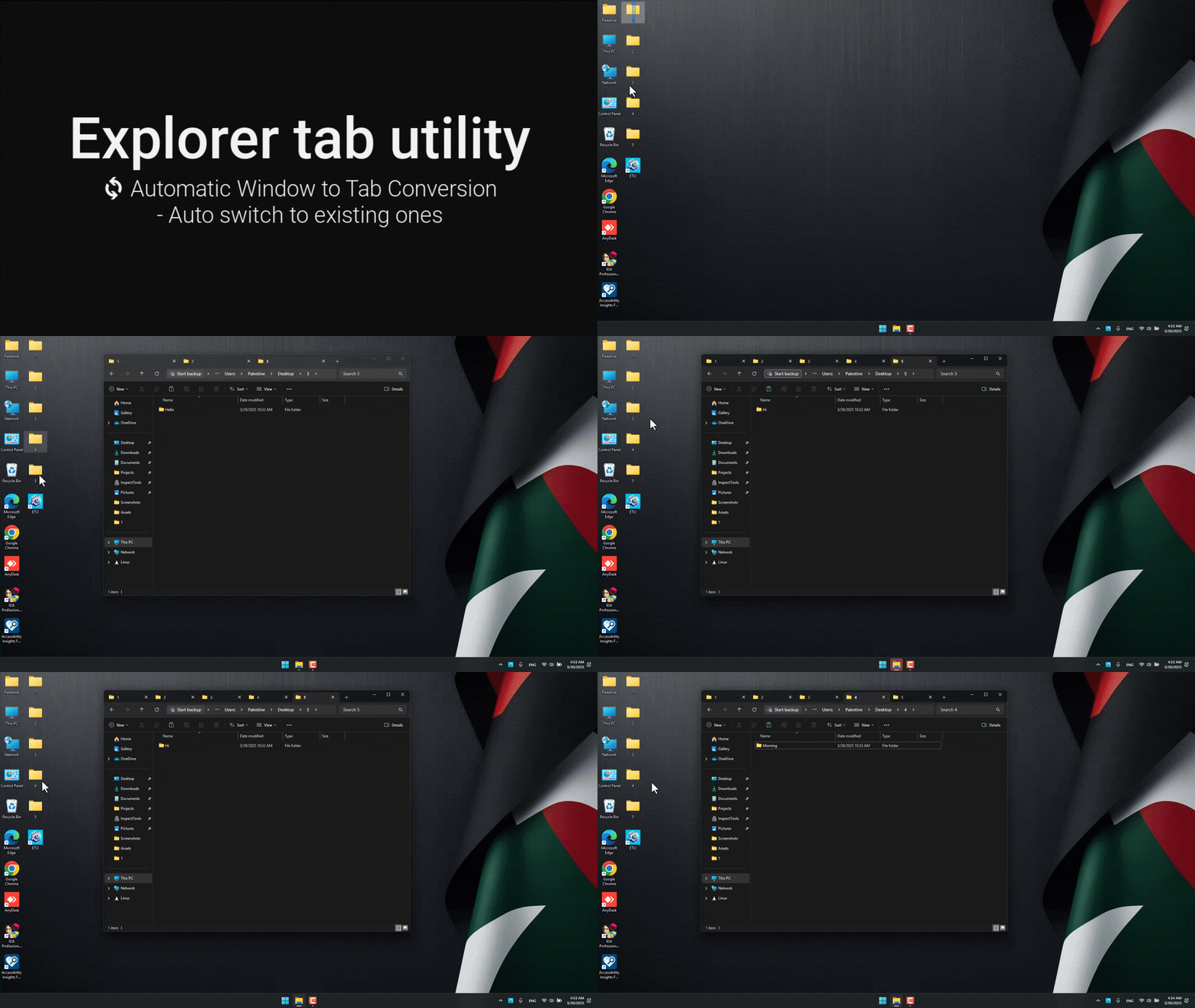
<details> <summary>🔄 Automatic Window to Tab Conversion</summary>- Seamlessly converts new Explorer windows into tabs
- Switches to existing tabs if path is already opened
- Supports virtual desktop switching with a hotkey
- Supports attaching/detaching tabs
- Handles "Show in folder" file selection elegantly
- Handles opening multiple tabs at once
See it in action:
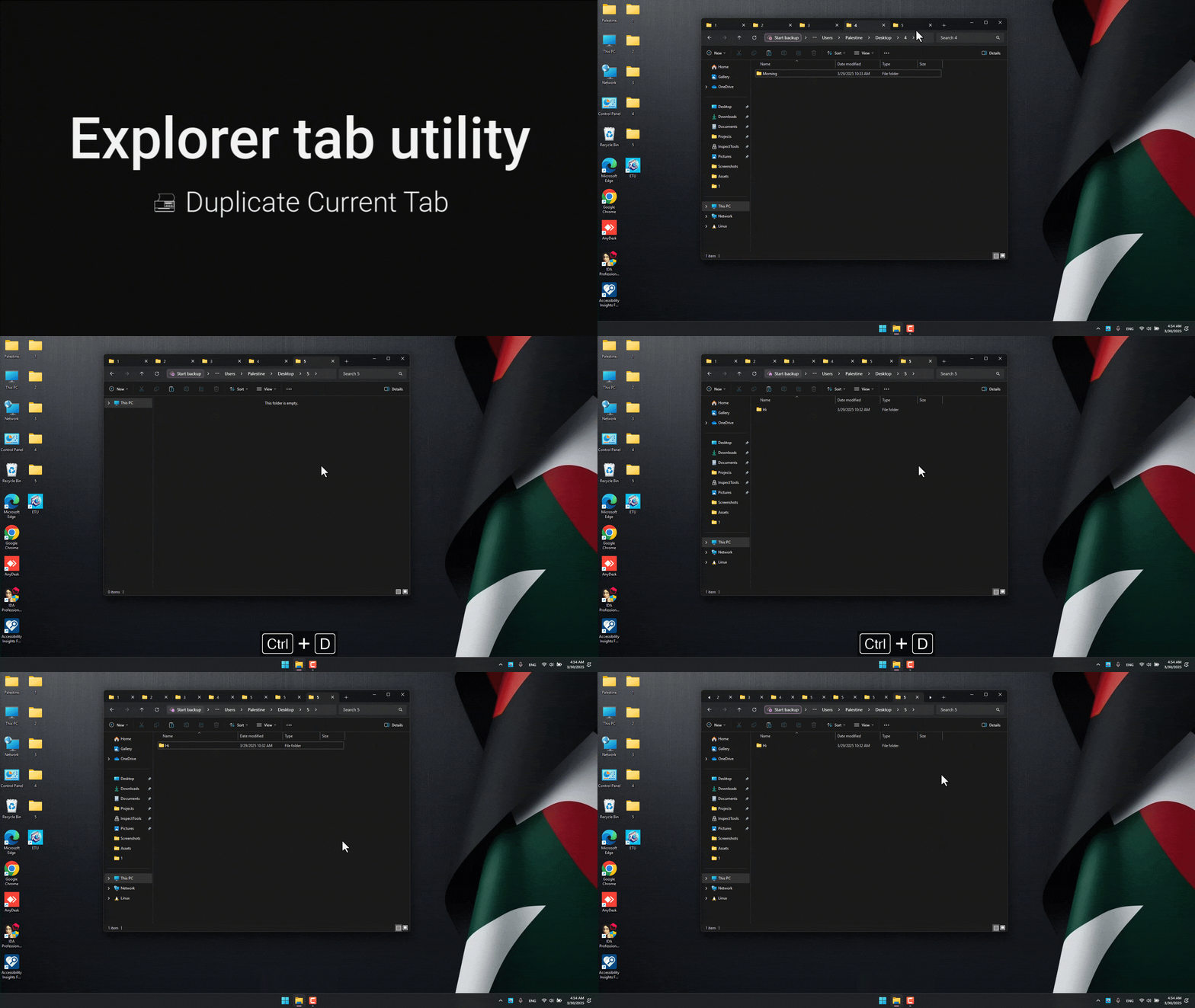
- Quickly duplicate the current tab/window
- Choose whether to duplicate as a tab or new window (toggle
Taboption) - Preserves the current location and selected items
See it in action:
- Reopen previously closed tabs/windows
- Choose whether to reopen as a tab or new window (toggle
Taboption) - Restores the exact location and selected items
- History is saved across application restarts (enable "Save closed history" in settings)
See it in action:

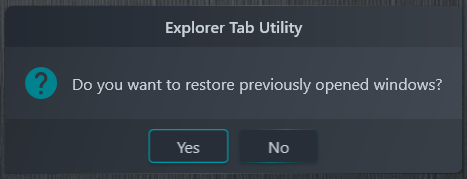
- Automatically restore previously opened windows if File-Explorer restart/crash or system reboot
- Configurable via "Restore previous windows" setting
- Confirmation dialog allows you to choose whether to restore windows on first launch
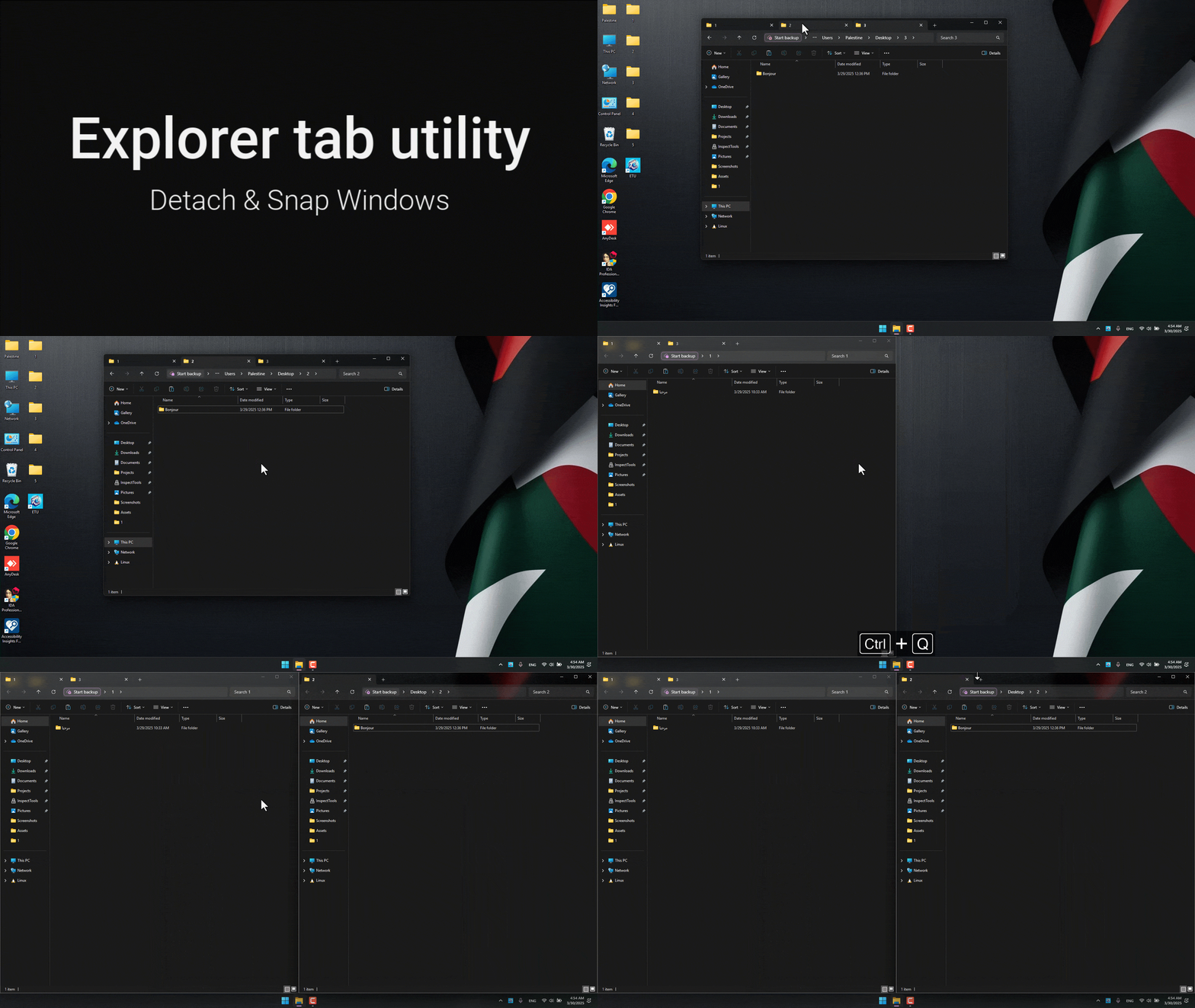
- Detach current tab to a new window
- Snap windows to screen edges (right/left/top/bottom)
- Chain multiple actions with a single hotkey
- Example setup (CTRL + Q):
- First profile: Detach current tab
- Second profile: Snap original window to the left
- Third profile: Snap new window to the right (with customizable delay)
- Customize delays to match your system's performance
See it in action:
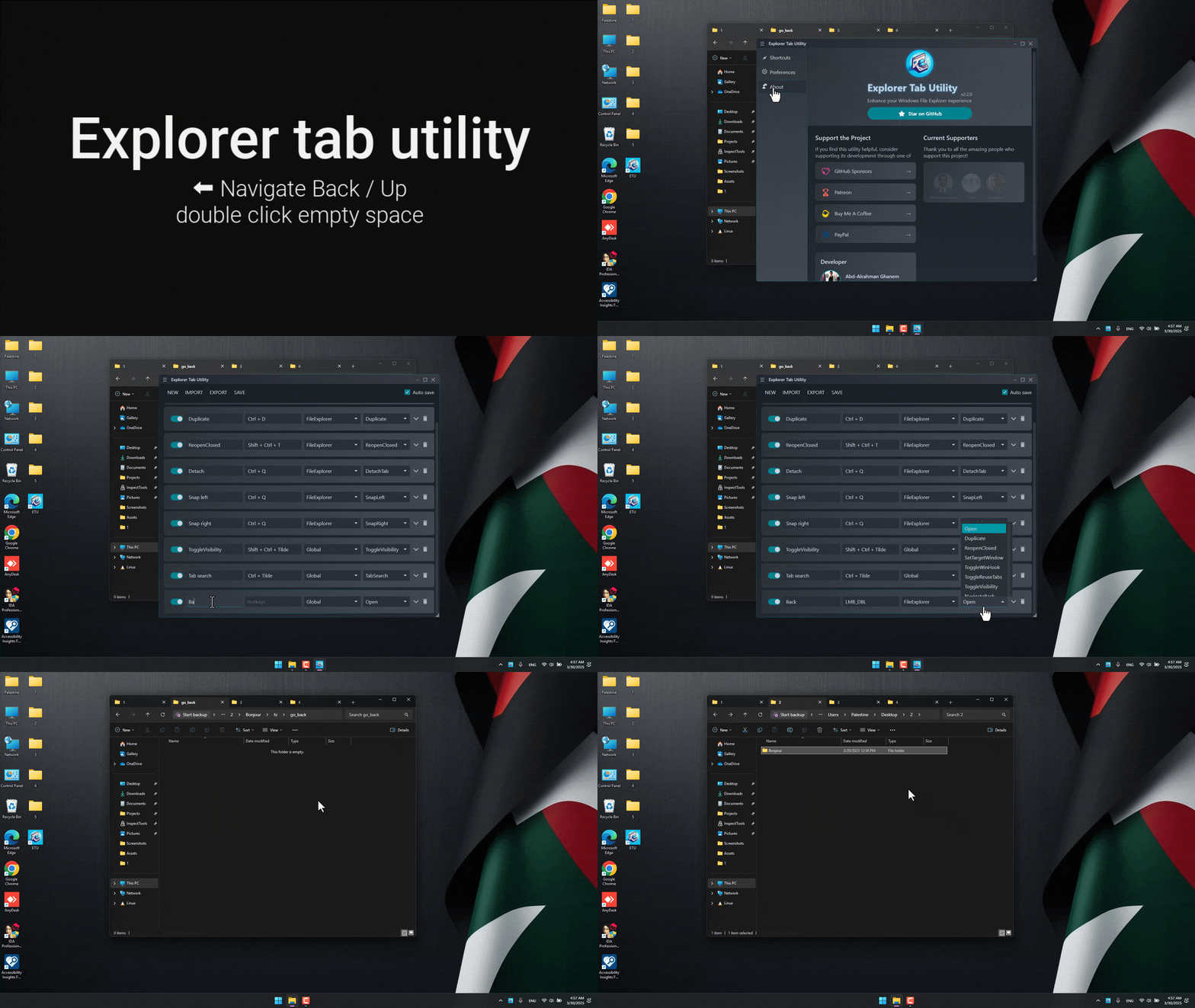
- Navigate back/forward/up in File Explorer using:
- Keyboard shortcuts (customizable)
- Mouse clicks on any empty space in the folder
- Perfect for quick navigation between directories
See it in action:
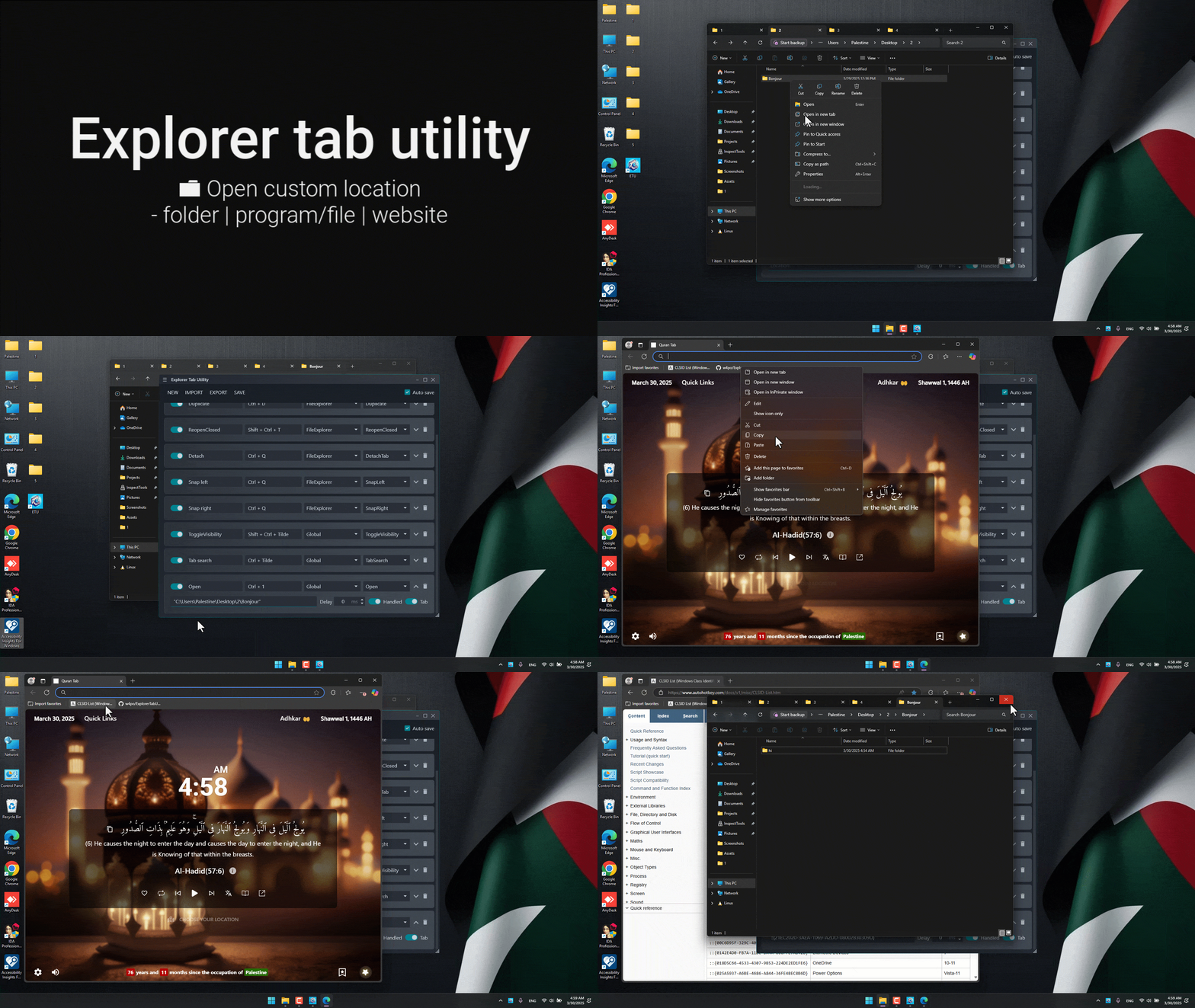
- Assign hotkeys to quickly open your favorite locations
- Choose whether to open as a tab or new window (toggle
Taboption) - Supports multiple formats:
- Standard paths:
C:\Users\Documents - Environment variables:
%USERPROFILE%\Downloads - Windows CLSID paths:
{A8CDFF1C-4878-43be-B5FD-F8091C1C60D0}(Special Folders) - Programs and files:
C:\file.txt - URLs:
https://github.com/w4po/ExplorerTabUtility(opens in default browser)
- Standard paths:
- Perfect for frequently accessed locations
- Instant access to system folders using CLSIDs
See it in action:
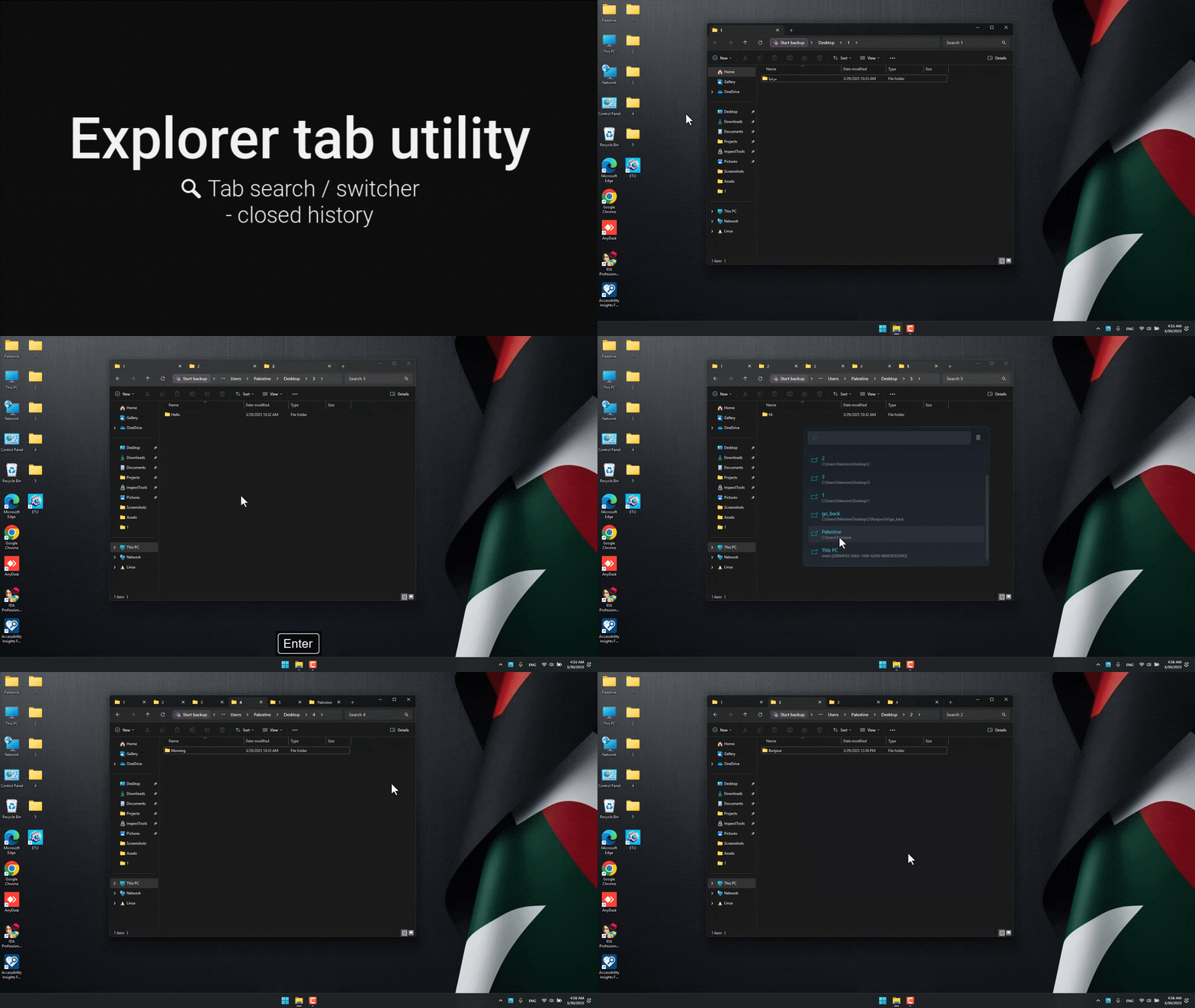
- Quickly find and switch between open Explorer tabs/windows
- Search by typing part of a folder name or path
- Keyboard navigation with up/down arrows and Enter to select
- Special modifiers for different actions:
- Default: Switch to existing tab or open location in a new tab
- SHIFT key: Open selected location in a new window instead of a tab
- CTRL key: Duplicate the tab even if it already exists
- Clear recently closed windows history with a single click
- Hold Ctrl+Shift while opening a location to force it to open as a new window
- Temporarily overrides the window hook and tab reuse settings
- Perfect for when you need a separate window without disabling the tab functionality
- Lightweight and resource-efficient
- Fast and responsive tab creation
- Stable COM-based implementation
- Reliable window state management
🚀 Getting Started
-
Download the latest version from the Releases page or install it via
wingetorchoco:winget install w4po.ExplorerTabUtility --interactivechoco install explorertabutility --version 2.5.0 --params "/interactive" -
Run the application
-
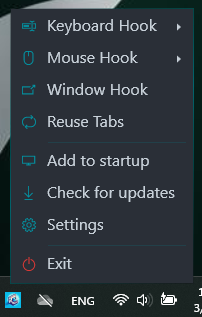
Look for the tray icon and you're ready to go!
⚙️ Configuration
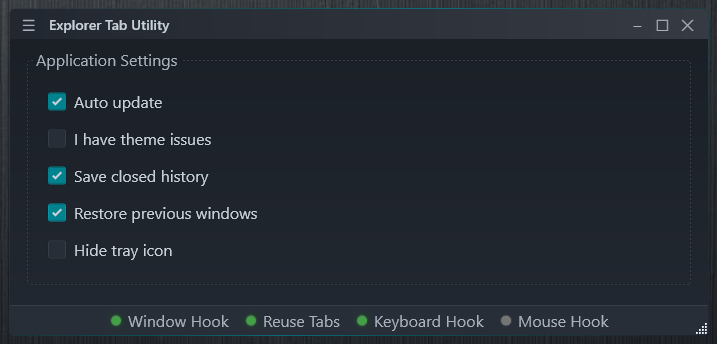
<details> <summary>🔧 General Settings</summary>[!NOTE] The application runs in the system tray minimized by default. To configure it, double-click or right-click the tray icon.
- Window Hook: Enable/disable automatic window-to-tab conversion
- Reuse Tabs: Switch to existing tabs instead of opening duplicates
- Keyboard Hook: Enable/disable keyboard shortcuts
- Mouse Hook: Enable/disable mouse navigation features
- Startup: Configure automatic startup with Windows
- Settings Persistence:
- Your settings are stored in a JSON file located in your AppData folder:
If you need to reset to default settings, simply delete the settings.json file.%APPDATA%\ExplorerTabUtility\settings.json
- Auto update: Automatically check for updates on startup to ensure you're always using the latest version
- I have theme issues: Use an alternative window hiding method that preserves your custom File Explorer theme. Enable this if you experience theme-related issues
- Save closed history: Save recently closed windows for reopening later (ReopenClosed, Tab Search)
- Restore previous windows: Restore previously opened windows after restart or crash
- Hide tray icon: Hide the system tray icon for a cleaner taskbar experience.
- You must first configure a hotkey with the
ToggleVisibilityaction before enabling this option
- You must first configure a hotkey with the
Profile Options
- Create new profiles
- Import profiles from file
- Export profiles to file
- Enable/disable individual profiles
Profile Settings
Each profile contains the following settings:
-
Basic Configuration
- Hotkey: Set keyboard shortcut (supports modifier keys)
- Scope: Global (system-wide) or Explorer (only in File Explorer)
- Action Type:
Open: Open a specific locationDuplicate: Duplicate the current tabReopenClosed: Reopen the last closed locationTabSearch: Open the tab search/switcher popupNavigateBack: Navigate back in the current tabNavigateForward: Navigate forward in the current tabNavigateUp: Navigate up one directory levelSetTargetWindow: Mark the current window as the target for new tabsToggleWinHook: Toggle the window hook on/offToggleReuseTabs: Toggle tab reuse on/offToggleVisibility: Show/hide the main windowDetachTab: Detach the current tab to a new windowSnap: Snap the current window to the screen edges (right/left/top/bottom)
- Path Field (for
Openaction)- Optional: Leave empty to open new tab
- Supports multiple path formats (see Custom Path Navigation section)
-
Advanced Settings
- Execution Delay: Slider to set delay before action execution
- Key Handling: Toggle whether hotkeys are passed to other applications
- Profile Deletion: Remove unwanted profiles
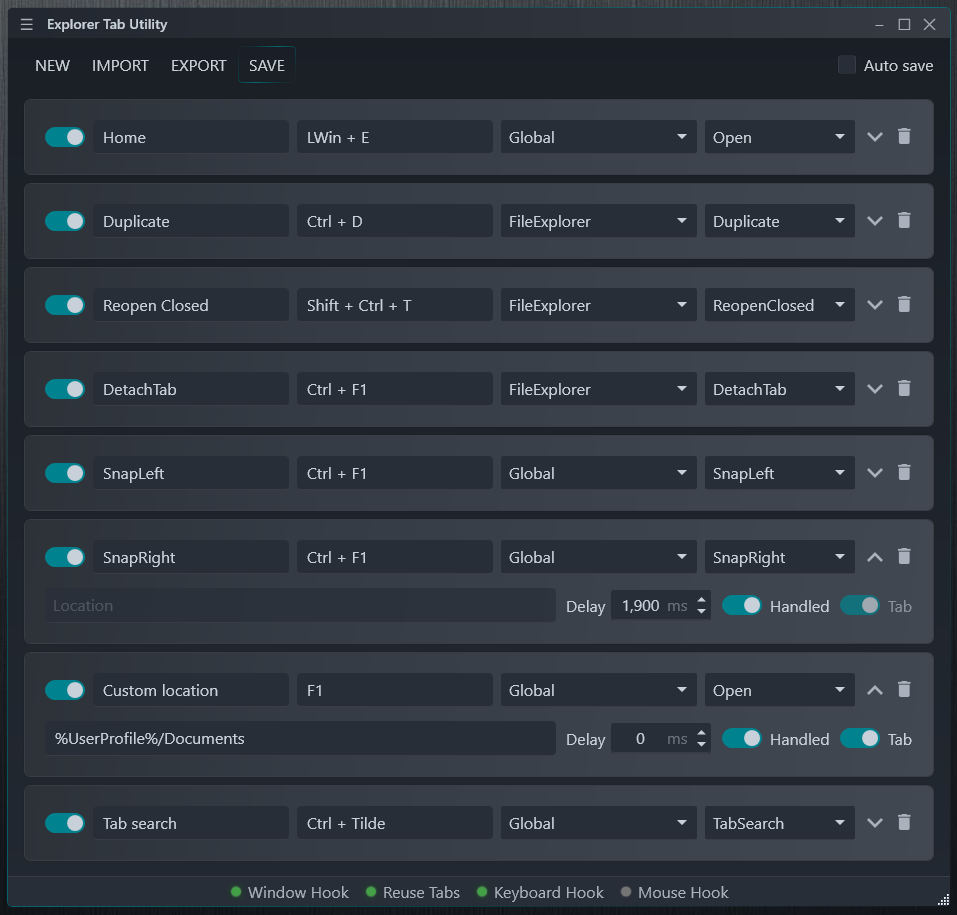
[!TIP] Use the "Handled" toggle to prevent or allow hotkey propagation to other applications that might be listening for the same key combination.
[!NOTE] The
SetTargetWindowaction lets you choose which Explorer window will receive new tabs. This is useful when you have multiple Explorer windows open or working on different virtual deskt
Related Skills
node-connect
340.2kDiagnose OpenClaw node connection and pairing failures for Android, iOS, and macOS companion apps
frontend-design
84.1kCreate distinctive, production-grade frontend interfaces with high design quality. Use this skill when the user asks to build web components, pages, or applications. Generates creative, polished code that avoids generic AI aesthetics.
openai-whisper-api
340.2kTranscribe audio via OpenAI Audio Transcriptions API (Whisper).
commit-push-pr
84.1kCommit, push, and open a PR
