
Taskopy
Python scripting platform for Windows with hotkeys, tray menu, HTTP-server and many more
Install / Use
/learn @vikilpet/TaskopyREADME
Taskopy
Platform for running Python-based scripts on Windows with hotkeys, tray menu, HTTP server and many more.
<p align="center"> <img src="https://i6.imageban.ru/out/2019/07/04/a6f6538a80bc7a62ab06ce5cea295a93.png"> </p> <!--- 2020.07.19 --> Run your python code with hotkey or by HTTP-request just like that:def my_task(hotkey='ctrl+shift+t', http=True):
print('This is my code!')
Then press Ctrl+Shift+T or open in browser URL http://127.0.0.1:8275/my_task and your task will be executed.
Another example: show message box every day at 10:30 and hide this task from menu:
def my_another_task(every='day 10:30', menu=False):
	dialog('Take the pills')
An example using the extension for Firefox:
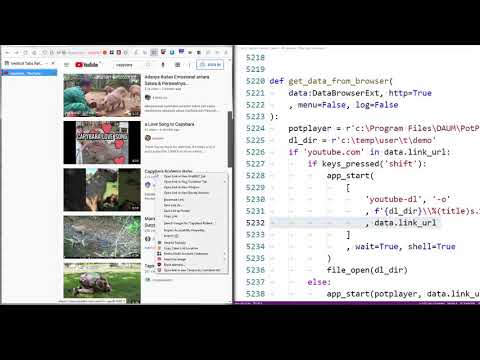
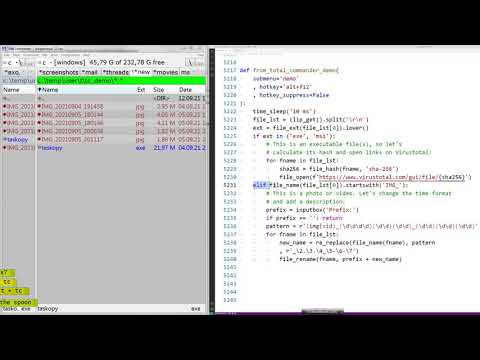
Use with Total Commander:
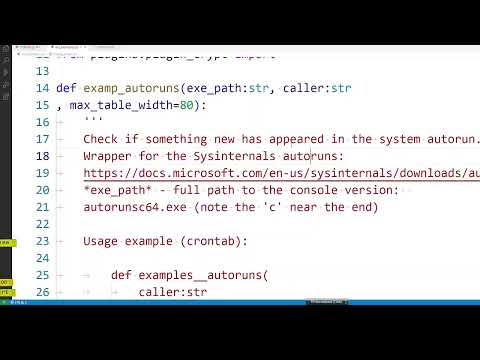
Tracking changes in the Windows startup:
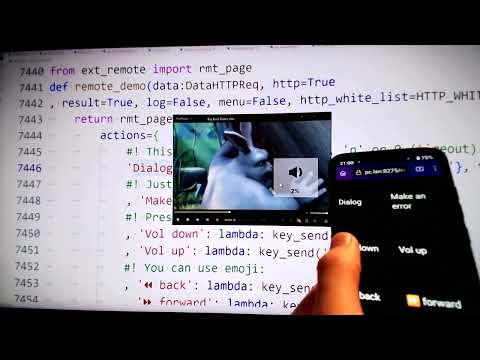
Remote control:
Telegram chat: https://t.me/taskopy_g
Contents
- Installation
- Usage
- Task options
- Settings
- Keywords
- Tips and tricks
- Firefox extension
- Context menu
- Help me
- Task examples
Installation
Option 1: binary file
Requirements: Windows 7 and above. You can download archive with binary release.
Option 2: Python
Requirements: Python > 3.7; Windows 7 and above.
Download project, install requirements:
pip install -r requirements.txt
Note 1: wxPython requires Pillow, but Pillow > 9.5.0 no longer includes 32-bit wheels so install 9.5.0:
pip install Pillow==9.5.0
Note 2: the cryptography module version 42.0.8 is used for compatibility with Windows 7
Create a shortcut taskopy.py in the user's startup folder with the built-in Add to startup task.
Usage
Open crontab.py in your favorite text editor and create your task as function with arguments:
def demo_task_3('left_click'=True, log=False):
	proc_start('calc.exe')
Then right click on tray icon and choose Reload crontab and your task is ready.
Task options
This is what you need to put in round brackets in task (function). It is not actual arguments for function.
Format: option name (default value) — description.
-
date (None) - date and time for the task, e.g. '2020.09.01 22:53'. You can use '*' as a placeholder to run every year or month, etc. Note: the task will not be started exactly in the first second of the specified minute.
-
event_log (None) - the name of the Windows log (System, Application, Security, Setup), i.e. run the task on new events in this log. To test you can create a new event with this command in cmd:
eventcreate /ID 174 /L Application /T Information /D "Test"
If a task has a data argument, then it will be assigned information about the event in the DataEvent format. Task example:
def windows_errors( event_log = 'System' , event_xpath = '*[System[Level < 4]]' , data:DataEvent = None , menu=False, log=False ): balloon(f'Event (ID {data.EventID}): {data.Provider}\n{data.TimeCreated}') -
event_xpath ('*') - XPath to filter events. Case-sensitive. Example:
event_xpath='*[System[Level < 4]]' - only for new events with level less than 4.
-
task_name (None) — name for humans.
-
menu (True) — show in tray menu.
-
hotkey (None) — assign to global hotkey. Example: hotkey='alt+ctrl+m'
-
hotkey_suppress (True) — if set to False hotkey will not supressed so active window ill still receive it.
-
hyperactive — run task even if the Taskopy is disabled.
-
every ('') — run on schedule.
Examples:
Run task every 5 minutes:every='5 min'Every hour at 30 minutes:
every='hour :30'Every wednesday at 13:15:
every='wed 13:15'Every day at 08:30:
every='day 08:30'You can set multiple schedule at once with list:
every=('wed 18:00', 'fri 17:00')NOTE: tasks are not started at exactly 0 seconds, but at the second in which the crontab was loaded/reloaded.
-
active (True) — to enable-disable task.
-
startup (False) — run at taskopy startup.
-
sys_startup (False) — run at Windows startup (uptime is less than 3 min).
-
left_click (False) — assign to mouse left button click on tray icon.
-
log (True) — log to console and file.
-
rule (None) — function or a tuple of functions. If the function returns
False, the task is not executed. This check is not performed if the task is launched from the system tray menu. -
single (True) — allow only one instance of running task.
-
submenu (None) — place task in this sub menu.
-
result (False) — task should return some value. Use together with http option to get page with task results.
-
http (False) — run task by HTTP request. HTTP request syntax: http://127.0.0.1:8275/your_task_name where «your_task_name» is the name of function from crontab, 8275 - default port.
This parameter can also accept a string with a regular expression pattern or a tuple of such strings. Example:
http=(r'task_\w+', r'task_\d+')So the task of displaying the text when you go to the root of the site will be as follows:
  def http_root(http='^$', result=True):
  	return 'It is a root'
If option result also enabled then HTTP request will show what task will return or 'OK' if there is no value returned. Example:
  def demo_task_4(http=True, result=True):
  	# Get list of files and folders in Taskopy folder:
  	listing = dir_list('*')
  	# return this list as string divided by html br tag:
  	return '<br>'.join(listing)
Result in browser:
  backup
  crontab.py
  log
  resources
  settings.ini
  taskopy.exe
If a task has a data argument, it will be assigned query information as DataHTTPReq object.
See also settings section for IP and port bindings.
-
http_dir — folder where to save files sent via HTTP POST request. If not set then use system temporary folder.
-
http_white_list — white list of IP addresses for this task only. Example:
http_white_list=['127.0.0.1', '192.168.0.*'] -
on_dir_change — run the task when changes are made in the folder.
def demo__on_dir_change(on_dir_change=temp_dir() , data:tuple=None, active=True): fpath, action = data tprint(f'{action}: {fpath}') -
on_exit — start the task when you exit Taskopy. Notice that Taskopy will not be closed until these tasks are completed.
-
on_file_change — run task when the file changes.
-
caller — place this option before other options and in task body you will know who actually launched task this time. Possible values: http, menu, scheduler, hotkey. See def check_free_space in Task Examples.
-
data — to pass any data to the task, e.g. DataEvent or DataHTTPReq.
-
idle — Perform the task when the user is idle for the specified time. For example, idle='5 min' - run when the user is idle for 5 minutes. The task is executed only once during the inactivity.
-
err_threshold — do not report any errors in the task until this threshold is exceeded.
Settings
Global settings are stored in settiings.ini file.
Format: setting (default value) — description.
- language (en) — language for menus and messages. Variants: en, ru.
- editor (notepad) — text editor for «Edit crontab» menu command.
- hide_console — hide the console window.
- server_ip (127.0.0.1) — bind HTTP server to this local IP. For access from any address set to 0.0.0.0. IT IS DANGEROUS TO ALLOW ACCESS FROM ANY IP! Do not use 0.0.0.0 in public networks or limit access with firewall.
- white_list (127.0.0.1) — a global list of IP addresses separated by commas from which HTTP requests are allowed. You can use wildcards, such as 192.168.0.*.
- server_port (8275) — HTTP server port.
Keywords
Miscelanneous
-
app_enable() — enabling the application.
-
app_disable() — disabling the application. You can still start a task via the icon menu.
-
balloon(msg:str, title:str=APP_NAME,timeout:int=None, icon:str=None) — shows baloon message from tray icon.
title- 63 symbols max,msg- 255 symbols.icon- 'info', 'warning' or 'error'. -
benchmark(func, b_iter:int=1000, a:tuple=(), ka:dict={})->datetime.timedelta — run function
funcb_itertimes and print time. Returns the total time as a datetime.timedelta object. Example:benchmark(dir_size, b_iter=100, a=('logs',) ) -
crontab_reload() — reloads the crontab.
-
dialog(msg:str=None, buttons:list=None, title:str=None, content:str=None, default_button:int=0, timeout:int=None, return_button:bool=False)->int — shows a dialog with many buttons. Returns ID of selected buttons starting with 1000. buttons - a list with text on the buttons. Number of strings = number of buttons. title - dialog title. content - supplementary text. default_button - button number starting with 0, which is selected by default. timeout - timeout after which the message will be closed automatically. Example:
dialog('File is d
