Turbolinks
Turbolinks makes navigating your web application faster
Install / Use
/learn @turbolinks/TurbolinksREADME
Turbolinks is no longer under active development
Please note that Turbolinks is no longer under active development. It has been superseded by a new framework called Turbo, which is part of the Hotwire umbrella.
Turbolinks
Turbolinks® makes navigating your web application faster. Get the performance benefits of a single-page application without the added complexity of a client-side JavaScript framework. Use HTML to render your views on the server side and link to pages as usual. When you follow a link, Turbolinks automatically fetches the page, swaps in its <body>, and merges its <head>, all without incurring the cost of a full page load.
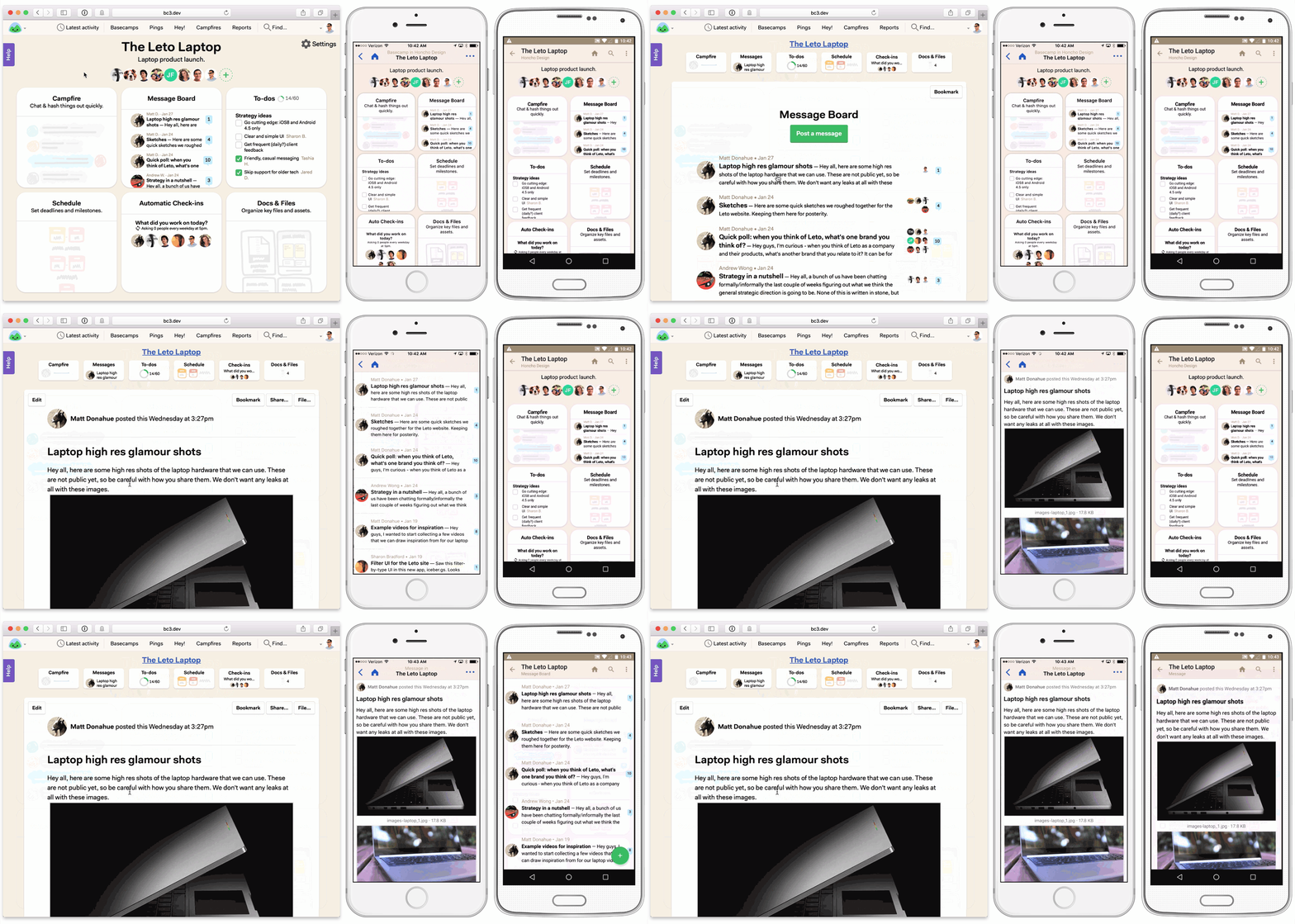
Features
- Optimizes navigation automatically. No need to annotate links or specify which parts of the page should change.
- No server-side cooperation necessary. Respond with full HTML pages, not partial page fragments or JSON.
- Respects the web. The Back and Reload buttons work just as you’d expect. Search engine-friendly by design.
- Supports mobile apps. Adapters for iOS and Android let you build hybrid applications using native navigation controls.
Supported Browsers
Turbolinks works in all modern desktop and mobile browsers. It depends on the HTML5 History API and Window.requestAnimationFrame. In unsupported browsers, Turbolinks gracefully degrades to standard navigation.
Installation
Turbolinks automatically initializes itself when loaded via a standalone <script> tag or a traditional concatenated JavaScript bundle. If you load Turbolinks as a CommonJS or AMD module, first require the module, then call the provided start() function.
Installation Using Ruby on Rails
Your Ruby on Rails application can use the turbolinks RubyGem to install Turbolinks. This gem contains a Rails engine which integrates seamlessly with the Rails asset pipeline.
- Add the
turbolinksgem, version 5, to your Gemfile:gem 'turbolinks', '~> 5.2.0' - Run
bundle install. - Add
//= require turbolinksto your JavaScript manifest file (usually found atapp/assets/javascripts/application.js).
The gem also provides server-side support for Turbolinks redirection, which can be used without the asset pipeline.
Installation Using npm
Your application can use the turbolinks npm package to install Turbolinks as a module for build tools like webpack.
-
Add the
turbolinkspackage to your application:npm install --save turbolinks. -
Require and start Turbolinks in your JavaScript bundle:
var Turbolinks = require("turbolinks")
Turbolinks.start()
The npm package alone does not provide server-side support for Turbolinks redirection. See Following Redirects for details on adding support.
Table of Contents
- Each Navigation is a Visit
- Application Visits
- Restoration Visits
- Canceling Visits Before They Start
- Disabling Turbolinks on Specific Links
Building Your Turbolinks Application
- Working with Script Elements
- Understanding Caching
- Installing JavaScript Behavior
- Making Transformations Idempotent
- Persisting Elements Across Page Loads
- Displaying Progress
- Reloading When Assets Change
- Ensuring Specific Pages Trigger a Full Reload
- Setting a Root Location
- Following Redirects
- Redirecting After a Form Submission
- Setting Custom HTTP Headers
- Turbolinks.visit
- Turbolinks.clearCache
- Turbolinks.setProgressBarDelay
- Turbolinks.supported
- Full List of Events
Navigating with Turbolinks
Turbolinks intercepts all clicks on <a href> links to the same domain. When you click an eligible link, Turbolinks prevents the browser from following it. Instead, Turbolinks changes the browser’s URL using the History API, requests the new page using XMLHttpRequest, and then renders the HTML response.
During rendering, Turbolinks replaces the current <body> element outright and merges the contents of the <head> element. The JavaScript window and document objects, and the HTML <html> element, persist from one rendering to the next.
Each Navigation is a Visit
Turbolinks models navigation as a visit to a location (URL) with an action.
Visits represent the entire navigation lifecycle from click to render. That includes changing browser history, issuing the network request, restoring a copy of the page from cache, rendering the final response, and updating the scroll position.
There are two types of visit: an application visit, which has an action of advance or replace, and a restoration visit, which has an action of restore.
Application Visits
Application visits are initiated by clicking a Turbolinks-enabled link, or programmatically by calling Turbolinks.visit(location).
An application visit always issues a network request. When the response arrives, Turbolinks renders its HTML and completes the visit.
If possible, Turbolinks will render a preview of the page from cache immediately after the visit starts. This improves the perceived speed of frequent navigation between the same pages.
If the visit’s location includes an anchor, Turbolinks will attempt to scroll to the anchored element. Otherwise, it will scroll to the top of the page.
Application visits result in a change to the browser’s history; the visit’s action determines how.

The default visit action is advance. During an advance visit, Turbolinks pushes a new entry onto the browser’s history stack using history.pushState.
Applications using the Turbolinks iOS adapter typically handle advance visits by pushing a new view controller onto the navigation stack. Similarly, applications using the Android adapter typically push a new activity onto the back stack.

You may wish to visit a location without pushing a new history entry onto the stack. The replace visit action uses history.replaceState to discard the topmost history entry and replace it with the new location.
To specify that following a link should trigger a replace visit, annotate the link with data-turbolinks-action="replace":
<a href="/edit" data-turbolinks-action="replace">Edit</a>
To programmatically visit a location with the replace action, pass the action: "replace" option to Turbolinks.visit:
Turbolinks.visit("/edit", { action: "replace" })
Applications using the Turbolinks iOS adapter typically handle replace visits by dismissing the topmost view controller and pushing a new view controller onto the navigation stack without animation.
Restoration Visits
Turbolinks automatically initiates a restoration visit when you navigate with the browser’s Back or Forward buttons. Applications using the iOS or Android adapters initiate a restoration visit when moving backward in the navigation stack.

If possible, Turbolinks will render a copy of the page from cache without making a request. Otherwise, it will retrieve a fresh copy of the page over the network. See Understanding Caching for more details.
Turbolinks saves the scroll position of each page before navigating away and automatically returns to this saved position on restoration visits.
Restoration visits have an action of restore and Turbolinks reserves them for internal use. You should not attempt to annotate links or