
Sketch Wanderer
A small SketchApp extension that introduces 'Finder' like features for working with layer list.
Install / Use
npx skills add turbobabr/sketch-wandererInstalls into whichever agent you are using.
README
Sketch Wanderer
A small SketchApp extension that introduce frictionless Finder like navigation in layer list by using beloved arrow keys and simple shortcuts. No more shift/shift-tab nightmare!
Huge thanks to Sasha Okunev who inspired me to build this plugin! :)

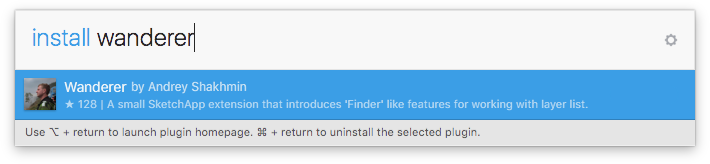
Install with Sketch Runner
With Sketch Runner, just go to the install command and search for Wanderer. Runner allows you to manage plugins and do much more to speed up your workflow in Sketch. Download Runner here.
Manual Installation
- Download the plugin.
- Unpack the archive and double click on
Wanderer.sketchpluginfile to install it into Sketch plugins folder. - Enjoy! :)
Usage
Wanderer is very simple to use, just recall how navigation works in Finder and use any arrow keys with control-option modifiers.
The complete list of supported commands:
<table> <thead> <tr> <th style="text-align:left">Command</th> <th style="text-align:left">Shortcut</th> <th style="text-align:left">Description</th> </tr> </thead> <tbody> <tr> <td style="text-align:left" width="200">Move Up</td> <td style="text-align:center" width="250"><kbd>ctrl</kbd> + <kbd>option</kbd> + <kbd>↑</kbd></td> <td style="text-align:left">Selects layer above</td> </tr> <tr> <td style="text-align:left">Move Down</td> <td style="text-align:center"><kbd>ctrl</kbd> + <kbd>option</kbd> + <kbd>↓</kbd></td> <td style="text-align:left">Selects layer below</td> </tr> <tr> <td style="text-align:left">Expand Group</td> <td style="text-align:center"><kbd>ctrl</kbd> + <kbd>option</kbd> + <kbd>→</kbd></td> <td style="text-align:left">Expands selected group, shape group or artboard</td> </tr> <tr> <td style="text-align:left">Collapse Group</td> <td style="text-align:center"><kbd>ctrl</kbd> + <kbd>option</kbd> + <kbd>←</kbd></td> <td style="text-align:left">Collapses selected group, shape group or artboard. When run on already collapsed group, it’s parent will be collapsed.</td> </tr> <tr> <td style="text-align:left">Select Up</td> <td style="text-align:center"><kbd>ctrl</kbd> + <kbd>shift</kbd> + <kbd>↑</kbd></td> <td style="text-align:left">Finder like multi-select by holding shift and selecting files via arrows.</td> </tr> <tr> <td style="text-align:left">Select Down</td> <td style="text-align:center"><kbd>ctrl</kbd> + <kbd>shift</kbd> + <kbd>↓</kbd></td> <td style="text-align:left">Finder like multi-select by holding shift and selecting files via arrows.</td> </tr> <tr> <td style="text-align:left">Expand Artboard</td> <td style="text-align:center"><kbd>ctrl</kbd> + <kbd>shift</kbd> + <kbd>→</kbd></td> <td style="text-align:left">Expands all child groups in the current artboard.</td> </tr> <tr> <td style="text-align:left">Collapse Artboard</td> <td style="text-align:center"><kbd>ctrl</kbd> + <kbd>shift</kbd> + <kbd>←</kbd></td> <td style="text-align:left">Collapses all child groups in the current artboard and artboard itself.</td> </tr> <tr> <td style="text-align:left">Select Artboard Above</td> <td style="text-align:center"><kbd>ctrl</kbd> + <kbd>option</kbd> + <kbd>shift</kbd> + <kbd>↑</kbd></td> <td style="text-align:left">Selects artboard above current arboard. In case some child layer is selected, this command will select artboard itself.</td> </tr> <tr> <td style="text-align:left">Select Artboard Below</td> <td style="text-align:center"><kbd>ctrl</kbd> + <kbd>option</kbd> + <kbd>shift</kbd> + <kbd>↓</kbd></td> <td style="text-align:left">Selects artboard below current artboard.</td> </tr> </tbody> </table>Simple Shortcuts Schema & Mission Control
By default Wanderer uses control-option+arrows shortcuts for the most common commands like Move Up, Move Down and Expand/Collapse Group:

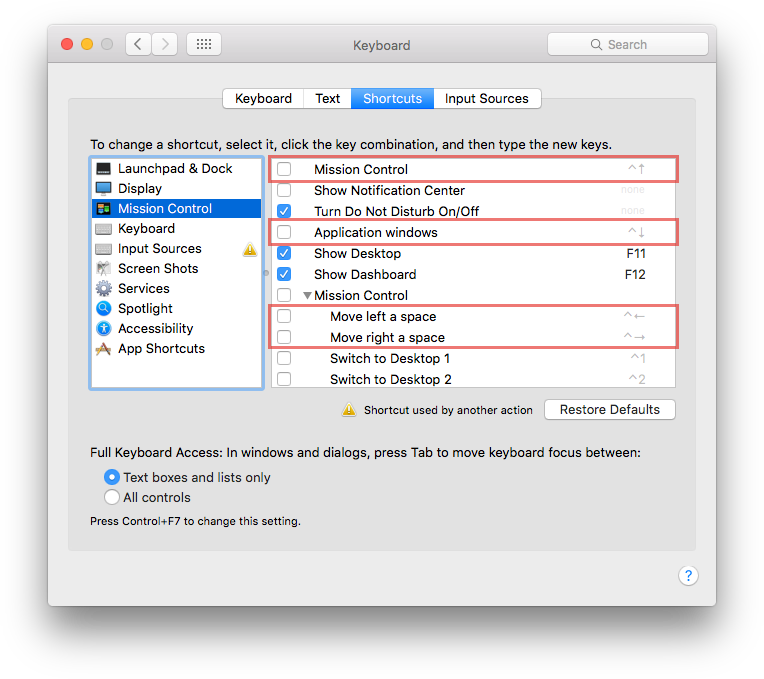
It's quite nice, but not perfect - the better solution is to use shorter set control+arrows, which is by default occupied by macOS: Mission Control. Just in case you don't use these shortcuts, you could quickly replace them by using a special command by doing these simple steps:
- Open
System Preferences -> Keyboard -> Shortcuts -> Mission Controland disable the following highlighted system shortcuts:
- In Sketch select
Plugins -> Wanderer -> Shortcuts Schema -> control+arrowscommand:

- Wait 10-15 seconds while Sketch reloading changes and check whether new shortcuts are setup correctly:

Note: In case you'll need to revert changes, just run
Plugins -> Wanderer -> Shortcuts Schema -> control-option+arrowscommand.
Version history
Wanderer - 1.0.1: 3/16/2018
- Sketch 49 support
- New plugins auto-updating system support
Wanderer 1.0.0: 12/5/2016
- First version
Feedback
If you discover any issue or have any suggestions for improvement of the plugin, please open an issue or find me on twitter @turbobabr.
License
The MIT License (MIT)
Copyright (c) 2017-2018 Andrey Shakhmin
Permission is hereby granted, free of charge, to any person obtaining a copy of this software and associated documentation files (the "Software"), to deal in the Software without restriction, including without limitation the rights to use, copy, modify, merge, publish, distribute, sublicense, and/or sell copies of the Software, and to permit persons to whom the Software is furnished to do so, subject to the following conditions:
The above copyright notice and this permission notice shall be included in all copies or substantial portions of the Software.
THE SOFTWARE IS PROVIDED "AS IS", WITHOUT WARRANTY OF ANY KIND, EXPRESS OR IMPLIED, INCLUDING BUT NOT LIMITED TO THE WARRANTIES OF MERCHANTABILITY, FITNESS FOR A PARTICULAR PURPOSE AND NONINFRINGEMENT. IN NO EVENT SHALL THE AUTHORS OR COPYRIGHT HOLDERS BE LIABLE FOR ANY CLAIM, DAMAGES OR OTHER LIABILITY, WHETHER IN AN ACTION OF CONTRACT, TORT OR OTHERWISE, ARISING FROM, OUT OF OR IN CONNECTION WITH THE SOFTWARE OR THE USE OR OTHER DEALINGS IN THE SOFTWARE.
Related Skills
node-connect
385.5kDiagnose OpenClaw Android, iOS, or macOS node pairing, QR/setup code, route, auth, and connection failures.
blender-python-addon
40.5kBlender Python add-on rules for operators, panels, properties, registration, testing, and API-safe scripting
flutter-development-guidelines-cursorrules-prompt-file
40.5kCursor rules for Flutter development with MVVM architecture, Riverpod state management, Material widgets, and Dart style guidelines.
commit-push-pr
140.6kCommit, push, and open a PR
