
AsyncLoadingScreen
Async Loading Screen is a free and open-source plugin for Unreal Engine. Async Loading Screen allows you to easily configure a Loading Screen System in the project settings, and automatically add a Loading Screen whenever you open a new level, without Level Streaming.
Install / Use
/learn @truong-bui/AsyncLoadingScreenREADME
Contents
- Trailer
- About
- How it works
- Features
- IMPORTANT NOTE
- Changelog
- Requirements
- Installation
- Architecture
- Tutorial
- Showcases
- Donate
- License
- Acknowledgment
Trailer

About
Loading screens aren't trivial in general, especially in Unreal Engine. And this makes a lot of UE newcomers are confused at first. Due to User Widget is destroyed at level transition, and level loading runs on the main thread, it blocks any other game activities until it's completed. That's why you need to use Level Streaming for loading screens otherwise your widget blueprint will not work. You have to manually control which object is loaded/unloaded, you can't use different Game Mode, Player Controller for each level, and sometimes there's still occasional freezing.
That said, you may need to change your game logic to fit with Level Streaming mechanic and it requires a lot of works to achieve a simple thing: Add a Loading Screen. To create a custom loading screen without Level Streaming, you have to do it in Unreal C++. However, this is a hard task for artists and designers, even for developers who are not familiar with the Slate framework and engine module code. Async Loading Screen plug-in comes to a savior.
Async Loading Screen allows you to easily configure a Loading Screen System in the project settings, and automatically add a Loading Screen whenever you open a new level. Async Loading Screen also comes with pre-design UI layouts and default icons that make it easy to custom your loading screen in a few minutes (less than 5 minutes I swear).
How it works
Async Loading Screen uses MoviePlayer to play a movie at level transition, on a different thread than game thread. MoviePlayer is not only playing movie files but also can display a Slate widget on top of the movie. We use this widget for the loading screen.
MoviePlayer is registered to PreLoadMap and PostLoadMapWithWorld delegates so it will be called and shut down automatically by the engine whenever you open a new level.
Features
- Easy to set up, easy to use.
- Customizable pre-make responsive layouts.
- Customizable loading icons.
- Pre-make default loading icons.
- Supported animating images sequence.
- Supported on all major platforms.
- Easily play movies, audio files.
- No need for coding.
- No temporary maps, no level streaming.
- Automatically handles all level transitions.
- Integrates seamlessly with an existing project.
IMPORTANT NOTE
- Texture Group should be set to UI and Compression Settings to UserInterface2D <img width="616" height="377" alt="image" src="https://github.com/user-attachments/assets/3f3e90e5-6f35-4390-99b2-685446d9545c" />
- Don't package the Movies folder into the .Pak file because MoviePlayer needs to look for the startup movies folder at "Contents/Movies" path
- Make sure you don’t have any plugins enabled that conflict with ASL. For example, Pre-Load Screen Movie Player
Changelog
Version 1.6.0 (12/01/2026)
- Fix the loading icon's wrong size at the first frame of the startup loading screen
- Add settings for changing the Background and TipText during the loading screen
- Set UpdateInterval value larger than 0.0 in the Background and TipText settings to update them during the loading screen
- You need to have more than one BG and Tiptext element. And they will be updated randomly.
- Remove the PreloadBackgroundImages setting
Version 1.5.0 (6/4/2023)
- Add "PreloadBackgroundImages" option
- Add Blueprint functions "PreloadBackgroundImages" and "RemovePreloadedBackgroundImages" to load and remove all the background images.
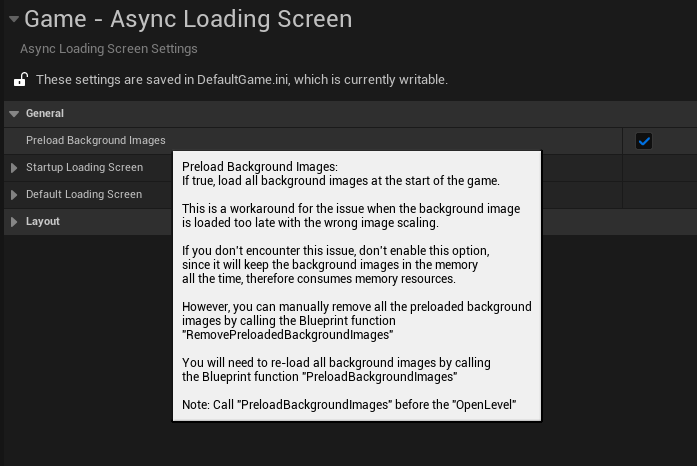
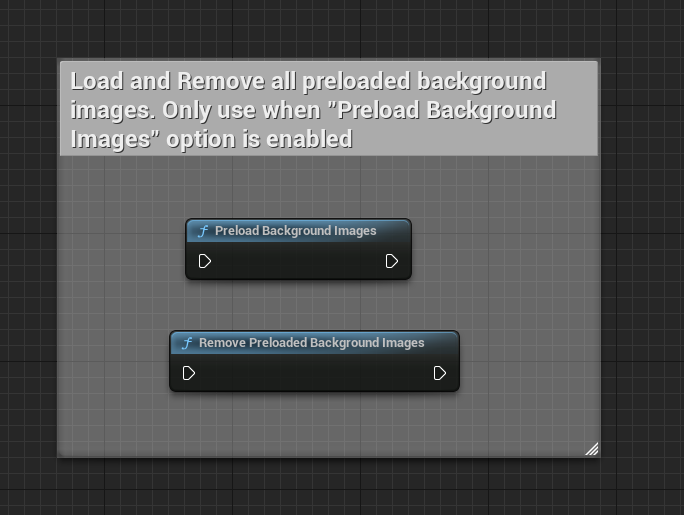
Version 1.4.0 (25/1/2023)
- Fixed uninitialized errors
- Add Blueprint function "SetEnableLoadingScreen" to show/hide Loading Screen. Call this function before call the "OpenLevel" node
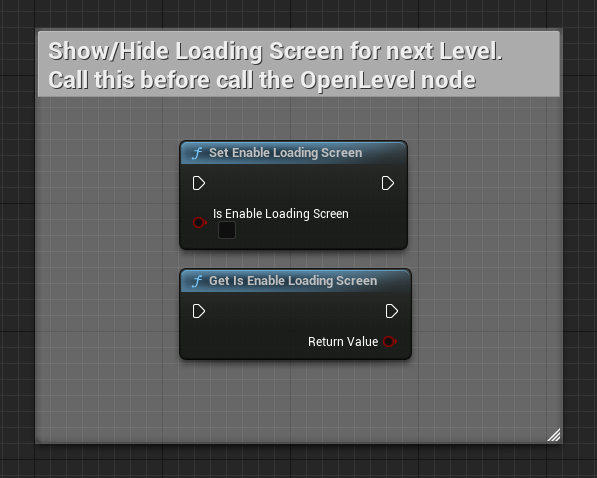
Version 1.3.0 (29/08.2021)
- Supports Unreal Engine 4.27 (Select other branches for other UE versions)
- Added option for hiding Loading Widget when level loading completes

- Moved animating Image Sequence into OnPaint function
Version 1.2 (11/01.2021)
- Added new blueprint library function Stop Loading Screen. To use this function, you must enable the Allow Engine Tick option. Call this function in BeginPlay event to stop the Loading Screen (works with Delay node):
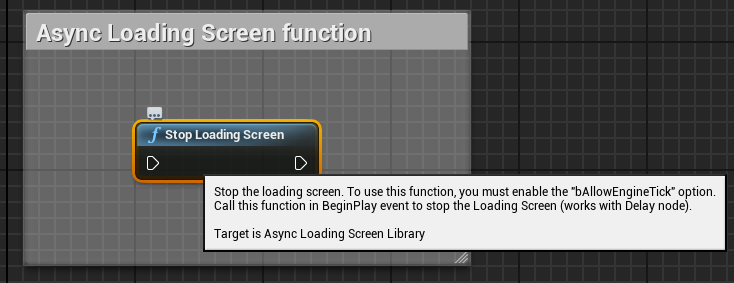
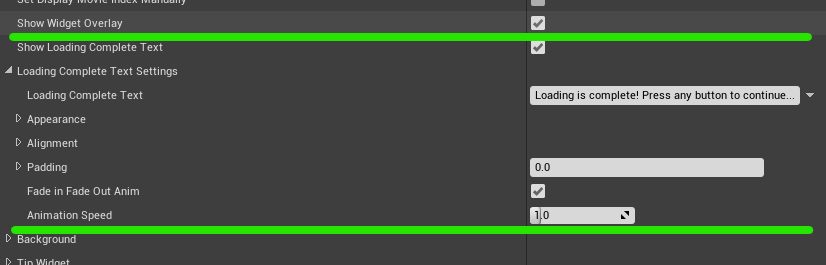
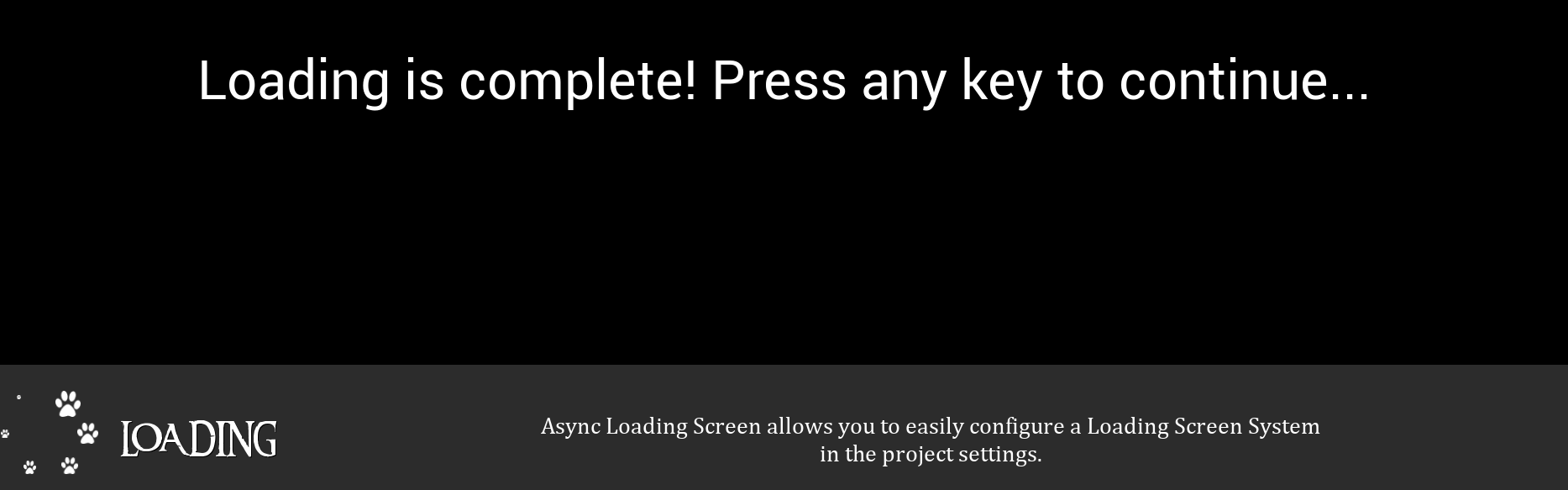
- Added Show Loading Complete Text option and Loading Complete Text Settings section, which show a text when level loading is complete. Note that you need to set Wait For Manual Stop = true, and Minimum Loading Screen Display Time = -1, this also allows players press any key to stop the Loading Screen by themself.
Show Loading Complete Text Settings:
Example:
Version 1.1 (14/09/2020):
- Added Shuffle option in the movie setting.
- Implemented set specific background/tip/movie for each level.
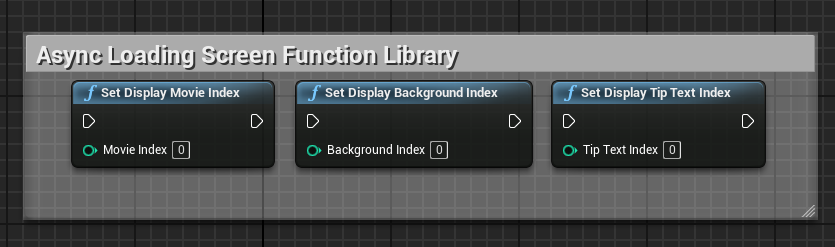
- Added SetDisplayBackgroundManually, SetDisplayTipTextManually, SetDisplayMovieManually options.
- Changed TipWidgetVerticalPadding to BorderVerticalOffset in Center Layout settings.
- Changed WidgetHorizontalPadding to BorderHorizontalOffset in Sidebar Layout settings.
- Add Async Loading Screen Function Library with 3 Blueprint functions:
Requirements
~~Async Loading Screen plug-in requires Visual Studio and a C++ code project. If your project is blueprint based then you will need to convert it to C++ project otherwise you cannot package your game with code plug-in.~~ It doesn't require c++ project anymore.
Installation
:warning: After installed Async Loading Screen plugin, the "Project/Movies" setting won't work anymore. You need to set up your startup movies in the 'Startup Loading Screen' section of the plugin's setting.
-
Clone from Github
Clone this repository into your project's /Plugins folder, make one if it doesn’t exist, then compile your game in Visual Studio. If your project is blueprint based you’ll need to convert it to a c++ project by adding any c++ class. Supports Engine version from 4.23 and above.
-
Download from Marketplace
Download Async Loading Screen from Marketplace and enable the plugin in Plugins.
-
Setup
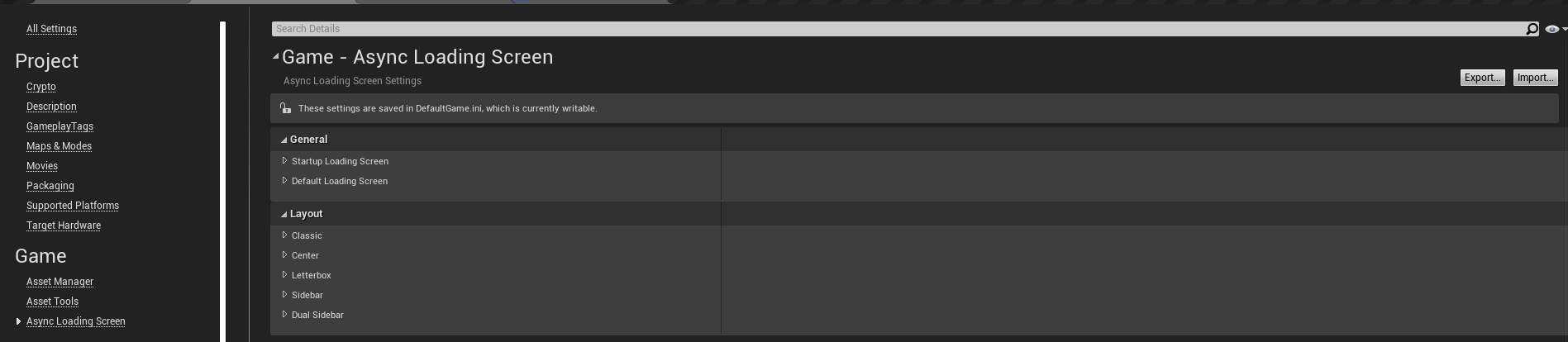
You can disable/enable the plugin in Edit→Plugins→Project/Loading Screen. You configure the plug-in settings in project settings Project Settings/Game/Async Loading Screen.
Architecture
Async Loading Screen has four main components: Background, Loading Widget, Tip Widget, and Layout.
Background
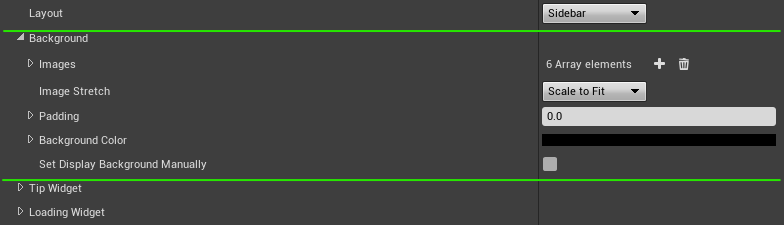
The background is a static image, you can add many images as you want, it will be displayed randomly (unless Set Display Background Manually option is enabled). Leave it empty if you just want to show a movie instead of a static image.
- Background Setting:
Tip Widget
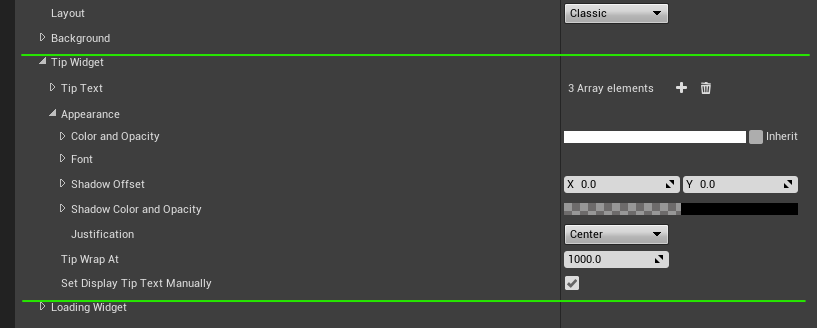
Just some useful texts that will be shown randomly (unless Set Display Tip Text Manually option is enabled) for players to have something to look at while waiting for a new level loaded.
- Tip Widget Setting:
Loading Widget
This is the
