
Thprac
A tool for practicing Touhou shmups.
Install / Use
/learn @touhouworldcup/ThpracREADME
简体中文 日本語
thprac
thprac is a tool for practicing Touhou shmups.

Download - Download Beta
Note that beta versions will only update to the next stable version, not the next beta version.
Table of Contents
- Downloading
- Usage
- Compatability
- Features
- Quick Menu
- Advanced Options
- Game Specific Features
- Credits
- Building from Source
- FAQ
<a name="downloading"></a> Downloading
If you want to download the tool, you can download the latest release here and the latest beta here. Do note that the latest beta will update into the next stable release and NOT the next beta release.
<a name="usage"></a> Usage
You can use this tool in a variety of ways; the main ways to do this are placing the executable in the same folder as your game, running the executable after running your game, or using thprac's launcher.
thprac in the Game Folder
This method will NOT work with Steam games. You can run thprac by placing the thprac.exe file in the same folder as your game. This method will also automatically detect vpatch. You must ensure that the game is updated to the latest version and follows one of the following naming schemes. This method also works with vpatch.
- thXX.exe (most games)
- 東方紅魔郷.exe (Embodiment of Scarlet Devil)
- alcostg.exe (Uwabami Breakers)
thprac after Running the Game
This method will work for most methods. First, run the game in whichever method you want (whether it's thcrap, using vpatch, Steam, etc.) and then run thprac.exe. thprac will then detect the running game and attempt to attach itself to it. You may have to return to the menu screen to see thprac take effect.
thprac Using the Launcher
This video explains how to use the launcher.
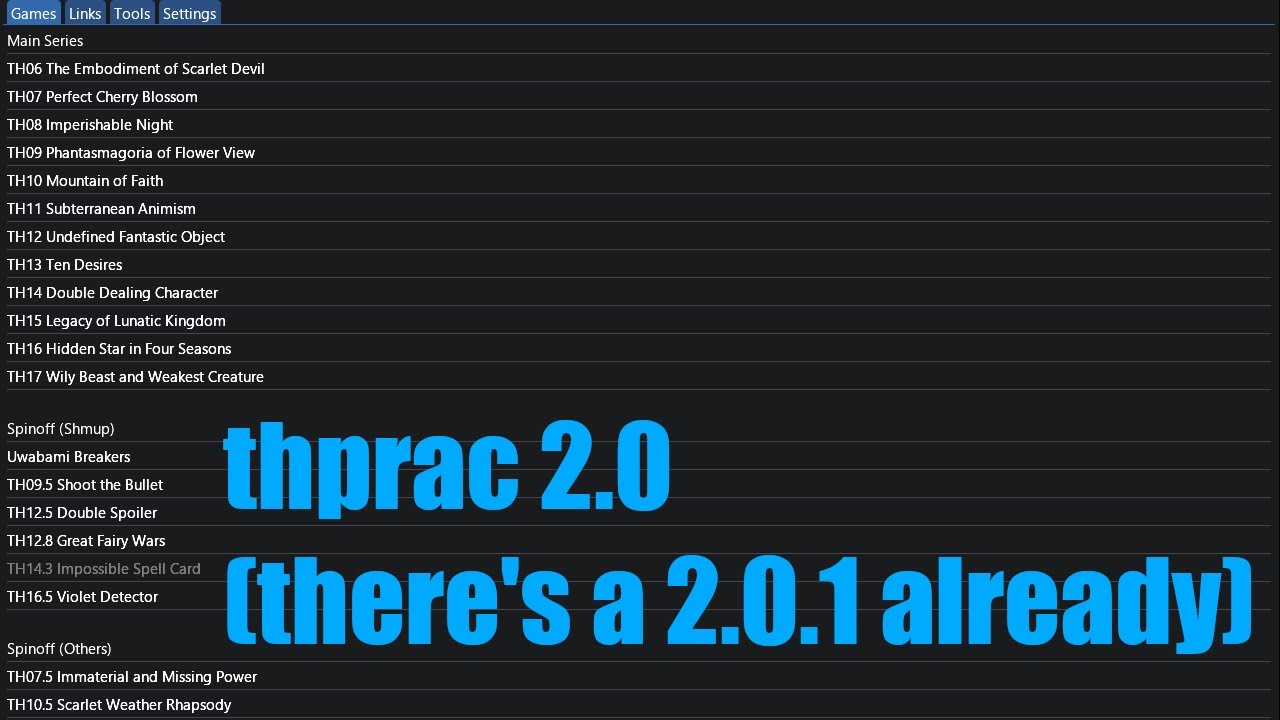
Command line
The following command line options are supported:
<path to game exe>The commandthprac.exe <path to game exe>will run a game and attach thprac without any confirmation prompt. This makes it possible to drag a Touhou game executable onto thprac.exe and it will run with thprac.--attach <pid>immediately inject thprac into a process with ID<pid>without any confirmation prompts.--attach(without any other flags). The commandthprac.exe --attachwill attach thprac to the first Touhou game process it finds without opening any kind of confirmation prompt.--without-vpatchPrevent automatically applying vpatch.
Example commands:
thprac.exe --attach 1234
thprac.exe --attach
thprac.exe C:\Users\Name\Desktop\Games\Touhou\th17\th17.exe
thprac.exe --without-vpatch C:\Users\Name\Desktop\Games\Touhou\th17\th17.exe
<a name="compatability"></a> Compatability
thprac officially supports every version of Windows starting with Windows Vista. Windows XP may work using One-Core-API, but this is NOT being actively tested.
thprac is also compatible with Wine and the Steam Deck. Do note that the Quick Menu is tailored to work well with the Steam Deck, although this is untested.
<a name="features"></a> Features
thprac features an enhanced practice mode that supports all main games along with Great Fairy Wars and Uwabami Breakers.


thprac replaces the original practice menu with a new UI shown in the image above; certain spells allow you to select phases or change certain parameters. For the games without an original practice mode (Uwabami Breakers, Great Fairy War, etc.), a practice menu is added to the "Start Game" menu.


This menu can be controlled using your keyboard or your controller. Using this, you can select options using the UP and DOWN keys and change the option using the LEFT and RIGHT keys and the SHOT key to select. You can also use your mouse to interact with the menu.
thprac will also automatically save the options you selected into any replay saved. When playing back the replay, thprac will automatically apply said options. Replays saved while thprac is active using "Custom" mode will NOT work with the unmodified game.
<a name="quick-menu"></a> Quick Menu
In any supported game (except Touhou 9 and 19), you can press the Backspace key to enter the Quick Menu. This menu shows a variety of options that can be activated using the function (F) keys.
These options are always clickable, meaning you can interact with them using a mouse on a desktop computer or by tapping on them with your left thumb when using a Steam Deck. To use this feature on the Steam Deck, map the Backspace key in Steam Input.
The hotkey for this menu can be changed from the launcher's settings tab to a different key or combination of keys if you want it bound to something else.


<a name="advanced-options"></a> Advanced Options
In any supported game (except Touhou 9 and 19), you may use the F12 key to access the Advanced Options; these options may offer fixes or patches related to the game or other quality of life features.
Like the Quick Menu, the hotkey for this can also be changed from the launcher's settings tab.


<a name="game-specific-features"></a> Game-specific Features
100th BM - Force Wave
If thprac is enabled using "Custom" mode, the popup above will appear when the game is about to choose a wave.
PoFV - Tools

When starting a game in Match Mode, you can select "Custom" in a "Mode" prompt. If you do that, this window will appear in your game. You can move and adjust this window as much as you want. This replaces Advanced Options and can be opened with F12.
UDoALG - Tools
It's just like PoFV Tools, but for UDoALG.
EoSD - Pause Menu

Choosing "Exit" will now prompt you to save a replay.
Warning: replays saved like this will continue after the point you chose to save the replay. The player character will stand still and not shoot.
ESC + R fix for EoSD, VD and beyond
<a name="credits"></a> Credits (post May 27th, 2022)
- Development: 32th System, muter3000, zero318, Lmocinemod, Cao Minh, raviddog
- Chinese translations: CrestedPeak9, maksim71_doll, DeepL
- Japanese translations: Yu-miya, CyrusVorazan, DeepL
- Moving all reports from the old bugtracker here: toimine
- English README.md: Galagyy
- Chinese README.md translation: TNT569, H-J-Granger
- Japanese README.md translation: wefma
<a name="building-from-source"></a> Building from Source
First time setup (only needs to be performed once)
Inside the folder named thprac, compile loc_json.cpp into loc_json.exe in whatever way you like most. I recommend this command
cl.exe /Isrc\3rdparties\rapidjson\include /nologo /EHsc /O2 /std:c++20 loc_json.cpp /Fe:loc_json.exe"
Building on the command line
In a Visual Studio Developer Command Prompt, run the following command
msbuild thprac.sln -t:restore,build -p:RestorePackagesConfig=true,Configuration=Release
Building from the Visual Studio GUI
Open thprac.sln click on "Build", then "Build solution"
<a name="faq"></a> Frequently Asked Questions (FAQ)
General
Why did thprac move?
The original developer, Ack, has indefinitely ceased all future development of thprac/Marketeer. Be
