
TextPathView
A View with text path animation!
Install / Use
/learn @totond/TextPathViewREADME
TextPathView

介绍
TextPathView是一个把文字转化为路径动画然后展现出来的自定义控件。效果如上图。
这里有原理解析!
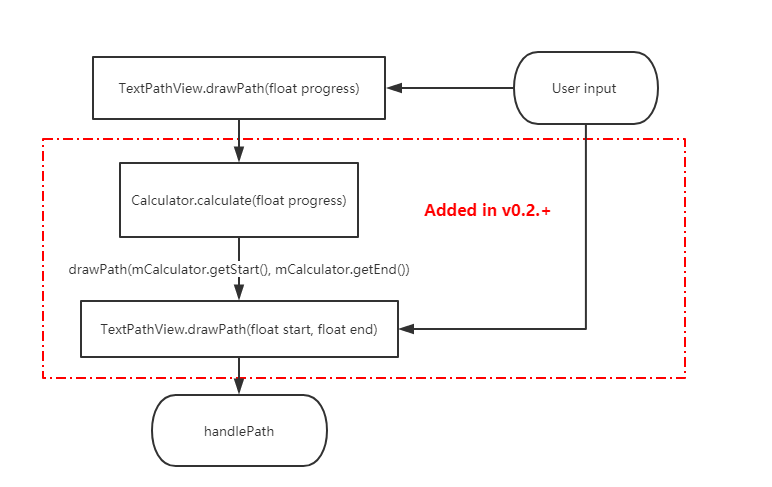
v0.2.+重要更新
- 现在不但可以控制文字路径结束位置end,还可以控制开始位置start,如上图二
- 可以通过PathCalculator的子类来控制实现一些字路径变化,如下面的MidCalculator、AroundCalculator、BlinkCalculator
- 可以通知直接设置FillColor属性来控制结束时是否填充颜色
使用
主要的使用流程就是输入文字,然后设置一些动画的属性,还有画笔特效,最后启动就行了。想要自己控制绘画的进度也可以,详情见下面。
Gradle
compile 'com.yanzhikai:TextPathView:0.2.1'
minSdkVersion 16
如果遇到播放完后消失的问题,请关闭硬件加速,可能是硬件加速对
drawPath()方法不支持
使用方法
TextPathView
TextPathView分为两种,一种是每个笔画按顺序刻画的SyncTextPathView,一种是每个笔画同时刻画的AsyncTextPathView,使用方法都是一样,在xml里面配置属性,然后直接在java里面调用startAnimation()方法就行了,具体的可以看例子和demo。下面是一个简单的例子:
xml里面:
     <yanzhikai.textpath.SyncTextPathView
         android:id="@+id/stpv_2017"
         android:layout_width="match_parent"
         android:layout_height="wrap_content"
         app:duration="12000"
         app:showPainter="true"
         app:text="2017"
         app:textInCenter="true"
         app:textSize="60sp"
         android:layout_weight="1"
         />

    <yanzhikai.textpath.AsyncTextPathView
        android:id="@+id/atpv_1"
        android:layout_width="wrap_content"
        android:layout_height="wrap_content"
        app:duration="12000"
        app:showPainter="true"
        app:text="炎之铠"
        app:textStrokeColor="@android:color/holo_orange_light"
        app:textInCenter="true"
        app:textSize="62sp"
        android:layout_gravity="center_horizontal"
        />
java里面使用:
        atpv1 = findViewById(R.id.atpv_1);
        stpv_2017 = findViewById(R.id.stpv_2017);

        //从无到显示
        atpv1.startAnimation(0,1);
        //从显示到消失
        stpv_2017.startAnimation(1,0);
还可以通过控制进度,来控制TextPathView显示,这里用SeekBar:
        sb_progress.setOnSeekBarChangeListener(new SeekBar.OnSeekBarChangeListener() {
            @Override
            public void onProgressChanged(SeekBar seekBar, int progress, boolean fromUser) {
                atpv1.drawPath(progress / 1000f);
                stpv_2017.drawPath(progress / 1000f);

            }
        }
PathView
PathView是0.1.1版本之后新增的,拥有三个子类TextPathView、SyncPathView和AsyncPathView,前者上面有介绍是文字的路径,后面这两个就是图形的路径,必须要输入一个Path类,才能正常运行:
public class TestPath extends Path {
    public TestPath(){
        init();
    }

    private void init() {
        addCircle(350,300,150,Direction.CCW);
        addCircle(350,300,100,Direction.CW);
        addCircle(350,300,50,Direction.CCW);
        moveTo(350,300);
        lineTo(550,500);
    }
}
        //必须先调用setPath设置路径
        aspv.setPath(new TestPath());
        aspv.startAnimation(0,1);
 (录屏可能有些问题,实际上是没有背景色的)上面就是SyncPathView和AsyncPathView效果,区别和文字路径是一样的。
属性
|属性名称|意义|类型|默认值| |--|--|:--:|:--:| |textSize | 文字的大小size | integer| 108 | |text | 文字的具体内容 | String| Test| |autoStart| 是否加载完后自动启动动画 | boolean| false| |showInStart| 是否一开始就把文字全部显示 | boolean| false| |textInCenter| 是否让文字内容处于控件中心 | boolean| false| |duration | 动画的持续时间,单位ms | integer| 10000| |showPainter | 在动画执行的时候是否执行画笔特效 | boolean| false| |showPainterActually| 在所有时候是否展示画笔特效| boolean| false| |~~textStrokeWidth~~ strokeWidth | 路径刻画的线条粗细 | dimension| 5px| |~~textStrokeColor~~ pathStrokeColor| 路径刻画的线条颜色 | color| Color.black| |paintStrokeWidth | 画笔特效刻画的线条粗细 | dimension| 3px| |paintStrokeColor | 画笔特效刻画的线条颜色 | color| Color.black| |repeat| 是否重复播放动画,重复类型| enum | NONE| |fillColor| 文字动画结束时是否填充颜色 | boolean | false |
|repeat属性值|意义| |--|--| |NONE|不重复播放| |RESTART|动画从头重复播放| |REVERSE|动画从尾重复播放|
PS:showPainterActually属性,由于动画绘画完毕应该将画笔特效消失,所以每次执行完动画都会自动设置为false。因此最好用于使用非自带动画的时候。
方法
画笔特效
    //设置画笔特效
    public void setPainter(SyncPathPainter painter);
    //设置画笔特效
    public void setPainter(SyncPathPainter painter);
因为绘画的原理不一样,画笔特效也分两种:
    public interface SyncPathPainter extends PathPainter {
        //开始动画的时候执行
        void onStartAnimation();

        /**
         * 绘画画笔特效时候执行
         * @param x 当前绘画点x坐标
         * @param y 当前绘画点y坐标
         * @param paintPath 画笔Path对象,在这里画出想要的画笔特效
         */
        @Override
        void onDrawPaintPath(float x, float y, Path paintPath);
    }

    public interface AsyncPathPainter extends PathPainter {
        /**
         * 绘画画笔特效时候执行
         * @param x 当前绘画点x坐标
         * @param y 当前绘画点y坐标
         * @param paintPath 画笔Path对象,在这里画出想要的画笔特效
         */
        @Override
        void onDrawPaintPath(float x, float y, Path paintPath);
    }
看名字就知道是对应哪一个了,想要自定义画笔特效的话就可以实现上面之中的一个或者两个接口来自己画啦。 另外,还有里面已经自带了3种画笔特效,可供参考和使用(关于这些画笔特效的实现,可以参考原理解析):
//箭头画笔特效,根据传入的当前点与上一个点之间的速度方向,来调整箭头方向
public class ArrowPainter implements SyncPathPainter {

//一支笔的画笔特效,就是在绘画点旁边画多一支笔
public class PenPainter implements SyncPathPainter,AsyncPathPainter {

//火花特效,根据箭头引申变化而来,根据当前点与上一个点算出的速度方向来控制火花的方向
public class FireworksPainter implements SyncPathPainter {
由上面可见,因为烟花和箭头画笔特效都需要记录上一个点的位置,所以只适合按顺序绘画的SyncTextPathView,而PenPainter就适合两种TextPathView。仔细看它的代码的话,会发现画起来都是很简单的哦。
自定义画笔特效
自定义画笔特效也是非常简单的,原理就是在当前绘画点上加上一个附加的Path,实现SyncPathPainter和AsyncPathPainter之中的一个或者两个接口,重写里面的onDrawPaintPath(float x, float y, Path paintPath)方法就行了,如下面这个:
        atpv2.setPathPainter(new AsyncPathPainter() {
            @Override
            public void onDrawPaintPath(float x, float y, Path paintPath) {
                paintPath.addCircle(x,y,6, Path.Direction.CCW);
            }
        });

动画监听
    //设置自定义动画监听
    public void setAnimatorListener(PathAnimatorListener animatorListener);
PathAnimatorListener是实现了AnimatorListener接口的类,继承它的时候注意不要删掉super父类方法,因为里面可能有一些操作。
画笔获取
    //获取绘画文字的画笔
    public Paint getDrawPaint() {
        return mDrawPaint;
    }

    //获取绘画画笔特效的画笔
    public Paint getPaint() {
        return mPaint;
    }
控制绘画
    /**
     * 绘画文字路径的方法
     *
     * @param start 路径开始点百分比
     * @param end   路径结束点百分比
     */
    public abstract void drawPath(float start, float end);

    /**
     * 开始绘制路径动画
     * @param start 路径比例,范围0-1
     * @param end 路径比例,范围0-1
     */
    public void startAnimation(float start, float end);

    /**
     * 绘画路径的方法
     * @param progress 绘画进度,0-1
     */
    public void drawPath(float progress);

    /**
     * Stop animation
     */
    public void stopAnimation();

    /**
     * Pause animation
     */
    @RequiresApi(api = Build.VERSION_CODES.KITKAT)
    public void pauseAnimation();

    /**
     * Resume animation
     */
    @RequiresApi(api = Build.VERSION_CODES.KITKAT)
    public void resumeAnimation();
填充颜色
    //直接显示填充好颜色了的全部文字
    public void showFillColorText();

    //设置动画播放完后是否填充颜色
    public void setFillColor(boolean fillColor)
由于正在绘画的时候文字路径不是封闭的,填充颜色会变得很混乱,所以这里给出showFillColorText()来设置直接显示填充好颜色了的全部文字,一般可以在动画结束后文字完全显示后过渡填充

取值计算器
0.2.+版本开始,加入了取值计算器PathCalculator,可以通过setCalculator(PathCalculator calculator)方法设置。PathCalculator可以控制路径的起点start和终点end属性在不同progress对应的取值。TextPathView自带一些PathCalculator子类:
-
MidCalculator
start和end从0.5开始往两边扩展:

-
AroundCalculator
start会跟着end增长,end增长到0.75后start会反向增长

-
BlinkCalculator
start一直为0,end自然增长,但是每增加几次会有一次end=1,造成闪烁

- **自定义PathCalculator:**用户可以通过继承抽象类PathCalculator,通过里面的
setStart(float start)和setEnd(float end),具体可以参考上面几个自带的PathCalculator实现代码。
其他
    //设置文字内容
    public void setText(String text);

    //设置路径,必须先设置好路径在startAnimation(),不然会报错!
    public void setPath(Path path) ;

    //设置字体样式
    public void setTypeface(Typeface typeface);

    //清除画面
    public void clear();

    //设置动画时能否显示画笔效果
    public void setShowPainter(boolean showPainter);

    //设置所有时候是否显示画笔效果,由于动画绘画完毕应该将画笔特效消失,所以每次执行完动画都会自动设置为false
    public void setCanShowPainter(boolean canShowPainter);

    //设置动画持续时间
    public void setDuration(int duration);

    //设置重复方式
    public void setRepeatStyle(int repeatStyle);

    //设置Path开始结束取值的计算器
    public void setCalculator(PathCalculator calculator)
更新
-
2018/03/08 version 0.0.5:
- 增加了
showFillColorText()方法来设置直接显示填充好颜色了的全部文字。 - 把PathAnimatorListener从TextPathView的内部类里面解放出来,之前使用太麻烦了。
- 增加
showPainterActually属性,设置所有时候是否显示画笔效果,由于动画绘画完毕应该将画笔特效消失,所以每次执行完动画都会自动将它设置为false。因此它用处就是在不使用自带Animator的时候显示画笔特效。
- 增加了
-
2018/03/08 version 0.0.6:
-
2018/03/18 version 0.1.0:
- 重构代码,加入路径动画SyncPathView和A
