Timeframe
An e-paper calendar, weather, and smart home family dashboard
Install / Use
/learn @timeframe/TimeframeREADME
Timeframe
An e-paper calendar, weather, and smart home family dashboard
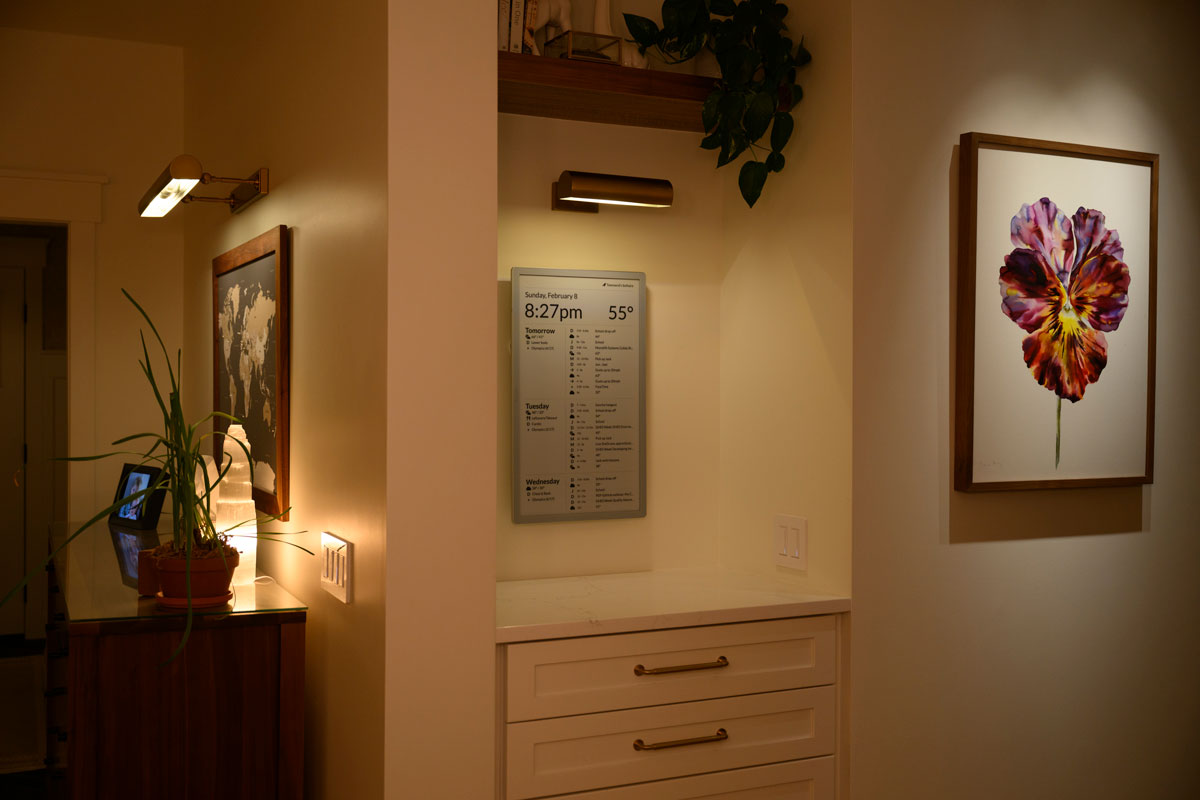
Supported displays
- Visionect Place & Play 13 / Joan 13 Pro - designed for 10m update interval
- Boox Mira Pro - Real-time updates via WebSocket
- TRMNL (OG)
Installation
- In Home Assistant, go to Settings → Add-ons → Add-on Store
- Click the three-dot menu (⋮) → Repositories
- Add this repository URL:
https://github.com/timeframe/timeframe - Find Timeframe in the add-on store and click Install
- Click Start
- Access the app at port 8099 (e.g.
http://homeassistant.local:8099)
Configuration
The following entities can be created in Home Assistant to customize behavior. Icon names are from Material Design Icons (without the mdi- prefix).
| Entity ID | Default behavior | Description |
|---|---|---|
| sensor.timeframe_top_right_* | None | Displays items in the top-right corner. State format: icon,label (e.g. door-open,Front Door). Labels containing underscores are automatically humanized. Return multiple items for a single sensor by using newlines. |
| sensor.timeframe_top_left_* | None | Displays items in the top-left corner. Same format as top-right. |
| sensor.timeframe_weather_status_* | None | Displays weather status items. State format: icon,label or icon,label,rotation where rotation is a degree value for the icon (e.g. for wind direction). |
| sensor.timeframe_daily_event_* | None | Adds all-day events to the timeline. State format: icon,label. |
| sensor.timeframe_media_player_entity_id | Uses the first media_player.* entity | Set the state to a specific media player entity ID (e.g. media_player.living_room) to control which player's now-playing info is shown. |
| sensor.timeframe_weather_entity_id | Uses the first weather.* entity | Set the state to a specific weather entity ID (e.g. weather.home) to control which weather entity provides forecasts. |
| sensor.timeframe_weather_feels_like_entity_id | Uses apparent_temperature from the weather entity | Set the state to a specific sensor entity ID to override the feels-like temperature display. |
Calendar events
Private mode
A calendar event with the description timeframe-private will activate private mode for the duration of the event, hiding display content.
Hiding specific events
To hide a specific event, include timeframe-omit in the description.
Operational modes
The application runs in two modes: single tenant inside home assistant and multi-tenant on at https://www.timeframe.app (coming soon).
Note: Timeframe is licensed under the O'Saasy License.
Local development
Configuration:
Create config/timeframe.yml from `config/timeframe.yml.example with your settings.
Environment variables
| Variable | Description |
|---|---|
| VISIONECT_SERVER | Experimental. Set to "true" to start the Visionect TCP protocol server alongside Puma. Required for Visionect Place & Play / Joan 13 Pro devices. |
Setup
bundle installrails s- Visit http://localhost:3000
Testing
bin/rails test
License
This project is licensed under the O'Saasy License — see LICENSE.md for details.
Related Skills
node-connect
352.9kDiagnose OpenClaw node connection and pairing failures for Android, iOS, and macOS companion apps
frontend-design
111.5kCreate distinctive, production-grade frontend interfaces with high design quality. Use this skill when the user asks to build web components, pages, or applications. Generates creative, polished code that avoids generic AI aesthetics.
openai-whisper-api
352.9kTranscribe audio via OpenAI Audio Transcriptions API (Whisper).
qqbot-media
352.9kQQBot 富媒体收发能力。使用 <qqmedia> 标签,系统根据文件扩展名自动识别类型(图片/语音/视频/文件)。