
Textidote
Spelling, grammar and style checking on LaTeX documents
Install / Use
npx skills add sylvainhalle/textidoteInstalls into whichever agent you are using.
README
TeXtidote: a correction tool for LaTeX documents and other formats

<img src="http://leduotang.ca/textidote.svg" height="16" alt="Downloads"/>
Have you ever thought of using a grammar checker on LaTeX files?
If so, you probably know that the process is far from simple. Since LaTeX documents contain special commands and keywords (the so-called "markup") that are not part of the "real" text, you cannot run a grammar checker directly on these files: it cannot tell the difference between markup and text. The other option is to remove all this markup, leaving only the "clear" text; however, when a grammar tool points to a problem at a specific line in this clear text, it becomes hard to retrace that location in the original LaTeX file.
TeXtidote solves this problem; it can read your original LaTeX file and perform various sanity checks on it: for example, making sure that every figure is referenced in the text, enforcing the correct capitalization of titles, etc. In addition, TeXtidote can remove markup from the file and send it to the Language Tool library, which performs a verification of both spelling and grammar in a dozen languages. What is unique to TeXtidote is that it keeps track of the relative position of words between the original and the "clean" text. This means that it can translate the messages from Language Tool back to their proper location directly in your source file.
You can see the list of all the rules checked by TeXtidote at the end of this file.
TeXtidote also supports spelling and grammar checking of files in the Markdown format.
Getting TeXtidote
You can either install TeXtidote by downloading it manually, or by installing it using a package.
Under Debian systems: install package
Under Debian systems (Ubuntu and derivatives), you can install TeXtidote using
dpkg. Download the latest .deb file in the
Releases page; suppose
it is called textidote_X.Y.Z_all.deb. You can install TeXtidote by typing:
$ sudo apt-get install ./textidote_X.Y.Z_all.deb
The ./ is mandatory; otherwise the command won't work.
Manual download
You can also download the TeXtidote executable manually: this works on all operating systems. Simply make sure you have Java version 8 or later installed on your system. Then, download the latest release of TeXtidote; put the JAR in the folder of your choice.
Using TeXtidote
TeXtidote is run from the command line. The TeXtidote repository contains a sample LaTeX file called example.tex. Download this file and save it to the folder where TeXtidote resides. You then have the choice of producing three types of "reports" on the contents of your file: an "HTML" report (viewable in a web browser), a "console" report (viewable in a terminal) and a "single-line" report (typically destined to be consumed by other scripts, see below).
HTML report
To run TeXtidote and perform a basic verification of the file, run:
java -jar textidote.jar --output html example.tex > report.html
In Linux, if you installed TeXtidote using apt-get, you can also call it
directly by typing:
textidote --output html example.tex > report.html
Here, the --output html option tells TeXtidote to produce a report in HTML format;
the > symbol indicates that the output should be saved to a file, whose name
is report.html. TeXtidote will run for some time, and print:
TeXtidote v0.8 - A linter for LaTeX documents
(C) 2018-2019 Sylvain Hallé - All rights reserved

Found 23 warnings(s)
Total analysis time: 2 second(s)
Once the process is over, switch to your favorite web browser, and open the
file report.html (using the File/Open menu). You should see something like this:
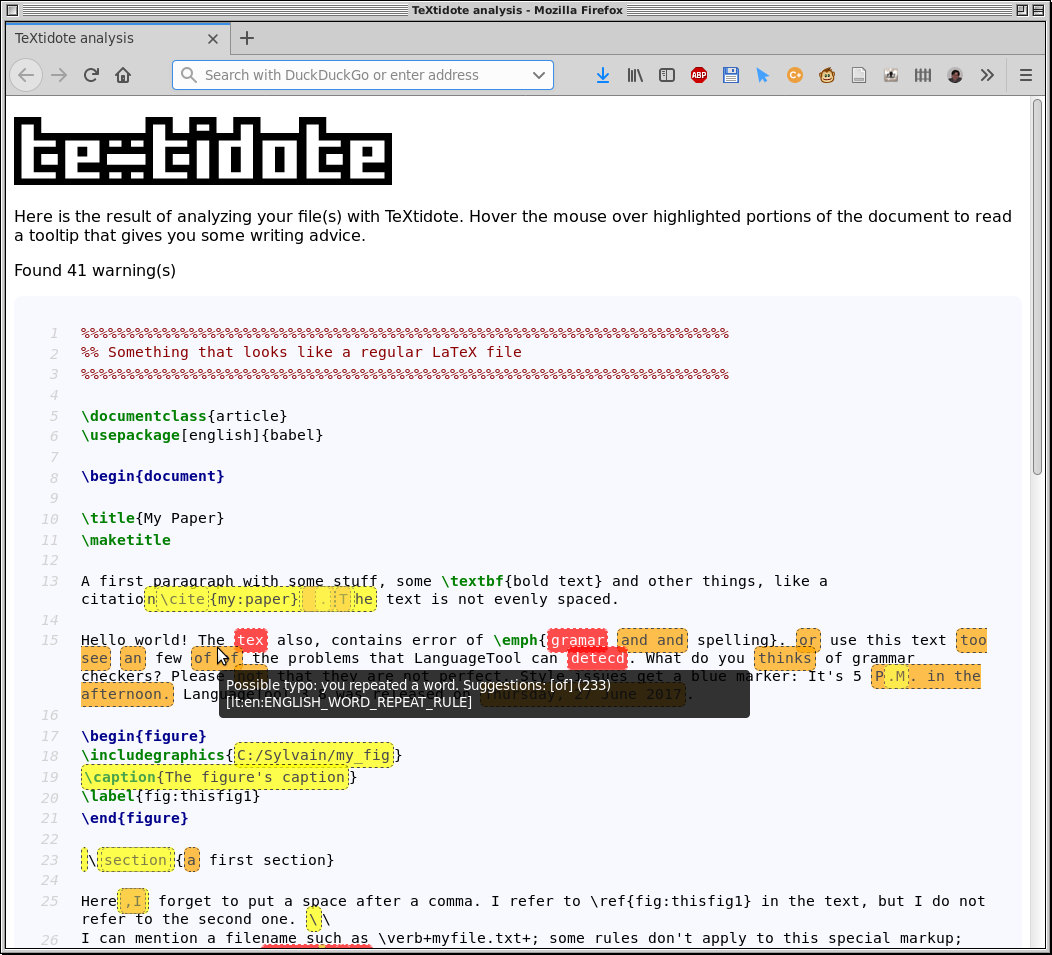
As you can see, the page shows your original LaTeX source file, where some portions have been highlighted in various colors. These correspond to regions in the file where an issue was found. You can hover your mouse over these colored regions; a tooltip will show a message that describes the problem.
If you don't write any filename (or write -- as the filename), TeXtidote
will attempt to read one from the standard input.
Plain report
To run TeXtidote and display the results directly in the console, simply omit
the --output html option (you can also use --output plain), and do not redirect the output to a file:
java -jar textidote.jar example.tex
TeXtidote will analyze the file like before, but produce a report that looks like this:
* L25C1-L25C25 A section title should start with a capital letter. [sh:001]
  \section{a first section}
  ^^^^^^^^^^^^^^^^^^^^^^^^^
* L38C1-L38C29 A section title should not end with a punctuation symbol.
  [sh:002]
  \subsection{ My subsection. }
  ^^^^^^^^^^^^^^^^^^^^^^^^^^^^^
* L15C94-L15C99 Add a space before citation or reference. [sh:c:001]
   things, like a citation\cite{my:paper} .The text
Each element of the list corresponds to a "warning", indicating that something in the text requires your attention. For each warning, the position in the original source file is given: LxxCyy indicates line xx, column yy. The warning is followed by a short comment describing the issue, and an excerpt from the line in question is displayed. The range of characters where the problem occurs is marked by the "^^^^" symbols below the text. Each of these warnings results from the evaluation of some "rule" on the text; an identifier of the rule in question is also shown between brackets.
Single line report
Another option to display the results directly in the console is the single line report:
java -jar textidote.jar --output singleline example.tex
Textidote will analyze the file like before, but this time the report looks like this:
example.tex(L25C1-L25C25): A section title should start with a capital letter. "\section{a first section}"
example.tex(L38C1-L38C29): A section title should not end with a punctuation symbol. "\subsection{ My subsection. }"
example.tex(L15C94-L15C99): Add a space before citation or reference. "things, like a citation\cite{my:paper} .The text"
Each line corresponds to a warning, and is parseable by regular expressions easily, e.g., for further processing in another tool. The file is given at the beginning of the line, followed by the position in parentheses. Then, the warning message is given, and the excerpt causing the warning is printed in double quotes (""). Note, that sometimes it may happen that a position cannot be determined. In this case, instead of LxxCyy, ? is printed.
You can disable the use of color in any form of command-line output using the
--no-color switch.
Spelling, grammar and style
You can perform further checks on spelling and grammar, by passing the
--check option at the command line. For example, to check text in English,
you run:
java -jar textidote.jar --check en example.tex
The --check parameter must be accompanied by a two-letter code indicating
the language to be used. Language Tool is a powerful library that can verify
spelling, grammar, and even provide suggestions regarding style. TeXtidote
simply passes a cleaned-up version of the LaTeX file to Language Tool,
retrieves the messages it generates, and coverts the line and column numbers
associated to each message back into line/column numbers of the original
source file. For more information about the kind of verifications made by
Language Tool, please refer to its website.
Additionally, the --firstlang lang option can be used to make Language Tool check for false friends in your first language.
For example, to check a text in english, when your first language is german, you may run:
java -jar textidote.jar --check en --firstlang de example.tex
The language codes you can use are:
de: (Germany) German, and the variantsde_AT(Austrian) andde_CH(Swiss)en: (US) English, and the variantsen_CA(Canadian) anden_UK(British)es: Spanishfr: Frenchnl: Dutchpt: Portuguesepl: Polish
Using a dictionary
If you have a list of words that you want TeXtidote to ignore when checking
spelling, you can use the --dict parameter to specify the location of a
text file:
java -jar textidote.jar --check en --dict dico.txt example.tex
The file dico.txt must be a plain text file contain a list of words to be
ignored, with each word on a separate line. (The list is case sensitive.)
If you already spell checked you file using Aspell and
saved a local dictionary
(as is done for example by the
PaperShell environment),
TeXtidote can automatically load this dictionary when invoked. More
specifically, it will look for a file called .aspell.XX.pws in the folder
where TeXtidote is started (this is the filename Aspell gives to local
dictionaries). The characters XX are to be replaced with the two-letter
language code. If such a file exists, TeXtidote will load it and mention it at
the console:
Found local Aspell dictionary
Analyzing a file from the clipboard
If you omit a filename, TeXtidote analyzes the standard input. You can use this t
Related Skills
node-connect
385.5kDiagnose OpenClaw Android, iOS, or macOS node pairing, QR/setup code, route, auth, and connection failures.
blender-python-addon
40.5kBlender Python add-on rules for operators, panels, properties, registration, testing, and API-safe scripting
flutter-development-guidelines-cursorrules-prompt-file
40.5kCursor rules for Flutter development with MVVM architecture, Riverpod state management, Material widgets, and Dart style guidelines.
commit-push-pr
140.6kCommit, push, and open a PR
