
ScalableLayout
Scalable Layout For Android
Install / Use
/learn @ssomai/ScalableLayoutREADME
ScalableLayout for Android.
Class: com.ssomai.android.scalablelayout.ScalableLayout 한글버전 README.md: https://github.com/ssomai/ScalableLayout/blob/master/README_ko.md
Just one layout for every different Android device size!<br/>
ScalableLayout is a new layout that helps you keep a consistent UI across any screen size and any layout size.<br/> <br/> ScalableLayout can be usable in replace of Layouts (i.e. FrameLayout, LinearLayout, etc.) and does the work of scaling all of the child views correctly for you.<br/> <br/> UI Widgets like TextView or Imageview get relative (x,y) coordinates and relative (width, height) values from the ScalableLayout.<br/> ScalableLayout then places and resizes the widgets according to these values.<br/> <br/> You can use ScalableLayout by importing just one java file.<br/> You can use ScalableLayout with either Java or XML in your project.<br/> <br/> ScalableLayout is used on the EverySing Karaoke app, which was awarded in the Google Play App Awards 2013.<br/> <br/>
The library is pushed to Maven Central as a AAR, so you just need to add the following dependency to your build.gradle.<br/>
dependencies {
  compile 'com.ssomai:android.scalablelayout:2.1.6'
}
Simple example in Java
// Initiate ScalableLayout instance with 400 width and 200 height.
// It's a relative unit, not pixels or dip.
ScalableLayout sl = new ScalableLayout(this, 400, 200);

// Place a TextView instance inside ScalableLayout instance.
TextView tv = new TextView(this);

// Placing a TextView with following parameters. left: 20, top: 40, width: 100, height: 30.
// It will place and scale automatically according to the size of its parent ScalableLayout.
sl.addView(tv, 20f, 40f, 100f, 30f);

// Set the text size of TextView as 20. It will scale automatically.
sl.setScale_TextSize(tv, 20f);

// All of the original methods of TextView work properly.
tv.setText("test");
tv.setBackgroundColor(Color.YELLOW);


// Place an ImageView instance inside a ScalableLayout instance.
ImageView iv = new ImageView(this);

// Placing an ImageView with following parameters. left: 200, top: 30, width: 50, height: 50.
// It will place and scale automatically according to the size of its parent ScalableLayout.
sl.addView(iv, 200f, 30f, 50f, 50f);

// All of the original methods of ImageView work properly, of course.
iv.setImageResource(R.drawable.ic_launcher);
Simple example in XML
<FrameLayout
    xmlns:android="http://schemas.android.com/apk/res/android"
    xmlns:tools="http://schemas.android.com/tools"
    xmlns:app="http://schemas.android.com/apk/res-auto"
    android:layout_width="match_parent"
    android:layout_height="match_parent"
    >
	<com.ssomai.android.scalablelayout.ScalableLayout
	  android:layout_width="match_parent"
	  android:layout_height="wrap_content"
	  android:background="@android:color/darker_gray"
	  android:layout_above="@+id/main_textview"
	  app:scale_base_width="400"
	  app:scale_base_height="200">
	  <TextView
		android:layout_width="wrap_content"
		android:layout_height="wrap_content"
		app:scale_left="20"
		app:scale_top="40"
		app:scale_width="100"
		app:scale_height="30"
		app:scale_textsize="20"
		android:text="@string/hello_world"
		android:textColor="@android:color/white"
		android:background="@android:color/black" />
	  <ImageView
		android:layout_width="wrap_content"
		android:layout_height="wrap_content"
		app:scale_left="200"
		app:scale_top="30"
		app:scale_width="50"
		app:scale_height="50"
		android:src="@drawable/ic_launcher" />
	</com.ssomai.android.scalablelayout.ScalableLayout>
</FrameLayout>
Examples of ScalableLayout on different resolutions of Android devices.
From left. Samsung Galaxy S4 (1920 x 1080. 16:9), LG Optimus View2 (1024 x 768. 4:3), Samsung Galaxy Note 10.1 (1280 x 800. 8:5)<br/><br/>
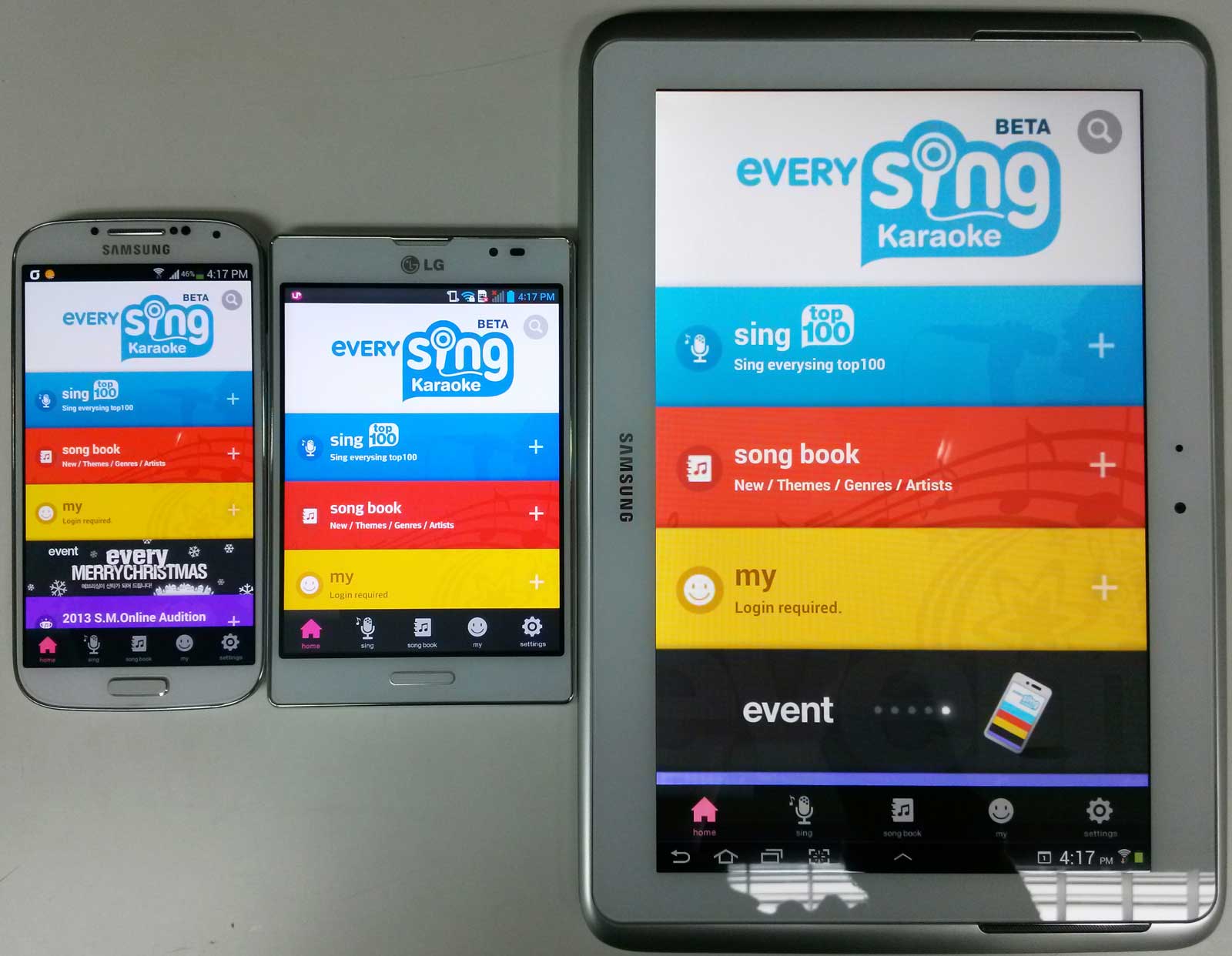 All the UIs are placed correctly on different resolutions.<br/><br/>
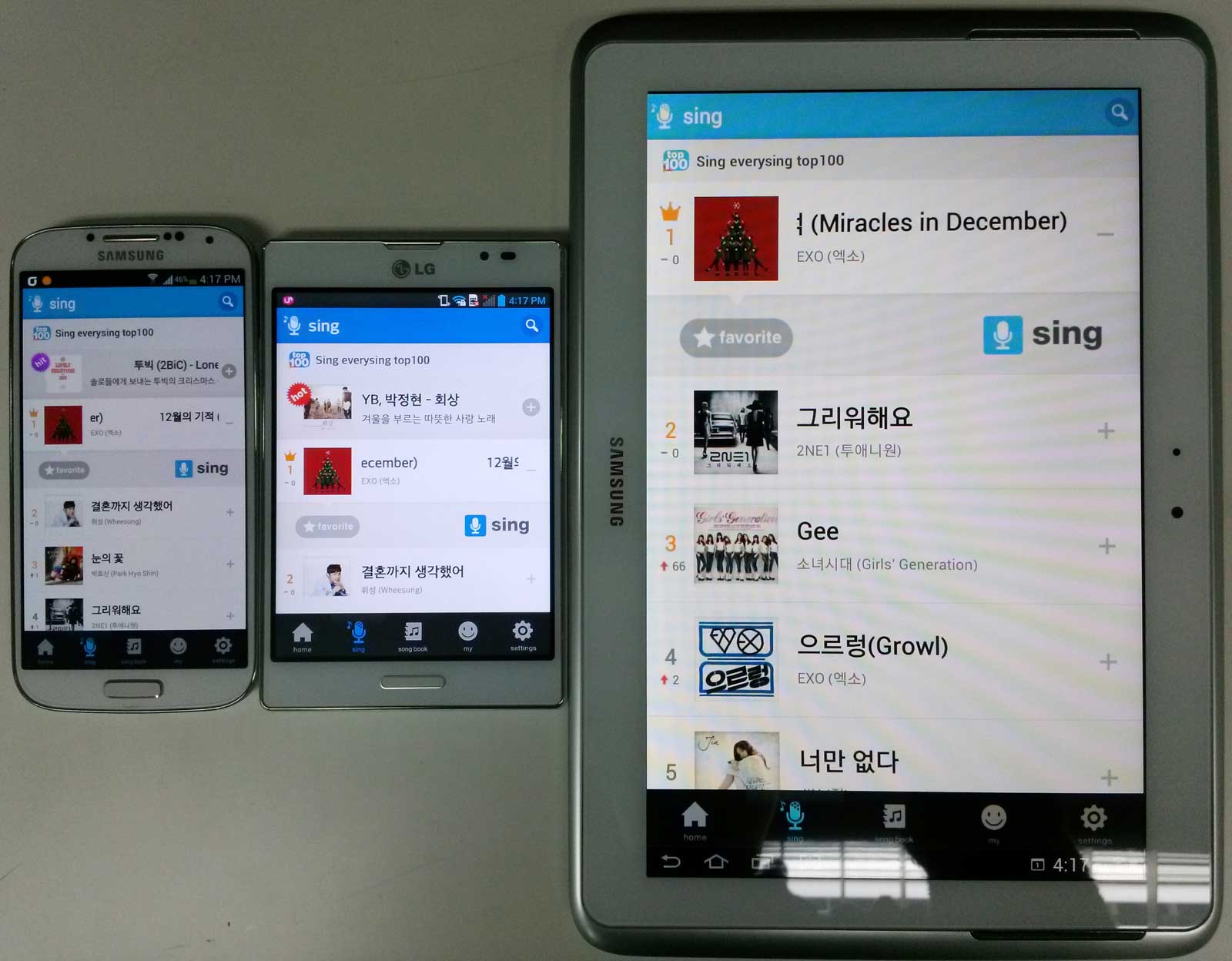 All the UIs in ListView are placed correctly on different resolutions.<br/><br/>
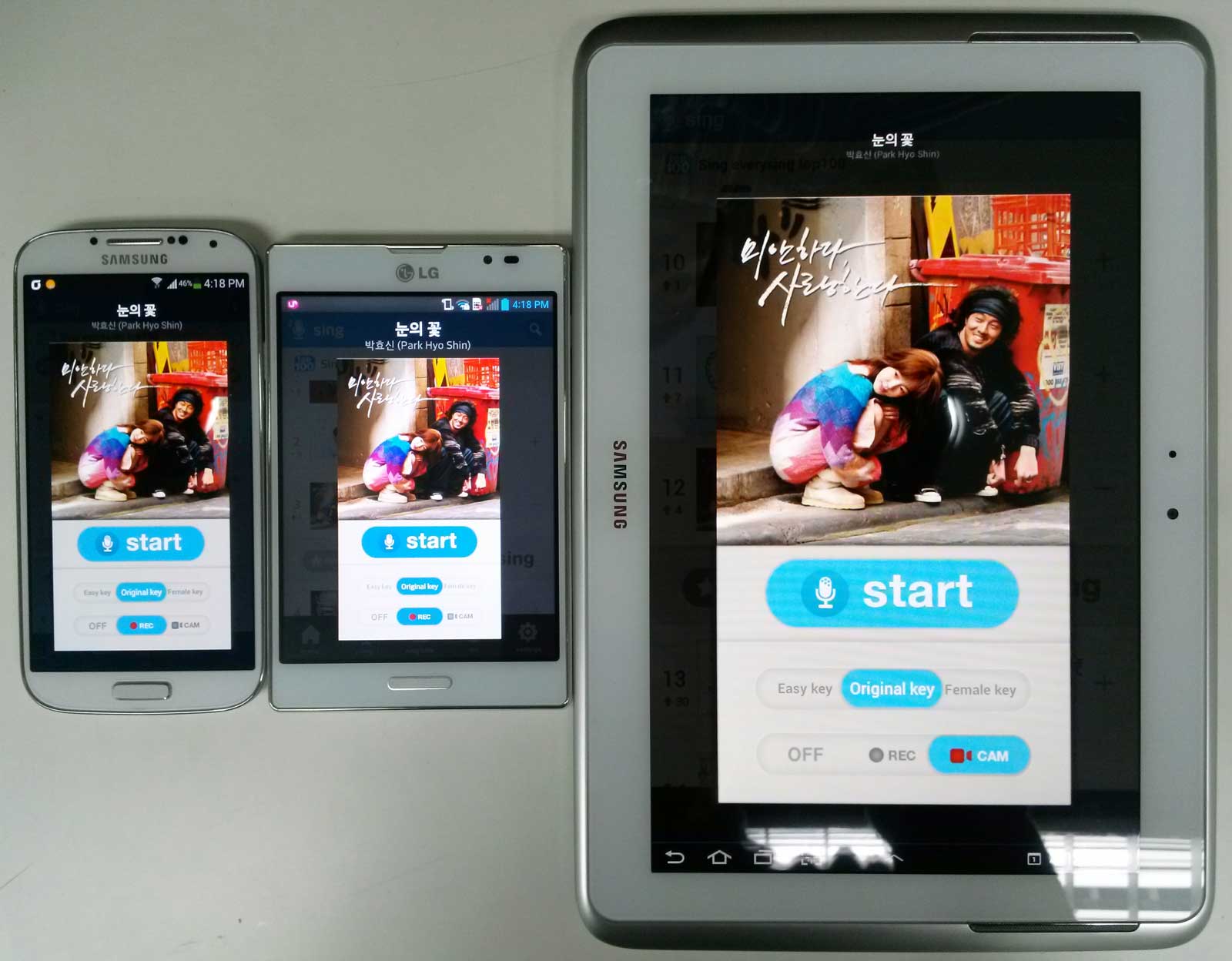 UIs in Dialog are also placed correctly on different resolutions. You can notice there are more left and right margins on Optimus View 2 to layout correctly.<br/>
Related Skills
node-connect
341.8kDiagnose OpenClaw node connection and pairing failures for Android, iOS, and macOS companion apps
frontend-design
84.6kCreate distinctive, production-grade frontend interfaces with high design quality. Use this skill when the user asks to build web components, pages, or applications. Generates creative, polished code that avoids generic AI aesthetics.
openai-whisper-api
341.8kTranscribe audio via OpenAI Audio Transcriptions API (Whisper).
commit-push-pr
84.6kCommit, push, and open a PR
