
Sampler
Tool for shell commands execution, visualization and alerting. Configured with a simple YAML file.
Install / Use
/learn @sqshq/SamplerREADME
Sampler. Visualization for any shell command.

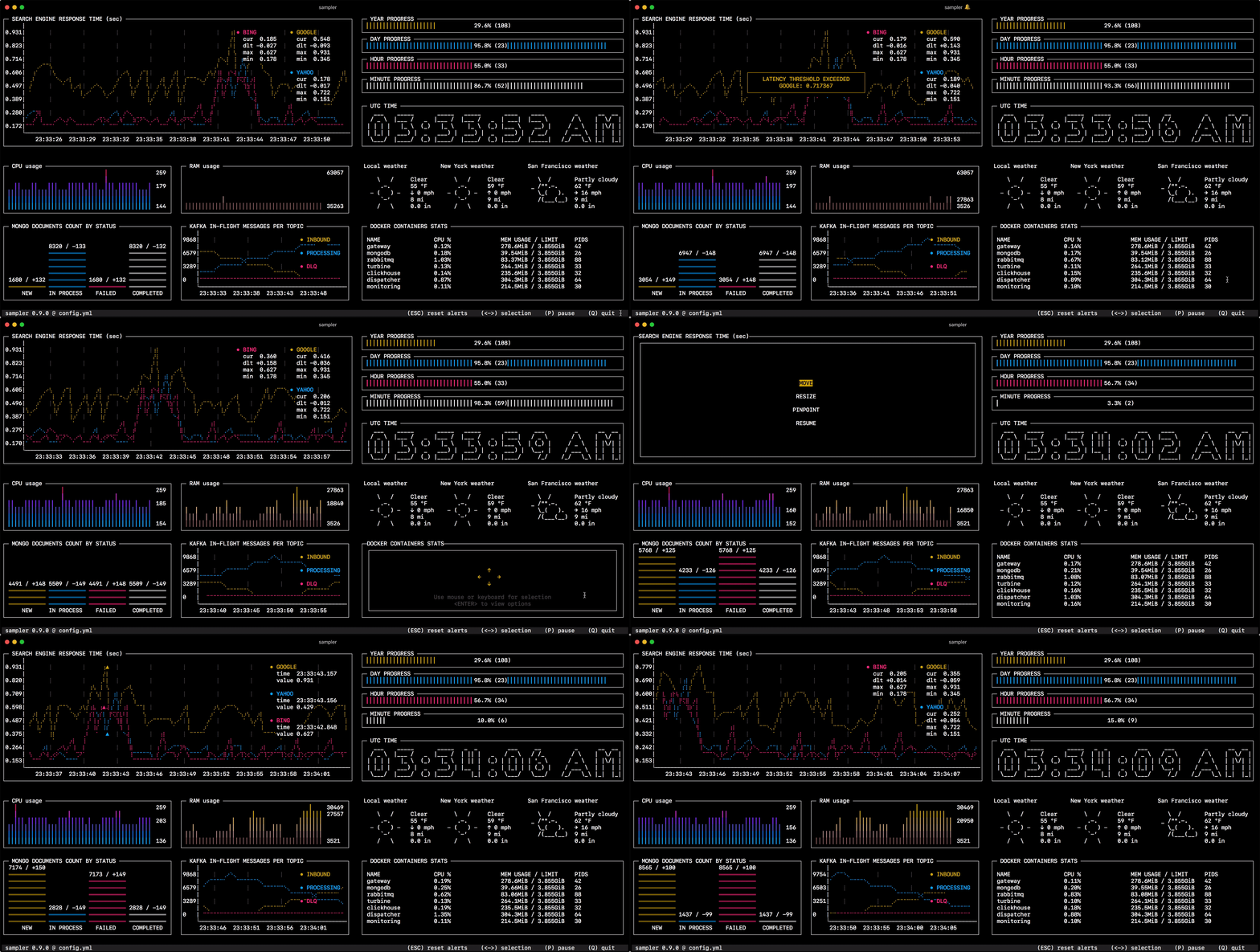
Sampler is a tool for shell commands execution, visualization and alerting. Configured with a simple YAML file.
Why do I need it?
One can sample any dynamic process right from the terminal — observe changes in the database, monitor MQ in-flight messages, trigger a deployment script and get notification when it's done.
If there is a way to get a metric using a shell command, then it can be visualized with Sampler momentarily.
Installation
macOS
brew install sampler
sudo port install sampler
or
sudo curl -Lo /usr/local/bin/sampler https://github.com/sqshq/sampler/releases/download/v1.1.0/sampler-1.1.0-darwin-amd64
sudo chmod +x /usr/local/bin/sampler
Linux
sudo wget https://github.com/sqshq/sampler/releases/download/v1.1.0/sampler-1.1.0-linux-amd64 -O /usr/local/bin/sampler
sudo chmod +x /usr/local/bin/sampler
Note: libasound2-dev system library is required to be installed for Sampler to play a trigger sound tone. Usually the library is in place, but if not - you can install it with your favorite package manager, e.g apt install libasound2-dev
Packaging status
Windows (experimental)
Recommended to use with advanced console emulators, e.g. Cmder
Via Chocolatey
choco install sampler
or
Docker
# Create a configuration file
vim config.yml

# Build the container image
docker build --tag sampler .

# Run a container
docker run --interactive --tty --volume $(pwd)/config.yml:/root/config.yml sampler --config /root/config.yml
Usage
You specify shell commands, Sampler executes them with a required rate. The output is used for visualization.
Using Sampler is basically a 3-step process:
- Define your shell commands in a YAML configuration file
- Run
sampler -c config.yml - Adjust components size and location on UI
But there are so many monitoring systems already
Sampler is by no means an alternative to full-scale monitoring systems, but rather an easy to setup development tool.
If spinning up and configuring Prometheus with Grafana is complete overkill for you task, Sampler might be the right solution. No servers, no databases, no deploy - you specify shell commands, and it just works.
Then it should be installed on every server I monitor?
No, you can run Sampler on local, but still gather telemetry from multiple remote machines. Any visualization might have init command, where you can ssh to a remote server. See the SSH example
Contents
Components
The following is a list of configuration examples for each component type, with macOS compatible sampling scripts.
Runchart
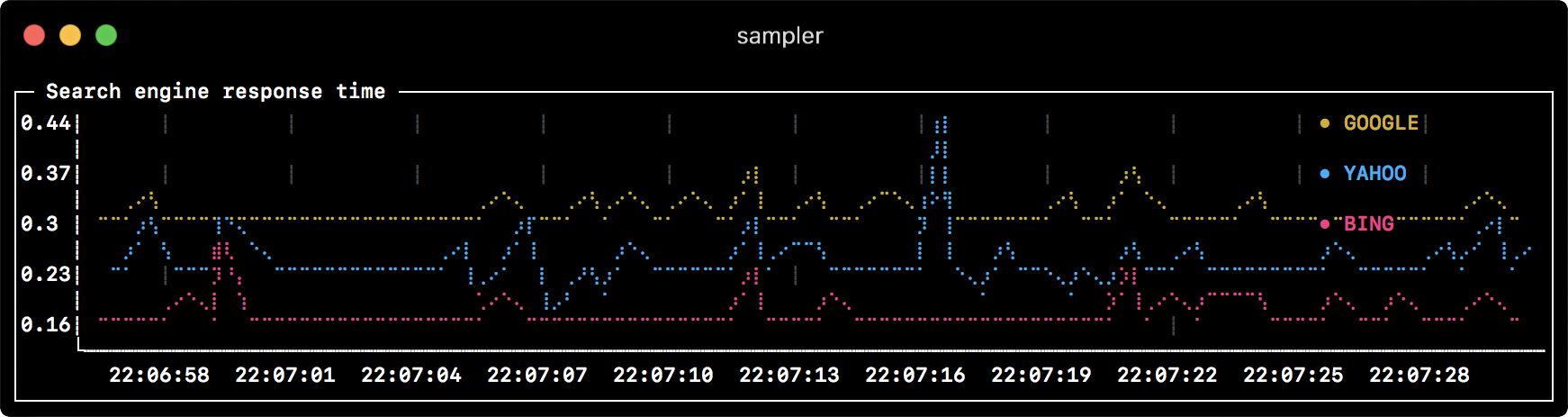
runcharts:
  - title: Search engine response time
    rate-ms: 500        # sampling rate, default = 1000
    scale: 2            # number of digits after sample decimal point, default = 1
    legend:
      enabled: true     # enables item labels, default = true
      details: false    # enables item statistics: cur/min/max/dlt values, default = true
    items:
      - label: GOOGLE
        sample: curl -o /dev/null -s -w '%{time_total}'  https://www.google.com
        color: 178      # 8-bit color number, default one is chosen from a pre-defined palette
      - label: YAHOO
        sample: curl -o /dev/null -s -w '%{time_total}'  https://search.yahoo.com
      - label: BING
        sample: curl -o /dev/null -s -w '%{time_total}'  https://www.bing.com
Sparkline
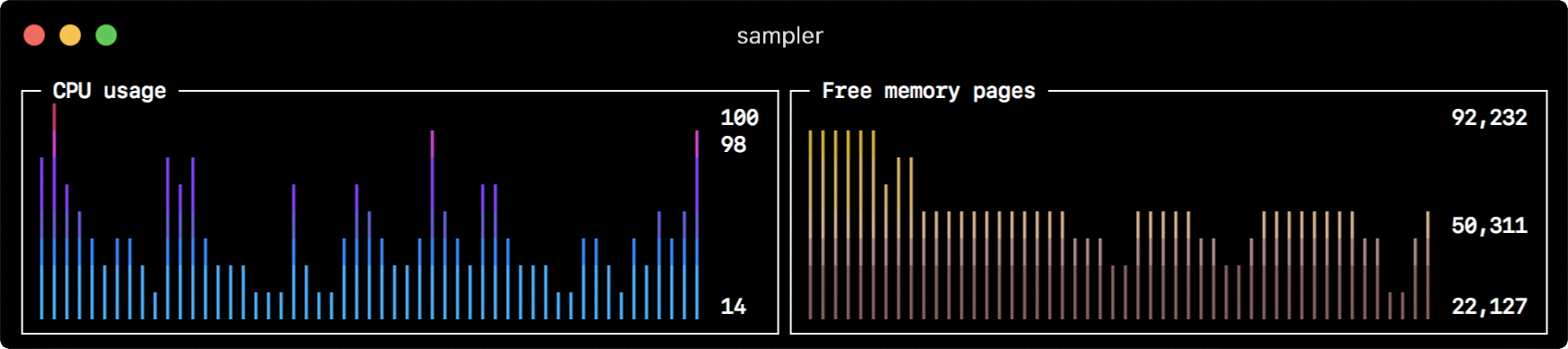
sparklines:
  - title: CPU usage
    rate-ms: 200
    scale: 0
    sample: ps -A -o %cpu | awk '{s+=$1} END {print s}'
  - title: Free memory pages
    rate-ms: 200
    scale: 0
    sample: memory_pressure | grep 'Pages free' | awk '{print $3}'
Barchart
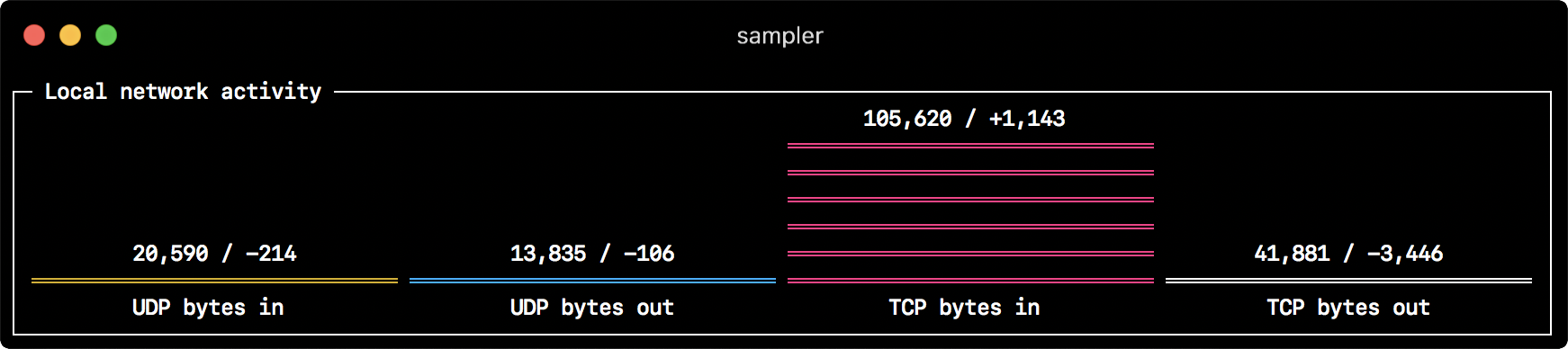
barcharts:
  - title: Local network activity
    rate-ms: 500        # sampling rate, default = 1000
    scale: 0            # number of digits after sample decimal point, default = 1
    items:
      - label: UDP bytes in
        sample: nettop -J bytes_in -l 1 -m udp | awk '{sum += $4} END {print sum}'
      - label: UDP bytes out
        sample: nettop -J bytes_out -l 1 -m udp | awk '{sum += $4} END {print sum}'
      - label: TCP bytes in
        sample: nettop -J bytes_in -l 1 -m tcp | awk '{sum += $4} END {print sum}'
      - label: TCP bytes out
        sample: nettop -J bytes_out -l 1 -m tcp | awk '{sum += $4} END {print sum}'
Gauge

gauges:
  - title: Minute progress
    rate-ms: 500        # sampling rate, default = 1000
    scale: 2            # number of digits after sample decimal point, default = 1
    percent-only: false # toggle display of the current value, default = false
    color: 178          # 8-bit color number, default one is chosen from a pre-defined palette
    cur:
      sample: date +%S  # sample script for current value
    max:
      sample: echo 60   # sample script for max value
    min:
      sample: echo 0    # sample script for min value
  - title: Year progress
    cur:
      sample: date +%j
    max:
      sample: echo 365
    min:
      sample: echo 0
Textbox
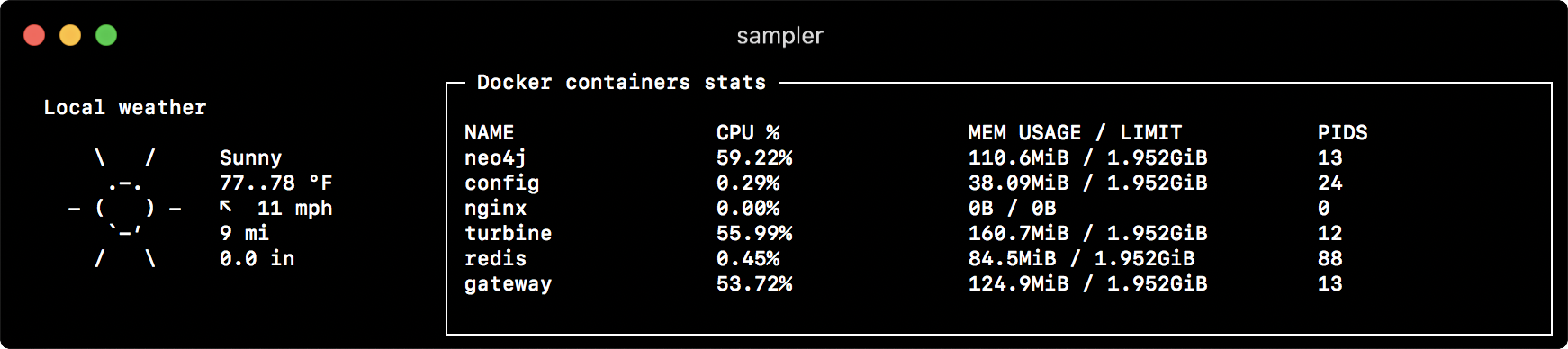
textboxes:
  - title: Local weather
    rate-ms: 10000      # sampling rate, default = 1000
    sample: curl wttr.in?0ATQF
    border: false       # border around the item, default = true
    color: 178          # 8-bit color number, default is white
  - title: Docker containers stats
    rate-ms: 500
    sample: docker stats --no-stream --format "table {{.Name}}\t{{.CPUPerc}}\t{{.MemUsage}}\t{{.PIDs}}"
Asciibox

asciiboxes:
  - title: UTC time
    rate-ms: 500        # sampling rate, default = 1000
    font: 3d            # font type, default = 2d
    border: false       # border around the item, default = true
    color: 43           # 8-bit color number, default is white
    sample: env TZ=UTC date +%r
Bells and whistles
Triggers
Triggers allow to perform conditional actions, like visual/sound alerts or an arbitrary shell command. The following examples illustrate the concept.
Clock gauge, which shows minute progress and announces current time at the beginning of each minute
gauges:
  - title: MINUTE PROGRESS
    position: [[0, 18], [80, 0]]
    cur:
      sample: date +%S
    max:
      sample: echo 60
    min:
      sample: echo 0
    triggers:
      - title: CLOCK BELL EVERY MINUTE
        condition: '[ $label == "cur" ] && [ $cur -eq 0 ] && echo 1 || echo 0'  # expects "1" as TRUE indicator
        actions:
          terminal-bell: true  # standard terminal bell, default = false
          sound: true    # NASA quindar tone, default = false
          visual: false  # notification with current value on top of the component area, default = false
          script: say -v samantha `date +%I:%M%p`  # an arbitrary script, which can use $cur, $prev and $label variables
Search engine latency chart, which alerts user when latency exceeds a threshold
runcharts:
  - title: SEARCH ENGINE RESPONSE TIME (sec)
    rate-ms: 200
    items:
      - label: GOOGLE
        sample: curl -o /dev/null -s -w '%{time_total}'  https://www.google.com
      - label: YAHOO
        sample: curl -o /dev/null -s -w '%{time_total}'  https://search.yahoo.com
    triggers:
      - title: Latency threshold exceeded
        condition: echo "$prev < 0.3 && $cur > 0.3" |bc -l  # expects "1" as TRUE indicator
        actions:
          terminal-bell: true  # standard terminal bell, default = false
          sound: true   # NASA quindar tone, default = false
          visual: true  # visual notification on top of the component area, default = false
          script: 'say alert: ${label} latency exceeded ${cur} second' # an arbitrary script, which can use $cur, $prev a
Related Skills
tmux
330.7kRemote-control tmux sessions for interactive CLIs by sending keystrokes and scraping pane output.
xurl
330.7kA CLI tool for making authenticated requests to the X (Twitter) API. Use this skill when you need to post tweets, reply, quote, search, read posts, manage followers, send DMs, upload media, or interact with any X API v2 endpoint.
blogwatcher
330.7kMonitor blogs and RSS/Atom feeds for updates using the blogwatcher CLI.
prd
Raito Bitcoin ZK client web portal.
