
Ahk
Python wrapper for AutoHotkey with full type support. Harness the automation power of AutoHotkey with the beauty of Python.
Install / Use
/learn @spyoungtech/AhkREADME
ahk
A fully typed Python wrapper around AutoHotkey.




Installation
pip install ahk
Requires Python 3.8+
Supports AutoHotkey v1 and v2. See also: Non-Python dependencies
Usage
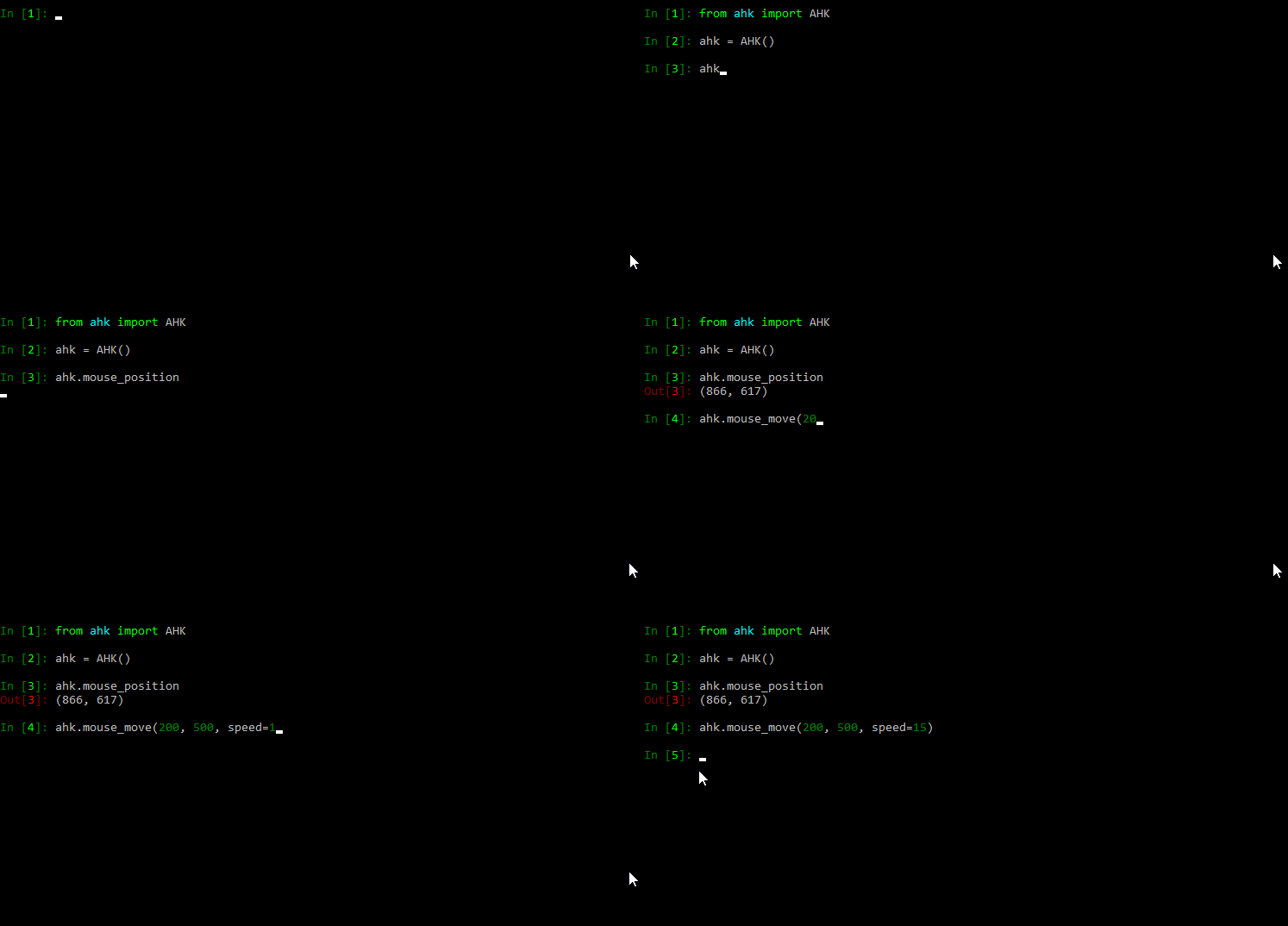
from ahk import AHK

ahk = AHK()

ahk.mouse_move(x=100, y=100, blocking=True)  # Blocks until mouse finishes moving (the default)
ahk.mouse_move(x=150, y=150, speed=10, blocking=True) # Moves the mouse to x, y taking 'speed' seconds to move
print(ahk.mouse_position)  #  (150, 150)
Examples
Non-exhaustive examples of some functions available with this package. See the full documentation for complete API references and additional features.
Hotkeys
Hotkeys can be configured to run python functions as callbacks.
For example:
from ahk import AHK

def my_callback():
    print('Hello callback!')

ahk = AHK()
# when WIN + n is pressed, fire `my_callback`
ahk.add_hotkey('#n', callback=my_callback)
ahk.start_hotkeys()  # start the hotkey process thread
ahk.block_forever()  # not strictly needed in all scripts -- stops the script from exiting; sleep forever
Now whenever you press <kbd>![Windows Key][winlogo]</kbd> + <kbd>n</kbd>, the my_callback callback function will be called in a background thread.
You can also add an exception handler for your callback:
from ahk import AHK
ahk = AHK()

def go_boom():
    raise Exception('boom!')

def my_ex_handler(hotkey: str, exception: Exception):
    print('exception with callback for hotkey', hotkey, 'Here was the error:', exception)

ahk.add_hotkey('#n', callback=go_boom, ex_handler=my_ex_handler)
There are also methods for removing hotkeys:
# ...
ahk.remove_hotkey('#n') # remove a hotkey by its keyname
ahk.clear_hotkeys()  # remove all hotkeys
Note that:
- Hotkeys run in a separate process that must be started manually (with
ahk.start_hotkeys()) - Hotkeys can be stopped with
ahk.stop_hotkeys()(will not stop actively running callbacks) - Hotstrings (discussed below) share the same process with hotkeys and are started/stopped in the same manner
- If hotkeys or hotstrings are added or removed while the process is running, the underlying AHK process is restarted automatically
See also the relevant AHK documentation
Hotstrings
Hotstrings can also be added to the hotkey process thread.
In addition to Hotstrings supporting normal AHK string replacements, you can also provide Python callbacks (with optional exception handlers) in response to hotstrings triggering.
from ahk import AHK
ahk = AHK()

def my_callback():
    print('hello callback!')

ahk.add_hotstring('btw', 'by the way')  # string replacements
ahk.add_hotstring('btw', my_callback) # call python function in response to the hotstring
You can also remove hotstrings:
ahk.remove_hotstring('btw')  # remove a hotstring by its trigger sequence
ahk.clear_hotstrings()  # remove all registered hotstrings
Mouse
from ahk import AHK

ahk = AHK()

ahk.mouse_position  # Returns a tuple of mouse coordinates (x, y) (relative to active window)
ahk.get_mouse_position(coord_mode='Screen') # get coordinates relative to the screen
ahk.mouse_move(100, 100, speed=10, relative=True)  # Moves the mouse reletave to the current position
ahk.mouse_position = (100, 100)  # Moves the mouse instantly to absolute screen position
ahk.click()  # Click the primary mouse button
ahk.click(200, 200)  # Moves the mouse to a particular position and clicks (relative to active window)
ahk.click(100, 200, coord_mode='Screen') # click relative to the screen instead of active window
ahk.click(button='R', click_count=2) # Clicks the right mouse button twice
ahk.right_click() # Clicks the secondary mouse button
ahk.mouse_drag(100, 100, relative=True) # Holds down primary button and moves the mouse
Keyboard
from ahk import AHK

ahk = AHK()

ahk.type('hello, world!')  # Send keys, as if typed (performs string escapes for you)
ahk.send_input('Hello, {U+1F30E}{!}')  # Like AHK SendInput
                                   # Unlike `type`, control sequences must be escaped manually.
                                   # For example the characters `!^+#=` and braces (`{` `}`) must be escaped manually.
ahk.key_state('Control')  # Return True or False based on whether Control key is pressed down
ahk.key_state('CapsLock', mode='T')  # Check toggle state of a key (like for NumLock, CapsLock, etc)
ahk.key_press('a')  # Press and release a key
ahk.key_down('Control')  # Press down (but do not release) Control key
ahk.key_up('Control')  # Release the key
ahk.set_capslock_state("On")  # Turn CapsLock on
if ahk.key_wait('x', timeout=3):  # wait for a key to be pressed; returns a boolean
    print('X was pressed within 3 seconds')
else:
    print('X was not pressed within 3 seconds')
Windows
You can do stuff with windows, too.
Getting windows
from ahk import AHK

ahk = AHK()

win = ahk.active_window                        # Get the active window
win = ahk.win_get(title='Untitled - Notepad')  # by title
all_windows = ahk.list_windows()               # list of all windows
win = ahk.win_get_from_mouse_position()        # the window under the mouse cursor
win = ahk.win_get(title='ahk_pid 20366')       # get window from pid

# Wait for a window
try:
    # wait up to 5 seconds for notepad
    win = ahk.win_wait(title='Untitled - Notepad', timeout=5)
    # see also: win_wait_active, win_wait_not_active
except TimeoutError:
    print('Notepad was not found!')
Working with windows
from ahk import AHK

ahk = AHK()

ahk.run_script('Run Notepad') # Open notepad
win = ahk.find_window(title='Untitled - Notepad') # Find the opened window; returns a `Window` object

# Window object methods
win.send('hello', control='Edit1')  # Send keys directly to the window (does not need focus!)
# OR ahk.control_send(title='Untitled - Notepad', control='Edit1')
win.move(x=200, y=300, width=500, height=800)

win.activate()                  # Give the window focus
win.close()                     # Close the window
win.hide()                      # Hide the window
win.kill()                      # Kill the window
win.maximize()                  # Maximize the window
win.minimize()                  # Minimize the window
win.restore()                   # Restore the window
win.show()                      # Show the window
win.disable()                   # Make the window non-interactable
win.enable()                    # Enable it again
win.to_top()                    # Move the window on top of other windows
win.to_bottom()                 # Move the window to the bottom of the other windows
win.get_class()                 # Get the class name of the window
win.get_minmax()                # Get the min/max status
win.get_process_name()          # Get the process name (e.g., "notepad.exe")
win.process_name                # Property; same as `.get_process_name()` above
win.is_always_on_top()          # Whether the window has the 'always on top' style applied
win.list_controls()             # Get a list of controls (list of `Control` objects)
win.redraw()                    # Redraw the window
win.set_style("-0xC00000")      # Set a style on the window (in this case, removing the title bar)
win.set_ex_style("^0x80")       # Set an ExStyle on the window (in this case, removes the window from alt-tab list)
win.set_region("")              # See: https://www.autohotkey.com/docs/v2/lib/WinSetRegion.htm
win.set_trans_color("White")    # Makes all pixels of the chosen color invisible inside the specified window.
win.set_transparent(155)        # Makes the specified window semi-transparent (or "Off" to turn off transparency)


win.always_on_top = 'On' # Make the window always on top
# or
win.set_always_on_top('On')

for window in ahk.list_windows():  # list all (non-hidden) windows -- ``detect_hidden_windows=True`` to include hidden
    print(window.title)

    # Some more attributes
    print(window.text)           # window text -- or .get_text()
    print(window.get_position()) # (x, y, width, height)
    print(window.id)             # the ahk_id of the window
    print(window.pid)            # process ID -- or .get_pid()
    print(window.process_path)   # or .get_process_path()


if win.active:        # or win.is_active()
    ...

if win.exist:         # or win.exists()
    ...

# Controls

edit_control = win.list_controls()[0]  # get the first control for the window, in this case "Edit1" for Notepad
edit_control.get_text()      # get the text in Notepad
edit_control.get_position()  # returns a `Postion` namedtuple: e.g. Position(x=6, y=49, width=2381, height=1013)
Various window methods can also be called directly without first creating a Window object by using the underlying win_* methods on the AHK class.
For example, instead of win.close() as above, one could call ahk.win_close(title='Untitled - Notepad') instead.
Screen
from ahk import AHK

ahk = AHK()

ahk.
