
Usbrip
Tracking history of USB events on GNU/Linux
Install / Use
/learn @snovvcrash/UsbripREADME
<p align="center"> <a href="https://github.com/snovvcrash/usbrip/blob/master/usbrip/__init__.py#L24"><img src="https://img.shields.io/badge/version-2.2.2%E2%80%901-success.svg" alt="version.svg" /></a> <a href="https://www.python.org/downloads/"><img src="https://img.shields.io/badge/python-3.6-3776ab.svg?logo=python&logoColor=white" alt="python.svg" /></a> <a href="https://raw.githubusercontent.com/snovvcrash/usbrip/master/LICENSE"><img src="https://img.shields.io/badge/license-GPLv3-blue.svg" alt="license.svg" /></a> <a href="https://repology.org/project/usbrip/versions"><img src="https://repology.org/badge/version-for-repo/blackarch/usbrip.svg?header=BlackArch" alt="blackarch.svg"></a> <a href="https://emojipedia.org/growing-heart/"><img src="https://img.shields.io/badge/built%20with-%F0%9F%92%97%F0%9F%92%97%F0%9F%92%97-lightgrey.svg" alt="built-with-love.svg" /></a> </p>
usbrip (inherited from "USB Ripper", not "USB R.I.P.") is a simple forensics tool with command line interface that lets you keep track of USB device artifacts (i.e., USB event history) on Linux machines.
Table of Contents:
- Description
- Quick Start
- Showcase
- System Log Structure
- Dependencies
- Manual installation
- Usage
- Examples
- Credits & References
- Stargazers Chart
- Post Scriptum
Description
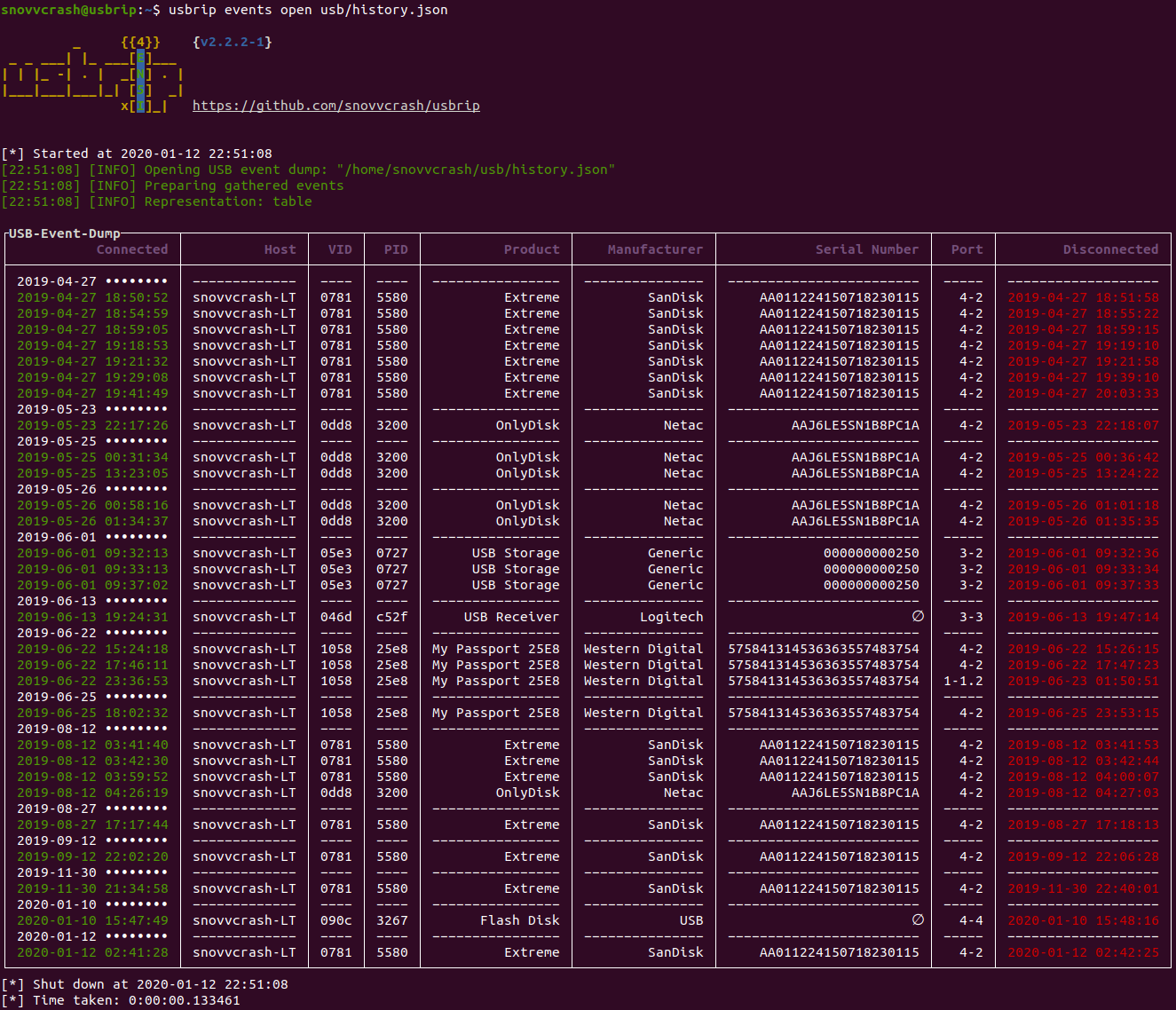
usbrip is a small piece of software which analyzes Linux log data: journalctl output or contents of /var/log/syslog* (or /var/log/messages*) files. Based on the collected data usbrip can build USB event history tables with the following columns:
- Connected (date & time)
- Host
- VID (vendor ID)
- PID (product ID)
- Product
- Manufacturer
- Serial Number
- Port
- Disconnected (date & time)
Besides, it also can:
- Export collected data as a JSON dump for later use.
- Generate a list of authorized (trusted) USB devices as a JSON file (call it auth.json).
- Search for "violation events" based on auth.json: discover USB devices that do appear in history and do NOT appear in the auth.json file.
- *when installed with
-sflag* Create protected storages (7-Zip archives) to automatically backup and accumulate USB events with the help of cron scheduler. - Search additional details about a specific USB device based on its VID and/or PID.
Quick Start
Way 1. Install with pip:
~$ sudo -H python3 -m pip install -U usbrip
~$ usbrip -h
Way 2. Install bleeding-edge with install.sh (recommended, extra features available):
~$ sudo apt install python3-venv p7zip-full -y
~$ git clone https://github.com/snovvcrash/usbrip && cd usbrip
~/usbrip$ sudo -H installers/install.sh
~/usbrip$ cd
~$ usbrip -h
Showcase
Docker (*DEMO ONLY!*)
~$ docker run --rm -it snovvcrash/usbrip
System Log Structure
usbrip supports two types of timestamps to parse within system log files:
- Non-modified – standard syslog structure for GNU/Linux (
"%b %d %H:%M:%S", ex."Jan 1 00:00:00"). This type of timestamp does not provide the information about the year. - Modified (recommended) – better syslog structure which provides high precision timestamps including years (
"%Y-%m-%dT%H:%M:%S.%f%z", ex."1970-01-01T00:00:00.000000-00:00").
If you do have journalctl installed, then there's nothing to worry about as it can convert timestamps on the fly. Otherwise, the desired syslog structure can be achieved by setting RSYSLOG_FileFormat format in rsyslog configuration.
- Comment out the following line in
/etc/rsyslog.conf:
$ActionFileDefaultTemplate RSYSLOG_TraditionalFileFormat
- Add custom
.conffile for usbrip:
~$ echo '$ActionFileDefaultTemplate RSYSLOG_FileFormat' | sudo tee /etc/rsyslog.d/usbrip.conf
- *optional* Delete existing log files:
~$ sudo rm -f /var/log/syslog* /var/log/messages*
- Restart the service:
~$ sudo systemctl restart rsyslog
Firstly, usbrip will check if there is a chance to dump system events using journalctl as the most portable option. If not – it will search for and parse /var/log/syslog* or /var/log/messages* system log files.
Dependencies
deb
- python3.6 interpreter (or newer)
- python3-venv
- p7zip-full (used by
storagemodule)
pip
Manual installation
Git Clone
For simplicity, lets agree that all the commands where ~/usbrip$ prefix is appeared are executed in the ~/usbrip directory which is created as a result of a git clone:
~$ git clone https://github.com/snovvcrash/usbrip
~$ cd usbrip
~/usbrip$ pwd
install.sh
Besides installing with pip, usbrip can also be installed with custom installers/install.sh script.
When using install.sh some extra features become available:
- The virtual environment is created automatically.
- You can use the
storagemodule – set a cron job to backup USB events on a schedule (example of a cron job can be found inusbrip/cron/usbrip.cron).
:warning: Warning: if you are using cron scheduling, you want to configure the crontab with sudo crontab -e in order to force the storage update submodule run as root. The storage passwords are kept in /var/opt/usbrip/usbrip.ini and accessible by root only by default.
To install usbrip with install.sh use:
~/usbrip$ sudo -H installers/install.sh [-l/--local] [-s/--storages]
~/usbrip$ cd
~$ usbrip -h
- When
-lswitch is enabled, Python dependencies are resolved from local.tarpackages (3rdPartyTools directory) instead of PyPI. - When
-sswitch is enabled, not only the usbrip project is installed but also the list of trusted USB devices, history and violations storages are created.
After the installation completes feel free to remove the ~/usbrip directory.
Paths
When installed with install.sh, usbrip uses the following paths:
/opt/usbrip/– project's main directory./var/opt/usbrip/log/– usbrip cron logs./var/opt/usbrip/storage/– USB event storages (history.7zandviolations.7z, created during the installation process)./var/opt/usbrip/trusted/– lists of trusted USB devices (auth.json, created during the installation process)./var/opt/usbrip/usbrip.ini– usbrip configuration file (contains passwords for 7-Zip storages)./usr/local/bin/usbrip– symlink to the/opt/usbrip/venv/bin/usbripscript.
Cron
Cron jobs can be set as follows:
~/usbrip$ sudo crontab -l > tmpcron && echo "" >> tmpcron
~/usbrip$ cat usbrip/cron/usbrip.cron | tee -a tmpcron
~/usbrip$ sudo crontab tmpcron
~/usbrip$ rm tmpcron
uninstall.sh
The installers/uninstall.sh script removes usbrip and all the installation artifacts from your system.
To uninstall usbrip use:
~/usbrip$ sudo installers/uninstall.sh [-a/--all]
- When
-aswitch is enabled, not only the usbrip project directory is deleted but also all the storages and usbrip logs are deleted too.
Don't forget to remove the cron job if you had set up one.
Usage
Synopsis
# ---------- BANNER ----------

~$ usbrip banner
Get usbrip banner.

# ---------- EVENTS ----------

~$ usbrip events history [-t | -l] [-e] [-n <NUMBER_OF_EVENTS>] [-d <DATE> [<DATE> ...]] [--host <HOST> [<HOST> ...]] [--vid <VID> [<VID> ...]] [--pid <PID> [<PID> ...]] [--prod <PROD> [<PROD> ...]] [--manufact <MANUFACT> [<MANUFACT> ...]] [--serial <SERIAL> [<SERIAL> ...]] [--port <PORT> [<PORT> ...]] [-c <COLUMN> [<COLUMN> ...]] [-f <FILE> [<FILE> ...]] [-q] [--debug]
Get USB event history.

~$ usbrip events open <DUMP.JSON> [-t | -l] [-e] [-n <NUMBER_OF_EVENTS>] [-d <DATE> [<DATE> ...]] [--host <HOST> [<HOST> ...]] [--vid <VID> [<VID> ...]] [--pid <PID> [<PID> ...]] [--prod <PROD> [<PROD> ...]] [--manufact <MANUFACT> [<MANUFACT> ...]] [--serial <SERIAL> [<SERIAL> ...]] [--port <PORT> [<PORT> ...]] [-c <COLUMN> [<COLUMN> ...]] [-q] [--debug]
Open USB event dump.

~$ sudo usbrip events genauth <OUT_AUTH.JSON> [-a <ATTRIBUTE> [<ATTRIBUTE> ...]] [-e] [-n <NUMBER_OF_EVENTS>] [-d <DATE> [<DATE> ...]] [--host <HOST> [<HOST> ...]] [--vid <VID> [<VID> ...]] [--pid <PID> [<PID> ...]] [--prod <PROD> [<PROD> ...]] [--manufact <MANUFACT> [<MANUFACT> ...]] [--serial <SERIAL> [<SERIAL> ...]] [--port <PORT> [<PORT> ...]] [-f <FILE> [<FILE> ...]] [-q] [--debug]
Generate a list of trusted (authorized) USB devices.

~$ sudo usbrip events violations <IN_AUTH.JSON> [-a <ATTRIBUTE> [<ATTRIBUTE> ...]] [-t | -l] [-e] [-n <NUMBER_OF_EVENTS>] [-d <DATE> [<DATE> ...]] [--host <HOST> [<HOST> ...]] [--vid <VID> [<VID> ...]] [--pid <PID> [<PID> ...]]
