
Portalmessenger
JS8Call radio messaging application
Install / Use
/learn @simplyequipped/PortalmessengerREADME
Portal Messenger


HF radio messaging web app using pyjs8call.
βeta Software
This software is currently in a beta state. This means that the software will likely change in the future, and that there will be bugs. You can provide feedback in the Discussions section of the repository.
Responsibility
It is the station operator's responsibility to ensure compliance with local laws.
It is the user's responsibility to manage their local network and implement good security practices (ex. using a firewall). Portal Messenger uses the Flask development server for simplicity and should only be used on a local network. Do not make Portal Messenger available on the internet.
Features
- Web based interface accessible form the local network on desktop or mobile
- Text messaging style conversations with options to insert pre-formatted JS8Call commands
- Station presence indicator and time since last heard
- Views for station activity, directed messages, network activity, local station propagation map, and persistent settings
- Simple application installation, including cross-platform desktop shortcut creation
Getting Started
Installation
Refer to the pyjs8call documentation for information on installing JS8Call. The radio interface and audio devices should be configured directly in the JS8Call application settings before running Portal Messenger.
Perform the following steps from the command line:
- Install the application:
pip install portalmessenger - Create a desktop shortcut:
python -m portalmessenger --shortcut
Launch
- Double-click the Portal Messenger icon on the desktop, which will open a command line window
- Wait while JS8Call and Portal Messenger are started
- Once the information in the command line window indicates that the application has started, enter the IP address and port as displayed (ex. 192.168.0.20:5000) into the web browser on a device connected to the same WiFi network
Views
Menu Items
Selecting the menu icon ( <img src="https://github.com/simplyequipped/portalmessenger/blob/main/portalmessenger/static/icons/hamburger.svg" alt="hamburger icon" width="25" height="25"/> ) displays the main application menu. The available menu items are the same in most views, with a few exceptions noted in the relevant sections below.
- Activity: Navigate to the station activity view
- Network: Navigate to the network activity view
- Propagation Map: Navigate to the propagation map view
- Settings: Navigate to the settings view
- Close Portal: Stop the application
Activity
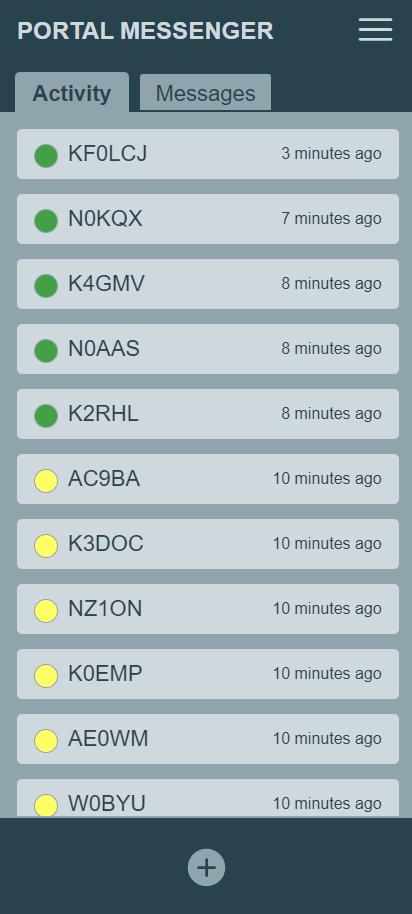
There are two tabs in the Activity view: Activity and Messages. The Default Tab setting is used to select which of these two tabs is displayed when navigating to the Activity view (see the Settings section for more information). The Activity tab displays each heard station's presence indicator, callsign, and time since last heard. The Messages tab displays a station's presence indicator, callsign, and time since last heard when there are stored messages (incoming and/or outgoing) associated with that station. The Messages tab will indicate the number of unread messages (when greater than zero), and stations with unread messages will have a bold callsign.
Select a station to send a message or see stored message history (see the Conversation view section for more information). Use the add icon ( <img src="https://raw.githubusercontent.com/simplyequipped/portalmessenger/main/portalmessenger/static/icons/add-solid.svg" alt="add icon" width="25" height="25"/> ) near the bottom of the view to start a new conversation with a station. After pressing the add icon, you will enter the station callsign or group designator and then press Add. You will be redirected to the conversation for that station or group.
The Activity view is dynamic and will update automatically as stations are heard and messages are received. Stations are shown in order of time since last heard. The Aging (minutes) setting is used to set how long after being heard a station will be displayed in the list.
When the Messages tab is selected, the menu will include an additonal Delete Messages... option. After selecting this menu option, a delete icon ( <img src="https://raw.githubusercontent.com/simplyequipped/portalmessenger/main/portalmessenger/static/icons/delete-hollow.svg" alt="trash can icon" width="25" height="25"/> ) will be displayed on each station message. Selecting the delete icon will remove all stored messages associated with that station and remove the station from the list. Select anywhere on the view (other than a delete icon) to hide the delete icons.
Conversation
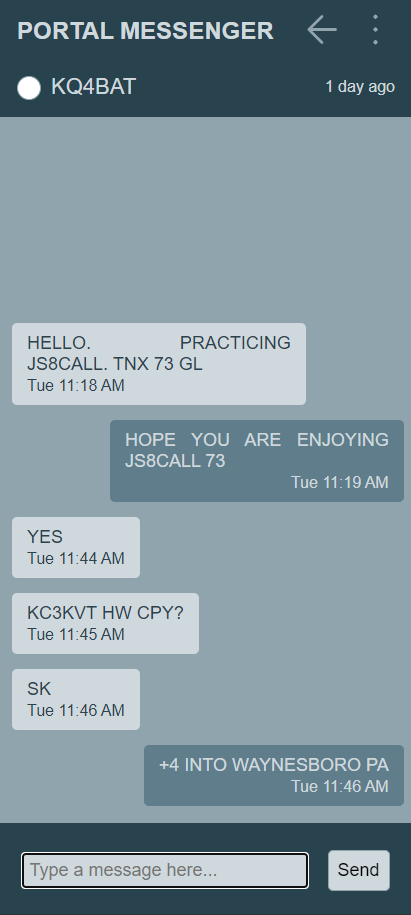
When a station is selected, the user will navigate to the Conversation view. This view displays the station's presence indicator, callsign, and time since last heard. An outgoing message can be entered in the text field near the bottom of the view. Press Enter or select the Send button to send the message. Outgoing messages are queued for transmit and will be sent in order. Outgoing message status is indicated immediately below the outgoing message. Outgoing message status may be: Queued, Sending, Sent, or Failed. Once the outgoing message is sent, the Sent status will be displayed for 10 seconds before being hidden. Navigating away from the Conversation view will not affect the outgoing message.
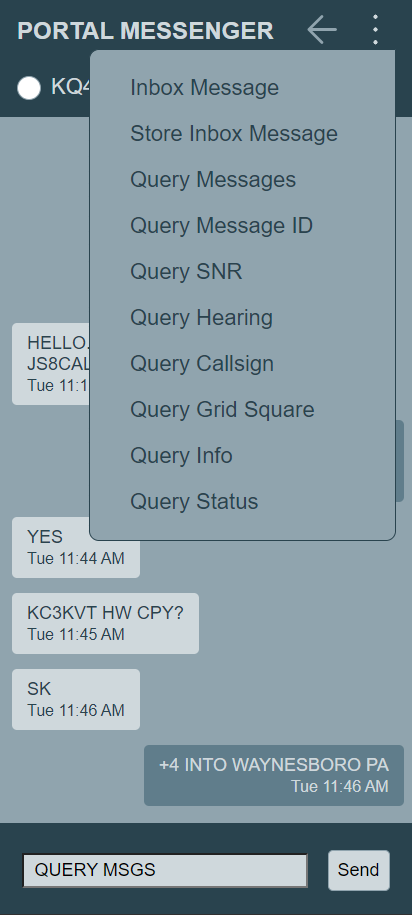
Selecting the Conversation context menu icon ( <img src="https://raw.githubusercontent.com/simplyequipped/portalmessenger/main/portalmessenger/static/icons/vertical-ellipsis.svg" alt="vertical ellipsis icon" width="25" height="25"/> ) in the upper right corner of the view displays a list of pre-formatted JS8Call command messages. Selecting a command from the list will insert the pre-formatted command text in the outgoing message field. Text in square brackets (including the brackets) should be replaced with applicable information. For example, the following text is inserted in the outgoing message field when the command Query Callsign is selected: QUERY CALL [callsign] where [callsign] should be replaced with the callsign to be queried, resulting in an outgoing message field like QUERY CALL OH8STN. On displays with a small vertical height (ex. Raspberry Pi 7-inch display) scrolling may be required within the context menu to see all command message options.
Selecting the back icon ( <img src="https://raw.githubusercontent.com/simplyequipped/portalmessenger/main/portalmessenger/static/icons/arrow-left.svg" alt="back icon" width="25" height="25"/> ) in the upper right corner of the view navigates back to the Activity view.
Network
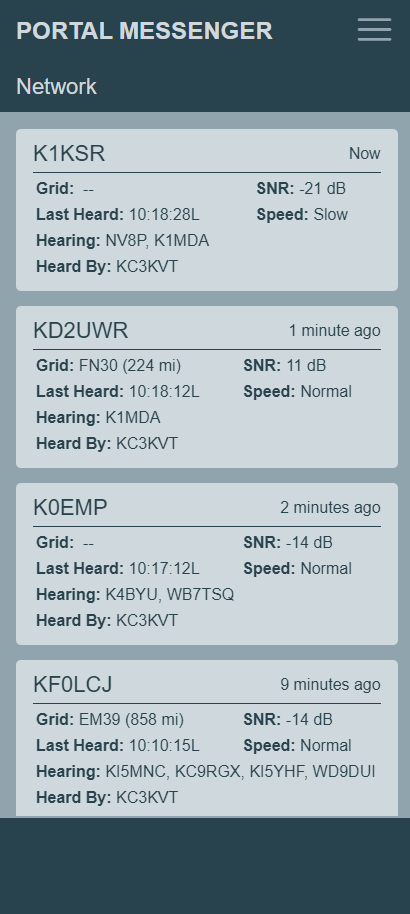
The Network view displays detailed information about each heard station:
- Grid: Grid square and distance (km or mi depending on JS8Call configuration)
- SNR: Signal-to-noise ratio of station's last activity
- Last Heard: Local time of station's last activity
- Speed: JS8Call modem speed of station's last activity
- Hearing: Other stations hearing the station
- Heard By: Other stations heard by the station
Select a station to send a message or see stored message history (see the Conversation view section for more information).
The Network view is dynamic and will update automatically as stations are heard. Stations are shown in order of time since last heard. The Aging (minutes) setting is used to set how long after being heard a station will be displayed in the list. In order to provide more network information, Hearing and Heard By activity with an age of 10 times the Aging (minutes) setting are included for each station.
Propagation Map
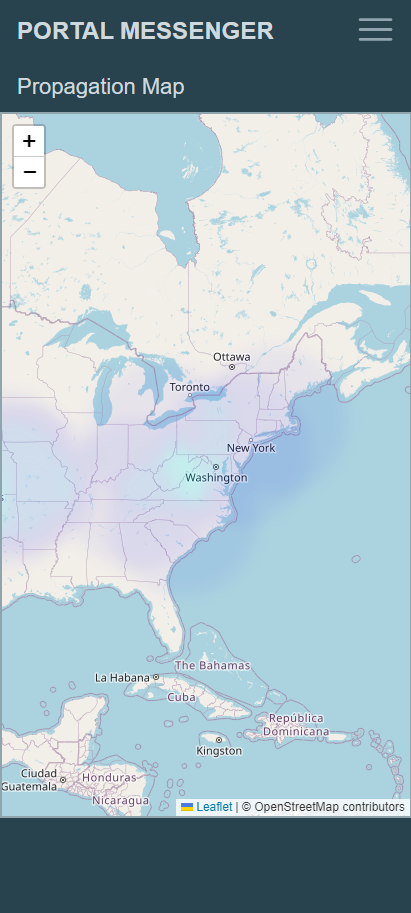
The Propagation Map view displays a map centered on the local station's grid square (or Washington D.C. USA if no grid square is configured). Heard station data is analyzed to determine the median SNR for each "heard" grid square over a 60 minute period. This data is displayed as a heat map to indicate an approximation of current propagation conditions relative to the local station. The heat map is updated with the latest heard station data each time the view is loaded, or every 5 minutes while the view is active.
Settings
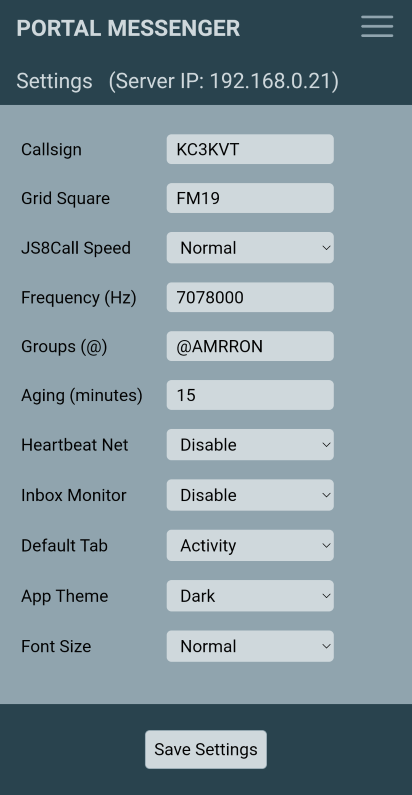
The Settings view displays a list of application settings:
- Callsign: Callsign of the local station (changing this setting requires JS8Call to restart)
- Grid Square: Grid square of the local station
- JS8Call Speed: Speed setting of the JS8Call modem (changing this setting requires JS8Call to restart)
- Frequency (Hz):
Related Skills
node-connect
343.3kDiagnose OpenClaw node connection and pairing failures for Android, iOS, and macOS companion apps
frontend-design
92.1kCreate distinctive, production-grade frontend interfaces with high design quality. Use this skill when the user asks to build web components, pages, or applications. Generates creative, polished code that avoids generic AI aesthetics.
openai-whisper-api
343.3kTranscribe audio via OpenAI Audio Transcriptions API (Whisper).
qqbot-media
343.3kQQBot 富媒体收发能力。使用 <qqmedia> 标签,系统根据文件扩展名自动识别类型(图片/语音/视频/文件)。
