
React Native Video Processing
Native Video editing/trimming/compressing :movie_camera: library for React-Native
Install / Use
npx skills add shahen94/react-native-video-processingInstalls into whichever agent you are using.
README
react-native-video-processing




Getting Started
npm install react-native-video-processing --save
yarn add react-native-video-processing
You can check test by running
$ npm test or $ yarn test
Installation
Note: For RN 0.4x use 1.0 version, for RN 0.3x use 0.16
[Android]
-
Open up
android/app/src/main/java/[...]/MainApplication.java -
Add
import com.shahenlibrary.RNVideoProcessingPackage;to the imports at the top of the file -
Add new
new RNVideoProcessingPackage()to the list returned by the getPackages() method -
Append the following lines to
android/settings.gradle:
include ':react-native-video-processing'
project(':react-native-video-processing').projectDir = new File(rootProject.projectDir, '../node_modules/react-native-video-processing/android')
- Insert the following lines inside the dependencies block in
android/app/build.gradle:
compile project(':react-native-video-processing')
- Add the following lines to
AndroidManifest.xml:
   <uses-permission android:name="android.permission.READ_EXTERNAL_STORAGE" />
   <uses-permission android:name="android.permission.WRITE_EXTERNAL_STORAGE"/>
[iOS]
-
In Xcode, right click your Xcode project and create
New GroupcalledRNVideoProcessing. -
Go to
node_modules/react-native-video-processing/ios/RNVideoProcessingand drag the.swiftfiles under the group you just created. PressCreate folder referencesoption if not pressed. -
Repeat steps 1 & 2 for the subdirectories
RNVideoTrimmer,RNTrimmerView, andICGVideoTrimmerand all the files underneath them. Make sure you keep the folders hierarchy the same. -
Go to
node_modules/react-native-video-processing/ios/GPUImage/frameworkand dragGPUImage.xcodeprojto your project's root directory in Xcode.
-
Under your project's
Build Phases, make sure the.swiftfiles you added appear underCompile Sources. -
Under your project's
Generaltab, add the following frameworks toLinked Frameworks and Libraries:
- CoreMedia
- CoreVideo
- OpenGLES
- AVFoundation
- QuartzCore
- MobileCoreServices
- GPUImage
-
Add
GPUImage.frameworkiOStoEmbedded Binaries. -
Navigate to your project's bridging header file <ProjectName-Bridging-Header.h> and add
#import "RNVideoProcessing.h". -
Clean and run your project.
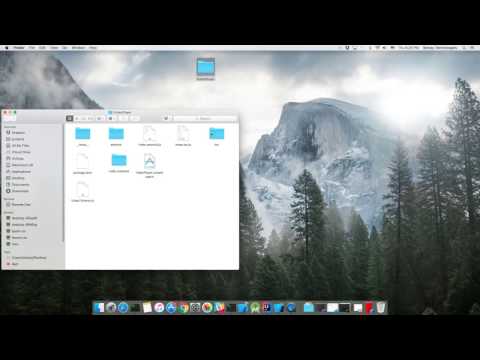
Check the following video for more setup reference.
Update ffmpeg binaries
- Clone mobile-ffmpeg
- Setup project, see Prerequisites in README.
- Modify
build/android-ffmpeg.shso it generates binaries (more info)- Delete --disable-programs line
- Change --disable-static line to --enable-static
- Delete --enable-shared line
- Compile binaries:
./android.sh --lts --disable-arm-v7a-neon --enable-x264 --enable-gpl --speed. The command might finish withfailed. That's okay because we modified the build script. Make sure every build outputs:ffmpeg: ok. - Find
ffmpegbinaries inprebuilt/[android-arm|android-arm64|android-x86|android-x86_64]/ffmpeg/bin/ffmpeg - Copy and rename binaries to
android/src/main/jniLibs/[armeabi-v7a|arm64-v8a|x86|x86_64]/libffmpeg.so. Make sure you rename the binaries fromffmpegtolibffmpeg.so!
Example Usage
import React, { Component } from 'react';
import { View } from 'react-native';
import { VideoPlayer, Trimmer } from 'react-native-video-processing';

class App extends Component {
    trimVideo() {
        const options = {
            startTime: 0,
            endTime: 15,
            quality: VideoPlayer.Constants.quality.QUALITY_1280x720, // iOS only
            saveToCameraRoll: true, // default is false // iOS only
            saveWithCurrentDate: true, // default is false // iOS only
        };
        this.videoPlayerRef.trim(options)
            .then((newSource) => console.log(newSource))
            .catch(console.warn);
    }

    compressVideo() {
        const options = {
            width: 720,
            height: 1280,
            bitrateMultiplier: 3,
            saveToCameraRoll: true, // default is false, iOS only
            saveWithCurrentDate: true, // default is false, iOS only
            minimumBitrate: 300000,
            removeAudio: true, // default is false
        };
        this.videoPlayerRef.compress(options)
            .then((newSource) => console.log(newSource))
            .catch(console.warn);
    }

    getPreviewImageForSecond(second) {
        const maximumSize = { width: 640, height: 1024 }; // default is { width: 1080, height: 1080 } iOS only
        this.videoPlayerRef.getPreviewForSecond(second, maximumSize) // maximumSize is iOS only
        .then((base64String) => console.log('This is BASE64 of image', base64String))
        .catch(console.warn);
    }

    getVideoInfo() {
        this.videoPlayerRef.getVideoInfo()
        .then((info) => console.log(info))
        .catch(console.warn);
    }

    render() {
        return (
            <View style={{ flex: 1 }}>
                <VideoPlayer
                    ref={ref => this.videoPlayerRef = ref}
                    startTime={30}  // seconds
                    endTime={120}   // seconds
                    play={true}     // default false
                    replay={true}   // should player play video again if it's ended
                    rotate={true}   // use this prop to rotate video if it captured in landscape mode iOS only
                    source={'file:///sdcard/DCIM/....'}
                    playerWidth={300} // iOS only
                    playerHeight={500} // iOS only
                    style={{ backgroundColor: 'black' }}
                    resizeMode={VideoPlayer.Constants.resizeMode.CONTAIN}
                    onChange={({ nativeEvent }) => console.log({ nativeEvent })} // get Current time on every second
                />
                <Trimmer
                    source={'file:///sdcard/DCIM/....'}
                    height={100}
                    width={300}
                    onTrackerMove={(e) => console.log(e.currentTime)} // iOS only
                    currentTime={this.video.currentTime} // use this prop to set tracker position iOS only
                    themeColor={'white'} // iOS only
                    thumbWidth={30} // iOS only
                    trackerColor={'green'} // iOS only
                    onChange={(e) => console.log(e.startTime, e.endTime)}
                />
            </View>
        );
    }
}
Or you can use ProcessingManager without mounting VideoPlayer component:
import React, { Component } from 'react';
import { View } from 'react-native';
import { ProcessingManager } from 'react-native-video-processing';
export class App extends Component {
  componentWillMount() {
    const { source } = this.props;
    ProcessingManager.getVideoInfo(source)
      .then(({ duration, size, frameRate, bitrate }) => console.log(duration, size, frameRate, bitrate));

    // on iOS it's possible to trim remote files by using remote file as source
    ProcessingManager.trim(source, options) // like VideoPlayer trim options
          .then((data) => console.log(data));

    ProcessingManager.compress(source, options) // like VideoPlayer compress options
              .then((data) => console.log(data));

    ProcessingManager.reverse(source) // reverses the source video
              .then((data) => console.log(data)); // returns the new file source

    ProcessingManager.boomerang(source) // creates a "boomerang" of the surce video (plays forward then plays backwards)
              .then((data) => console.log(data)); // returns the new file source

    const maximumSize = { width: 100, height: 200 };
    ProcessingManager.getPreviewForSecond(source, forSecond, maximumSize)
      .then((data) => console.log(data))
  }
  render() {
    return <View />;
  }
}
If this project was helpful to you, please <html> <a href="https://www.buymeacoffee.com/FnENSxi" target="_blank"><img src="https://bmc-cdn.nyc3.digitaloceanspaces.com/BMC-button-images/custom_images/yellow_img.png" alt="Buy Me A Coffee" style="height: auto !important;width: auto;" ></a>
</html>Contributing
- Please follow the eslint style guide.
- Please commit with
$ npm run commit
Roadmap
- [ ] Use FFMpeg instead of MP4Parser
- [ ] Add ability to add GLSL filters
- [x] Android should be able to compress video
- [x] More processing options
- [ ] Create native trimmer component for Android
- [x] Provide Standalone API
- [ ] Describe API methods with parameters in README
Related Skills
imsg
385.5kUse the imsg CLI from OpenClaw agents for iMessage/SMS DMs, groups, replies, reactions, polls, watching, and private-API actions.
qqbot-channel
385.5kQQ channel management skill. Use qqbot_channel_api for explicit QQ channel-management requests; confirm write, delete, and bulk actions before calling authenticated QQ Open Platform endpoints.
Agent Development
140.6kThis skill should be used when the user asks to "create an agent", "add an agent", "write a subagent", "agent frontmatter", "when to use description", "agent examples", "agent tools", "agent colors", "autonomous agent", or needs guidance on agent structure, system prompts, triggering conditions, or…
docs-writer
106.4kAlways use this skill when the task involves writing, reviewing, or editing files in the `/docs` directory or any `.md` files in the repository.
