
PyGPSClient
Python Graphical GPS Client Application supporting NMEA, UBX, SBF, UNI, QGC, RTCM3, NTRIP & SPARTN Protocols
Install / Use
/learn @semuconsulting/PyGPSClientREADME
PyGPSClient
Current Status | Installation | Instructions | UBX Configuration | NMEA Configuration | TTY Commands | Load/Save/Record Commands | NTRIP Client | NTRIP Caster/Socket Server | GPX Track Viewer | Mapquest API Key | User-defined Presets | CLI Utilities | Troubleshooting | License | Author Information
PyGPSClient is a free, open-source, multi-platform graphical GNSS/GPS testing, diagnostic and configuration application written entirely by volunteers in Python and tkinter.
- Runs on any platform which supports a Python 3 interpreter (>=3.10) and tkinter (>=8.6) GUI framework, including Windows, MacOS, Linux and Raspberry Pi OS. Accommodates low resolution screens (>= 640x480) via resizable and/or scrollable panels.
- Supports NMEA, UBX (u-blox binary), SBF (Septentrio binary), UNI (Unicore binary), QGC (Quectel binary), RTCM3, NTRIP, SPARTN, MQTT and TTY (ASCII text) protocols¹.
- Capable of reading from a variety of GNSS data streams: Serial (USB / UART), Socket (TCP / UDP), binary data stream (terminal or file capture) and binary recording (e.g. u-center *.ubx).
- Provides NTRIP client facilities.
- Can serve as an NTRIP base station with an RTK-compatible receiver (e.g. u-blox ZED-F9P/ZED-X20P, Quectel LG/LC Series, Septentrio Mosaic Series or Unicore UM9** Series).
- Supports GNSS (and related) device configuration via proprietary UBX, NMEA and ASCII TTY protocols, including most u-blox, Quectel, Septentrio, Unicore and Feyman GNSS devices.
- Can be installed using the standard
pipPython package manager - see installation instructions below.
This is an independent project and we have no affiliation whatsoever with any GNSS manufacturer or distributor.
¹ specific message support subject to underlying parser implementation and open-source permissions
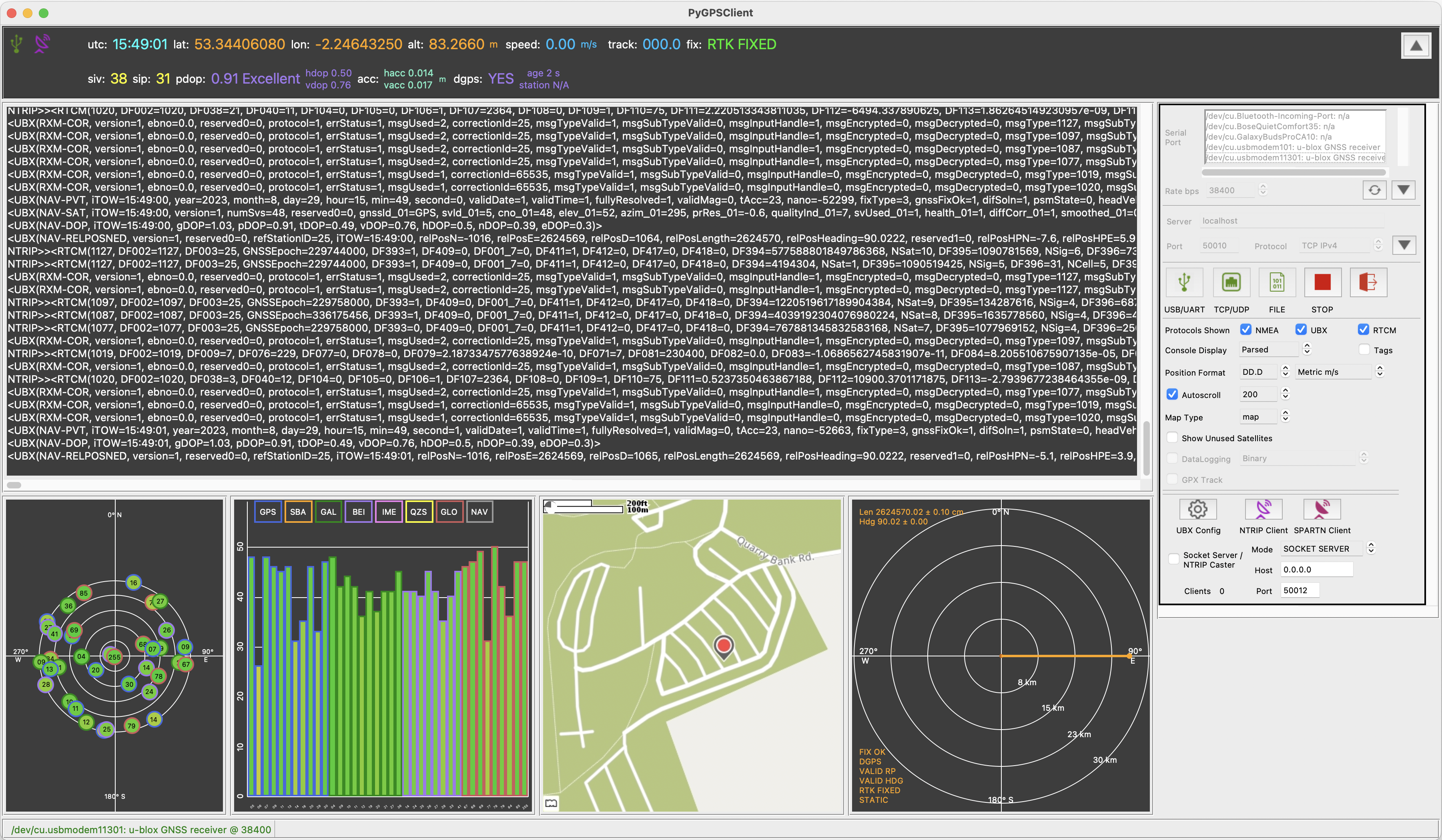
Screenshot showing mixed-protocol stream from u-blox ZED-F9P receiver, using PyGPSClient's NTRIP Client with a base station 26 km to the west to achieve better than 2 cm accuracy
References
- Glossary of GNSS Terms and Abbreviations.
- GNSS Positioning - A Reviser - a general overview of GNSS, OSR, SSR, RTK, NTRIP and SPARTN positioning and error correction technologies and terminology.
- Achieving cm Level GNSS Accuracy using RTK - practical tips on high precision RTK using PyGPSClient.
- From time to time, instructional videos may be posted to the semuadmin YouTube channel. Sparkfun have also published a number of RTK tutorial YouTube videos using PyGPSClient running on a Raspberry Pi.
- Sphinx API Documentation in HTML format.
<a name="currentstatus">Current Status</a>








The PyGPSClient home page is at PyGPSClient.
Contributions welcome - please refer to CONTRIBUTING.MD.
For Bug reports, please use the template provided. For feature requests and general queries and advice, post a message to one of the PyGPSClient Discussions channels in the first instance.

<a name="installation">Installation</a>



The Quick Version
If you have an official Python >=3.10 with tkinter >=8.6 installed and the Python binaries folder is in your PATH, you can install PyGPSClient using pip:
python3 -m pip install --upgrade pygpsclient
and then run it by typing:
pygpsclient
To install into a virtual environment (which may be necessary if you have an externally-managed-environment):
python3 -m venv pygpsclient
source pygpsclient/bin/activate # (or .\pygpsclient\Scripts\activate on Windows)
python3 -m pip install --upgrade pygpsclient
deactivate
The Longer Version
For more comprehensive installation instructions, please refer to INSTALLATION.md.
<a name="instructions">Instructions</a>
<a name="settings">Settings panel</a>
- By default, the Settings panel is displayed to the right of the main application window. It can be hidden or shown via Menu..View..Hide/Show Settings. The panel can also be 'undocked' from the main application window via Menu..View..Undock Settings and - if non-transient (
transient_dialog_b: 0) - minimized independently of the main window. Exiting the undocked dialog, or selecting Menu..View..Dock Settings, will 'dock' the panel. - Protocols Shown - Select which message protocols to display in the console; NMEA, UBX (u-blox binary), SBF (Septentrio binary), UNI (Unicore binary), QGC (Quectel binary), RTCM3, SPARTN or TTY (terminal). NB: this only changes the displayed protocols - to change the actual protocols output by the receiver, use the relevant configuration command(s).
- NB: Serial connection must be stopped before changing to or from TTY (terminal) protocol. Enabling TTY (terminal) mode will disable all other protocols.
- To connect to a GNSS receiver via USB or UART port, select the device from the listbox, set the appropriate serial connection parameters and click
 . The application will endeavour to pre-select a recognised GNSS/GPS device but this is platform and device dependent. Press the
  button to refresh the list of connected devices at any point.
Rate bps(baud rate) is typically the only setting that might need adjusting, but tweaking thetimeoutsetting may improve performance on certain platforms.- If you get a permissions error on attempting to connect to a serial port e.g.
[Errno 13] permission denied /dev/ttyACM0, refer to the Installation Guidelines - User Privileges. - When the connection is first established, PyGPSClient will poll various hardware information messages (one for each selected protocol) in an attempt to establish the receiver's manufacturer, model and firmware version. You may see a handful of 'unknown protocol' warnings in response to some of these queries - these can be disregarded. NB: Some receivers will not output hardware information messages at low baud rates (<38,400).
- The
Msg Modeparameter defaults toGETi.e., periodic or poll response messages from a receiver. If you wish to parse streams of command or poll messages being sent to a receiver, set theMsg ModetoSETorPOLL. An optional serial or socket stream inactivity timeout can also be set (in seconds; 0 = no timeout).
- A custom user-defined serial port can also be passed via the json configuration file setting
"userport_s":, via environment variablePYGPSCLIENT_USERPORTor as a command line argument--userport. A special userport value of "ubxsimulator" invokes the experimentalpyubxutils.UBXSimulatorutility to emulate a GNSS NMEA/UBX serial stream. - To connect to a TCP or UDP socket, enter the server URL and port, select the protocol (defaults to TCP) and click
 . For encrypted TLS connections, tick the 'TLS' checkbox. Tick the 'Self Sign' checkbox to accommodate
