
RememberWindowPositions
Remember window positions for apps in KDE Plasma 6+. Especially useful for multi-window applications such as browsers.
Install / Use
/learn @rxappdev/RememberWindowPositionsREADME
Remember Window Positions
<img align="left" style="margin-right: 20px" width="90" height="90" src="./assets/icon.png"> <pre>KDE Plamsa KWin Script for remembering application window properties. Especially useful for multi-window applications such as browsers. Remembers and restores the windows position, size, screen and virtual desktop.</pre>-
Compatible with KDE Plasma 6+ (compatibility with previous versions is unknown).
-
Tested on:
- Fedora 42 KDE running Wayland and X11 with Plasma version 6.4.5
- Fedora 42 KDE running Wayland with Plasma version 6.5.4
- FreeBSD 15.0 running X11 with Plasma version 6.4.5
- CachyOS running Plasma version 6.5.5

Table of contents
<ul> <li><a href="#features">Features</a> <ul> <li><a href="#auto"> Automatic restoration of saved windows</a></li> <li><a href="#customizable">Customizable</a></li> </ul> </li> <li><a href="#how">How it works</a></li> <li><a href="#installation">Installation</a> <ul> <li><a href="#store">From KDE Store (Recommended)</a></li> <li><a href="#file">From File</a></li> </ul> </li> <li><a href="#setup">Recommended setup</a></li> <ul> <li><a href="#blacklist">Using Blacklist</a></li> <li><a href="#whitelist">Using Whitelist</a></li> <li><a href="#names">Find application names</a></li> </ul> </li> <li><a href="#override">Per Application / Window override</a></li> <li><a href="#system-settings">Changing system settings</a></li> <li><a href="#remove-settings">Manually erasing settings</a></li> <li><a href="#use">Use case examples</a> <ul> <li><a href="#single-window-blacklist">Block a splash screen/dialog</a></li> <li><a href="#firefox">Remember Firefox/LibreWolf/Waterfox Picture-in-Picture position</a></li> <li><a href="#browser">Only restore my browser - let other application use system default behavior</a></li> <li><a href="#desktop">Do not restore virtual desktop for Konsole</a></li> <li><a href="#caption">Only remember windows that fully match caption (title)</a></li> </ul> </li> <li><a href="#troubleshooting">Troubleshooting</a> <ul> <li><a href="#commandline">Command line</a></li> </ul> </li> <li><a href="#compatibility">Compatibility</a></li> <li><a href="#getintouch">Get in touch</a></li> </ul><p id="features"></p>Features
<p id="auto"></p>Automatic restoration of saved windows
The process of saving and restoring a window is extremely simple:
- Arrange the application windows to your liking
- Close the application fully
- Next time the application starts, the windows are restored to best ability

<p id="customizable"></p>Customizable
Can operate in one of four modes where it remembers:
- All applications
- All multi-window applications
- All except blacklisted applications (Default)
- Only whitelisted applications (Recommended)
There are lots of other settings that let you control exactly how and when to restore windows to their previous state.
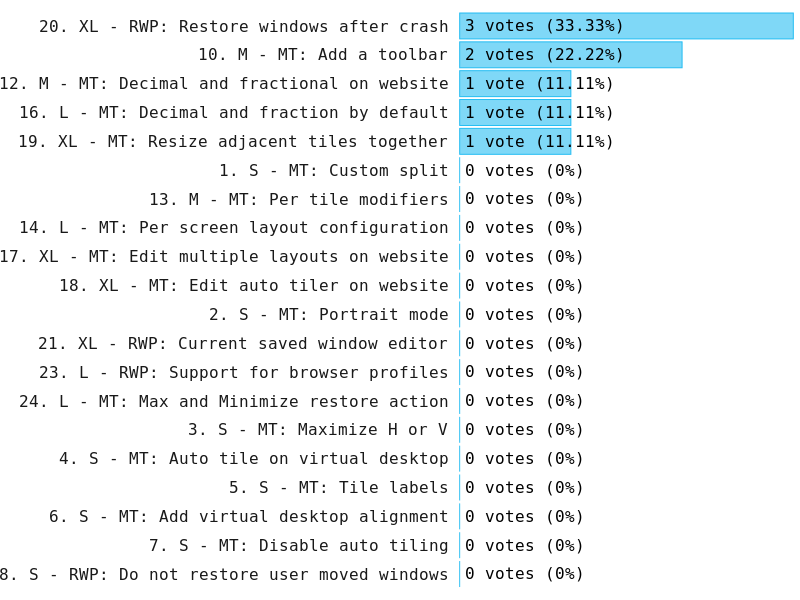
Future ideas
The future features depend on you.
Read this for details: Planned features and donation goals
Voting and current results:
<p id="how"></p>How it works
-
When the last window of an application is closed, the properties of all windows that were closed within the past second are saved. To save all windows for a browser, simply "Quit" it from the application menu so that all windows are closed at once.
-
Next time the application starts the restoration process begins:
- Window caption and size are compared to the saved windows.
- When the captions of all windows match to at least 85% (since a caption can change slightly such as when it contains a number of messages) - the windows are restored to the previous state.
-
The process above is repeated once a second, for a customizable amount of attempts. If it fails to restore the windows with high caption match level, they are instead restored to the best ability.
<p id="installation"></p>Installation
<p id="store"></p>From KDE Store (Recommended)
- Open
System Settings>Window Management>KWin Scripts. - Click the
Get New...in upper right corner.<br> <br>
<br> - Search for
Remember Window Positionsand click on it (step1applies only with small window size)<br> <br>
<br> - Click
Install<br> <br>
<br> - Enable
Remember Window Positions<br> <br>
<br> - Click
Apply<br> <br>
<br> - Click the configure icon to change the settings to your liking<br>
 <br>
<br>
Please note that changing settings requires some additional steps to apply due to a KDE limitation - see Changing settings below for more information.
<p id="file"></p>From File
You can download the rememberwindowpositions.kwinscript file and install it through System Settings.
- Download the .kwinscript file.
- Open
System Settings>Window Management>KWin Scripts. - Click the
Install from File...in upper right corner.<br> <br>
<br> - Select the downloaded file and click
Open - Enable
Remember Window Positions<br><br> - Click
Apply<br><br> - Click the configure icon to change the settings to your liking<br>
<br>
Please note that changing settings requires some additional steps to apply due to a KDE limitation - see Changing settings below for more information.
<p id="setup"></p>Recommended setup
Since there are probably tens of thousands of different applications, it is simply impossible to test how all of them behave.
By default, all applications except those that are blacklisted will be remembered. The blacklisted applications are known to use many windows with the same name that are expected to have different sizes. This will obviously cause issues since they would be resized to last known size.
Recommended usage would be to either use a whitelist or a blacklist. It's also possible to simply adjust other settings and get perfect results. The default configuration should not cause many issues, but it all depends on which applications you use - so some tweaking might be required. Enable logs to find application names to add to the blacklist or the whitelist if you go that route.
<p id="blacklist"></p>Using Blacklist
- Identify problematic applications.
- Check the application names to add in the log (see "<a href="#names">Find application names</a>" below).
- Add them to the Blacklist, one per line.
<p id="whitelist"></p>Using Whitelist
- Check the application names to add in the log (see "<a href="#names">Find application names</a>" below).
- Add applications you would like to remember to the list, one per line.
<p id="names"></p>Find application names
To find application names to add to the Blacklist, Whitelist or Perfect Multi-Window Restore List, enable the "Print Application Name To Log" in the "General" tab of the settings.
Then in a terminal (Konsole) run:
journalctl -f | grep RememberWindowPositions
 <br>
<br>
<p id="override"></p>Per Application / Window override
It is possible to configure individual application and windows by pressing the Ctrl+Meta+W key. (On most keyboards Windows key is the Meta key).
 <br>
<br>
If this keyboard shortcut does not work for you, make sure it is correctly setup in System Settings > Keyboard > Shortcuts > Window Management > Remember Window Positions: Show Config<br>
 <br>
<br>
<p id="system-settings"></p>Changing system settings
IMPORTANT
Due to a bug in KDE, changing user configuration requires reloading the script. (A reboot works too.)
To make setting changes effective, reload the script as follows:
- In
System Settings>Window Management>KWin Scripts, untickRemember Window Positions<br> <br>
<br> - Click
Apply<br><br> - Tick
Remember Window Positions<br><br> - Click
Apply<br><br>
<p id="remove-settings"></p>Manually erasing settings
If there is ever need to manually erase user data (do not do this unless you are a developer or really need it).
The application/window data is stored in ~/.config/kde.org/kwin.conf under the key rememberwindowpositions_windows.
The system user settings data is stored in ~/.config/kwinrc under [Script-krestorewindowpositions].
<p id="use"></p>Use case examples
<p id="single-window-blacklist"></p>Block a splash screen/dialog
- Open Per Application/Window Configuration (Ctrl+Meta+W)
- Click the
Select Application/Windowbutton<br> <br>
<br> - Click the application to block splash screen for (launch from Destkop or Task Manager)<br>
 <br>
<br>
 <br>
<br> - Make sure the "
Window" is checked, "Never" is selected and click the "Save Override Settings"<br> <br>
<br>
A dialog can be blocked in similar way, except you can just open the dialog first before selecting it.
<p id="firefox"></p>Remember Firefox/LibreWolf/Waterfox Picture-in-Picture position
- Open your Firefox-based browser and go to Youtube
- Start a video and click the Picture-in-Picture button<br>
 <br>
<br> - Open Per Application/Window Configurati
Related Skills
vue-3d-experience-skill
A comprehensive learning roadmap for mastering 3D Creative Development using Vue 3, Nuxt, and TresJS.
next
A beautifully designed, floating Pomodoro timer that respects your workspace.
roadmap
A beautifully designed, floating Pomodoro timer that respects your workspace.
progress
A beautifully designed, floating Pomodoro timer that respects your workspace.
