
7ColorEPaperPhotoFrame
Battery operate photo frame using the 7 color 5.65 inch e-paper display from Waveshare
Install / Use
/learn @robertmoro/7ColorEPaperPhotoFrameREADME
Seven color e-paper photo frame
Battery operated photo frame using the Advanced Color ePaper (ACeP™) display from Waveshare. The display has seven colors and measure 5.56 inch, 600 by 448 pixels. Overall dimensions: 125.4 x 99.5 x 9mm (WxHxD, depth includes header and display). Display usable area dimensions: 114.9 x 85.8mm (WxH). The images are preprocessed using Floyd-Steinberg dithering to reduce to 7 colors and still have a reasonable quality and stored on a SD-card. An Arduino is used to read from the SD-card and write to the display. lenna.bmp is a ready to use example image.
BOM
- 7 Color ePaper display
- Arduino pro-mini
- SD card reader (images storage)
- LDR (to not change the image in the dark)
- N-channel MOS FET (for example AO3402) (to switch off the SD card reader)
- 2x AA of 2x AAA battery holder
- 3.3 volt mini boost converter (power supply)
- Capacitor 220uF or bigger (power supply filter)
- Capacitor 100nF (power supply filter)
- 3D printed frame
To make the Adruino and SD card reader low power, remove the voltage regulator.
Wire up the Display, and SD-card reader to the Arduino (Uno / Nano / Pro-Mini)
Pins Arduino <=> SD Card module
- 10 - CS / SS
- 11 - MOSI / DI
- 12 - MISO / DO
- 13 - SCK / CLK
- GND - GND
- Vcc - 3.3V
Pins Arduino <=> 7 color e-paper display
- 7 - BUSY
- 8 - RST
- 9 - DC
- 6 - CS
- 13 - CLK
- 11 - DIN
- GND - GND
- Vcc - 3.3V
Prepare the images using Gimp
Start GIMP and drag the image to be processed into the application.
Create a seven color palette
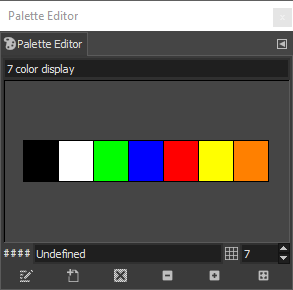
Use the palette editor to create a seven color palette | |Color |Bin |Hex|R,G,B | |---|-------|-------|-----|-----------| |1. |Black |0b000 |0x0 |0,0,0 | |2. |White |0b001 |0x1 |255,255,255| |3. |Green |0b010 |0x2 |0,255,0 | |4. |Blue |0b011 |0x3 |0,0,255 | |5. |Red |0b100 |0x4 |255,0,0 | |6. |Yellow |0b101 |0x5 |255,255,0 | |7. |Orange |0b110 |0x6 |255,128,0 |
 <br/>
GIMP Palatte Editor dialog
<br/>
GIMP Palatte Editor dialog
Rearrange the colormap
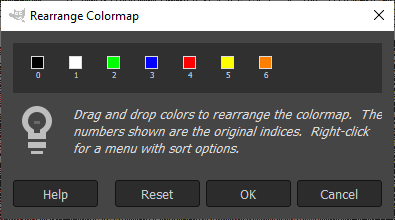
Make sure that the colors are arranged in the correct order in the Rearrange Colormap dialog.<br/> Main menu or right click image and select
- Colors >
- Map >
- Rearrange Colormap...
- Make sure the colors are ordered as mentioned above in the color palette or the image below, and select OK
 <br/>
Rearrange Colormap dialog
<br/>
Rearrange Colormap dialog
Resize and crop
Resize to 600 width or 448 height so an 600 by 448 image can be cropped.
Resize
Main menu / right click image and select
- Image >
- Scale Image...
- Provide width and or height
- Select Scale to apply the selection
Crop
'Shift + C' or main menu / right click image and select
- Tools >
- Transform Tools >
- Crop (Shift + C)
- Use mouse and or size and position fields
- Select Enter to apply the crop or Esc to leave the Crop menu
Dither
Main menu / right click image and select
- Image >
- Mode >
- Indexed...
- Use custom pallete
- Select the created 7 color palette
- Select Floyd-Steinberg for Color dithering
- Select Convert
Export as BMP
'Shift + Ctrl + E' or main menu / right click image and select
- File
- Export as (Shift + Ctrl + E)
- Type a filename and give it the bmp extension
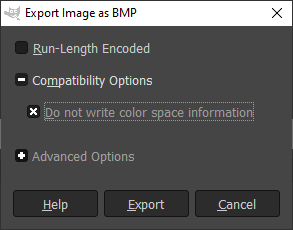
- Deselect 'run-length encoding'
- Under 'Compatibility options' select 'Do not write color space information'
- Select Export
 <br/>
GIMP Export Image as BMP dialog
<br/>
GIMP Export Image as BMP dialog

