
Stream2segment
A Python project to download, process and visualize medium-to-massive amount of seismic waveforms and metadata
Install / Use
/learn @rizac/Stream2segmentREADME
<img align="left" height="30" src="https://www.gfz-potsdam.de/fileadmin/gfz/medien_kommunikation/Infothek/Mediathek/Bilder/GFZ/GFZ_Logo/GFZ-Logo_eng_RGB.svg"> Stream2segment <img align="right" height="50" src="https://www.gfz-potsdam.de/fileadmin/gfz/GFZ_Wortmarke_SVG_klein_en_edit.svg">
|Jump to: | Usage | Installation | Development and Maintenance | Citation | | - | - | - | - | - |
A Python library and command line application to download, process and visualize event-based seismic waveform segments, specifically designed to manage big volumes of data.
The key aspects with respect to widely-used similar applications is the use of a Relational database management system (RDBMS) to store downloaded data and metadata. The main advantages of this approach are:
-
Storage efficiency: no huge amount of files, no complex, virtually unusable directory structures. Moreover, a database prevents data and metadata inconsistency by design, and allows more easily to track what has already been downloaded in order to customize and improve further downloads
-
Simple Python objects representing stored data and relationships, easy to work with in any kind of custom code accessing the database. For instance, a segment is represented by a
Segmentobject with its data, metadata and related objects easily accessible through its attributes, e.g.,segment.stream(),segment.maxgap_numsamples,segment.event.magnitude,segment.station.network,segment.channel.orientation_codeand so on. -
A powerful segments selection made even easier by means of a simplified syntax: map any attribute described above to a selection expression (e.g.
segment.event.magnitude: "[4, 5)") and with few lines you can compose complex database queries such as e.g., "get all downloaded segments within a given magnitude range, with well-formed data and no gaps, from broadband channels only and a given specific network"
Usage
For full details, please consult the wiki page
Stream2segment is a Python library and command line application available
after installation via the command s2s on the terminal. By typing s2s --help you
will see all available subcommands for downloading
and managing data, launching Python processing functions, creating class labels for segments
annotation, or producing graphical output, as shown below:
You start the program via the command init (
s2s init --help for details) to create several fully documented
examples files that you can immediately start to configure and modify
(see the gitHub wiki page for details).
In a nutshell:
-
A download configuration file in YAML syntax. Edit the file (all documentation is provided in the file as block comments) and start downloading by typing:
s2s download -c <config_file> ...Note the path of the database where to store the downloaded data must be input in the config file. The supported database types are SQLite and Postgres: for massive downloads (as a rule of thumb: ≥ 1 million segments) we suggest to use Postgres. In any case, we strongly suggest running the program on computers with at least 16GB of RAM.
Note massive downloads are time-consuming operations where it is likely to miss some data due to any kind of temporary connection problems. Consequently, it is advisable to perform the same massive download at least twice with the same configuration
(subsequent runs will be faster as data will not be re-downloaded unnecessarily) -
A Jupyter notebook tutorial with examples for processing downloaded data, for user who prefer this approach instead of the processing module described below (online version here)
-
Two Python modules (with relative configuration in YAML syntax):
-
paramtable.py: process downloaded data and produce a tabular output (CSV, HDF) by executing the module as script (see code block afterif __name__ == "__main__"in the module for details):python paramtable.py ... -
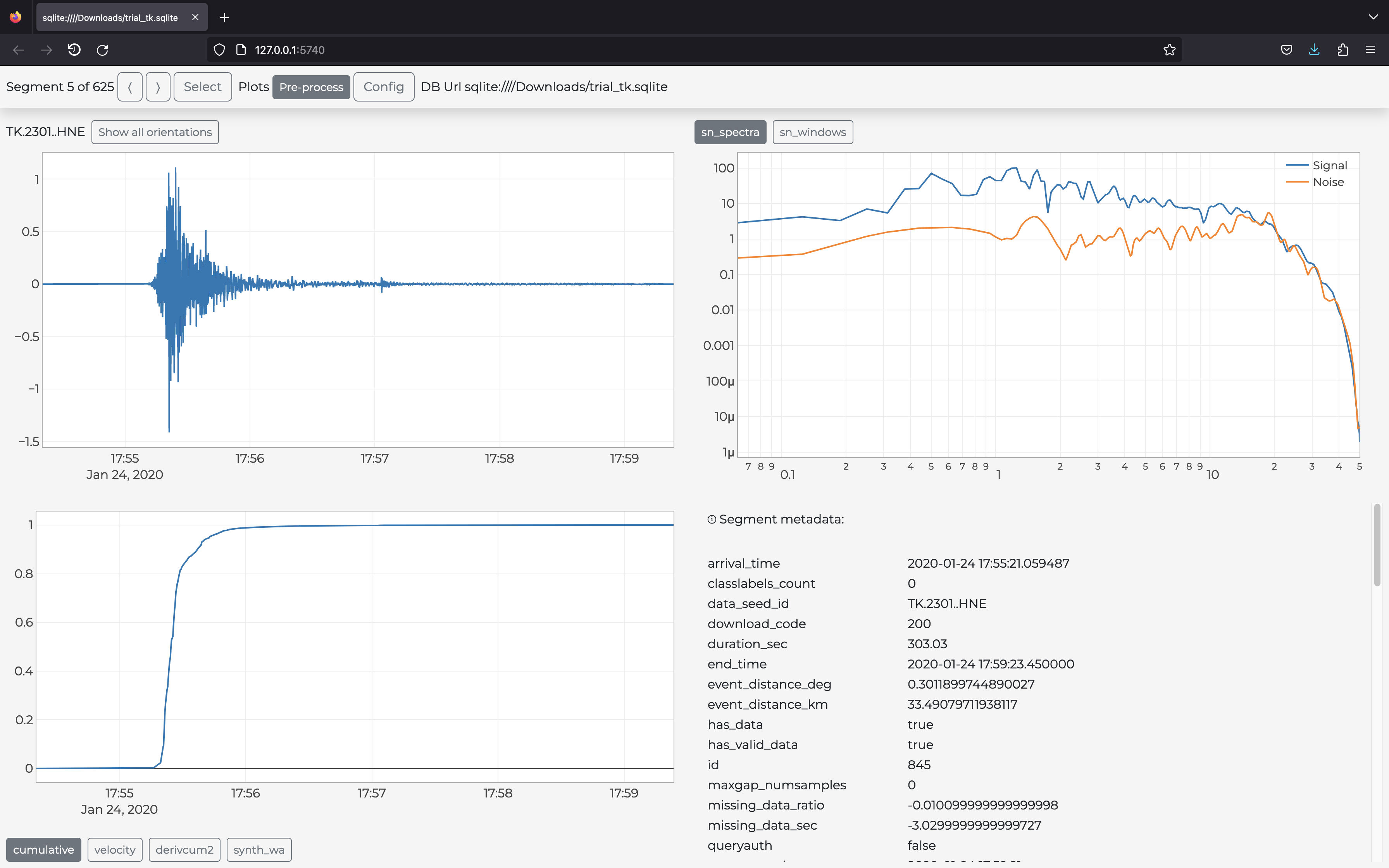
gui.py: visualize downloaded data in the user browser via the plots defined in the module (an example in the figure above):s2s show -d download.yaml -p gui.py -c gui.yaml ...(Type
s2s show --helpfor details).
Note: the associated YAML files (
paramtable.yaml,gui.yaml) are not mandatory but enforce the good practice of separating configuration settings (YAML) and the actual Python code. This way you can experiment the same code with several settings by only creating different YAML files -
Installation
This program has been installed and tested on Ubuntu (14 and later) and macOS (El Capitan and later).
In case of installation problems, we suggest you to proceed in this order:
- Look at Installation Notes to check if the problem has already been observed and a solution proposed
- Google for the solution (as always)
- Ask for help
1 Requirements
In this section we assume that you already have Python (3.5 or later) and the required database software. The latter should not be needed if you use SQLite or if the database is already installed remotely, so basically you are concerned only if you need to download data locally (on your computer) on a Postgres database.
1.1 macOS
On macOS (El Capitan and later) all required software is generally already preinstalled. We suggest you to go to the next step and look at the Installation Notes in case of problems (to install software on macOS, we recommend to use brew).
<details> <summary>Details</summary>In few cases, on some computers we needed to run one or more of the following commands (it's up to you to run them now or later, only those really needed):
xcode-select --install
brew install openssl
brew install c-blosc
brew install git
1.2 Ubuntu
Ubuntu does not generally have all required packages pre-installed. The bare minimum
of the necessary packages can be installed with the apt-get command:
sudo apt-get install git python3-pip python3-dev # python 3
In few cases, on some computers we needed to run one or more of the following commands (it's up to you to run them now or later, only those really needed):
Upgrade gcc first:
sudo apt-get update
sudo apt-get upgrade gcc
Then:
sudo apt-get update
sudo apt-get install libpng-dev libfreetype6-dev \
	build-essential gfortran libatlas-base-dev libxml2-dev libxslt-dev python-tk
2 Clone repository
Git-clone (basically: download) this repository to a specific folder of your choice:
git clone https://github.com/rizac/stream2segment.git ./stream2segment
and move into the repository root:
cd stream2segment
3 Install and activate Python virtualenv
We strongly recommend to use Python virtual environment to avoid conflicts with already installed packages on your operating system (if you already have a virtual environment, just activate it and go to the next section).
Conda users (e.g. Anaconda, Miniconda) can skip this section and check the Conda documentation instead.
Make virtual environment in a "stream2segment/env" directory (env is a convention,
but it's ignored by git commit so better keeping it. You can also use ".env"
which makes it usually hidden in Ubuntu. Also on Ubuntu, you might need to install
venv first via sudo apt-get install python3-venv)
python3 -m venv ./env
To activate your virtual environment, type:
source env/bin/activate
or source env/bin/activate.csh (depending on your shell)
<sub>Activation needs to be done each time we will run the program.</sub> <sub>To check you are in the right env, type:
which pipand you should see it's pointing inside the env folder</sub>
4 Install Stream2segment
Important reminders before installing:
- From now on you are supposed to be in the stream2segment directory, (where you cloned the repository) with your Python virtualenv activated
- In case of errors, check the Installation notes below
Install the required packages with the tested versions listed in requirements.txt
(if you are working on an existing environment with stuff
already installed in it, please read the first installation note below
before proceeding):
pip install --upgrade pip setuptools wheel && pip install -r ./requirements.txt
<sub>type `requirements
Related Skills
claude-opus-4-5-migration
110.6kMigrate prompts and code from Claude Sonnet 4.0, Sonnet 4.5, or Opus 4.1 to Opus 4.5
notion
351.2kNotion API for creating and managing pages, databases, and blocks.
model-usage
351.2kUse CodexBar CLI local cost usage to summarize per-model usage for Codex or Claude, including the current (most recent) model or a full model breakdown. Trigger when asked for model-level usage/cost data from codexbar, or when you need a scriptable per-model summary from codexbar cost JSON.
feishu-drive
351.2k|
