
Storycap
A Storybook Addon, Save the screenshot image of your stories :camera: via puppeteer.
Install / Use
/learn @reg-viz/StorycapREADME
Storycap
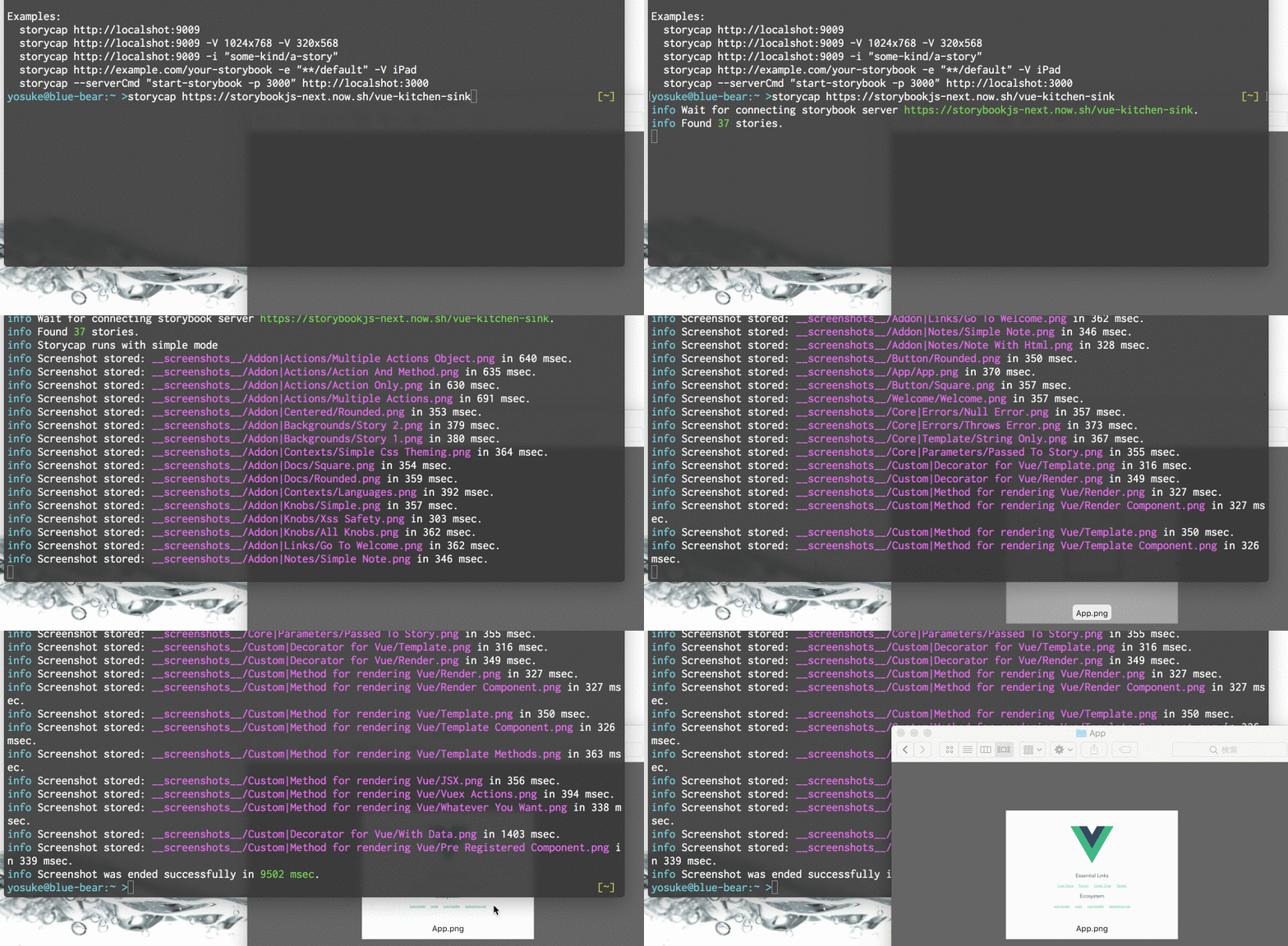

A Storybook Addon, Save the screenshot image of your stories :camera: via Puppeteer.
Storycap crawls your Storybook and takes screenshot images. It is primarily responsible for image generation necessary for Visual Testing such as reg-suit.
<!-- toc -->- Features
- Install
- Getting Started
- API
- Command Line Options
- Multiple PNGs from 1 story
- Tips
- Chromium version
- Storybook compatibility
- How it works
- Contributing
- License
Features
- :camera: Take screenshots of each stories via Puppeteer.
- :zap: Extremely fast.
- :package: Zero configuration.
- :rocket: Provide flexible screenshot shooting options.
- :tada: Independent of any UI framework(React, Angular, Vue, etc...)
Install
$ npm install storycap
Or
$ npm install storycap puppeteer
Installing puppeteer is optional. See Chromium version to get more detail.
Getting Started
Storycap runs with 2 modes. One is "simple" and another is "managed".
With the simple mode, you don't need to configure your Storybook. All you need is give Storybook's URL, such as:
$ npx storycap http://localhost:9001
You can launch your server via --serverCmd option.
$ storycap --serverCmd "start-storybook -p 9001" http://localhost:9001
Of course, you can use pre-built Storybook:
$ build-storybook -o dist-storybook
$ storycap --serverCmd "npx http-server dist-storybook -p 9001" http://localhost:9001
Also, Storycap can crawls built and hosted Storybook pages:
$ storycap https://next--storybookjs.netlify.app/vue-kitchen-sink/
Managed mode
Setup Storybook
If you want to control how stories are captured (timing or size or etc...), use managed mode.
First, add storycap to your Storybook config file:
/* .storybook/main.js */

module.exports = {
  stories: ['../src/**/*.stories.@(js|mdx)'],
  addons: [
    '@storybook/addon-actions',
    '@storybook/addon-links',
    'storycap', // <-- Add storycap
  ],
};
Next, use withScreenshot decorator to tell how Storycap captures your stories.
/* .storybook/preview.js */

import { withScreenshot } from 'storycap';

export const decorators = [
  withScreenshot, // Registration the decorator is required
];

export const parameters = {
  // Global parameter is optional.
  screenshot: {
    // Put global screenshot parameters(e.g. viewport)
  },
};
[!NOTE] You can set configuration of screenshot with
addParametersandscreenshotkey.
Setup your stories(optional)
And you can overwrite the global screenshot options in specific stories file via parameters.
import React from 'react';
import MyComponent from './MyComponent';

export default {
  title: 'MyComponent',
  component: MyComponent,
  parameters: {
    screenshot: {
      delay: 200,
    },
  },
};

export const Normal = {};

export const Small = {
  args: {
    text: 'small',
  },
  parameters: {
    screenshot: {
      viewport: 'iPhone 5',
    },
  },
};
Run storycap Command
$ npx start-storybook -p 9009
$ npx storycap http://localhost:9009
Or you can exec with one-liner via --serverCmd option:
$ npx storycap http://localhost:9009 --serverCmd "start-storybook -p 9009"
API
withScreenshot
A Storybook decorator to notify Storycap to captures stories.
type ScreenshotOptions
ScreenshotOptions object is available as the value of the key screenshot of addParameters argument or withScreenshot argument.
interface ScreenshotOptions {
  delay?: number;                           // default 0 msec
  waitAssets?: boolean;                     // default true
  waitFor?: string | () => Promise<void>;   // default ""
  fullPage?: boolean;                       // default true
  hover?: string;                           // default ""
  focus?: string;                           // default ""
  click?: string;                           // default ""
  skip?: boolean;                           // default false
  viewport?: Viewport;
  viewports?: string[] | { [variantName]: Viewport };
  variants?: Variants;
  waitImages?: boolean;                     // default true
  omitBackground?: boolean;                 // default false
  captureBeyondViewport?: boolean;          // default true
  clip?: { x: number; y: number; width: number; height: number } | null; // default null
}
delay: Waiting time [msec] before capturing.waitAssets: If set true, Storycap waits until all resources requested by the story, such as<img>or CSS background images, are finished.waitFor: If you set a function to returnPromise, Storycap waits the promise is resolved. You can also set a name of global function that returnsPromise.fullPage: If set true, Storycap captures the entire page of stories.focus: If set a valid CSS selector string, Storycap captures after focusing the element matched by the selector.hover: If set a valid CSS selector string, Storycap captures after hovering the element matched by the selector.click: If set a valid CSS selector string, Storycap captures after clicking the element matched by the selector.skip: If set true, Storycap cancels capturing corresponding stories.viewport,viewports: See typeViewportsection below.variants: See typeVariantssection below.waitImages: Deprecated. UsewaitAssets. If set true, Storycap waits until<img>in the story are loaded.omitBackground: If set true, Storycap omits the background of the page allowing for transparent screenshots. Note the storybook theme will need to be transparent as well.captureBeyondViewport: If set true, Storycap captures screenshot beyond the viewport. See also Puppeteer API docs.clip: If set, Storycap captures only the portion of the screen bounded by x/y/width/height.
type Variants
Variants is used to generate multiple PNGs from 1 story.
type Variants = {
  [variantName: string]: {
    extends?: string | string[]; // default: ""
    delay?: number;
    waitAssets?: boolean;
    waitFor?: string | () => Promise<void>;
    fullPage?: boolean;
    hover?: string;
    focus?: string;
    click?: string;
    skip?: boolean;
    viewport?: Viewport;
    waitImages?: boolean;
    omitBackground?: boolean;
    captureBeyondViewport?: boolean;
    clip?: { x: number; y: number; width: number; height: number } | null;
  };
};
extends: If set other variant's name(or an array of names of them), this variant extends the other variant options. And this variant generates a PNG file with suffix such as_${parentVariantName}_${thisVariantName}.
type Viewport
Viewport is compatible for Puppeteer viewport interface.
type Viewport =
  | string
  | {
      width: number; // default: 800
      height: number; // default: 600
      deviceScaleFactor: ?number; // default: 1,
      isMobile?: boolean; // default: false,
      hasTouch?: boolean; // default: false,
      isLandscape?: boolean; // default: false,
    };
[!NOTE] You should choose a valid device name if set string.
Viewport values are available in viewports field such as:
addParameters({
  screenshot: {
    viewports: {
      large: {
        width: 1024,
        height: 768,
      },
      small: {
        width: 375,
        height: 668,
      },
      xsmall: {
        width: 320,
        height: 568,
      },
    },
  },
});
function isScreenshot
function isScreenshot(): boolean;
Returns whether current process runs in Storycap browser. It's useful to change your stories' behavior only in Storycap (e.g. disable JavaScript animation).
Command Line Options
<!-- inject:clihelp -->usage: storycap [options] storybook_url
Options:
--help Show help [boolean]
--version Show version number [boolean]
-o, --outDir Output directory. [string] [default: "__screenshots__"]
-p, --parallel
