
Exquisite
Easy window layout management for KDE Plasma
Install / Use
/learn @qewer33/ExquisiteREADME
✨ Exquisite
A KWin script that allows you to tile windows in pre-defined places using a graphical interface!
KDE Store link | Widget KDE Store link




If you like this KWin script and want to support me, consider getting me a coffee! :D

Installation
You can download Exquisite from the KDE Store (System Settings > Window Management > KWin Scripts > Get New Scripts...). For development, you can clone the repo and run ./install.sh. KWin needs to be restarted on every install (either log out and log back in or run kwin_x11 --replace, use kwin_wayland if you're on a Wayland session).
Usage
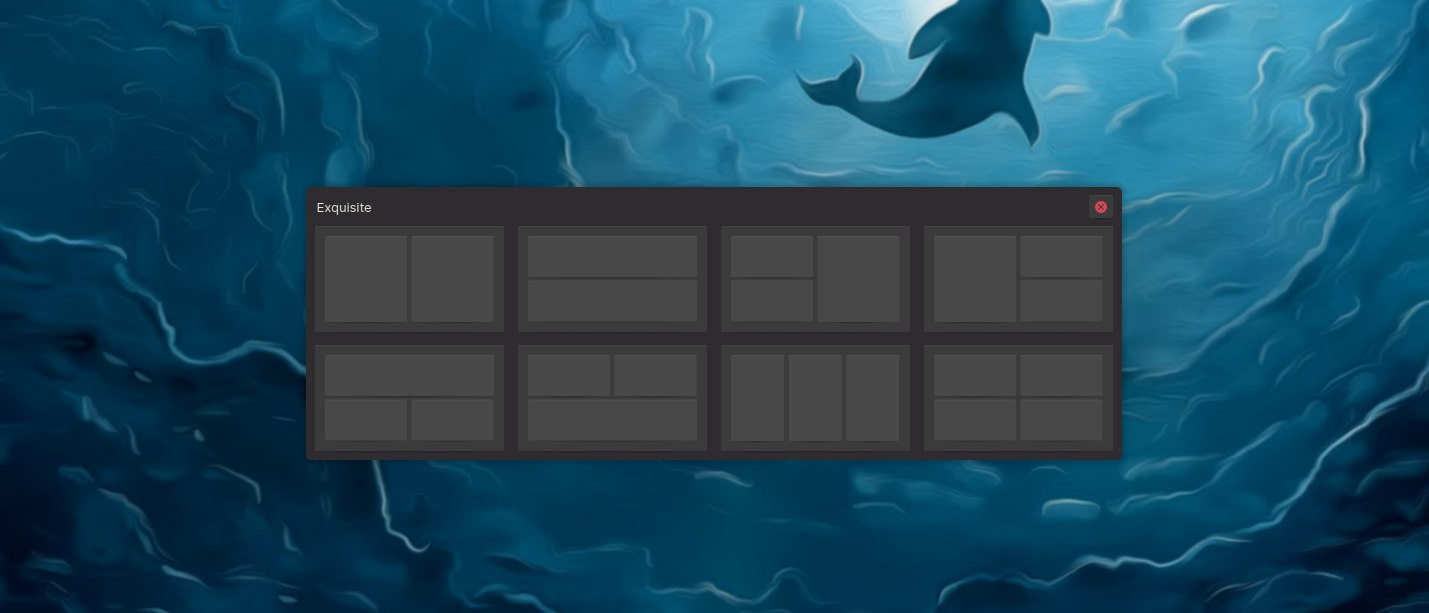
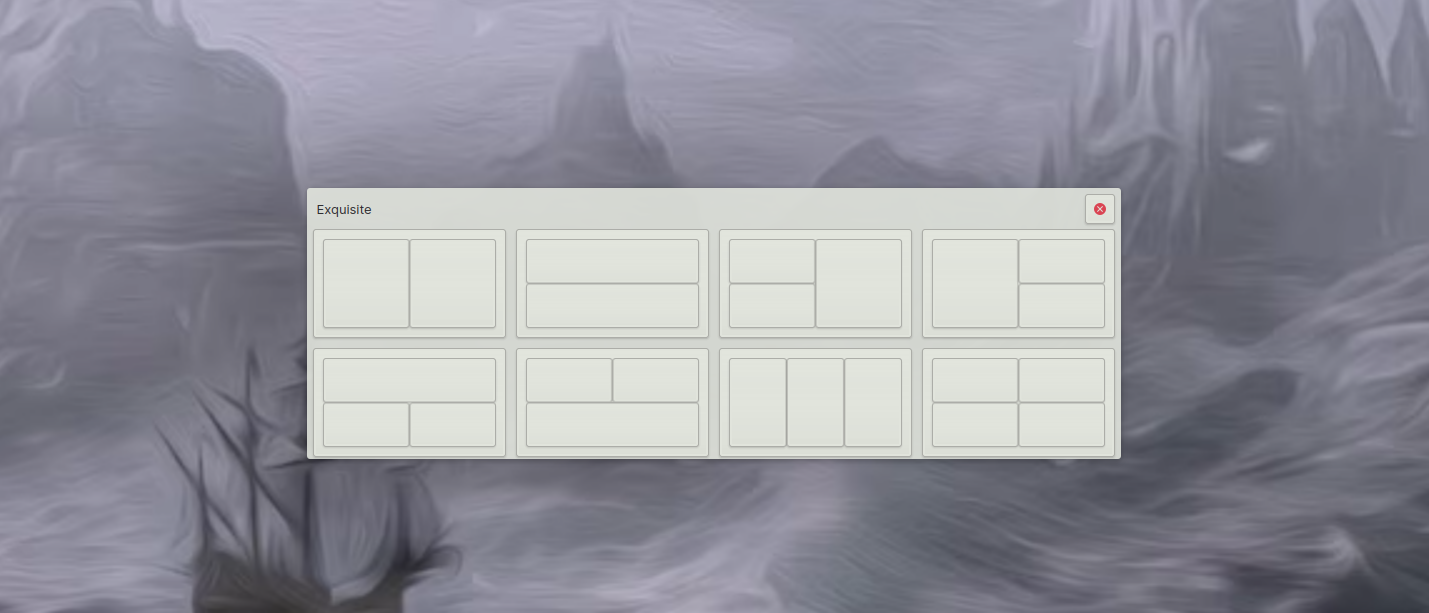
The default shortcut is Ctrl + Alt + D but it can be configured from System Settings > Shortcuts > KWin > Exquisite. Click on a window and click a layout box on the Exquisite window to place that window in that layout. You can do this for multiple windows and close the Exquisite window when you're done (by the close button on the top right or by pressing the shortcut keys).
https://user-images.githubusercontent.com/69015181/178298525-5c9ac287-b9d0-42da-9011-152f8e858d65.mp4
There is also a widget companion available if you want to toggle Exquisite visually. You can get it from the KDE Store via Right Click on Desktop > Add Widget > Get New Widgets. The widget source code lives under the widget directory.

Configuration
Exquisite can be configured from System Settings > Window Management > KWin Scripts.

Keep in mind, KWin needs to be restarted for the settings to apply.
Modifying and Creating Layouts
Exquisite layouts are stored in ~/.local/share/kwin/scripts/exquisite/contents/layouts/. You can freely change them, remove the ones you don't need or add new ones. They're named by numbers so if you're going to add a new one, look at the last one's number and name your file one up that number. Let's take a look at an existing one (0.qml) to understand how they are structured:
import QtQuick 2.6

Item {
    property string name: "Two Vertical Split"
    property var windows: [
        {
            x: 0,
            y: 0,
            width: 6,
            height: 12,
            shortcutModifier: Qt.ControlModifier,
            shortcutKey: Qt.Key_A
        },
        {
            x: 6,
            y: 0,
            width: 6,
            height: 12,
            shortcutModifier: Qt.ControlModifier,
            shortcutKey: Qt.Key_S
        }
    ]
}
The import statement and Item declaration are boilerplate, what we really need to understand are the two properties: name and windows. name is pretty self-explanatory, it's the name of the layout. The names aren't currently used but they might be in the future, better to write something explanatory rather than not.
The windows parameter is an array of JS objects. Each object represents a window and has 4 required (x, y, width, height) and 2 optional (shortcutModifier, shortcutKey) entries. These entries describe how the window is laid out in the layout and it's shortcut properties, let's take a look at each one in detail:
x: The x position of the window (x is the horizontal axis that goes from left to right).y: The y position of the window (y is the vertical axis that goes from top to bottom).width: The width (length along the x-axis) of the window.height: The height (length along the y-axis) of the window.shortcutKey: Optional parameter that defines the shortcut key of the window. Pressing the defined key (along with theshortcutModifierif it's also defined) while Exquisite is active will tile the window to the layout window of the shortcut. Can be any key defined in theQtnamespace (letters:Qt.Key_A...Qt.Key_Z, numbers:Qt.Key_0...Qt.Key_9). For further information, look at the Qt documentation.shortcutModifier: Optional parameter that defines the modifier that needs to be pressed in order forshortcutKeyto work. Can be one of the following:Qt.ControlModifier,Qt.ShiftModifier,Qt.AltModifier,Qt.MetaModifier. If you want to assign a single key without a modifier as a shortcut to a window, leave this parameter empty.
The grid that the layout windows are placed in is 12x12 (I choose 12 since it's a relatively small number and can be divided by 2, 3 and 4). For x and y, the minimum value is 0 and the maximum is 11. For width and height, the minimum is 1 and the maximum is 12.
Here is an image for better explanation:
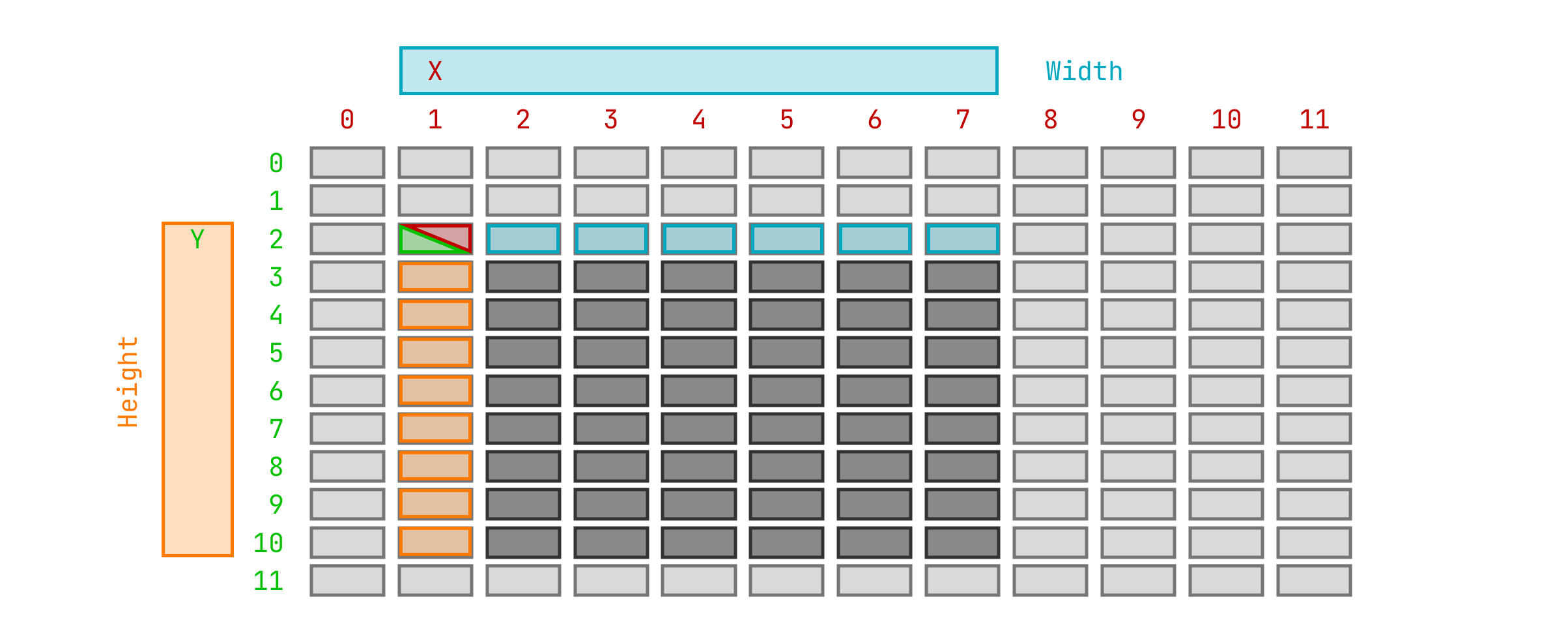
The window in this image would be:
{
    x: 1,
    y: 2,
    width: 7,
    height: 9
}
Troubleshooting
Doesn't Work on Older Plasma/Distribution Versions
If you don't have an up to date system (e.g older Debian or Ubuntu versions), Exquisite may not work out of the box. In order to resolve this, you need to make the following changes:
- In the file
~/.local/share/kwin/scripts/exquisite/contents/ui/main.qml, find the following line (depends on the current version of Exquisite but should be around line 90):
source: fileUrl
and change it to:
source: fileURL
- In the file
~/.local/share/kwin/scripts/exquisite/contents/ui/lib/WindowLayout.qml, find the following lines (they should be around line 13):
implicitWidth: 160*1.2 * PlasmaCore.Units.devicePixelRatio
implicitHeight: 90*1.2 * PlasmaCore.Units.devicePixelRatio
and change them to:
implicitWidth: 120
implicitHeight: 70
If you have further troubles, please open an issue.
Related Skills
node-connect
351.2kDiagnose OpenClaw node connection and pairing failures for Android, iOS, and macOS companion apps
frontend-design
110.6kCreate distinctive, production-grade frontend interfaces with high design quality. Use this skill when the user asks to build web components, pages, or applications. Generates creative, polished code that avoids generic AI aesthetics.
openai-whisper-api
351.2kTranscribe audio via OpenAI Audio Transcriptions API (Whisper).
qqbot-media
351.2kQQBot 富媒体收发能力。使用 <qqmedia> 标签,系统根据文件扩展名自动识别类型(图片/语音/视频/文件)。
