
Leaflet.DistortableImage
A Leaflet extension to distort or "rubber sheet" images
Install / Use
/learn @publiclab/Leaflet.DistortableImageREADME
Leaflet.DistortableImage




A Leaflet extension to distort images -- "rubbersheeting" -- for the MapKnitter.org (src) image georectification service by Public Lab. Leaflet.DistortableImage allows for perspectival distortions of images, client-side, using CSS3 transformations in the DOM.
Begin running (and contributing to) this codebase immediately with GitPod:

Advantages include:
- It can handle over 100 images smoothly, even on a smartphone
- Images can be right-clicked and downloaded individually in their original state
- CSS3 transforms are GPU-accelerated in most (all?) browsers, for a very smooth UI
- No need to server-side generate raster GeoTiffs, tilesets, etc. in order to view distorted imagery layers
- Images use DOM event handling for real-time distortion
- Full resolution download option for large images, using WebGL acceleration
Download as zip or clone the repo to get a local copy.
Also available on NPM as leaflet-distortableimage:
npm i leaflet-distortableimage
Compatibility with Leaflet versions
Compatible with Leaflet 1.0.0 and greater
MapKnitter Lite
Read more about MapKnitter going offline here: https://publiclab.org/mapknitter
Check out a prototype of the Mapknitter Lite project which enables you to:
- create maps and stitch images
- download maps to save them
- store saved maps and image collections in the Internet Archive (archive.org)
- host maps at archive.org for others to see
Demo
Check out this simple demo.
And watch this GIF demo:
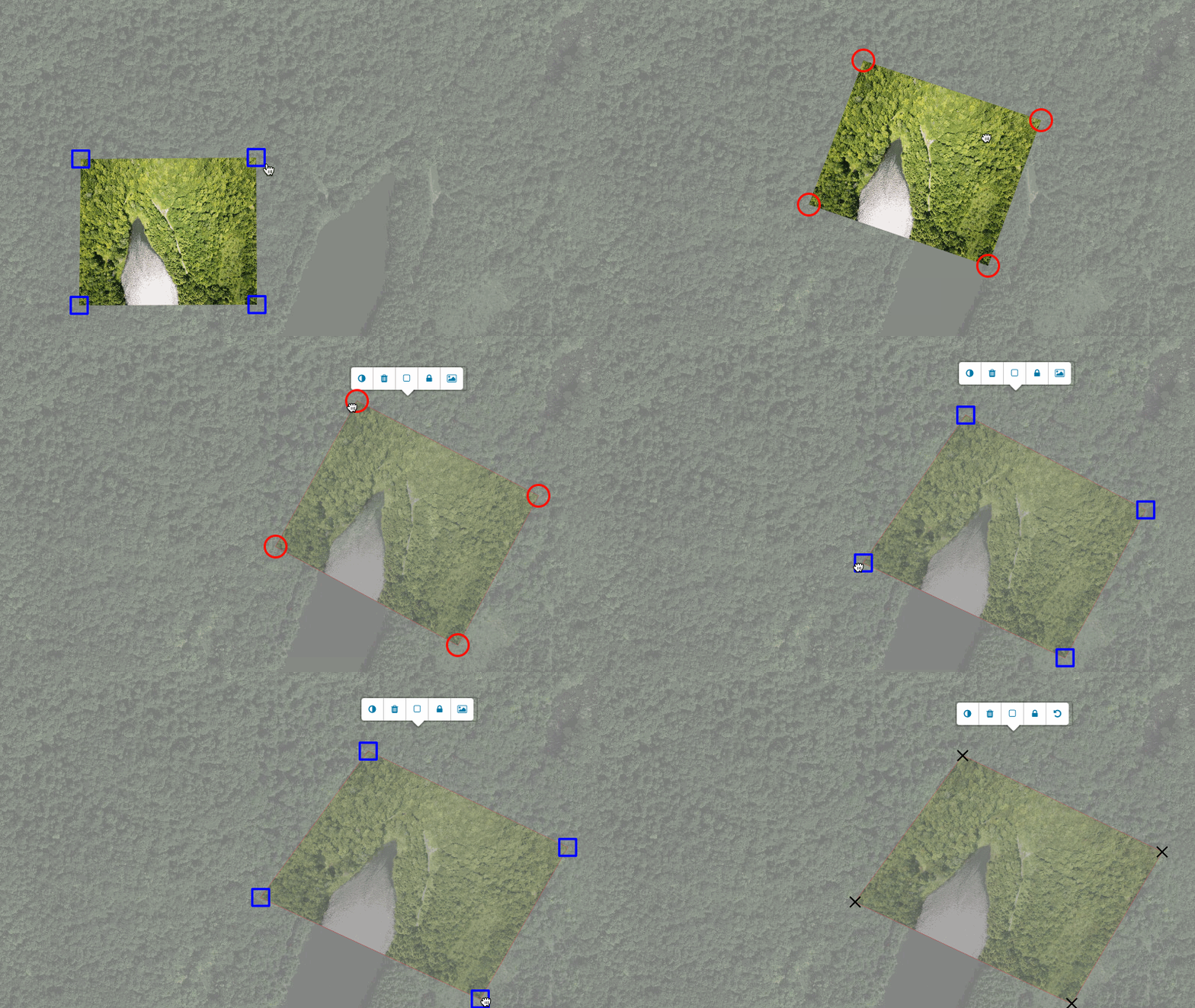
To test the code, open index.html in your browser and click and drag the markers on the edges of the image. The image will show perspectival distortions.
For the additional features in the multiple image interface, open select.html and use <kbd>shift</kbd> + click on an image or <kbd>shift</kbd> + drag on the map to "multi-select" (collect) images. For touch screens, touch + hold the image.
Single Image Interface
The simplest implementation is to create a map with our recommended TileLayer, then create an L.distortableImageOverlay instance and add it onto the map.
// set the initial map center and zoom level
map = L.map('map').setView([51.505, -0.09], 13);

// adds a Google Satellite layer with a toner label overlay
map.addGoogleMutant();

map.whenReady(function() {
  // By default, 'img' will be placed centered on the map view specified above
  img = L.distortableImageOverlay('example.jpg').addTo(map);
});
<b>Note</b>: <code>map.addGoogleMutant()</code> is a convenience function for adding our recommended layer to the map. If you want a different baselayer, skip this line and add your preferred setup instead.
Options available to pass during L.DistortableImageOverlay initialization:
Actions
actions(optional, default: [L.DragAction,L.ScaleAction,L.DistortAction,L.RotateAction,L.FreeRotateAction,L.LockAction,L.OpacityAction,L.BorderAction,L.ExportAction,L.DeleteAction], value: array)
If you would like to overrwrite the default toolbar actions available for an individual image's L.Popup toolbar, pass an array with the actions you want. Reference the available values here.
For example, to overrwrite the toolbar to only include L.OpacityAction and L.DeleteAction , and also add on an additional non-default like L.RestoreAction:
img = L.distortableImageOverlay('example.jpg', {
  actions: [L.OpacityAction, L.DeleteAction, L.RestoreAction],
}).addTo(map);
Corners
corners(optional, default: an array ofLatLangs that position the image on the center of the map, value: array)
Allows you to set an image's position on the map manually (somewhere other than the center default).
Note that this can manipulate the shape and dimensions of your image.
The corners should be passed as an array of L.latLng objects in NW, NE, SW, SE order (in a "Z" shape).
They will be stored on the image. See the Quick API Reference for their getter and setter methods.
Example:
img = L.distortableImageOverlay('example.jpg', {
  corners: [
    L.latLng(51.52,-0.14),
    L.latLng(51.52,-0.10),
    L.latLng(51.50,-0.14),
    L.latLng(51.50,-0.10),
  ],
}).addTo(map);

// you can grab the initial corner positions
JSON.stringify(img.getCorners())
=> "[{"lat":51.52,"lng":-0.14},{"lat":51.52,"lng":-0.1},{"lat":51.5,"lng":-0.14},{"lat":51.5,"lng":-0.1}]"

// ...move the image around...

// you can check the new corner positions.
JSON.stringify(img.getCorners())
=> "[{"lat":51.50685099607552,"lng":-0.06058305501937867},{"lat":51.50685099607552,"lng":-0.02058595418930054},{"lat":51.486652692081925,"lng":-0.06058305501937867},{"lat":51.486652692081925,"lng":-0.02058595418930054}]"

// note there is an added level of precision after dragging the image
Editable
editable (optional, default: true, value: boolean)
Internally, we use the image load event to trigger a call to img.editing.enable(), which sets up the editing interface (makes the image interactive, adds markers and toolbar).
If you want to enable editing based on custom logic instead, you can pass editable: false and then write your own function with a call to img.editing.enable(). Other passed options such as selected: true and mode will still be applicable and applied then.
Full-resolution download
fullResolutionSrc (optional)
We've added a GPU-accelerated means to generate a full resolution version of the distorted image.
When instantiating a Distortable Image, pass in a fullResolutionSrc option set to the url of the higher resolution image. This image will be used in full-res exporting.
img = L.distortableImageOverlay('example.jpg', {
  fullResolutionSrc: 'large.jpg',
}).addTo(map);
Our project includes two additional dependencies to enable this feature, glfx.js and webgl-distort, both of which you can find in our package.json.
Mode
mode (optional, default: "distort", value: string)
This option sets the image's initial editing mode, meaning the corresponding editing handles will always appear first when you interact with the image.
Values available to pass to mode are:
- distort (default): Distortion via individually draggable corners.
- drag: Translation via individually draggable corners.
- rotate: Rotation only.
- scale: Resize only.
- freeRotate: Combines the rotate and scale modes into one.
- lock: Locks the image in place. Disables any user gestures, toolbar actions, or hotkeys that are not associated with mode. Exception:
L.ExportActionwill still be enabled.
In the below example, the image will be initialized with "freeRotate" handles:
img = L.distortableImageOverlay('example.jpg', {
  mode: 'freeRotate',
}).addTo(map);
If you select a <code>mode</code> that is removed or unavailable, your image will just be assigned the first available <code>mode</code> on initialization.
<hr>Limiting modes:
<hr> <blockquote>Each <code>mode</code> is just a special type of action, so to ensure that these are always in sync the <code>modes</code> available on an image instance can be limited by the <code>actions</code> available on it. <strong>To remove a mode, limit its corresponding action via the <code><a name="Actions">actions</a></code> option during initialization.</strong> This holds true even when <code>suppressToolbar: true</code> is passed.</blockquote>In the below example, the image will be initialiazed with 'freeRotate' handles, and limit its available modes to 'freeRotate' and 'scale'.
- We also remember to add the normal toolbar actions we will want:
img = L.distortableImageOverlay('example.jpg', {
  mode: 'freeRotate',
  actions: [L.FreeRotateAction, L.ScaleAction, L.BorderAction, L.OpacityAction],
}).addTo(map);
Likewise, it is possible to remove or add actions during runtime (addTool, removeTool), and if those actions are modes it will remove / add the mode.
Rotation
rotation (optional, default: {deg: 0, rad:
