
Newman
Newman is a command-line collection runner for Postman
Install / Use
/learn @postmanlabs/NewmanREADME
<a href="https://www.postman.com/"><img src="https://assets.getpostman.com/common-share/postman-logo-horizontal-320x132.png" /></a><br /> Manage all of your organization's APIs in Postman, with the industry's most complete API development environment.
newman <sub>the cli companion for postman</sub> 

Newman is a command-line collection runner for Postman. It allows you to effortlessly run and test a Postman collection directly from the command-line. It is built with extensibility in mind so that you can easily integrate it with your continuous integration servers and build systems.
Table of contents
- Getting Started
- Usage
- Command Line Options
- API Reference
- Reporters
- External Reporters
- File Uploads
- Using Newman with the Postman API
- Using Newman in Docker
- Using Socks Proxy
- Migration Guide
- Compatibility
- Contributing
- Community Support
- License
Getting started
To run Newman, ensure that you have Node.js >= v16. Install Node.js via package manager.
Installation
The easiest way to install Newman is using NPM. If you have Node.js installed, it is most likely that you have NPM installed as well.
$ npm install -g newman
This installs Newman globally on your system allowing you to run it from anywhere. If you want to install it locally, Just remove the -g flag.
Using Homebrew
Install Newman globally on your system using Homebrew.
$ brew install newman
Usage
Using Newman CLI
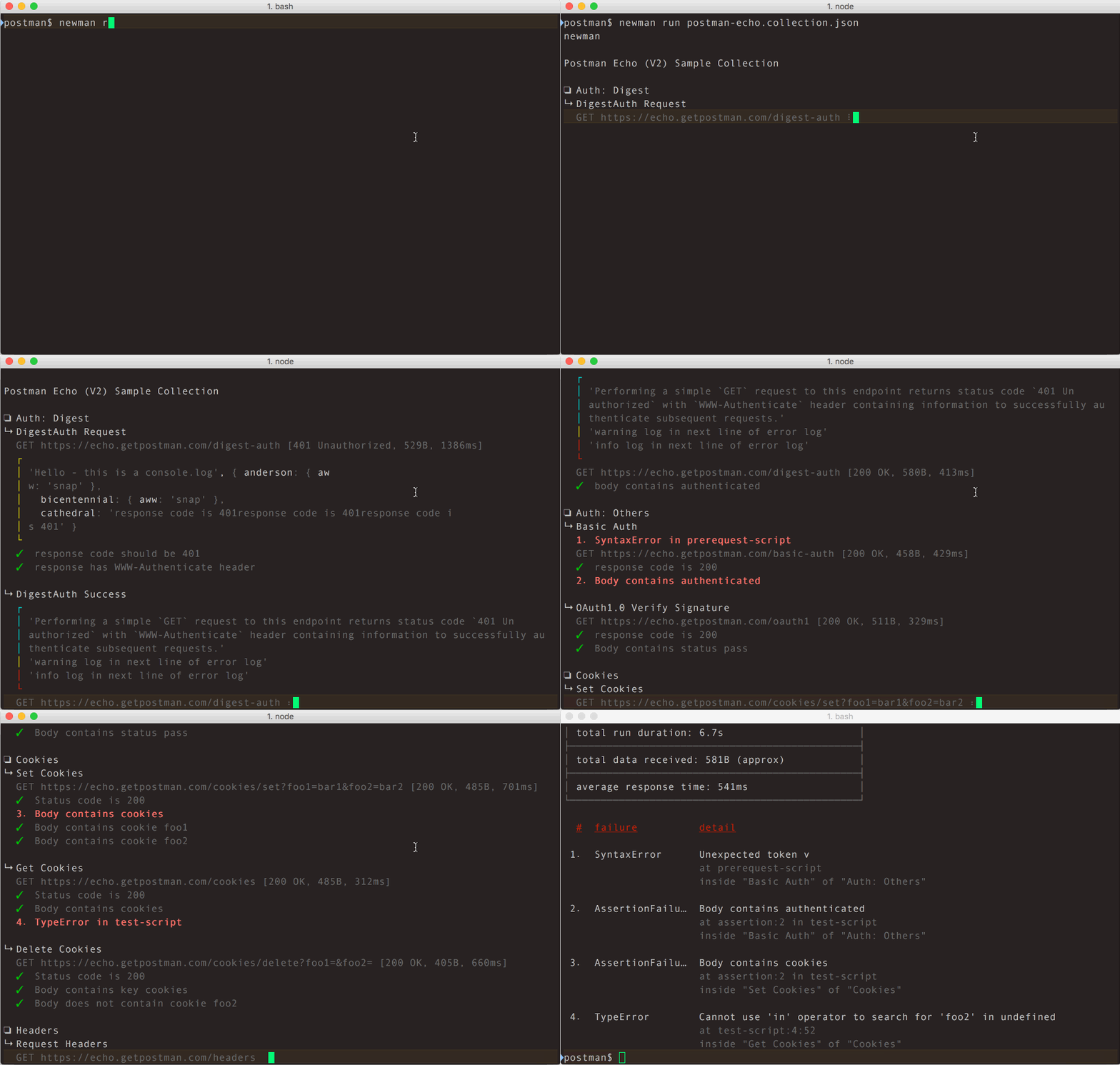
The newman run command allows you to specify a collection to be run. You can easily export your Postman
Collection as a json file from the Postman App and run it using Newman.
$ newman run examples/sample-collection.json
If your collection file is available as an URL (such as from our Cloud API service), Newman can fetch your file and run it as well.
$ newman run https://www.getpostman.com/collections/631643-f695cab7-6878-eb55-7943-ad88e1ccfd65-JsLv
For the complete list of options, refer the Command Line Options section below.
Using Newman as a Library
Newman can be easily used within your JavaScript projects as a Node.js module. The entire set of Newman CLI functionality is available for programmatic use as well. The following example runs a collection by reading a JSON collection file stored on disk.
const newman = require('newman'); // require newman in your project

// call newman.run to pass `options` object and wait for callback
newman.run({
    collection: require('./sample-collection.json'),
    reporters: 'cli'
}, function (err) {
	if (err) { throw err; }
    console.log('collection run complete!');
});
For the complete list of options, refer the API Reference section below.
Using Reporters with Newman
Reporters provide information about the current collection run in a format that is easy to both: disseminate and assimilate.
Reporters can be configured using the -r or --reporters options. Inbuilt reporters in newman are: cli, json, junit, progress and emojitrain.
CLI reporter is enabled by default when Newman is used as a CLI, you do not need to specifically provide the same as part of reporters option. However, enabling one or more of the other reporters will result in no CLI output. Explicitly enable the CLI option in such a scenario. Check the example given below using the CLI and JSON reporters:
$ newman run examples/sample-collection.json -r cli,json
For more details on Reporters and writing your own External Reporters refer to their corresponding sections below.
Command Line Options
newman [options]
-
-h,--help<br /> Show command line help, including a list of options, and sample use cases. -
-v,--version<br /> Displays the current Newman version, taken from package.json
newman run <collection-file-source> [options]
-
-e <source>,--environment <source><br /> Specify an environment file path or URL. Environments provide a set of variables that one can use within collections. Read More -
-g <source>,--globals <source><br /> Specify the file path or URL for global variables. Global variables are similar to environment variables but have a lower precedence and can be overridden by environment variables having the same name. -
-d <source>,--iteration-data <source><br /> Specify a data source file (JSON or CSV) to be used for iteration as a path to a file or as a URL. Read More -
-n <number>,--iteration-count <number><br /> Specifies the number of times the collection has to be run when used in conjunction with iteration data file. -
--folder <name><br /> Run requests within a particular folder/folders or specific requests in a collection. Multiple folders or requests can be specified by using --folder multiple times, like so: --folder f1 --folder f2 --folder r1 --folder r2. -
--working-dir <path><br /> Set the path of the working directory to use while reading files with relative paths. Default to current directory. -
--no-insecure-file-read<br /> Prevents reading of files situated outside of the working directory. -
--export-environment <path><br /> The path to the file where Newman will output the final environment variables file before completing a run. -
--export-globals <path><br /> The path to the file where Newman will output the final global variables file before completing a run. -
--export-collection <path><br /> The path to the file where Newman will output the final collection file before completing a run. -
--timeout <ms><br /> Specify the time (in milliseconds) to wait for the entire collection run to complete execution. -
--timeout-request <ms><br /> Specify the time (in milliseconds) to wait for requests to return a response. -
--timeout-script <ms><br /> Specify the time (in milliseconds) to wait for scripts to complete execution. -
-k,--insecure<br /> Disables SSL verification checks and allows self-signed SSL certificates. -
--ignore-redirects<br /> Prevents newman from automatically following 3XX redirect responses. -
--delay-request<br /> Specify the extent of delay between requests (milliseconds). -
--cookie-jar <path><br /> Specify the file path for a JSON Cookie Jar. Usestough-cookieto deserialize the file. -
--export-cookie-jar <path><br /> The path to the file where Newman will output the final cookie jar file before completing a run. Usestough-cookie's serialize method. -
--bail [optional modifiers]<br /> Specify whether or not to stop a collection run on encountering the first test script error.<br /> Can optionally accept modifiers, currently includefolderandfailure.<br />folderallows you to skip the entire collection run in case an invalid folder was specified using the--folderoption or an error was encountered in general.<br /> On the failure of a test,failurewould gracefully stop a collection run after completing the current test script. -
-x,--suppress-exit-code<br /> Specify whether or not to override the default exit code for the current run. -
--color <value><br /> Enable or Disable colored CLI output. The color value can be any of the three:on,offorauto(default).<br/> Withauto, Newman attempts to automatically turn color on or off based on the color support in the terminal. This behaviour can be modified by using theonoroffvalue accordingly. -
--disable-unicode<br /> Specify whether or not to force the unicode disable option. When supplied, all symbols in the output will be replaced by their plain text equivalents. -
--global-var "<global-variable-name>=<global-variable-value>"<br /> Allows t
Related Skills
node-connect
346.8kDiagnose OpenClaw node connection and pairing failures for Android, iOS, and macOS companion apps
frontend-design
107.6kCreate distinctive, production-grade frontend interfaces with high design quality. Use this skill when the user asks to build web components, pages, or applications. Generates creative, polished code that avoids generic AI aesthetics.
openai-whisper-api
346.8kTranscribe audio via OpenAI Audio Transcriptions API (Whisper).
qqbot-media
346.8kQQBot 富媒体收发能力。使用 <qqmedia> 标签,系统根据文件扩展名自动识别类型(图片/语音/视频/文件)。
