
Passff
Read-only mirror of https://codeberg.org/PassFF/passff Pull requests and issues on GitHub cannot be accepted and will be automatically closed.
Install / Use
/learn @passff/PassffREADME
passff

zx2c4 pass management extension for Mozilla Firefox.
Official signed version can be found on the Mozilla add-on page
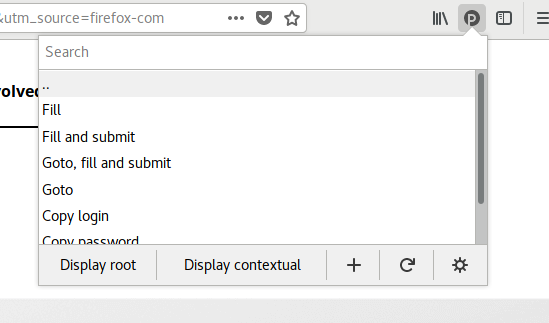
Overview
This extension will allow you to access your zx2c4 pass repository directly from your web browser.
You can choose to automatically fill and submit login forms if a matching password entry is found.
Browser compatibility
- Firefox 50+ (or 54 for full support)
Installation
zx2c4 pass repository
This extension requires zx2c4 pass to be installed and set up with a password repository. Make sure you can execute pass show some-password-name in a terminal before continuing.
Host application
For the extension to communicate with your system's pass script, you need to install what's called the host application from the official git repository.
The host application allows the extension to communicate with pass on your system.
PassFF extension
Install the current release of PassFF for your browser:
Previous releases are available for download as XPI files from our releases page. However, this is strongly discouraged for security reasons!
A graphical pinentry program
This program prompts you for your passphrase. One is probably already installed. If PassFF does not work, install one of these programs:
- For Ubuntu/Debian:
pinentry-gtkorpinentry-qtorpinentry-fltk - For CentOS/RHEL:
pinentry-qt4orpinentry-qt - For MacOS:
pinentry-mac
If that does not work for you, you may have to configure GnuPG to use the right pinentry program. See the Troubleshooting section.
Note: Since the host app runs non-interactively, a console pinentry such as pinentry-ncurses is useless and may render PassFF unusable if this is the default pinentry.
One-time-password (OTP) Authentication
PassFF can generate tokens to fill OTP input fields if the pass-otp extension is installed and the key URI is configured in the password file.
Password formats
To make the most of the extension, you should format your password files according to our expected formats.
If you only want the extension to fill out passwords, you don't need any special format for your password files. But if you follow our formats, the extension can also visit the website's URL and fill out the username and other input fields for you.
Multi-line format
This is the preferred organizational scheme used by the author of pass.
<the_password>
login: <the_login>
url: <the_url>
<other_inputfield_name>: <inputfield_value>
You can change or configure additional names for the login and url fields in preferences.
If there are no colons (:) on the second or third line, they are assumed to contain the username
and URL respectively (unless those lines are left empty):
<the_password>
<the_login>
<the_url>
<more_content>
If there is only a single line, or none of the provided fields matches a login field name, the username is taken from
the filename, e.g. example.com/janedoe will have a default username of janedoe:
<the_password>
url: <the_url>
<other_inputfield_name>: <inputfield_value>
If there is no url field, but a login field, the URL is taken from the filename, assuming a secure protocol,
e.g. shopping/example.com will have a default URL of https://example.com:
<the_password>
login: <the_login>
<other_inputfield_name>: <inputfield_value>
If there is neither a url nor a login field, the filename is used as username and the parent directory's
name is used as URL, e.g. example.com/janedoe will have a default username of janedoe and a default URL
of https://example.com:
<the_password>
<other_inputfield_name>: <inputfield_value>
If your login credentials do not include any login name information (only a password), you can instruct PassFF to omit
filling any login name by adding login: PASSFF_OMIT_FIELD to your pass entry. The same keyword can be used for
credentials without password, but only login name, or to prevent PassFF from filling specific (other) input fields.
Use symbolic links in your password store directory if the data is identical across pass entries. When you do, make sure
to use relative (instead of absolute) links since PassFF cannot resolve paths beyond the password store directory.
If individual fields are equal across pass entries, you can store the data in one entry and reference that entry from
others. For example, in order to instruct PassFF to use the password and login name stored in shopping/example.com
when dealing with shopping/example2.com, you can use the syntax -> followed by a relative or absolute path:
-> /shopping/example.com
login: -> example.com
url: https://example2.com
Lines besides the login and URL that match the format <other_inputfield_name>: <value> can be used to fill in input
fields besides the login and password fields. The left hand side of the colon should match the input field's name,
id, autocomplete, or placeholder attribute. You can instruct PassFF to fill your login name, password, or
OTP token, by setting <value> to one of PASSFF_FIELD_LOGIN, PASSFF_FIELD_PASSWORD, or PASSFF_FIELD_OTP.
Alternatively, you can instruct PassFF explicitly not to fill the specified input field by using the
keyword PASSFF_OMIT_FIELD.
Optionally, you can store your username, the URL, and additional (less sensitive) meta-data separate
from the password. For example, you can create the two entries shopping/example.com
and shopping/example.com.meta. Whenever you select shopping/example.com in PassFF, it will
automatically append the contents of the corresponding entry with .meta extension before parsing
the multi-line format specified in this section.
Examples
nu8kzeo2Aese
login: bob
url: https://codeberg.org/login
Sae7gohsooquahCoh3ie
alice
AephieryZ2Ya
login: kevin
url: example.com
otpauth://totp/Example:alice@google.com?secret=JBSWY3DPEHPK3PXP&issuer=Example
pin: 1234
loginkey: PASSFF_FIELD_OTP
fancyinput: PASSFF_FIELD_LOGIN
File-structure format
Alternatively, you can organize your login information with file structure. For example, if you have this file structure:
- www
- supersite.com
- login
- password
- url
- totp
- mysite.com
- supersite.com
PassFF will
- get the login from the "login", the url from the "url" and the password from the "password" file under supersite.com
- get the login from the "login" field inside the mysite.com entry for mysite.com (see format above)
The file structure approach does not support custom input fields.
Note that the file structure format is recognized and assumed by PassFF whenever a file name matches a reserved field name such as user, url, password or login. This might cause unexpected behavior in cases where there is a file in multi-line format whose name happens to be a reserved field name.
Improve suggestions (contextual entries)
Unless you activate the preference "Index URL fields on startup", the auto-suggestions in the menus are based on matches of the current web page's URL against the names of password store entries. In the following, you find an explanation how you can improve matching quality by adapting the names and paths of your password store entries.
Generally speaking, the match quality is best if the exact hostname as well as all alphanumeric parts of the URL's path appear exactly in your entry's name. An entry is excluded from the matching if no part of the hostname is contained in its name. Matching (parts of) the hostname is more important than matching parts from the rest of the URL.
For the URL https://bugs.gentoo.org/index.cgi?GoAheadAndLogIn=1, best match quality is reached if your password store entry contains the strings bugs.gentoo.org, index and GoAheadAndLogIn in arbitrary order, but for it to be ranked in the matching process at all, it's enough for it to contain the strings bugs or gentoo.
Example with only one entry per hostname
If you don't have multiple credentials for one hostname in your password store, you get the best results from naming the entries after the exact hostname. In this scenario, if you name an entry /some/arbitrary/path/bugs.gentoo.org, it will always rank highest on https://bugs.gentoo.org/index.cgi?GoAheadAndLogIn=1.
Examples with more than one entry per hostname
If you happen to have several credentials for one hostname, you could name a directory in your password store after the hostname and list the different credentials inside that directory. Suppose you have different credentials for each of the following URLs:
https://my.example.com/cloud
https://my.example.com/blog?login
https://my.example.com/blog?admin
You could store them in your password store as
/some/path/my.example.com/cloud
/some/path/my.example.com/blog-login
/some/path/my.example.com/blog-admin
However, the following will work equally well:
/business/cloud/my.example.com
/personal/my.example.com-blog-login
/personal/my.example.com-blog-admin
For the rare case where you need several entries for one hostnam
Related Skills
node-connect
335.9kDiagnose OpenClaw node connection and pairing failures for Android, iOS, and macOS companion apps
frontend-design
82.7kCreate distinctive, production-grade frontend interfaces with high design quality. Use this skill when the user asks to build web components, pages, or applications. Generates creative, polished code that avoids generic AI aesthetics.
openai-whisper-api
335.9kTranscribe audio via OpenAI Audio Transcriptions API (Whisper).
commit-push-pr
82.7kCommit, push, and open a PR
