
Tmuxomatic
Intelligent tmux session management
Install / Use
npx skills add oxidane/tmuxomaticInstalls into whichever agent you are using.
README
tmuxomatic 
A completely different kind of tmux session manager.
- Introduction
- One Example
- Managerless Mode ... New in 2.19
- Flex ... ( i. Concepts, ii. Demo #1, iii. Demo #2 )
- Installation ... ( i. Requirements, ii. Guide, iii. Optional Packages )
- Using tmux
- Legal ... ( i. Copyright, ii. License, iii. Contributor Agreement )
Introduction
Other tmux session managers require pages of documentation for basic use, and define windows using a complicated nesting of pane splits. Instead, tmuxomatic is so easy that anyone could use it after just one example. Yet tmuxomatic is more flexible and more powerful than other tmux session managers.
At the heart of tmuxomatic is the windowgram, a better way of arranging tmux windows. The windowgram is a rectangle comprised of alphanumeric characters (0-9, a-z, A-Z). Each character grouping identifies the name, position, size, and shape of a pane. It should take only one example to demonstrate the power and flexibility of the windowgram.
One Example
Take the following window definition from the session_demo file (located in the examples folder):
window example_one        # A new window begins like this, spaces in names allowed

AAAAAAvvvvvXXXXXTTTT      # The windowgram, defines the shapes and positions of panes
jjjQQQQQQQuuuuuuTTTT      # Make your own, any size and arrangement, 62 panes maximum
jjjQQQQQQQuuuuuuTTTT
jjjQQQQQQQuuuuuuTTTT
0000llllllllllaaaaaa
1234llllllllllaaaaaa

  foc                     # Only three 3-letter commands: Focus, Directory, Run
  dir ~                   # Unlinked directory is the default for all undefined panes
A run figlet "A"          # Linked command to pane A, in this case prints a large "A"
Q run figlet "Q"
A foc
And compare it to the resulting screenshot after running tmuxomatic session_demo:
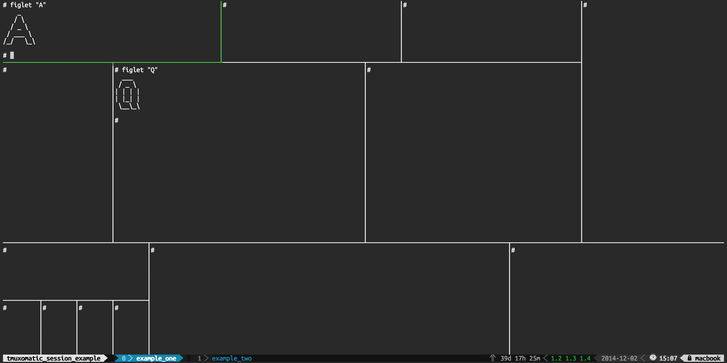
With tmuxomatic, you'll never have to manually split, position, or size a pane again. And linking the panes to actions is so simple and logical that you probably won't forget it. There are no other file format rules to remember, and typically no command line arguments will be necessary.
Additional examples may be found in the examples folder. If you have installed with PyPI, use tmuxomatic --files to find the location for these examples on your local filesystem.
For a list of command line arguments, run tmuxomatic --help. For additional features, see the documentation and/or source code.
Managerless Mode
As of 2.19, tmuxomatic may be used to add windows to an existing session without having to restart it. This is called managerless mode. It works with any tmux session, even those created by other session managers.
Simply use tmuxomatic from within tmux, and any windows in the specified file that are not already named by the current session will be added.
If you are new to tmuxomatic and already using tmux, managerless mode is a convenient way to explore the features of tmuxomatic without disrupting your current session.
While 2.19 is in development, you will have to git clone or git pull to use managerless mode
Flex
Windowgrams are a neat way of arranging workspaces. For simpler layouts, a windowgram can be typed up quickly. But if you need detail, you may find yourself doing a lot of ASCII art.
In tmuxomatic 2, a new feature named Flex has been added to automate the construction and modification of the windowgram itself.
Flex is an object-oriented windowgram editor. It is visually expressive, naturally worded, logically ordered, minimal, and powerful. Its short command set may be combined to make any conceivable windowgram -- likely more quickly and more easily than crafting by hand. Flex is intended for power users who desire detailed windowgrams without the tedium of manual entry.
Flex Concepts
Before proceeding with the flex demonstration, take a moment to review key concepts used by the commands.
- Pane: Single character pane identifier, represents one pane in a windowgram
- Group: String of one or more panes, usually forming a complete rectangle without gaps
- Edge: String of one or more panes that border one or more edges (imaginary line between panes)
- Direction: Expresses movement, or specifies an edge: up, down, left, right, vertical, horizontal
- Size: Either an absolute number of characters, or contextually as a percentage or a multiplier
In the demonstrations that follow, the flex shell is represented in short form by the flex> prompt. For a list of flex commands with example usage, type help from the shell at any time.
Flex Demonstration #1 -- Create New Windowgram
Let's use flex to build a windowgram that would otherwise require repetitious typing and/or careful editing.
The following windowgram is what we'll create in this demonstration. This windowgram is intended for managing cryptocurrency nodes, specifically bitcoin, litecoin, and namecoin. There are panes for a general use shell (1), a disk monitor (z); and for each currency: a title with keep-alive loop on top (B, L, N), and blockchain information on bottom (b, l, n).
1111111111111111111111111zzzzzzzzzzzz
1111111111111111111111111zzzzzzzzzzzz
1111111111111111111111111BBBBLLLLNNNN
1111111111111111111111111BBBBLLLLNNNN
1111111111111111111111111BBBBLLLLNNNN
1111111111111111111111111BBBBLLLLNNNN
1111111111111111111111111bbbbllllnnnn
1111111111111111111111111bbbbllllnnnn
1111111111111111111111111bbbbllllnnnn
1111111111111111111111111bbbbllllnnnn
Begin by opening the flex shell on the session file session_flexample. Flex will create the session file for you if it does not already exist.
% tmuxomatic session_flexample --flex

flex>
First use the new command to create a new window named wallets. By default, it will create a single pane window represented by the single character 1.
flex> new wallets

1
From here it takes only four flex commands to complete the envisioned windowgram.
Scale:
To make the window easier to work with, let's scale this windowgram to 25 characters wide, by 10 characters high. Many flex parameters are flexible, instead of characters we could have used multipliers or percentages.
flex> scale 25x10

1111111111111111111111111
1111111111111111111111111
1111111111111111111111111
1111111111111111111111111
1111111111111111111111111
1111111111111111111111111
1111111111111111111111111
1111111111111111111111111
1111111111111111111111111
1111111111111111111111111
Add:
Now let's add a new pane on the right edge, and make it 50% of the size of the base windowgram (or 12 characters, if you prefer).
flex> add right 50%

1111111111111111111111111000000000000
1111111111111111111111111000000000000
1111111111111111111111111000000000000
1111111111111111111111111000000000000
1111111111111111111111111000000000000
1111111111111111111111111000000000000
1111111111111111111111111000000000000
1111111111111111111111111000000000000
1111111111111111111111111000000000000
1111111111111111111111111000000000000
There are only two commands left to complete this, and two ways to do it. One way uses split and break, the other uses break and join. We'll use break and join, because split is shown in the next demonstration.
Break:
So let's break pane 0 into a grid, 3 panes wide by 5 panes high. For readability, we'll make use of the optional parameter so that new panes to start at A.
flex> break 0 3x5 A

1111111111111111111111111AAAABBBBCCCC
1111111111111111111111111AAAABBBBCCCC
1111111111111111111111111DDDDEEEEFFFF
1111111111111111111111111DDDDEEEEFFFF
1111111111111111111111111GGGGHHHHIIII
1111111111111111111111111GGGGHHHHIIII
1111111111111111111111111JJJJKKKKLLLL
1111111111111111111111111JJJJKKKKLLLL
1111111111111111111111111MMMMNNNNOOOO
1111111111111111111111111MMMMNNNNOOOO
Join:
Finally we complete the envisioned layout using just one join command. Each parameter represents a group of panes to be joined together. By default, the first pane in the group becomes the joined name. But we'll be using the optional rename, by appending . followed by the new pane id.
flex> join ABC.z DG.B EH.L FI.N JM.b KN.l LO.n

1111111111111111111111111zzzzzzzzzzzz
1111111111111111111111111zzzzzzzzzzzz
1111111111111111111111111BBBBLLLLNNNN
1111111111111111111111111BBBBLLLLNNNN
1111111111111111111111111BBBBLLLLNNNN
1111111111
Related Skills
node-connect
385.5kDiagnose OpenClaw Android, iOS, or macOS node pairing, QR/setup code, route, auth, and connection failures.
blender-python-addon
40.5kBlender Python add-on rules for operators, panels, properties, registration, testing, and API-safe scripting
flutter-development-guidelines-cursorrules-prompt-file
40.5kCursor rules for Flutter development with MVVM architecture, Riverpod state management, Material widgets, and Dart style guidelines.
commit-push-pr
140.7kCommit, push, and open a PR
