
Music
:notes: Music app for ownCloud
Install / Use
/learn @owncloud/MusicREADME
README
As of January 2026, the Nextcloud version of the Music app is hosted at https://github.com/nc-music/music. At the same time, the ownCloud version has entered maintenance mode: only bug and security fixes may still be released but no new features. All open issues are being transferred to the new repository.



Overview
Music player and server for ownCloud and Nextcloud. Shows audio files stored in your cloud categorized by artists and albums. Supports mp3, and depending on the browser, many other audio formats too. Supports shuffle play and playlists. The Music app also allows serving audio files from your cloud to external applications which are compatible either with Ampache or Subsonic.
The full-screen albums view:

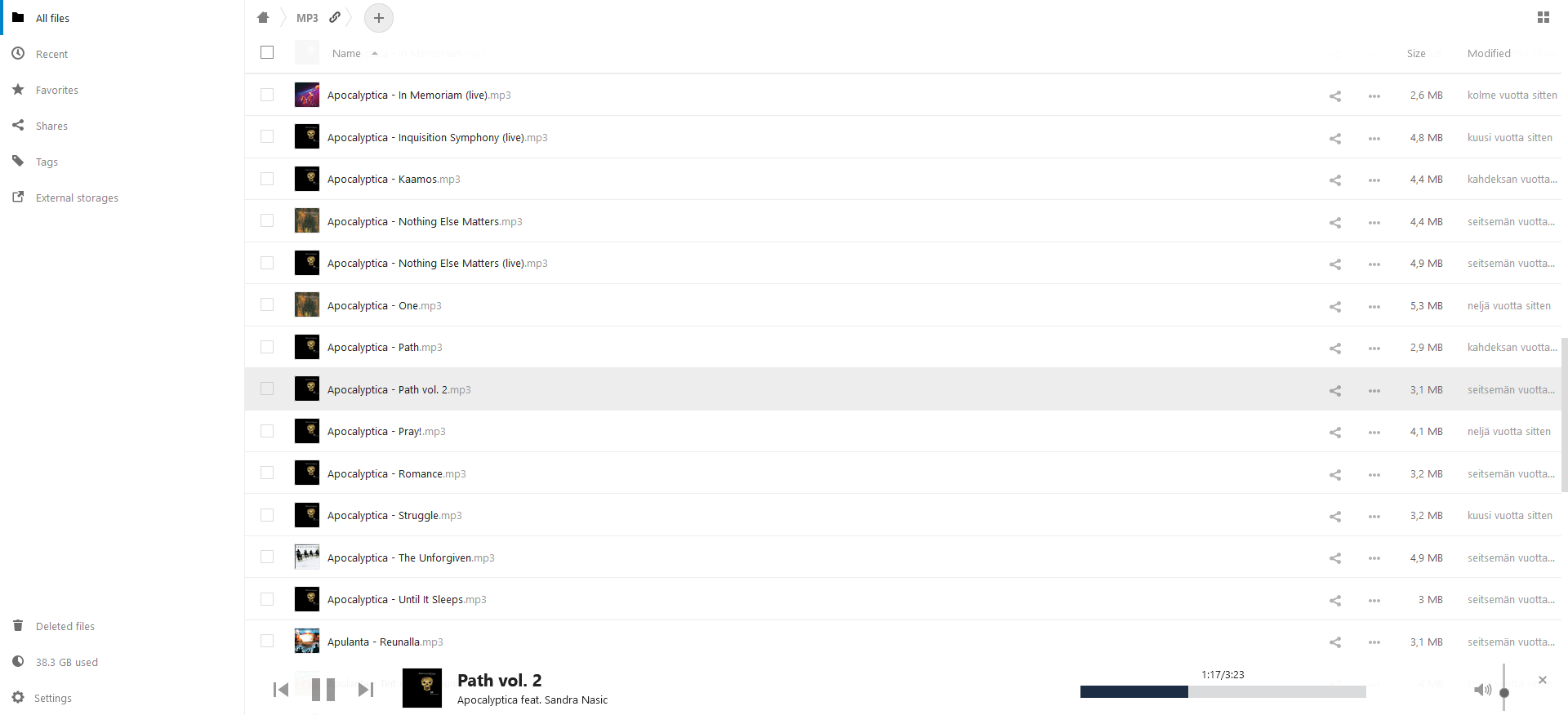
Music player embedded into the files view:
Integration with the media control panel in Chrome: <img src="https://user-images.githubusercontent.com/16665512/96973502-4373e800-1518-11eb-9f99-9446d3dbf19a.jpg" alt="Chrome media control panel" width="60%"/>
Mobile layout and media control integration to the lock screen and notification center with Chrome on Android: <img src="https://user-images.githubusercontent.com/16665512/96973698-89c94700-1518-11eb-8f9b-dc31ad529345.jpg" alt="Mobile layout" width="30%"/> <img src="https://user-images.githubusercontent.com/8565946/79892141-bdf96900-840a-11ea-8ab7-b5afefa712d7.png" alt="Android lock screen" width="30%"/> <img src="https://user-images.githubusercontent.com/8565946/79892145-bfc32c80-840a-11ea-88c3-0911d22b45cc.png" alt="Android notification center" width="30%"/>
Supported formats
- MP3 (
audio/mpeg) - FLAC (
audio/flac) - Vorbis in OGG container (
audio/ogg) - Opus in OGG container (
audio/oggoraudio/opus) - WAV (
audio/wav) - AAC in M4A container (
audio/mp4) - ALAC in M4A container (
audio/mp4) - M4B (
audio/m4b) - AAC (
audio/aac) - AIFF (
audio/aiff) - AU (
audio/basic) - CAF (
audio/x-caf)
Note: The audio formats supported vary depending on the browser. Most recent versions of Chrome, Firefox and Edge should be able to play all the formats listed above. All browsers should be able to play at least the MP3 files.
Detail
The modern web browsers ship with a wide variety of built-in audio codecs which can be used directly via the standard HTML5 audio API. Still, there is no browser which could natively play all the formats listed above. For those formats not supported natively, the Music app utilizes the Aurora.js javascript library which is able to play most of the formats listed above, excluding only the OGG containers. On the other hand, Aurora.js may not be able to play all the individual files of the supported formats and is very limited in features (no seeking, no adjusting of playback speed).
Note: In order to be playable in the Music app, the file type has to be mapped to a MIME type audio/* on your cloud instance. Neither ownCloud nor Nextcloud has these mappings by default for the file types AIFF, AU, or CAF. The mapping for the file type AAC is missing from ownCloud but present on Nextcloud. To add the missing mappings, run:
php occ music:register-mime-types
Usage hints
Normally, the Music app detects any new audio files in the filesystem on application start and scans metadata from those to its database tables when the user clicks the prompt. The Music app also detects file removals and modifications on the background and makes the required database changes automatically.
If the database would somehow get corrupted, the user can force it to be rebuilt from scratch by opening the Settings (at the bottom of the left pane) and clicking the option "Reset music collection".
Commands
If preferred, it is also possible to use the command line tool for the database maintenance, see https://github.com/owncloud/music/wiki/Commands. This may be quicker than scanning via the web UI in case of large music library, and optionally allows targeting more than one user at once, as well as some more options not available on the web interface.
Ampache and Subsonic
The URL you need to connect with an Ampache-compatible player is listed in the settings and looks like this:
https://cloud.domain.org/index.php/apps/music/ampache
This is the common path. Most clients append the last part (/server/xml.server.php) automatically. If you have connection problems, try the longer version of the URL with the /server/xml.server.php appended.
Similarly, the URL used to connect with a Subsonic-compatible player is listed in the settings and looks like this:
https://cloud.domain.org/index.php/apps/music/subsonic
Authentication
Ampache and Subsonic don't use your ownCloud password for authentication. Instead, you need to use a specifically generated APIKEY with them. The APIKEY is generated through the Music app settings accessible from the link at the bottom of the left pane within the app. The generated APIKEY is shown upon creation but it is impossible to retrieve it at later time. If you forget or misplace the key, you can always delete it and generate a new one.
When you create the APIKEY, the application shows also the username you should use on your Ampache/Subsonic client. Typically, this is your ownCloud login name but it may also be an UUID in case you have set up LDAP authentication.
Installation
The Music app can be installed using the App Management available on the web UI of ownCloud or Nextcloud for the admin user.
After installation, you may want to select a specific sub-folder containing your music files through the settings of the application. This can be useful to prevent unwanted audio files to be included in the music library.
Known issues
Huge music collections
The application's scalability for large music collections has gradually improved as new versions have been released. Still, if the collection is large enough, the application may fail to load. The maximum number of tracks supported depends on your server but should be more than 50'000. Also, when there are tens of thousands of tracks, you may notice slow down of the web UI.
Translations
There exist partial translations for the Music app for many languages, but most of them are very much incomplete. In the past, the application was translated at https://www.transifex.com/owncloud-org/owncloud/ and the resource still exists there. However, large majority of the strings used in the app have not been picked by Transifex for many years now, and hence the translations from Transifex cannot be actually used. The root cause is disparity in the localization mechanisms used in the Music app and on ownCloud in general, and bridging the gap would require some support from ownCloud core team. This is probably never going to happen, see https://central.owncloud.org/t/owncloud-music-app-translations/14881. For now, you may contribute translations as normal pull requests, by following the instructions from https://github.com/owncloud/music/issues/671#issuecomment-782746463.
SMB storage
The Music app may be unable to extract metadata of the files residing on a SMB share. This is because, on some system configurations, it is not possible to use fseek() function to seek within the remote files on the SMB share. The getID3 library used for metadata extraction depends on fseek() and will fail on such systems. If the metadata extraction fails, the Music app falls back to deducing the track name from the file name, album name from the parent folder name, and artist name from the grand parent folder name. Whether or not the problem exists on a system, may depend on the details of the SMB support library on the host computer and the remote computer providing the share. According to the documentation, using the SMB storage requires either smbclient or libsmbclient-php and the latter is preferred. Installing the libsmbclient-php has solved this metadata issue for some users.
Development
Build frontend bundle
All the frontend javascript sources of the Music app, including the used vendor libraries, are bundled into a few files for deployment using webpack. These bundle files are named like dist/webpack.*.js. Similarly, all the style files of the Music app are bundled into files like dist/webpack.*.css. Downloading the vendor libraries and generating these bundles requires the npm utility, and happens by running:
npm install --deps
npm run build
The command above builds the minified production version of the bundle. To build the development version, use
npm run build-dev
To automatically regenerate the development mode bundles whenever the source .js/.css files change, use
npm run watch
Build delivery package
To build the release zip package, run the following commands. This requires the make and zip command line utilities.
cd build
make release
Install test dependencies
To install test dependencies, run the following command on the root level of the project:
composer install
Run tests
Static analysis with PHPStan
composer run analyze
PHP unit tests
compo
Related Skills
node-connect
337.3kDiagnose OpenClaw node connection and pairing failures for Android, iOS, and macOS companion apps
frontend-design
83.2kCreate distinctive, production-grade frontend interfaces with high design quality. Use this skill when the user asks to build web components, pages, or applications. Generates creative, polished code that avoids generic AI aesthetics.
openai-whisper-api
337.3kTranscribe audio via OpenAI Audio Transcriptions API (Whisper).
commit-push-pr
83.2kCommit, push, and open a PR
