
PrettyErrors
Prettify Python exception output to make it legible.
Install / Use
/learn @onelivesleft/PrettyErrorsREADME
pretty-errors
Prettifies Python exception output to make it legible. Install it with
python -m pip install pretty_errors
If you want pretty_errors to be used whenever you run a python script you must add it to your python startup procedure. You can do so easily by running:
python -m pretty_errors
This is the recommended way to use pretty_errors; apart from being simpler and universal, using it will mean SyntaxError exceptions also get formatted prettily (which doesn't work if you are manually importing pretty_errors).
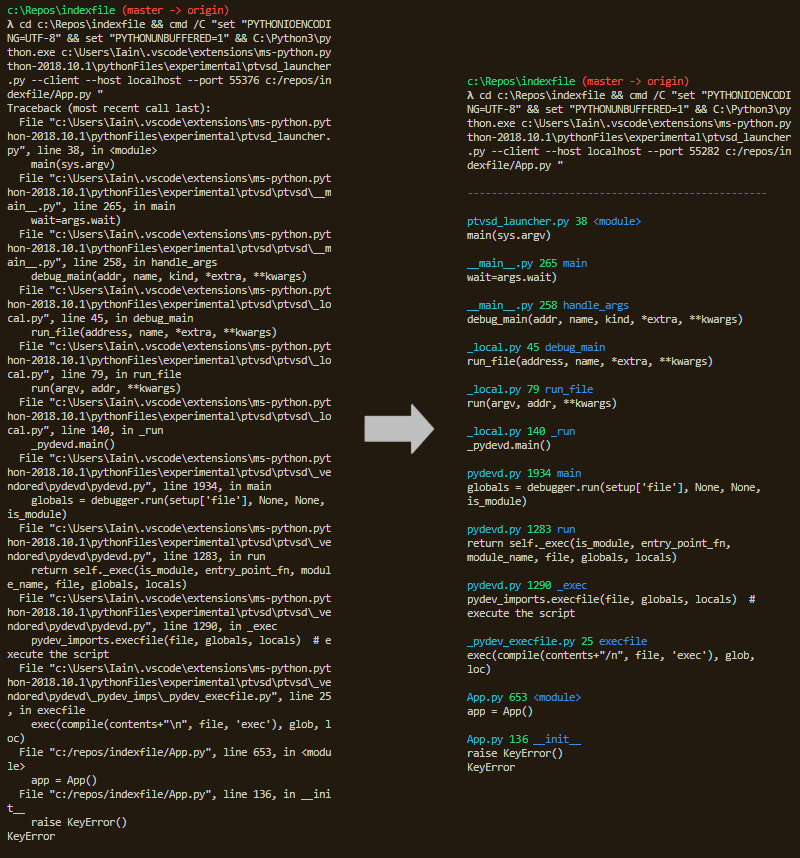
If you have not installed it universally you can use it in your project simply by importing it:
import pretty_errors
Note you need to be running in a terminal capable of colour output in order to get colour output: in Windows this means powershell, cmder, etc. If you must use a monochrome terminal then you can call the helper function pretty_errors.mono(), which will set some config options in a way that is useful for monochrome output.
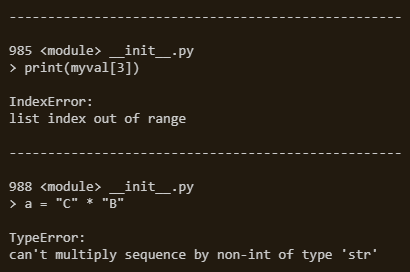
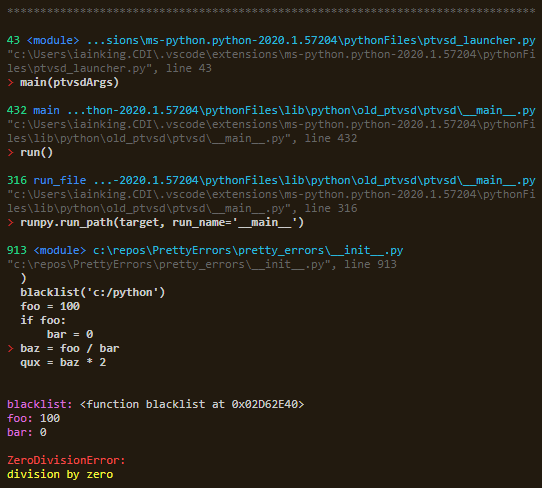
If you want to configure the output then use pretty_errors.configure(), pretty_errors.whitelist(), pretty_errors.blacklist(), pretty_errors.pathed_config(). For example:
import pretty_errors
pretty_errors.configure(
    separator_character = '*',
    filename_display    = pretty_errors.FILENAME_EXTENDED,
    line_number_first   = True,
    display_link        = True,
    lines_before        = 5,
    lines_after         = 2,
    line_color          = pretty_errors.RED + '> ' + pretty_errors.default_config.line_color,
    code_color          = '  ' + pretty_errors.default_config.line_color,
    truncate_code       = True,
    display_locals      = True
)
pretty_errors.blacklist('c:/python')
Scraping STDERR
Sometimes it will be impossible for pretty_errors to utilize sys.excepthook: for instance, if you are using a framework which installs its own logging (such as uvicorn). In such cases, you can make pretty_errors scrape the output to stderr instead, replacing it with its own. To do so simple call:
pretty_errors.replace_stderr()
Note that this will lose some functionality, since pretty_errors will only have access to what is being output on screen, rather then the entire stack trace. A good API will generally have a way to interact with the exception stack, which will allow for using excepthook: replace_stderr should be the last resort. See this comment for an example
Whitelist / Blacklist:
You may use the functions whitelist(path) and blacklist(path) to add paths which will be necessary (whitelist) or excluded (blacklist). The top frame of the stack is never excluded.
Pathed Configurations
You may set up alternate configurations, which are triggered by the path to the code file of the frame. For example, if you were not interested in the system frames (those under 'c:/python') but did not want to hide them completely by using the blacklist you could do this:
meh = pretty_errors.config.copy()
meh.line_color = meh.code_color = meh.filename_color = meh.function_color = meh.line_number_color = (
    pretty_errors.GREY
)
pretty_errors.pathed_config(meh, 'c:/python')
Environment Variables
- PYTHON_PRETTY_ERRORS<br>
You may disable
pretty_errorsby setting the environment variablePYTHON_PRETTY_ERRORSto0. i.e. at a command prompt:
set PYTHON_PRETTY_ERRORS=0
Calling pretty_errors.activate() will override this.
If you wish to selectively utilize pretty_errors, then use the above, and in your code perform your calculation to determine whether or not to call pretty_errors.activate().
- PYTHON_PRETTY_ERRORS_ISATTY_ONLY<br>
It may be desirable to disable
pretty_errorswhen you are redirecting output to a file (to keep error logs, for instance). If you wish to do so, then settingPYTHON_PRETTY_ERRORS_ISATTY_ONLYto non-zero will causepretty_errorsto check if it is running in an interactive terminal, and only activate if so.
set PYTHON_PRETTY_ERRORS_ISATTY_ONLY=1
Setting this will disable replace_stderr() in the same situations, unless you call it with the force parameter: replace_stderr(force=True).
Calling pretty_errors.activate() will override this.
You may check pretty_errors.terminal_is_interactive to see if the terminal is interactive (pretty_errors sets this by checking sys.stderr.isatty()). You can use this to select a different config. For example:
if not pretty_errors.terminal_is_interactive:
    pretty_errors.mono()
Configuration settings:
Configuration settings are stored in pretty_errors.config, though should be set using pretty_errors.configure(). A reference for the default config is stored in pretty_errors.default_config.
-
name<br> Optional field to store config name in. -
line_length<br> Output will be wrapped at this point. If set to0(which is the default) it will automatically match your console width. -
full_line_newline<br> Insert a hard newline even if the line is full. Ifline_lengthis the same as your console width and this is enabled then you will see double newlines when the line is exactly full, so usually you would only set this if they are different. -
separator_character<br> Character used to create the header line. Hyphen is used by default. If set toNoneor''then header will be disabled. -
display_timestamp<br> When enabled a timestamp is written in the traceback header. -
timestamp_function<br> Function called to generate timestamp. Default istime.perf_counter. -
exception_above<br> When enabled the exception is displayed above the stack trace. -
exception_below<br> When enabled the exception is displayed below the stack trace. -
stack_depth<br> The maximum number of entries from the stack trace to display. When0will display the entire stack, which is the default. -
top_first<br> When enabled the stack trace will be reversed, displaying the top of the stack first. -
always_display_bottom<br> When enabled (which is the default) the bottom frame of the stack trace will always be displayed. -
show_suppressed<br> When enabled all suppressed exceptions in the stack trace will be shown (typically they are suppressed because an exception above them has replaced them). The normal python behaviour is to hide them. -
filename_display<br> How the filename is displayed: may bepretty_errors.FILENAME_COMPACT,pretty_errors.FILENAME_EXTENDED, orpretty_errors.FILENAME_FULL -
line_number_first<br> When enabled the line number will be displayed first, rather than the filename. -
display_link<br> When enabled a link is written below the error location, which VSCode will allow you to click on. -
lines_after,lines_before<br> How many lines of code to display for the top frame, before and after the line the exception occurred on. -
trace_lines_after,trace_lines_before<br> How many lines of code to display for each other frame in the stack trace, before and after the line the exception occurred on. -
truncate_code<br> When enabled each line of code will be truncated to fit the line length. -
display_locals<br> When enabled, local variables appearing in the top stack frame code will be displayed with their values. -
display_trace_locals<br> When enabled, local variables appearing in other stack frame code will be displayed with their values. -
truncate_locals<br> When enabled the values of displayed local variables will be truncated to fit the line length. -
display_arrow<br> When enabled an arrow will be displayed for syntax errors, pointing at the offending token. -
arrow_head_character,arrow_tail_character<br> Characters used to draw the arrow which points at syntax errors. -
inner_exception_message<br> Message displayed when one exception occurs inside another, between the two exceptions. Default isNone, which will simply display the exceptions separated by the header. If you want to emulate the default non-pretty behaviour, use this:
inner_exception_message = pretty_errors.MAGENTA + "\n During handling of the above exception, another exception occurred:\n"
Note that if you use top_first then the order will be reversed, so you should use a message like this instead:
inner_exception_message = pretty_errors.MAGENTA + "\n The above exception occurred during another exception:\n"
-
inner_exception_separator<br> Default isFalse. When set toTruea header will be written before theinner_exception_message. -
prefix<br> Text string which is displayed at the top of the report, just below the header. -
infix<br> Text string which is displayed between each frame of the stack. -
postfix<br> Text string which is displayed at the bottom of the exception report. -
reset_stdout<br> When enabled the reset escape sequence will be written to stdout as well as stderr; turn this on if your console is being left with the wrong color.
These color strings will be output before the relevant part of the exception message. You may include non-escape sequence strings if you wish; if you do not have a terminal which supports color output, or simply want to include extra demarcation.
-
header_color<br> Escape sequence to set header color. -
timestamp_color<br> Escape sequence to set timestamp color. -
exception_color<br> Escape sequence to set exception color. -
exception_arg_color<br> Escape sequence to set exception arguments color. -
exception_file_color<b
