
MollysGameSaveMule
Transfers game progress between Steam and Xbox versions of Deep Rock Galactic.
Install / Use
/learn @ntaiprogrammer/MollysGameSaveMuleREADME
Molly's Game-Save M.U.L.E. for Deep Rock Galactic
The easiest way to sync your game progress between Steam and Xbox Game Pass!

Done in TWO CLICKS.
NO searching for file paths
NO copy-pasting
NO dragging and dropping
NO renaming files
FULLY AUTOMATIC!
Features:
-
Automatically locates Steam and Xbox save files
-
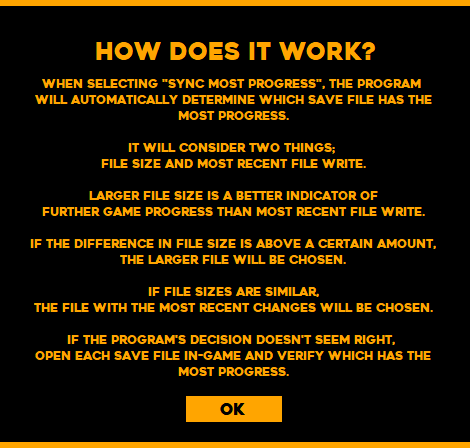
Automatically detects save file with the most progress based on last file write AND file size
-
Automatic backups created before transfers
-
Undo transfers with Restore From Backup feature
-
Manually set folder locations if needed
-
Instant shortcuts to your save files and backups
-
Snazzy DRG-inspired user interface
So how is this different from the other DRG save transfer programs?
I'm glad you asked.
Firstly, Molly's Game-Save M.U.L.E. is clearly the prettiest.
Secondly, other programs I've seen will determine the file with the most progress by considering only the most recent file write.
This could potentially cause a file with less progress (if opened most recently) to overwrite a file with more progress.
So we punched the guy in R&D until he agreed to come up with a solution.
Prioritize file size!
Installation
Click here to download the installer.
Program will be found in the Start Menu or via the desktop shortcut created by the installer.
Done!
For the smoothest experience, make sure Deep Rock Galactic is installed on both Steam and Game Pass, and that each version of the game has been launched at least once prior to launching Molly's Game-Save M.U.L.E.
This will ensure that both save files have been created; both must be present to initiate the transfer.
How to Use
Auto-Sync
Click Sync Most Progress to let Molly figure out which file has the most progress.
You'll see a message detailing which file (Steam or Xbox) has been chosen and why.
Click Yes and your progress will be automatically transferred to the other platform!
Manual Transfer
Select Steam to Xbox OR Xbox to Steam
Click Yes and your progress will be automatically transferred!
FAQ
What if the game is installed somewhere other than my (C:) Drive?
Click Set Folders, click the Steam or Xbox tab, and click the Choose Save Folder option.
Select the folder that contains your save file.
Your settings are saved!
Where are my save files located?
Molly's Game-Save Mule has buttons to immediately open the folder(s) containing your save files and highlight the correct one.
In case there's an issue with your save folders, here are the default save file locations:
Steam:
C:\Program Files (x86)\Steam\steamapps\common\Deep Rock Galactic\FSD\Saved\SaveGames
Xbox Game Pass:
C:\Users\your username here\AppData\Local\Packages\CoffeeStainStudios.DeepRockGalactic_random numbers and letters here\SystemAppData\wgs\long string of random numbers and letters here with an underscore somewhere\another long string of random numbers and letters here
There are two files in this folder; the one that's named with random numbers and letters is the save file.
Enjoy!
Related Skills
node-connect
352.5kDiagnose OpenClaw node connection and pairing failures for Android, iOS, and macOS companion apps
frontend-design
111.3kCreate distinctive, production-grade frontend interfaces with high design quality. Use this skill when the user asks to build web components, pages, or applications. Generates creative, polished code that avoids generic AI aesthetics.
openai-whisper-api
352.5kTranscribe audio via OpenAI Audio Transcriptions API (Whisper).
qqbot-media
352.5kQQBot 富媒体收发能力。使用 <qqmedia> 标签,系统根据文件扩展名自动识别类型(图片/语音/视频/文件)。
