
Runx
Provide X server on MS Windows with cookie authentication.
Install / Use
/learn @mviereck/RunxREADME
runx - Run Linux GUI applications on MS Windows
runx allows to easily run Linux GUI applications and desktops on MS Windows in Cygwin, MSYS2 or WSL.
- This is especially of interest for WSL in Windows 10 that does not support graphical applications on itself.
Background:
runxstarts an X server, either VcXsrv or XWin, to provide a graphical environment for Linux applications.runxcreates an authorization cookie to restrict access to the X server to allowed clients only.runxruns the desired Linux GUI application with the credentials needed to access the X server.
For similar functionality on native Linux systems use x11docker with options --backend=host or --xonly.
Table of contents
- Linux environments on MS Windows
- Installation
- GPU hardware acceleration
- Usage examples
- Output of
runx --help - Screenshot
Linux environments on MS Windows
runx can run in:
- WSL: Windows subsystem for Linux.
- Cygwin: Cygwin is a large collection of Open Source tools which provide functionality similar to a Linux distribution on Windows.
- MSYS2: MSYS2 is a software distro and building platform for Windows and serves as a base for git for windows and MingW. It is mainly used by developers.
Installation
Installation in general:
- Install an X server, VcXsrv or XWin.
- Copy
runxinto folder/usr/local/binand make it executeable withchmod +x /usr/local/bin/runx. - Install Linux dependencies
telnet,shuf,xhostand (if available)xauthin the system where you will run runx.
Installation of X server
runx needs an X server. Install on MS Windows one or both of:
- VcXsrv to provide X server VcXsrv.
- Easier to install than XWin, and more lightweight.
- Cygwin/X
- This provides X server XWin for Cygwin and WSL.
- XWin has a better
--gpusupport than VcXsrv. - XWin currently fails in setting up cookies. So the X server is less secured than VcXsrv.
runx will automatically use VcXsrv if available. You can specify the desired X server with options --xwin or --vcxsrv.
Installation in WSL
- Run the following commands in WSL/Ubuntu terminal to install
runxand its dependencies:sudo wget https://raw.githubusercontent.com/mviereck/runx/master/runx -O /usr/local/bin/runx sudo chmod +x /usr/local/bin/runx sudo apt update sudo apt install xauth xhost telnet shuf
Installation in Cygwin
- Run the Cygwin/X installer and install packages
xinit,xauth,telnet,shufandwget. - In Cygwin terminal run the commands:
wget https://raw.githubusercontent.com/mviereck/runx/master/runx -O /usr/local/bin/runx
chmod +x /usr/local/bin/runx
Installation in MSYS2
- In MSYS2 terminal run the commands:
mkdir /usr/local/bin wget https://raw.githubusercontent.com/mviereck/runx/master/runx -O /usr/local/bin/runx chmod +x /usr/local/bin/runx - Constraint in MSYS2:
runxonly supports X server VcXsrv, but not XWin.
GPU hardware acceleration
runx supports GPU hardware accelerated graphics with option --gpu.
- GPU access can cause issues with X server VcXsrv, especially with NVIDIA cards. For that reason GPU usage is disabled by default in
runx. - If you encounter issues with option
--gpu, try X server XWin instead of VcXsrv.
Usage examples
- File manager pcmanfm in WSL:
- Installation:
sudo apt update sudo apt install pcmanfm - Run:
runx -- pcmanfm
- Installation:
- Mate desktop environment in WSL:
- Installation:
sudo apt update sudo apt install mate-desktop-environment - Run:
runx --desktop --gpu -- mate-session
- Installation:
Providing X server in background
You can make an entry in the file ~/.bashrc to have an X server always available.
Possible entry in ~/.bashrc:
source /usr/local/bin/runx
In future runs of the terminal you can directly run Linux GUI applications, e.g.:
pcmanfm
Use an already running X server
- If you specify option
--display, runx will check if an X server is already running with the specified display number and will only provide the access credentialsDISPLAYandXAUTHORITYinstead of running an additional X server. - The access credentials are also stored in file
~/.Xenv. You can make them available in a new terminal sourcing the file with. ~/.Xenvorsource ~/.Xenv.
Output of runx --help
runx - Run Linux GUI applications on MS Windows.
Provides an X server on MS Windows in Cygwin, MSYS2 or WSL.

Syntax:
  runx [OPTIONS]  --  [COMMAND]

Options:
  -h, --help                   Show this help.
  -d, --desktop                Open a parent window for desktop environments.
  -g, --gpu                    Enable GPU hardware acceleration. Can fail
                               with NVIDIA cards. Works best with XWin.
      --size WIDTHxHEIGHT      Window size for option --desktop, e.g. 800x600.
      --vcxsrv                 Use X server VcXsrv.
      --xwin                   Use X server XWin.
      --clipboard [=yes|no]    Enable clipboard sharing yes/no. Default: yes.
      --display N              Use display number N for new X server.
                               If the display number is already in use, runx will
                               only provide the likely access credentials.
      --ip ADRESS              IP adress to use. Default: First found 192.168.*
      --no-auth                Disable X cookie authentication. Discouraged.
      --cleanup                Stop all X servers and delete cookies.
  -v, --verbose                Be verbose.

Installation of runx in WSL:
 - Copy runx into /usr/local/bin/
 - Make runx executeable:        sudo chmod +x /usr/local/bin/runx
 - Install xauth:                sudo apt update
                                 sudo apt install xauth

Install an X server on Windows:
  runx supports two X servers: VcXsrv and XWin. Install at least one of them.
   - VcXsrv: Download and install from:
       https://sourceforge.net/projects/vcxsrv/
   - XWin: Download and install Cygwin64 with packages: xinit xauth
       https://www.cygwin.com
VcXsrv is easier to install. XWin provides a better GPU support.

WSL, Cygwin: runx starts XWin if available, otherwise it starts VcXsrv.
MSYS2:       runx supports VcXsrv only.

Usage:

Example to directly run an application with runx:
 - Install file manager pcmanfm: sudo apt update
                                 sudo apt install pcmanfm
 - Run pcmanfm with:             runx -- pcmanfm

Example to run Mate desktop:
 - Install Mate desktop with:    sudo apt install mate-desktop-environment
 - Run Mate desktop with:        runx --desktop -- mate-session

Example to get a Wayland environment:
 - Install Wayland compositor:   sudo apt install weston
 - Run Weston with:              XDG_RUNTIME_DIR=/tmp  runx -- weston

Providing an X server in background all the time:
 - Create an entry in ~/.bashrc: source /usr/local/bin/runx
 - In future terminal session you can directly run GUI commands.
   E.g. just type:  'pcmanfm'  instead of 'runx -- pcmanfm'.
 - If you specify a display number with --display, runx will re-use
   a possibly already running X server with same display number
   and only provide the access credentials DISPLAY and XAUTHORITY.
   This allows to use the same X server across several terminals.

runx stores the access credentials DISPLAY and XAUTHORITY in ~/.Xenv
This allows sourcing the file for custom access setups.

runx version 0.4.20
Please report issues and get help at:   https://github.com/mviereck/runx
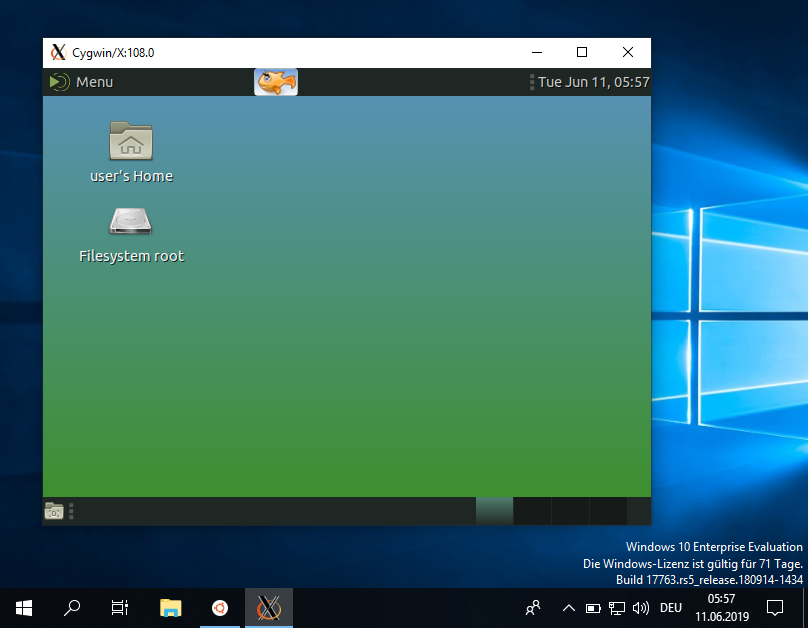
Screenshot
runx running Mate desktop on MS Windows:
Related Skills
node-connect
331.2kDiagnose OpenClaw node connection and pairing failures for Android, iOS, and macOS companion apps
frontend-design
81.5kCreate distinctive, production-grade frontend interfaces with high design quality. Use this skill when the user asks to build web components, pages, or applications. Generates creative, polished code that avoids generic AI aesthetics.
openai-whisper-api
331.2kTranscribe audio via OpenAI Audio Transcriptions API (Whisper).
commit-push-pr
81.5kCommit, push, and open a PR
