
SmartHomeStack
A docker-compose setup ready to spin up a bunch of useful media, file-sharing, programming, web tools, databases...
Install / Use
/learn @mpascu/SmartHomeStackREADME
🏠 SmartHomeStack
A docker-compose stack to deploy a full homelab with media management, smart home automation, monitoring, and utility services. All persistent data is stored in the ./config folder and Duplicati is provided for backups.
📁 Repository Structure
SmartHomeStack/
├── docker-compose.yml      # Main compose file (core infrastructure)
├── compose/                # Additional service modules
│   ├── ai.yml              # AI services (Open WebUI, Ollama)
│   ├── dashboards.yml      # Dashboards (Heimdall, Organizr, Homarr)
│   ├── ebooks.yml          # E-book management (Calibre, Calibre-web)
│   ├── nextcloud.yml       # File hosting (Nextcloud + MariaDB)
│   ├── immich.yml          # Photo management (Immich)
│   ├── smarthome.yml       # Smart home (Home Assistant, Zigbee, MQTT)
│   └── media.yml           # Media management (Plex, Sonarr, Radarr, etc.)
├── config/                 # Persistent data for all services (gitignored)
├── scripts/                # Helper scripts
│   └── Makefile            # Common operations (up, down, update, logs, etc.)
├── .env.example            # Environment variables template
└── README.md
📸 Screenshots
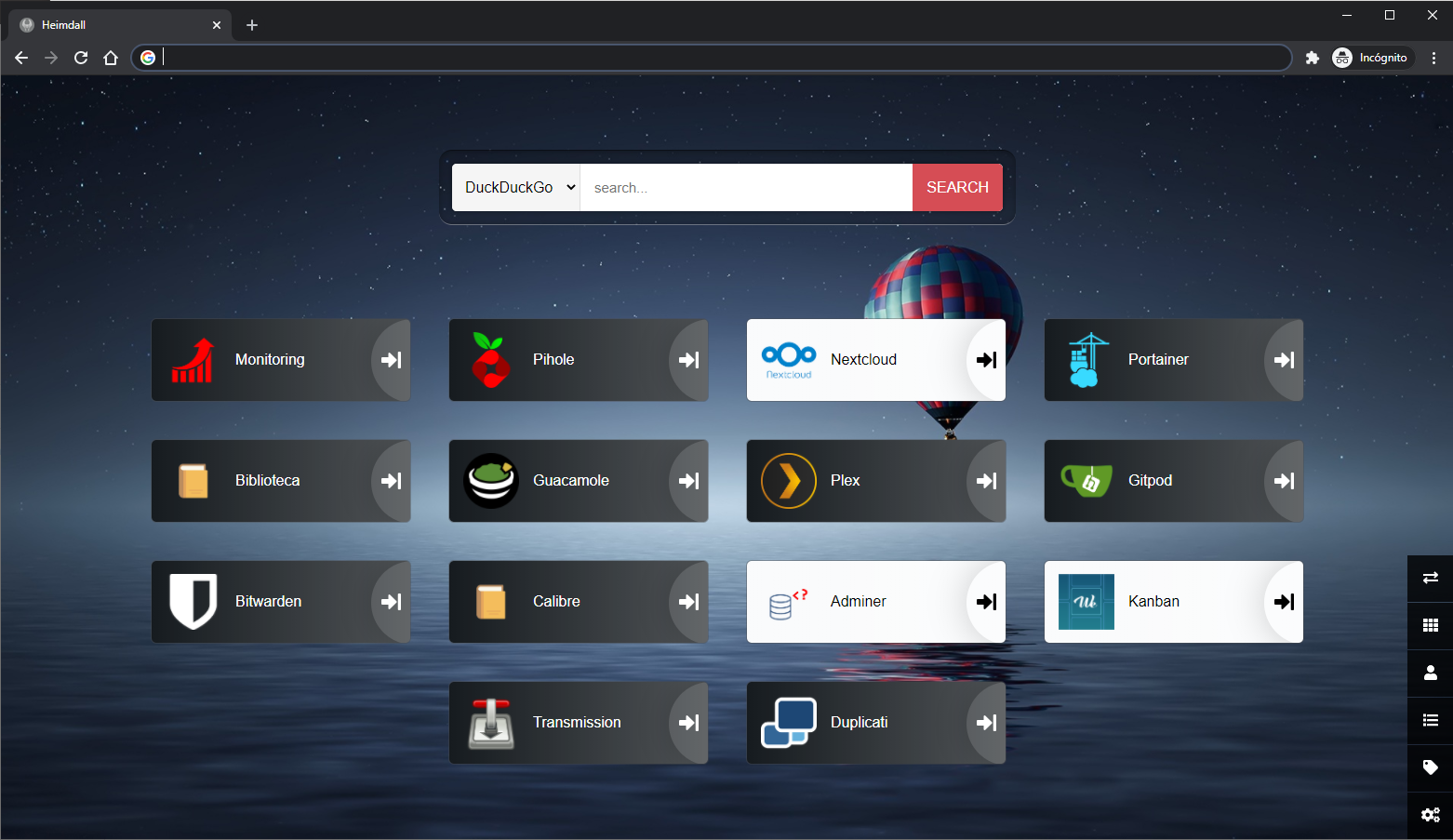
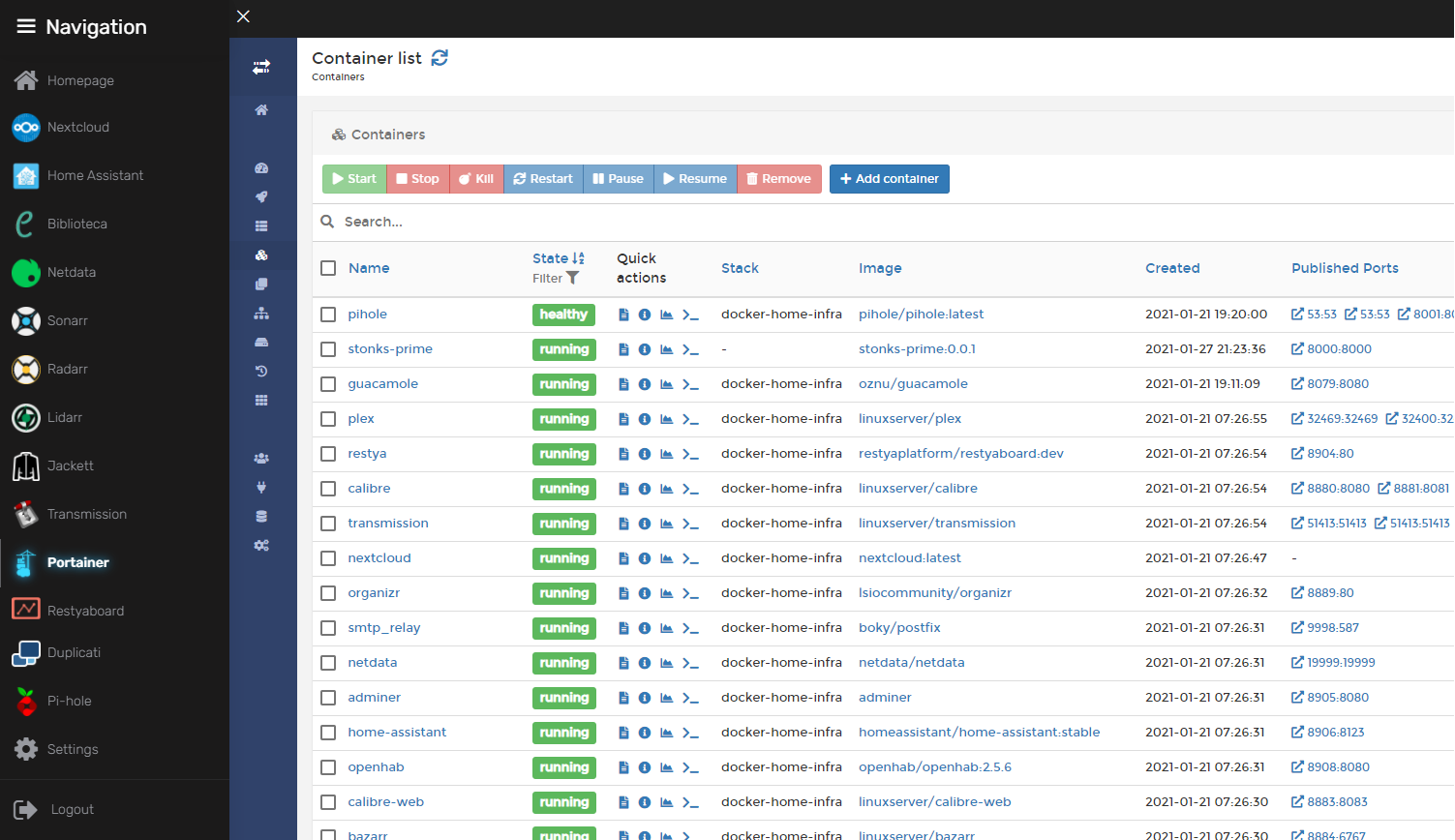
🧰 Tools included
🔧 Core Infrastructure (docker-compose.yml)
- Traefik: Reverse proxy with automatic HTTPS certificate management
- Pi-hole: DNS sinkhole that blocks ads and malware
- PostgreSQL: Database for Restyaboard
- Adminer: Database management UI
- Postfix: SMTP relay for sending emails
- SFTP: File transfer server
☁️ File Hosting (compose/nextcloud.yml)
📷 Photo Management (compose/immich.yml)
- Immich: Self-hosted photo and video backup solution with ML-powered features
📊 Dashboards (compose/dashboards.yml)
- Heimdall: Application dashboard
- Organizr: Unified tab interface for all services
- Homarr: Modern dashboard with Docker integration
🐳 Docker Management
- Portainer: Docker container management UI
📈 Monitoring & Maintenance
- Netdata: Real-time system performance monitoring
- Uptime Kuma: Service uptime monitoring
- Speedtest Tracker: Internet speed history
- Watchtower: Automatic container updates
- Duplicati: Encrypted backup scheduler
- Crontab UI: Web-based cron job manager
🔌 Remote Access & Utilities
- Guacamole: Web-based remote desktop (VNC, RDP, SSH)
- Transmission: BitTorrent client
- Restyaboard: Kanban board
📚 E-books (compose/ebooks.yml)
- Calibre: E-book manager
- Calibre-web: Web interface for Calibre library
💡 Smart Home (compose/smarthome.yml)
- Home Assistant: Open source home automation
- Zigbee2mqtt: Zigbee device bridge
- Mosquitto: MQTT broker
- ESPHome: ESP device configuration and management
- Music Assistant: Music streaming server
- Whisper: Speech-to-text for voice control
- Piper: Text-to-speech engine
- OpenWakeWord: Wake word detection
🎬 Media Management (compose/media.yml)
- Plex: Media server and streamer
- Tautulli: Plex monitoring and statistics
- Ombi: Media request management
- Sonarr: TV series manager
- Radarr: Movie manager
- Lidarr: Music manager
- Bazarr: Subtitle manager
- Jackett: Torrent indexer proxy
🤖 AI (compose/ai.yml)
- Open WebUI: Chat interface for LLMs
- OpenClaw: Claude AI coding assistant with gateway and CLI (access at
openclaw.${hostname})
✅ Prerequisites
- A domain name
- Docker and Docker Compose installed
🚀 Installation
- Copy
.env.exampleto.envand configure credentials and storage paths - Generate a secure key for Homarr:
openssl rand -hex 32 - Launch the stack:
docker compose up -d
🛠️ Helper Commands
A Makefile is provided in scripts/ for common operations:
cd scripts
make up        # Start all services
make down      # Stop all services
make logs      # Follow logs for all services
make update    # Pull latest images and restart
make status    # Show container status
make help      # Show all available commands
⚙️ Enabling/Disabling Services
Optional compose files
The stack is split into multiple compose files in the compose/ folder. By default, smarthome.yml and ai.yml are included. To enable media services, uncomment the media.yml include in docker-compose.yml:
include:
  - compose/ai.yml
  - compose/smarthome.yml
  - compose/media.yml  # Uncomment to enable
Disabling individual services
To disable a specific service without removing it from the compose file, add the DONOTDEPLOY profile:
myservice:
  image: someimage
  profiles:
    - DONOTDEPLOY
  # ... rest of config
Services with this profile will be skipped during docker compose up unless explicitly requested.
🔨 Post-installation configuration
Pi-hole DNS setup (Ubuntu/Debian)
Disable the system DNS resolver so Pi-hole can bind to port 53:
sudo systemctl disable systemd-resolved.service
sudo systemctl stop systemd-resolved.service
Edit NetworkManager config:
sudo nano /etc/NetworkManager/NetworkManager.conf
Add dns=default under [main]:
[main]
plugins=ifupdown,keyfile
dns=default
Rename the existing resolv.conf and restart NetworkManager:
sudo mv /etc/resolv.conf /etc/resolv.conf.bak
sudo service network-manager restart
Nextcloud trusted domain
Add your domain to config/nextcloud/config/config.php:
- Under
'trusted_domains' - At
'overwrite.cli.url'
For external storage and reverse proxy support, also add:
'check_data_directory_permissions' => false,
'overwriteprotocol' => 'https',
Media services security
⚠️ Important: Set up authentication on Sonarr, Radarr, and Lidarr immediately after first deployment, otherwise they will be exposed without password protection.
OpenClaw setup
OpenClaw connects to Claude AI via your claude.ai session. Configure OPENCLAW_GATEWAY_TOKEN in .env (generate with openssl rand -hex 32) and add your Claude session credentials (CLAUDE_AI_SESSION_KEY, CLAUDE_WEB_SESSION_KEY, CLAUDE_WEB_COOKIE). See the OpenClaw documentation for obtaining these values. The openclaw-cli service uses the DONOTDEPLOY profile—run it manually with docker compose run --rm openclaw-cli when needed.
