
Inspector
Visual testing tool for MCP servers
Install / Use
/learn @modelcontextprotocol/InspectorQuality Score
Category
Development & EngineeringSupported Platforms
README
MCP Inspector
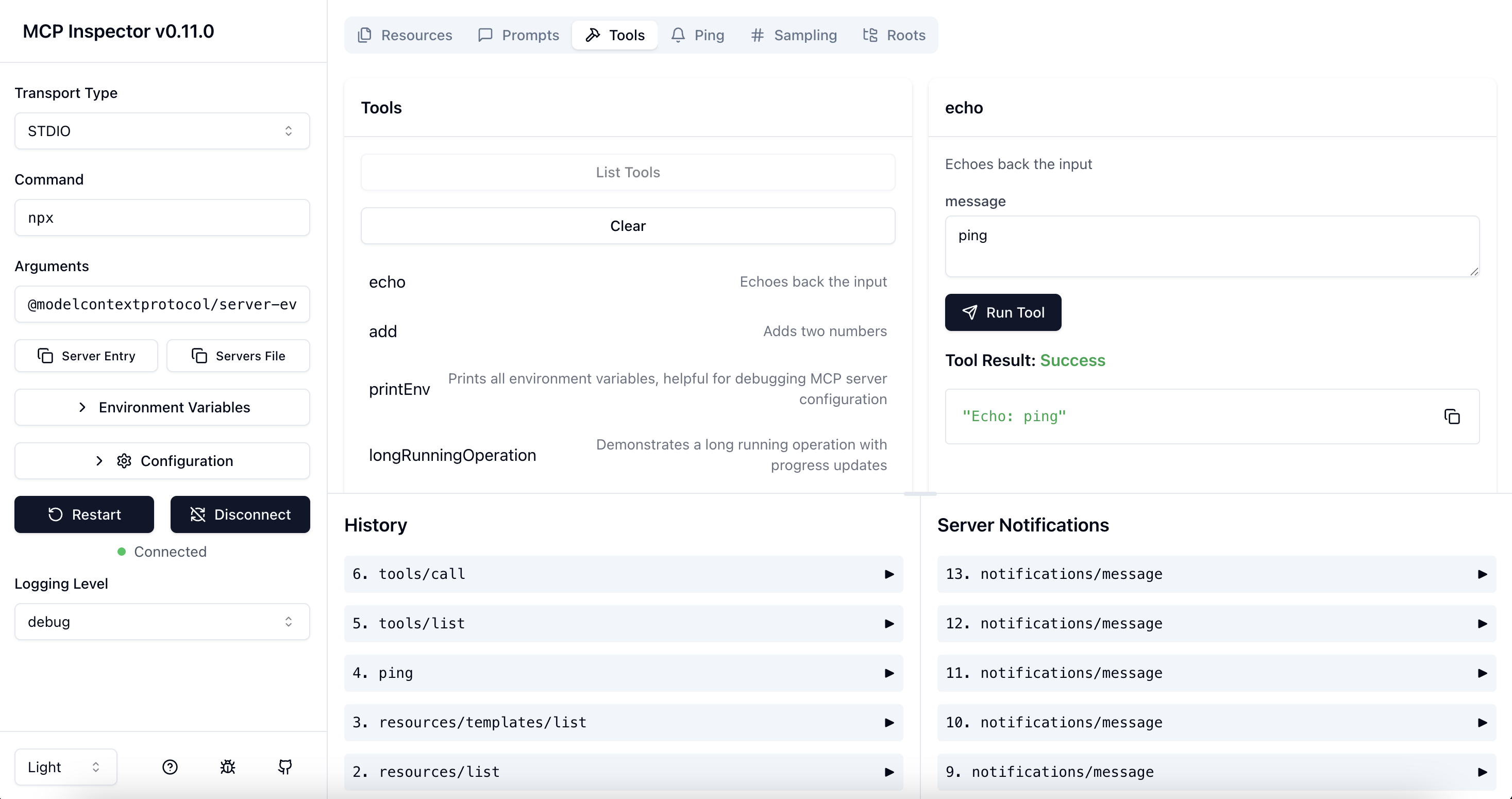
The MCP inspector is a developer tool for testing and debugging MCP servers.
Architecture Overview
The MCP Inspector consists of two main components that work together:
- MCP Inspector Client (MCPI): A React-based web UI that provides an interactive interface for testing and debugging MCP servers
- MCP Proxy (MCPP): A Node.js server that acts as a protocol bridge, connecting the web UI to MCP servers via various transport methods (stdio, SSE, streamable-http)
Note that the proxy is not a network proxy for intercepting traffic. Instead, it functions as both an MCP client (connecting to your MCP server) and an HTTP server (serving the web UI), enabling browser-based interaction with MCP servers that use different transport protocols.
Running the Inspector
Requirements
- Node.js: ^22.7.5
Quick Start (UI mode)
To get up and running right away with the UI, just execute the following:
npx @modelcontextprotocol/inspector
The server will start up and the UI will be accessible at http://localhost:6274.
Docker Container
You can also start it in a Docker container with the following command:
docker run --rm \
  -p 127.0.0.1:6274:6274 \
  -p 127.0.0.1:6277:6277 \
  -e HOST=0.0.0.0 \
  -e MCP_AUTO_OPEN_ENABLED=false \
  ghcr.io/modelcontextprotocol/inspector:latest
From an MCP server repository
To inspect an MCP server implementation, there's no need to clone this repo. Instead, use npx. For example, if your server is built at build/index.js:
npx @modelcontextprotocol/inspector node build/index.js
You can pass both arguments and environment variables to your MCP server. Arguments are passed directly to your server, while environment variables can be set using the -e flag:
# Pass arguments only
npx @modelcontextprotocol/inspector node build/index.js arg1 arg2

# Pass environment variables only
npx @modelcontextprotocol/inspector -e key=value -e key2=$VALUE2 node build/index.js

# Pass both environment variables and arguments
npx @modelcontextprotocol/inspector -e key=value -e key2=$VALUE2 node build/index.js arg1 arg2

# Use -- to separate inspector flags from server arguments
npx @modelcontextprotocol/inspector -e key=$VALUE -- node build/index.js -e server-flag
The inspector runs both an MCP Inspector (MCPI) client UI (default port 6274) and an MCP Proxy (MCPP) server (default port 6277). Open the MCPI client UI in your browser to use the inspector. (These ports are derived from the T9 dialpad mapping of MCPI and MCPP respectively, as a mnemonic). You can customize the ports if needed:
CLIENT_PORT=8080 SERVER_PORT=9000 npx @modelcontextprotocol/inspector node build/index.js
For more details on ways to use the inspector, see the Inspector section of the MCP docs site. For help with debugging, see the Debugging guide.
Servers File Export
The MCP Inspector provides convenient buttons to export server launch configurations for use in clients such as Cursor, Claude Code, or the Inspector's CLI. The file is usually called mcp.json.
-
Server Entry - Copies a single server configuration entry to your clipboard. This can be added to your
mcp.jsonfile inside themcpServersobject with your preferred server name.STDIO transport example:
{
  "command": "node",
  "args": ["build/index.js", "--debug"],
  "env": {
    "API_KEY": "your-api-key",
    "DEBUG": "true"
  }
}
SSE transport example:
{
  "type": "sse",
  "url": "http://localhost:3000/events",
  "note": "For SSE connections, add this URL directly in Client"
}
Streamable HTTP transport example:
{ "type": "streamable-http", "url": "http://localhost:3000/mcp", "note": "For Streamable HTTP connections, add this URL directly in your MCP Client" } -
Servers File - Copies a complete MCP configuration file structure to your clipboard, with your current server configuration added as
default-server. This can be saved directly asmcp.json.STDIO transport example:
{
  "mcpServers": {
    "default-server": {
      "command": "node",
      "args": ["build/index.js", "--debug"],
      "env": {
        "API_KEY": "your-api-key",
        "DEBUG": "true"
      }
    }
  }
}
SSE transport example:
{
  "mcpServers": {
    "default-server": {
      "type": "sse",
      "url": "http://localhost:3000/events",
      "note": "For SSE connections, add this URL directly in Client"
    }
  }
}
Streamable HTTP transport example:
{
  "mcpServers": {
    "default-server": {
      "type": "streamable-http",
      "url": "http://localhost:3000/mcp",
      "note": "For Streamable HTTP connections, add this URL directly in your MCP Client"
    }
  }
}
These buttons appear in the Inspector UI after you've configured your server settings, making it easy to save and reuse your configurations.
For SSE and Streamable HTTP transport connections, the Inspector provides similar functionality for both buttons. The "Server Entry" button copies the configuration that can be added to your existing configuration file, while the "Servers File" button creates a complete configuration file containing the URL for direct use in clients.
You can paste the Server Entry into your existing mcp.json file under your chosen server name, or use the complete Servers File payload to create a new configuration file.
Authentication
The inspector supports bearer token authentication for SSE connections. Enter your token in the UI when connecting to an MCP server, and it will be sent in the Authorization header. You can override the header name using the input field in the sidebar.
Security Considerations
The MCP Inspector includes a proxy server that can run and communicate with local MCP processes. The proxy server should not be exposed to untrusted networks as it has permissions to spawn local processes and can connect to any specified MCP server.
Authentication
The MCP Inspector proxy server requires authentication by default. When starting the server, a random session token is generated and printed to the console:
🔑 Session token: 3a1c267fad21f7150b7d624c160b7f09b0b8c4f623c7107bbf13378f051538d4

🔗 Open inspector with token pre-filled:
   http://localhost:6274/?MCP_PROXY_AUTH_TOKEN=3a1c267fad21f7150b7d624c160b7f09b0b8c4f623c7107bbf13378f051538d4
This token must be included as a Bearer token in the Authorization header for all requests to the server. The inspector will automatically open your browser with the token pre-filled in the URL.
Automatic browser opening - The inspector now automatically opens your browser with the token pre-filled in the URL when authentication is enabled.
Alternative: Manual configuration - If you already have the inspector open:
- Click the "Configuration" button in the sidebar
- Find "Proxy Session Token" and enter the token displayed in the proxy console
- Click "Save" to apply the configuration
The token will be saved in your browser's local storage for future use.
If you need to disable authentication (NOT RECOMMENDED), you can set the DANGEROUSLY_OMIT_AUTH environment variable:
DANGEROUSLY_OMIT_AUTH=true npm start
🚨 WARNING 🚨
Disabling authentication with DANGEROUSLY_OMIT_AUTH is incredibly dangerous! Disabling auth leaves your machine open to attack not just when exposed to the public internet, but also via your web browser. Meaning, visiting a malicious website OR viewing a malicious advertizement could allow an attacker to remotely compromise your computer. Do not disable this feature unless you truly understand the risks.
Read more about the risks of this vulnerability on Oligo's blog: Critical RCE Vulnerability in Anthropic MCP Inspector - CVE-2025-49596
You can also set the token via the MCP_PROXY_AUTH_TOKEN environment variable when starting the server:
MCP_PROXY_AUTH_TOKEN=$(openssl rand -hex 32) npm start
Local-only Binding
By default, both the MCP Inspector proxy server and client bind only to localhost to prevent network access. This ensures they are not accessible from other devices on the network. If you need to bind to all interfaces for development purposes, you can override this with the HOST environment variable:
HOST=0.0.0.0 npm start
Warning: Only bind to all interfaces in trusted network environments, as this exposes the proxy server's ability to execute local processes and both services to network access.
DNS Rebinding Protection
To prevent DNS rebinding attacks, the MCP Inspector validates the Origin header on incoming requests. By default, only requests from the client origin are allowed (respects CLIENT_PORT if set, defaulting to port 6274). You can configure additional allowed origins by setting the ALLOWED_ORIGINS environment variable (comma-separated list):
ALLOWED_ORIGINS=http://localhost:6274,http://localhost:8000 npm start
Configuration
The MCP Inspector supports the following configuration settings. To change them, click on the Configuration button in the MCP Inspector UI:
| Setting | Description | Default | | --------------------------------------- | -------------------------------------------------------------
Related Skills
node-connect
341.2kDiagnose OpenClaw node connection and pairing failures for Android, iOS, and macOS companion apps
frontend-design
84.5kCreate distinctive, production-grade frontend interfaces with high design quality. Use this skill when the user asks to build web components, pages, or applications. Generates creative, polished code that avoids generic AI aesthetics.
openai-whisper-api
341.2kTranscribe audio via OpenAI Audio Transcriptions API (Whisper).
commit-push-pr
84.5kCommit, push, and open a PR
