
Tabtab
tab completion helpers, for node cli programs & others. Inspired by npm completion
Install / Use
/learn @mklabs/TabtabREADME
tabtab


A node package to do some custom command line <tab><tab> completion for any
system command, for Bash, Zsh, and Fish shells.
Made possible using the same technique as npm (whose completion is quite awesome) relying on a shell script bridge to do the actual completion from node's land.
Warning / Breaking changes
- Windows is not supported
- Cache has been removed
- Now only support node
> 7.10.1, for previous version with support for node 6 be sure to use tabtab2.2.x
Table of Contents
Goal of this 3.0.0 version
Simplify everything, major overhaul, rewrite from scratch.
Functional, less abstraction, clearer documentation, good test coverage, support for node 10 without babel.
Up to date dependencies, easier to debug, easier to test.
Should still support bash, zsh and fish but bash is the primary focus of this alpha version.
No binary file anymore, just a library (still debating with myself)
The goal of this rewrite is two-folded:
- Integrate nicely with yo (Yeoman)
- Have a robust and fast enough library for yarn-completions
Installation
npm install tabtab
Usage
Writing completion is a two-step process: Installation and Logging. Tabtab provides just that.
Here is a basic example using minimist to parse arguments.
#! /usr/bin/env node

const tabtab = require('tabtab');
const opts = require('minimist')(process.argv.slice(2), {
  string: ['foo', 'bar'],
  boolean: ['help', 'version', 'loglevel']
});

const args = opts._;
const completion = env => {
  if (!env.complete) return;

  // Write your completions there

  if (env.prev === 'foo') {
    return tabtab.log(['is', 'this', 'the', 'real', 'life']);
  }

  if (env.prev === 'bar') {
    return tabtab.log(['is', 'this', 'just', 'fantasy']);
  }

  if (env.prev === '--loglevel') {
    return tabtab.log(['error', 'warn', 'info', 'notice', 'verbose']);
  }

  return tabtab.log([
    '--help',
    '--version',
    '--loglevel',
    'foo',
    'bar',
    'install-completion',
    'completion',
    'someCommand:someCommand is some kind of command with a description',
    {
      name: 'someOtherCommand:hey',
      description: 'You must add a description for items with ":" in them'
    },
    'anotherOne'
  ]);
};

const run = async () => {
  const cmd = args[0];

  // Write your CLI there

  // Here we install for the program `tabtab-test` (this file), with
  // completer being the same program. Sometimes, you want to complete
  // another program that's where the `completer` option might come handy.
  if (cmd === 'install-completion') {
    await tabtab
      .install({
        name: 'tabtab-test',
        completer: 'tabtab-test'
      })
      .catch(err => console.error('INSTALL ERROR', err));

    return;
  }

  if (cmd === 'uninstall-completion') {
    // Here we uninstall for the program `tabtab-test` (this file).
    await tabtab
      .uninstall({
        name: 'tabtab-test'
      })
      .catch(err => console.error('UNINSTALL ERROR', err));

    return;
  }

  // The completion command is added automatically by tabtab when the program
  // is completed.
  if (cmd === 'completion') {
    const env = tabtab.parseEnv(process.env);
    return completion(env);
  }
};

run();
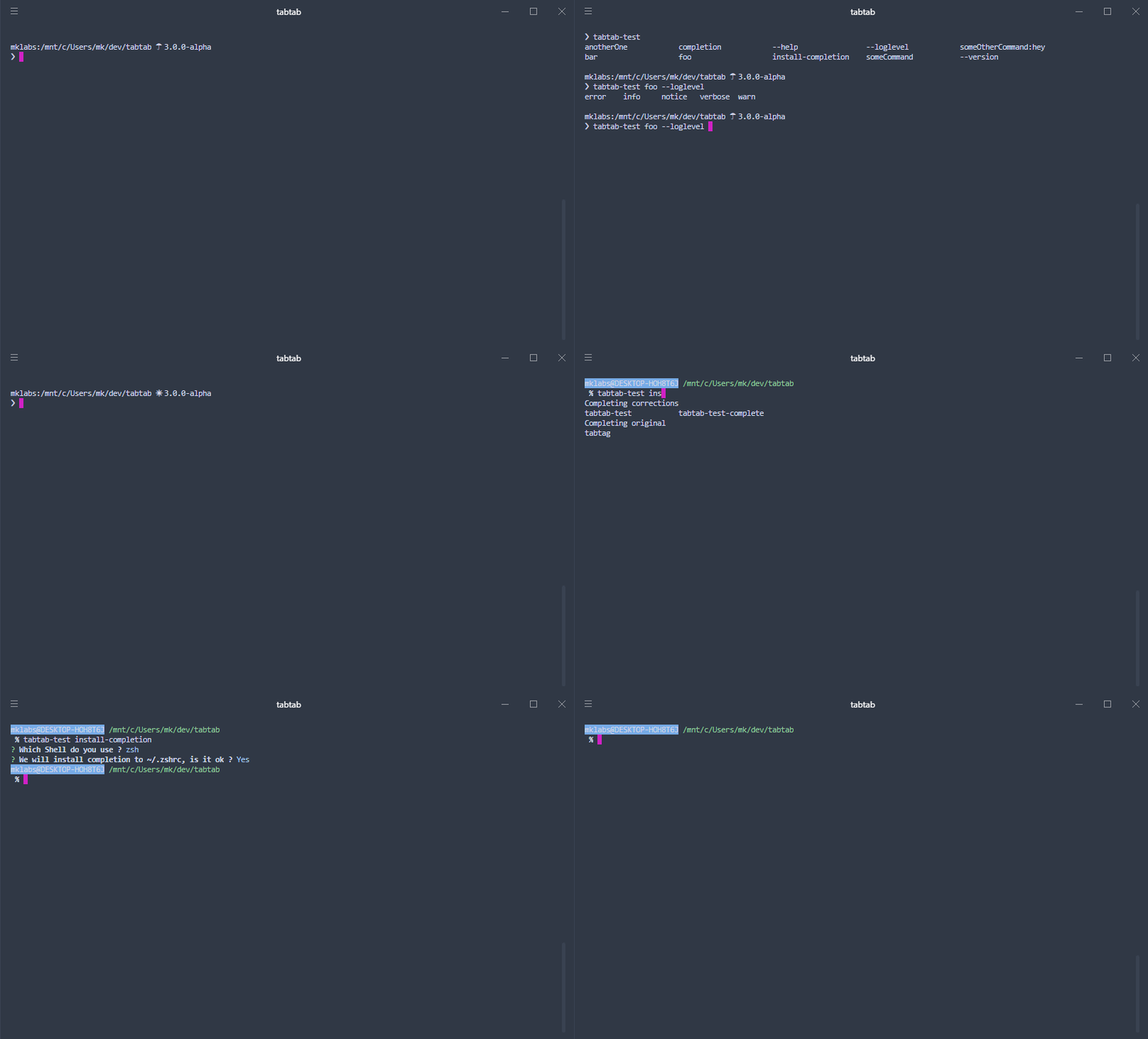
Please refer to the examples/tabtab-test-complete package for a working example. The following usage documentation is based on it.
1. Install completion
To enable completion for a given program or package, you must enable the
completion on your or user's system. This is done by calling tabtab.install()
usually behind a program install-completion command or something similar.
// Here we install for the program `tabtab-test`, with completer being the same
// program. Sometimes, you want to complete another program that's where the
// `completer` option might come handy.
tabtab.install({
  name: 'tabtab-test',
  completer: 'tabtab-test'
})
  .then(() => console.log('Completion installed'))
  .catch(err => console.error(err))
The method returns a promise, so await / async usage is possible. It takes an
options parameter, with:
name: The program to completecompleter: The program that does the completion (can be the same program).
tabtab.install() will ask the user which SHELL to use, and optionally a path
to write to. This will add a new line to either ~/.bashrc, ~/.zshrc or
~/.config/fish/config.fish file to source tabtab completion script.
Only one line will be added, even if it is called multiple times.
2. Log completion
Once the completion is enabled and active, you can write completions for the
program (here, in this example tabtab-test). Briefly, adding completions is
as simple as logging output to stdout, with a few particularities (namely on
Bash, and for descriptions), but this is taken care of by tabtab.log().
tabtab.log([
  '--help',
  '--version',
  'command'
  'command-two'
]);
This is the simplest way of adding completions. You can also use an object,
instead of a simple string, with { name, description } property if you want
to add descriptions for each completion item, for the shells that support them
(like Zsh or Fish). Or use the simpler name:description form.
tabtab.log([
  { name: 'command', description: 'Description for command' },
  'command-two:Description for command-two'
]);
The { name, description } approach is preferable in case you have completion
items with : in them.
Note that you can call tabtab.log() multiple times if you prefer to do so, it
simply logs to the console in sequence.
3. Parsing env
If you ever want to add more intelligent completion, you'll need to check and
see what is the last or previous word in the completed line, so that you can
add options for a specific command or flag (such as loglevels for --loglevel
for instance).
Tabtab adds a few environment variables for you to inspect and use, this is
done by calling tabtab.parseEnv() method.
const env = tabtab.parseEnv(process.env);
// env:
//
// - complete    A Boolean indicating whether we act in "plumbing mode" or not
// - words       The Number of words in the completed line
// - point       A Number indicating cursor position
// - line        The String input line
// - partial     The String part of line preceding cursor position
// - last        The last String word of the line
// - lastPartial The last word String of partial
// - prev        The String word preceding last
Usually, you'll want to check against env.last or env.prev.
if (env.prev === '--loglevel') {
  tabtab.log(['error', 'warn', 'info', 'notice', 'verbose']);
}
Completion mechanism
Feel free to browse the scripts directory to inspect the various
template files used when creating a completion with tabtab.install().
Here is a Bash completion snippet created by tabtab.
###-begin-tabtab-test-completion-###
if type complete &>/dev/null; then
  _tabtab-test_completion () {
    local words cword
    if type _get_comp_words_by_ref &>/dev/null; then
      _get_comp_words_by_ref -n = -n @ -n : -w words -i cword
    else
      cword="$COMP_CWORD"
      words=("${COMP_WORDS[@]}")
    fi

    local si="$IFS"
    IFS=$'\n' COMPREPLY=($(COMP_CWORD="$cword" \
                           COMP_LINE="$COMP_LINE" \
                           COMP_POINT="$COMP_POINT" \
                           tabtab-test completion -- "${words[@]}" \
                           2>/dev/null)) || return $?
    IFS="$si"
    if type __ltrim_colon_completions &>/dev/null; then
      __ltrim_colon_completions "${words[cword]}"
    fi
  }
  complete -o default -F _tabtab-test_completion tabtab-test
fi
###-end-tabtab-test-completion-###
The system is quite simple (though hard to nail it down, thank you npm). A new
Bash function is created, which is invoked whenever tabtab-test is tab
completed. This function then invokes the completer tabtab-test completion
with COMP_CWORD, COMP_LINE and COMP_POINT environment variables (which is
parsed by tabtab.parseEnv()).
The same mechanism can be applied to Zsh and Fish.
Completion install
As described in the Usage > Install Completion
section, installing a completion involves adding a new line to source in either
~/.bashrc, ~/.zshrc or ~/.config/fish/config.fish file.
In the 3.0.0 version, it has been improved to only add a single line instead
of multiple ones, one for each completion package installed on the system.
This way, a single line is added to enable the completion of for various programs without cluttering the Shell configuration file.
Example for ~/.bashrc
# tabtab source for packages
# uninstall by removing these lines
[ -f ~/.config/tabtab/__tabtab.bash ] && . ~/.config/tabtab/__tabtab.bash || true
It'll load a file __tabtab.bash, created in the `~/.config/t
