
Tubesync
Syncs YouTube channels and playlists to a locally hosted media server
Install / Use
/learn @meeb/TubesyncREADME
TubeSync
TubeSync is a PVR (personal video recorder) for YouTube. Or, like Sonarr but for YouTube (with a built-in download client). It is designed to synchronize channels and playlists from YouTube to local directories and update your media server once media is downloaded.
If you want to watch YouTube videos in particular quality or settings from your local
media server, then TubeSync is for you. Internally, TubeSync is a web interface wrapper
on yt-dlp and ffmpeg with a task scheduler.
There are several other web interfaces to YouTube and yt-dlp all with varying
features and implementations. TubeSync's largest difference is full PVR experience of
updating media servers and better selection of media formats. Additionally, to be as
hands-free as possible, TubeSync has gradual retrying of failures with back-off timers
so media which fails to download will be retried for an extended period making it,
hopefully, quite reliable.
Latest container image
ghcr.io/meeb/tubesync:latest
Screenshots
Dashboard

Sources overview

Source details

Media overview
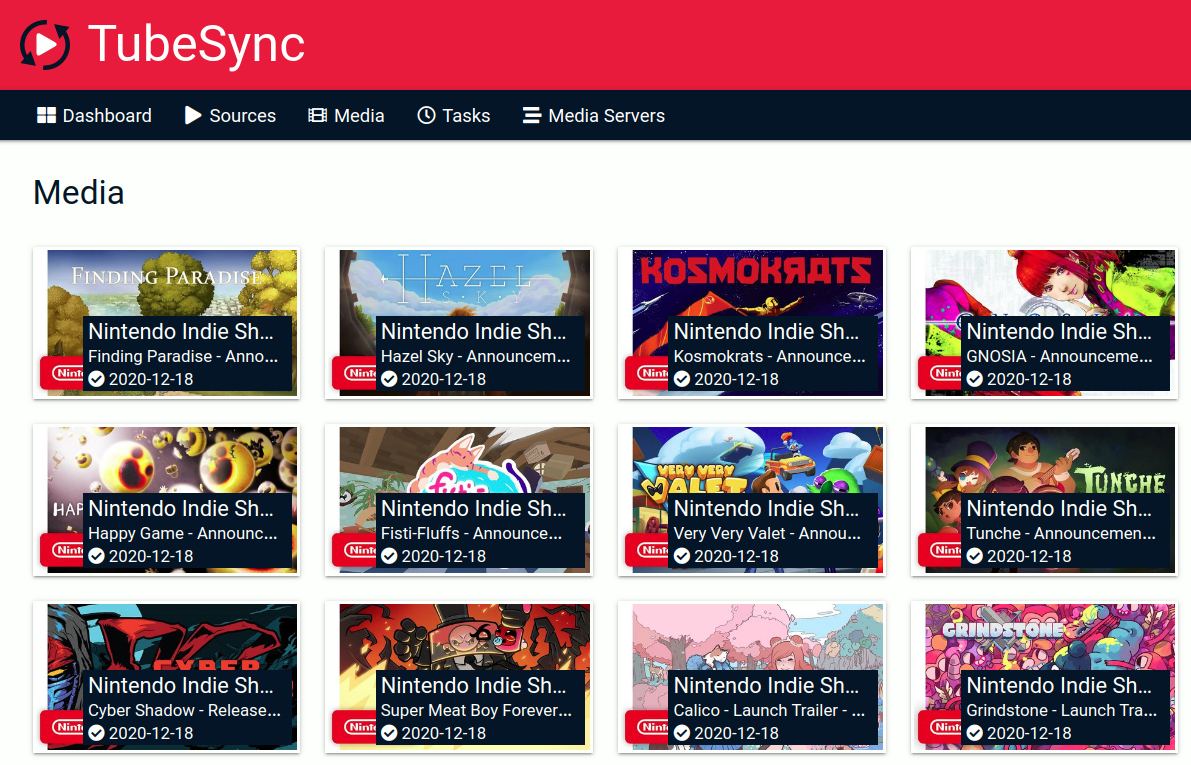
Media details

Requirements
For the easiest installation, you will need an environment to run containers such as Docker or Podman. You will also need as much space as you want to allocate to downloaded media and thumbnails. If you download a lot of media at high resolutions this can be very large.
What to expect
Once running, TubeSync will download media to a specified directory. Inside this
directory will be a video and audio subdirectories. All media which only has an
audio stream (such as music) will download to the audio directory. All media with a
video stream will be downloaded to the video directory. All administration of
TubeSync is performed via a web interface. You can optionally add a media server,
currently only Jellyfin or Plex, to complete the PVR experience.
Installation
TubeSync is designed to be run in a container, such as via Docker or Podman. It also
works in a Docker Compose stack. amd64 (most desktop PCs and servers) and arm64
(modern ARM computers, such as the Raspberry Pi 3 or later) are supported.
Example (with Docker on *nix):
First find the user ID and group ID you want to run TubeSync as, if you're not sure what this is it's probably your current user ID and group ID:
$ id
# Example output, in this example, user ID = 1000, group ID = 1000
# id uid=1000(username) gid=1000(username) groups=1000(username),129(docker)
You can find your local timezone name here:
https://en.wikipedia.org/wiki/List_of_tz_database_time_zones
If unset, TZ defaults to UTC.
Next, create the directories you're going to use for config data and downloads:
$ mkdir /some/directory/tubesync-config
$ mkdir /some/directory/tubesync-downloads
Finally, download and run the container:
# Pull image
$ docker pull ghcr.io/meeb/tubesync:latest
# Start the container using your user ID and group ID
$ docker run \
  -d \
  --name tubesync \
  -e PUID=1000 \
  -e PGID=1000 \
  -e TZ=Europe/London \
  -v /some/directory/tubesync-config:/config \
  -v /some/directory/tubesync-downloads:/downloads \
  -p 4848:4848 \
  --stop-timeout 1800 \
  ghcr.io/meeb/tubesync:latest
Once running, open http://localhost:4848 in your browser and you should see the
TubeSync dashboard. If you do, you can proceed to adding some sources (YouTube channels
and playlists). If not, check docker logs tubesync to see what errors might be
occurring, typical ones are file permission issues.
Alternatively, for Docker Compose, you can use something like:
services:
  tubesync:
    image: ghcr.io/meeb/tubesync:latest
    container_name: tubesync
    restart: unless-stopped
    stop_grace_period: 30m
    ports:
      - 4848:4848
    volumes:
      - /some/directory/tubesync-config:/config
      - /some/directory/tubesync-downloads:/downloads
    environment:
      - TZ=Europe/London
      - PUID=1000
      - PGID=1000
[!IMPORTANT]
If the/downloadsdirectory is mounted from a Samba volume, be sure to also supply theuidandgidmount parameters in the driver options. These must be matched to thePUIDandPGIDvalues, which were specified as environment variables.Matching these user and group ID numbers prevents issues when executing file actions, such as writing metadata. See this issue for details.
Optional authentication
Available in v1.0 (or :latest) and later. If you want to enable a basic username and
password to be required to access the TubeSync dashboard you can set them with the
following environment variables:
HTTP_USER
HTTP_PASS
For example, in the docker run ... line add in:
...
-e HTTP_USER=some-username \
-e HTTP_PASS=some-secure-password \
...
Or in your Docker Compose file you would add in:
...
    environment:
      - HTTP_USER=some-username
      - HTTP_PASS=some-secure-password
...
When BOTH HTTP_USER and HTTP_PASS are set then basic HTTP authentication will be
enabled.
Updating
To update, you can just pull a new version of the container image as they are released.
$ docker pull ghcr.io/meeb/tubesync:v[number]
Back-end updates such as database migrations should be automatic.
[!IMPORTANT]
MariaDBwas not automatically upgraded forUUIDcolumn types. To see what changes are needed, you can run:docker exec -it tubesync python3 /app/manage.py fix-mariadb --dry-run --uuid-columnsRemoving the
--dry-runwill attempt to execute those statements using the configured database connection.
Moving, backing up, etc.
TubeSync, when running in its default container, stores thumbnails, cache and its
SQLite database into the /config directory and wherever you've mapped that to on your
file system. Just copying or moving this directory and making sure the permissions are
correct is sufficient to move, back up or migrate your TubeSync install.
Using TubeSync
1. Add some sources
Pick your favourite YouTube channels or playlists, pop over to the "sources" tab, click whichever add button suits you, enter the URL and validate it. This process extracts the key information from the URL and makes sure it's a valid URL. This is the channel name for YouTube channels and the playlist ID for YouTube playlists.
You will then be presented with the initial add a source form where you can select all the features you want, such as how often you want to index your source and the quality of the media you want to download. Once happy, click "add source".
2. Wait
That's about it. All other actions are automatic and performed on timers by scheduled tasks. You can see what your TubeSync instance is doing on the "tasks" tab.
As media is indexed and downloaded it will appear in the "media" tab.
3. Media Server updating
Currently TubeSync supports Plex and Jellyfin as media servers. You can add your local Jellyfin or Plex server under the "media servers" tab.
Logging and debugging
[!TIP] Even more detailed logs are produced when the environment variable
TUBESYNC_DEBUGis set toTrue.
TubeSync outputs useful logs, errors and debugging information to the console. You can view these with:
$ docker logs --follow tubesync
To include logs with an issue report, please extract a file and attach it to the issue.
The command below creates the TubeSync.logs.txt file with the logs from the tubesync container:
docker logs -t tubesync > TubeSync.logs.txt 2>&1
Advanced usage guides
Once you're happy using TubeSync there are some advanced usage guides for more complex and less common features:
- Using Plex
- Import existing media into TubeSync
- Sync or create missing metadata files
- Reset tasks from the command line
- Using PostgreSQL, MySQL or MariaDB as database backends
- YouTube Proof-of-Origin Tokens
- Using cookies
- Reset metadata
Warnings
1. Index frequency
It's a good idea to add sources with as long of an index frequency as possible. This is the duration between indexes of the source. An index is when TubeSync checks to see what videos available on a channel or playlist to find new media. Try and keep this as long as possible, up to 24 hours.
2. Indexing massive channels
If you add a massive channel (one with several thousand videos) to TubeSync and choose "index every hour" or a similarly short interval; it's entirely possible that your TubeSync install may spend its entire time indexing the channel, over and over again, without downloading any media. Check your tasks for the status of your TubeSync install.
Be nice. It's entirely possible that your IP addres
Related Skills
node-connect
327.7kDiagnose OpenClaw node connection and pairing failures for Android, iOS, and macOS companion apps
frontend-design
80.7kCreate distinctive, production-grade frontend interfaces with high design quality. Use this skill when the user asks to build web components, pages, or applications. Generates creative, polished code that avoids generic AI aesthetics.
openai-whisper-api
327.7kTranscribe audio via OpenAI Audio Transcriptions API (Whisper).
commit-push-pr
80.7kCommit, push, and open a PR
