
Augmentor
Image augmentation library in Python for machine learning.
Install / Use
/learn @mdbloice/AugmentorREADME

Augmentor is an image augmentation library in Python for machine learning. It aims to be a standalone library that is platform and framework independent, which is more convenient, allows for finer grained control over augmentation, and implements the most real-world relevant augmentation techniques. It employs a stochastic approach using building blocks that allow for operations to be pieced together in a pipeline.







Installation
Augmentor is written in Python. A Julia version of the package is also being developed as a sister project and is available here.
Install using pip from the command line:
pip install Augmentor
See the documentation for building from source. To upgrade from a previous version, use pip install Augmentor --upgrade.
Documentation
Complete documentation can be found on Read the Docs: https://augmentor.readthedocs.io
Quick Start Guide and Usage
The purpose of Augmentor is to automate image augmentation (artificial data generation) in order to expand datasets as input for machine learning algorithms, especially neural networks and deep learning.
The package works by building an augmentation pipeline where you define a series of operations to perform on a set of images. Operations, such as rotations or transforms, are added one by one to create an augmentation pipeline: when complete, the pipeline can be executed and an augmented dataset is created.
To begin, instantiate a Pipeline object that points to a directory on your file system:
import Augmentor
p = Augmentor.Pipeline("/path/to/images")
You can then add operations to the Pipeline object p as follows:
p.rotate(probability=0.7, max_left_rotation=10, max_right_rotation=10)
p.zoom(probability=0.5, min_factor=1.1, max_factor=1.5)
Every function requires you to specify a probability, which is used to decide if an operation is applied to an image as it is passed through the augmentation pipeline.
Once you have created a pipeline, you can sample from it like so:
p.sample(10000)
which will generate 10,000 augmented images based on your specifications. By default these will be written to the disk in a directory named output relative to the path specified when initialising the p pipeline object above.
If you wish to process each image in the pipeline exactly once, use process():
p.process()
This function might be useful for resizing a dataset for example. It would make sense to create a pipeline where all of its operations have their probability set to 1 when using the process() method.
Multi-threading
Augmentor (version >=0.2.1) now uses multi-threading to increase the speed of generating images.
This may slow down some pipelines if the original images are very small. Set multi_threaded to False if slowdown is experienced:
p.sample(100, multi_threaded=False)
However, by default the sample() function uses multi-threading. This is currently only implemented when saving to disk. Generators will use multi-threading in the next version update.
Ground Truth Data
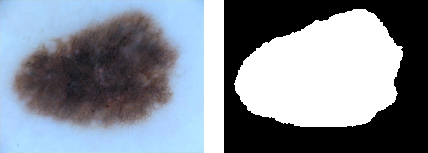
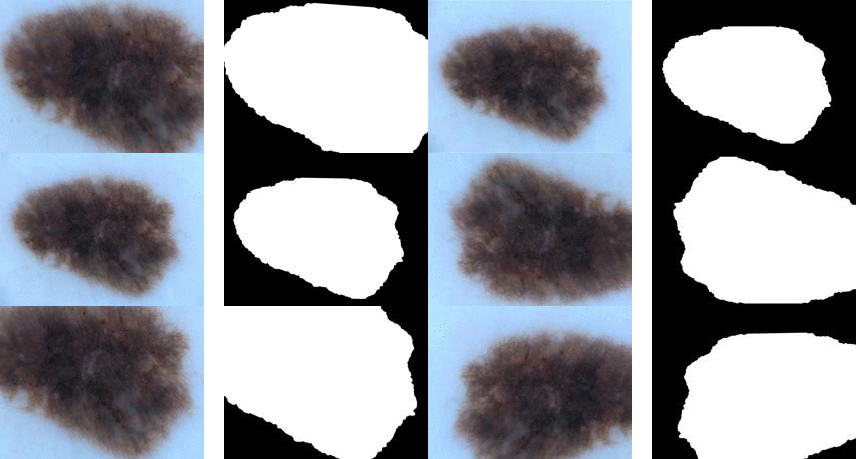
Images can be passed through the pipeline in groups of two or more so that ground truth data can be identically augmented.
| Original image and mask<sup>[3]</sup> | Augmented original and mask images |
|---------------------------------------------------------------------------------------------------------------------|------------------------------------------------------------------------------------------------------------------|
|  |
|  |
|
To augment ground truth data in parallel to any original data, add a ground truth directory to a pipeline using the ground_truth() function:
p = Augmentor.Pipeline("/path/to/images")
# Point to a directory containing ground truth data.
# Images with the same file names will be added as ground truth data
# and augmented in parallel to the original data.
p.ground_truth("/path/to/ground_truth_images")
# Add operations to the pipeline as normal:
p.rotate(probability=1, max_left_rotation=5, max_right_rotation=5)
p.flip_left_right(probability=0.5)
p.zoom_random(probability=0.5, percentage_area=0.8)
p.flip_top_bottom(probability=0.5)
p.sample(50)
Multiple Mask/Image Augmentation
Using the DataPipeline class (Augmentor version >= 0.2.3), images that have multiple associated masks can be augmented:
| Multiple Mask Augmentation |
|----------------------------------------------------------------------------------------------------------|
|  |
|
Arbitrarily long lists of images can be passed through the pipeline in groups and augmented identically using the DataPipeline class. This is useful for ground truth images that have several masks, for example.
In the example below, the images and their masks are contained in the images data structure (as lists of lists), while their labels are contained in y:
p = Augmentor.DataPipeline(images, y)
p.rotate(1, max_left_rotation=5, max_right_rotation=5)
p.flip_top_bottom(0.5)
p.zoom_random(1, percentage_area=0.5)

augmented_images, labels = p.sample(100)
The DataPipeline returns images directly (augmented_images above), and does not save them to disk, nor does it read data from the disk. Images are passed directly to DataPipeline during initialisation.
For details of the images data structure and how to create it, see the Multiple-Mask-Augmentation.ipynb Jupyter notebook.
Generators for Keras and PyTorch
If you do not wish to save to disk, you can use a generator (in this case with Keras):
g = p.keras_generator(batch_size=128)
images, labels = next(g)
which returns a batch of images of size 128 and their corresponding labels. Generators return data indefinitely, and can be used to train neural networks with augmented data on the fly.
Alternatively, you can integrate it with PyTorch:
import torchvision
transforms = torchvision.transforms.Compose([
    p.torch_transform(),
    torchvision.transforms.ToTensor(),
])
Main Features
Elastic Distortions
Using elastic distortions, one image can be used to generate many images that are real-world feasible and label preserving:
| Input Image | | Augmented Images |
|-----------------------------------------------------------------------------------------------------------------------------------|---|-------------------------------------------------------------------------------------------------------------------------|
|  | → |
| → |  |
|
The input image has a 1 pixel black border to emphasise that you are getting distortions without changing the size or aspect ratio of the original image, and without any black/transparent padding around the newly generated images.
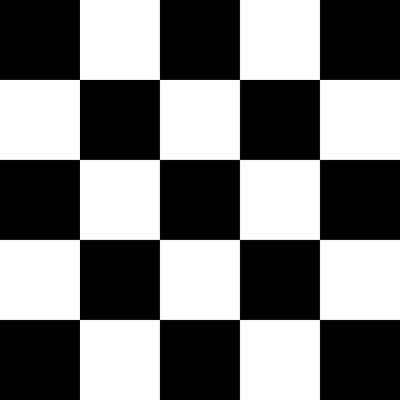
The functionality can be more clearly seen here:
| Original Image<sup>[1]</sup> | Random distortions applied |
|---------------------------------------------------------------------------------------------------|-------------------------------------------------------------------------------------------------------|
|  | 