
Craftql
A drop-in GraphQL server for Craft CMS
Install / Use
/learn @markhuot/CraftqlREADME
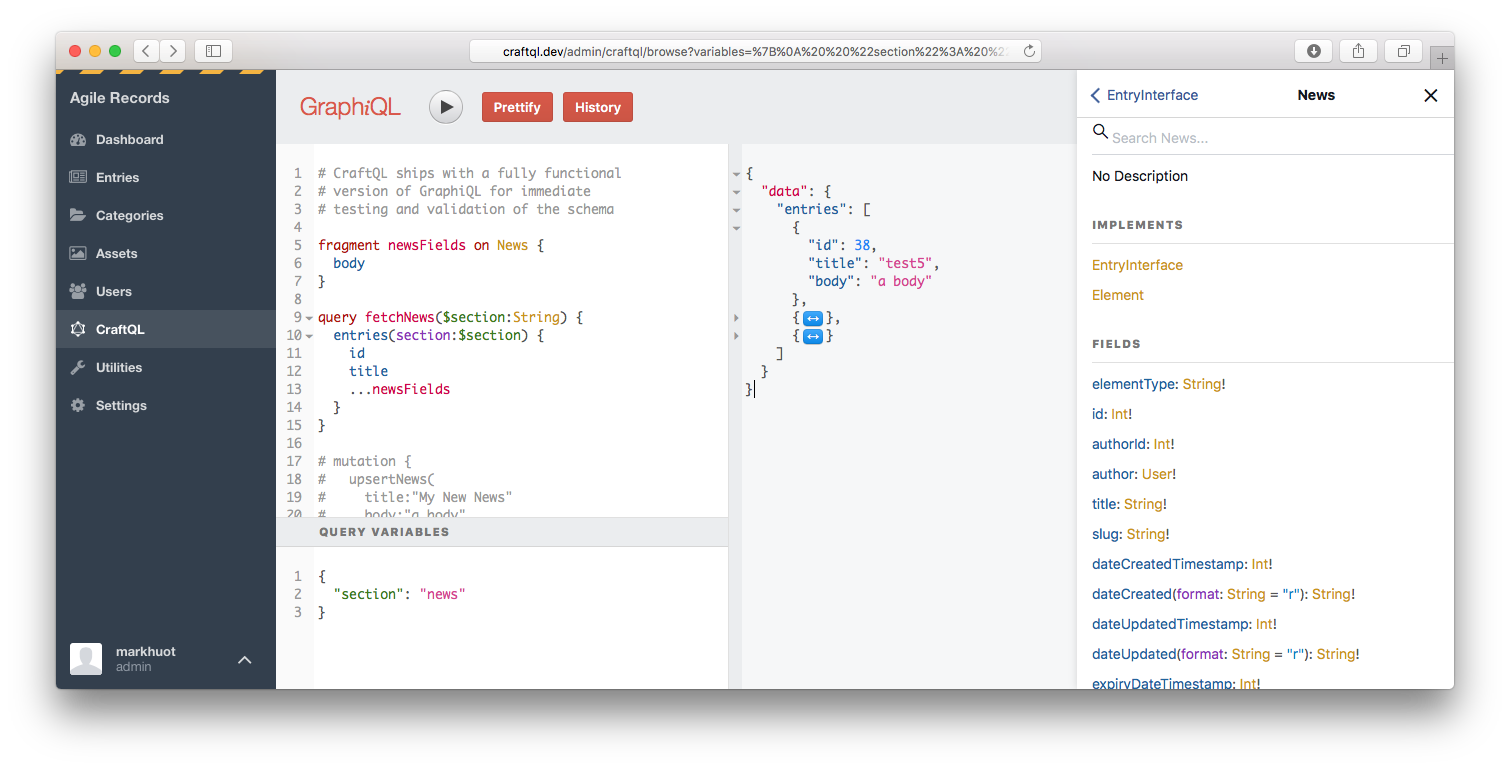

A drop-in GraphQL server for your Craft CMS implementation. With zero configuration, CraftQL allows you to access all of Craft's features through a familiar GraphQL interface.
<hr>Examples
Once installed, you can test your installation with a simple Hello World,
{
  helloWorld
}
If that worked, you can now query Craft CMS using almost the exact same syntax as your Twig templates.
{
  entries(section:[news], limit:5, search:"body:salty") {
    ...on News {
      title
      url
      body
    }
  }
}
CraftQL provides a top level entries field that takes the same arguments as craft.entries does in your template. This is the most commonly used field/access point. E.g.,
query fetchNews {             # The query, `query fetchNews` is completely optional
  entries(section:[news]) {   # Arguments match `craft.entries`
    ...on News {              # GraphQL is strongly typed, so you must specify each Entry Type you want data from
      id                      # A field to return
      title                   # A field to return
      body                    # A field to return
    }
  }
}
Types are automatically created for every Entry Type in your install. If you have a section named news and an entry type named news the GraphQL type will be named News. If you have a section named news and an entry type named pressRelease the GraphQL type will be named NewsPressRelease. The convention is to mash the section handle and the entry type handle together, unless they are the same, in which case the section handle will be used.
query fetchNews {
  entries(section:[news]) {
    ...on News {              # Any fields on the News entry type
      id
      title
      body
    }
    ...on NewsPressRelease {  # Any fields on the Press Release entry type
      id
      title
      body
      source
      contactInfo
      downloads {
        title
        url
      }
    }
  }
}
To modify content make sure your token has write access and then use the top level upsert{EntryType} Mutation. upsert{EntryType} takes arguments for each field defined in Craft.
mutation createNewEntry($title:String, $body:String) {
  upsertNews(
    title:$title,
    body:$body,
  ) {
    id
    url
  }
}
The above would be passed with variables such as,
{
  "title": "My first mutation!",
  "body": "<p>Here's the body of my first mutation</p>",
}
Matrix Fields
Working with Matrix Fields are similar to working with Entry Types: if you have a Matrix Field with a handle of body, the containing Block Types are named Body + the block handle. For instance BodyText or BodyImage. You can use the key __typename from the resulting response to map over the blocks and display the appropriate component.
{
  entries(section: [news]) {
    ... on News {
      id
      title
      body {                  # Your Matrix Field
        ... on BodyText {     # Block Type
          __typename          # Ensures the response has a field describing the type of block
          blockHeading        # Fields on Block Type, uses field handle
          blockContent        # Fields on Block Type, uses field handle
        }
        ... on BodyImage {    # Block Type
          __typename          # Ensures the response has a field describing the type of block
          blockDescription    # Fields on Block Type, uses field handle
          image {             # Fields on Block Type, uses field handle
            id                # Fields on image field on Block Type, uses field handles
          }
        }
      }
    }
  }
}
Dates
All Dates in CraftQL are output as Timestamp scalars, which represent a unix timestamp. E.g.,
{
  entries {
    dateCreated  # outputs 1503368510
  }
}
Dates can be converted to a human friendly format with the @date directive,
{
  entries {
    dateCreated @date(as:"F j, Y") # outputs August 21, 2017
  }
}
Relationships
Related entries can be fetched in several ways, depending on your needs.
Similar to craft.entries.relatedTo(entry) you can use the relatedTo argument on the entries top level query field. For example, if you have a Post with an ID of 63 that is related to comments you could use the following.
{
  entries(relatedTo:[{element:63}], section:comments) {
    ...on Comments {
      id
      author {
        name
      }
      commentText
    }
  }
}
Note, the relatedTo: argument accepts an array of relations. By default relatedTo: looks for elements matching all relations. If you would like to switch to elements relating to any relation you can use orRelatedTo:.
The above approach, typically, requires separate requests for the source content and the related content. That equates to extra HTTP requests and added latency. If you're using the "connection" approach to CraftQL you can fetch relationships in a single request using the relatedEntries field of the EntryEdge type. The same request could be rewritten as follows to grab both the post and the comments in a single request.
{
  entriesConnection(id:63) {
    edges {
      node {
        ...on Post {
          title
          body
        }
      }
      relatedEntries(section:comments) {
        edges {
          node {
            ...on Comment {
              author {
                name
              }
              commentText
            }
          }
        }
      }
    }
  }
}
Transforms
You can ask CraftQL for image transforms by specifying an argument to any asset field. Note: for this to work the volume storing the image must have "public URLs" enabled in the volume settings otherwise CraftQL will return null values.
If you have defined named transforms within the Craft UI you can reference the transform by its handle,
{
  entries {
    ...on Post {
      imageFieldHandle {
        thumbnail: url(transform: thumb)
      }
    }
  }
}
You can also specify the exact crop by using the crop, fit, or stretch arguments as specified in the Craft docs.
{
  entries {
    ...on Post {
      imageFieldHandle {
        poster: url(crop: {width: 1280, height: 720, position: topLeft, quality: 50, format: jpg})
      }
    }
  }
}
Drafts
Drafts are best fetched through an edge node on the entriesConnection query. You can get all drafts for an entry with the following query,
{
  entriesConnection(id:63) {
    edges {
      node { # the published node, as `craft.entries` would return
        id
        title
      }
      drafts { # an array of drafts
        edges {
          node { # the draft content
            id
            title
            ...on Post { # draft fields are still referenced by entry type, as usual
              body
            }
          }
          draftInfo { # the `draftInfo` field returns the meta data about the draft
            draftId
            name
            notes
          }
        }
      }
    }
  }
}
Categories and Tags
Taxonomy can be queried through the top level categories or tags field. Both work identically to their craft.entries and craft.tags counterparts.
{
  categories { # lists all categories, or use `tags` to get all tags
    id
    title
  }
}
For added functionality query categories and tags through their related Connection fields. This provides a spot in the return to get related entries too,
{
  categoriesConnection {
    totalCount
    edges {
      node {
        title   # the category title
      }
      relatedEntries {
        entries {
          title # an entry title, that's related to this category
        }
      }
    }
  }
}
Users
Users can be queried via a top-level users field,
{
  users {
    id
    name
    email
  }
}
You can also mutate users via the upsertUser field. When passed an id: it will update the user. If the id: attribute is missing it will create a new user,
mutation {
  upsertUser(id:1, firstName:"Mark", lastName:"Huot") {
    id
    name # returns `Mark Huot` after the mutation
  }
}
Permissions can be set as well, but you must always pass the full list of permissions for the user. E.g.,
mutation {
  upsertUser(id:1, permissions:["accessCp","editEntries:17","createEntries:17","deleteEntries:17"]) {
    id
    name # returns `Mark Huot` after the mutation
  }
}
Security
CraftQL supports GraphQl field level permissions. By default a token will have no rights. You must click into the "Scopes" section to adjust what each token can do.
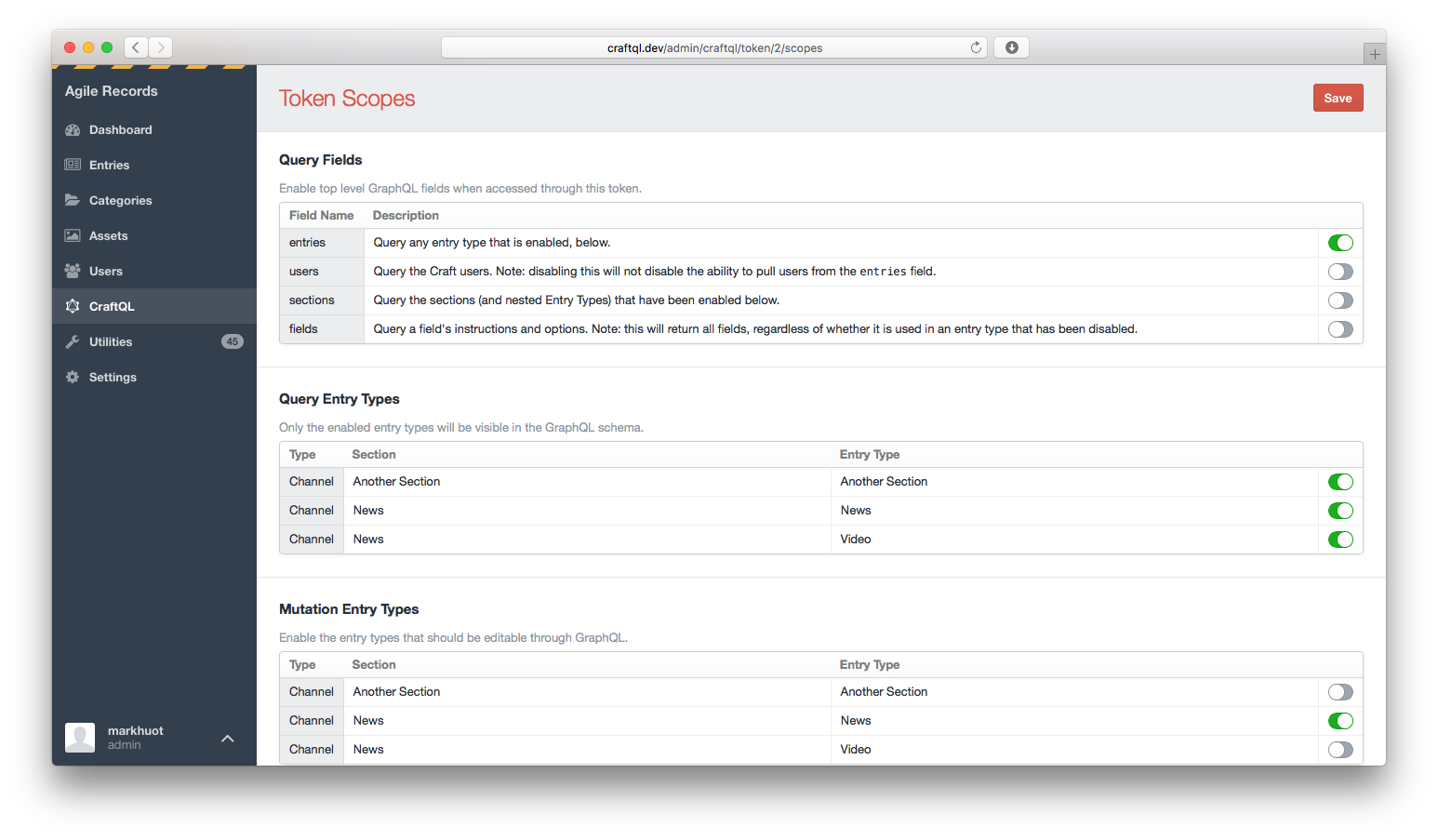
Scopes allow you to configure which GraphQL fields and entry types are included in the schema.
Third-party Field Support
To add CraftQL support to your third-party field plugin you will need to listen to the craftQlGetFieldSchema event. This event, triggered on your custom field, will pass a "schema builder" into the event handler, allowing you to specify the field schema your custom field provides. For example, in your plugin's ::init method you could specify,
Event::on(\my\custom\Field::class, 'craftQlGetFieldSchema', function (\markhuot\CraftQL\Events\GetFieldSchema $event) {
  // the custom field is passed as the event sender
  $field = $event->sender;

  // the schema exists on a public property
