
Pianoplayer
Automatic fingering generator for piano scores
Install / Use
/learn @marcomusy/PianoplayerREADME





Automatic piano fingering generator for MusicXML and MIDI scores.
PianoPlayer searches for a low-effort fingering sequence for one or both hands.
Download and Install:
pip install pianoplayer
Optional extras:
pip install "pianoplayer[visual]"  # 3D rendering with vedo
pip install "pianoplayer[midi]"    # MIDI input support
pip install "pianoplayer[sound]"   # enable playback
pip install "pianoplayer[all]"     # all optional extras
If you are new to Python, use one of these two approaches.
Option A: Anaconda (recommended for beginners on Windows)
- Install Anaconda from https://www.anaconda.com/download
- Type Anaconda Prompt in your windows search and open it.
- Install PianoPlayer, type:
pip install pianoplayer
- Run:
pianoplayer --help
Option B: Python from python.org
Windows:
- Install Python 3.10+ from https://www.python.org/downloads/windows/
- During installation, enable Add Python to PATH.
- Open Command Prompt and run:
python -m pip install --upgrade pip
pip install pianoplayer
pianoplayer --help
macOS/Linux:
python3 -m pip install --upgrade pip
pip install pianoplayer
pianoplayer --help
Standalone executable (without 3D visualization)
Build a standalone executable with PyInstaller:
pip install "pianoplayer[build]"
python scripts/build_standalone.py
Output executable:
- Linux/macOS:
dist/pianoplayer - Windows:
dist/pianoplayer.exe
To visualize the output annotated score (output.xml) install the latest
musescore, or any other renderer
of MusicXML
files.
You can also inspect playback in 3D with vedo.
CLI Usage:
Example command line:
pianoplayer scores/bach_invention4.xml -n 10 -r -v -z -m
This annotates the first 10 measures for the right hand, opens 3D playback, and then opens MuseScore.
The output is saved as a MusicXML
file with name output.xml.<br />
Pre-fingered notes are supported: if a note already has a fingering mark, PianoPlayer keeps it
and uses it as an anchor for the following optimization.
In the output score, these anchored fingers are rendered as circled numbers.
pianoplayer         # if no argument is given a GUI will pop up
# Or
pianoplayer [-h] [--gui] [-o] [-n] [-s] [-d] [-rpart] [-lpart] [--rstaff] [--lstaff]
            [--auto-routing | --manual-routing]
            [--quiet] [-m] [-b] [-v] [-z] [-l] [-r]
            [--hand-size {XXS,XS,S,M,L,XL,XXL}] [--chord-note-stagger-s]
            filename
# Valid file formats: MusicXML, compressed MusicXML, MuseScore, MIDI, PIG
# (.xml, .mxl, .mscz, .mscx, .mid, .midi, .txt)
#
# Optional arguments:
#   -h, --help            show this help message and exit
#   --gui                 Launch the Tkinter GUI
#   -o , --outputfile     Annotated output xml file name
#   -n , --n-measures     [1000] Number of score measures to scan
#   -s , --start-measure  Start from measure number [1]
#   -d , --depth          [auto] Depth of combinatorial search, [5-9]
#   -rpart                [0] Specify Right Hand part number
#   -lpart                [1] Specify Left Hand part number
#   --rstaff              [auto] Right-hand staff number for single-part MusicXML
#   --lstaff              [auto] Left-hand staff number for single-part MusicXML
#   --auto-routing        Resolve part/staff routing automatically (default)
#   --manual-routing      Use explicit -rpart/-lpart/--rstaff/--lstaff values
#   --quiet               Switch off verbosity
#   -m, --musescore       Open output in musescore after processing
#   -b, --below-beam      Show fingering numbers below beam line
#   -v, --with-vedo       Play 3D scene after processing
#   -z, --sound-off       Disable sound
#   -l, --left-only       Fingering for left hand only
#   -r, --right-only      Fingering for right hand only
#   --hand-size           Hand size preset [XXS, XS, S, M, L, XL, XXL]
#   --chord-note-stagger-s [0.05] Small note staggering used to represent chords
Routing defaults are automatic and shown in the run summary:
- In 2-part piano scores, hands are selected by
-rpart/-lpart. - In 1-part, 2-staff piano scores, hands are selected by staff (
RH -> staff 1,LH -> staff 2). - Use
--manual-routingplus--rstaff/--lstaffto override routing explicitly.
GUI Usage
Run pianoplayer with no filename to open the GUI, then:
- press Import Score (valid formats: MusicXML/MXL, MuseSsore, MIDI, PIG)
- press GENERATE (
output.xmlis written) - press Musescore to visualize the annotated score (Linux/macOS only)
- press Quit (or
q/Ctrl+W) to close the GUI - In Advanced, keep Auto hand routing enabled for default behavior, or disable it to set right/left part and staff manually.
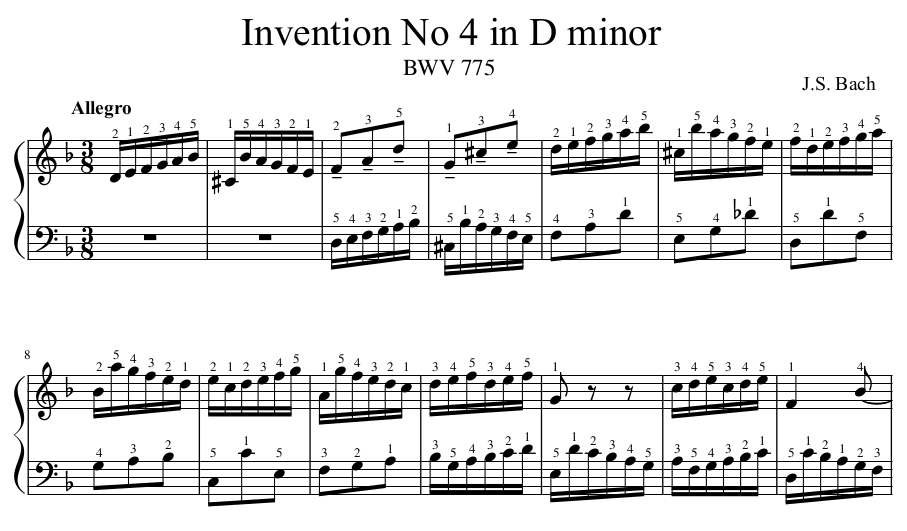
Example output, as displayed in Musescore:
(If fingering numbers are not visible enough try with -b option.)

How the algorithm works:
The algorithm minimizes the fingers speed needed to play a sequence of notes or chords by searching through feasible combinations of fingerings.
One possible advantage of this algorithm over similar ones is that it is completely dynamic, which means that it takes into account the physical position and speed of fingers while moving on the keyboard and the duration of each played note. It is not based on a static look-up table of likely or unlikely combinations of fingerings.
Fingering a piano score can vary a lot from individual to individual, therefore there is not such a thing as a "best" choice for fingering. This algorithm is meant to suggest a fingering combination which is "optimal" in the sense that it minimizes the effort of the hand avoiding unnecessary movements.
Parameters you can change:
- Your hand size (from 'XXS' to 'XXL') which sets the relaxed distance between thumb and pinkie.
- The default part routing is
rpart=0andlpart=1. You can change it with-rpartand-lpartcommand line options. - In single-part MusicXML files that contain 2 staves, routing defaults to
RH=staff 1andLH=staff 2. Use--rstaffand--lstaffto override this behavior. - Depth of combinatorial search, from 5 up to 9 notes ahead of the currently playing note. By default the algorithm selects this number automatically based on the duration of the notes to be played.
Limitations
- Some specific fingering combinations, considered too unlikely in the first place, are excluded from the search (e.g. the 3rd finger crossing the 4th).
- Hands are always assumed independent from each other.
- In the 3D representation with sounds enabled, notes are played one after the other (no chords), so the tempo within the measure is not always respected.
- Small notes/ornaments are ignored.
