
Codeswing
VS Code extension for building web applications ("swings") using a interactive and editor-integrated coding environment
Install / Use
/learn @lostintangent/CodeswingQuality Score
Category
Development & EngineeringSupported Platforms
README
CodeSwing 🎢
CodeSwing is an interactive coding playground for VS Code, that allows you to build/explore/learn rich web applications ("swings"). It's like having the magic of a traditional web playground (e.g. CodePen, JSFiddle), but available directly from your highly-personalized editor: themes, keybindings, and extensions...oh my! When you create swings, you can use your favorite web languages (HTML/Pug, CSS/SCSS/Less, JS/TS) and libraries (React, Vue, Angular, etc.) and have a live preview <ins>as you type</ins>, without needing to worry about compiling or bundling anything. It's like a visual REPL for managing runnable code snippets.
<img width="800px" src="https://user-images.githubusercontent.com/116461/103024429-ae37a480-4504-11eb-85ea-37ba9b9a4d9a.gif" />CodeSwing supports template galleries, which allows you to create re-usable swing templates. When you're happy with a swing, you can also export it to CodePen in order to share it with the world! Finally, since CodeSwing is a VS Code extension, it can integrate with other VS Code extensions, to enable compelling scenarios such as managing your swings as GitHub Gists, recording guided walkthroughs of your swings, and collaborating on a swing in real-time. If that doesn't sound fun, then I don't know what is!
<!--prettier-ignore-->What's the meaning of the name "swing"? As the extension's logo implies, it's referring to a swing on playground, to elicit the idea of having fun. That said, if you interpret "swing" as the dance style, that's totally cool too! 💃
Reference
Getting Started
-
Install the CodeSwing extension and then reload VS Code
-
Run the
CodeSwing: New Swing...command, and select the desired template -
Edit any of the opened files and see the
CodeSwingpreview update automatically as you type 🚀 -
(Optional) If you'd like to save this sample to a permanent location, run the
CodeSwing: Save Current Swing As...command and select a directory
From here, you can try additional languages, change the swing layout, view console output, and include external libraries. We want to make it easy to build/explore web ideas, and so if you have any feedback, please don't hesitate to reach out!
Furthermore, if you'd like to try out a fun sample, clone the Rock Paper Scissors repo, and open it up in VS Code. CodeSwing will detect that it's a swing and automatically layout your editor.
Creating Swings
After you install the CodeSwing extension, you can create new swings at any time, using the following commands:
-
CodeSwing: New Swing...- Creates a temporary swing that allows you to quickly try something out (like a visual REPL!). These swings are stored in your system temp directory in a folder calledcodeswing, and are named based on the current date/time. -
CodeSwing: New Swing from Last Template- Creates a swing using the last template that you used. This can be useful when you tend to use the same template over and over again. -
CodeSwing: New Swing in Directory...- Creates a swing in a local directory, which allows you to re-open it later, and easily share it with others (e.g. store it in a GitHub repo).
After creating a swing, your editor layout will be automatically setup to accomodate the needs of the selected template. Furthermore, if you open a directory that represents a swing, or you run the CodeSwing: Open Swing... command, then the selected swing will be automatically launched.
Language Support
CodeSwing comes with support for all major web languages, and allows you to create new swings without worrying about building or bundling anything. When you create a swing, the templates list provides options for getting started quickly
| Asset Type | Supported Languages | | ---------- | ---------------------- | | Markup | HTML, Pug, Markdown | | Stylesheet | CSS, SCSS/Sass, Less | | Script | JavaScript, TypeScript |
Additionally, if your script file ends in .jsx or .tsx, you can use JSX syntax. CodeSwing also recognizes a script file that ends in .babel and treats it like TypeScript. Finally, if your script file ends in ".mjs", then it will be treated as a JavaScript module.
Components
In addition to the aforementioned languages, CodeSwing also allows you to create component-based swings, using either React, React Native, Vue (single-file components) or Svelte. A component-based swing is unique in that it's a single file that lets you focus on just your component, and have all initialization and rendering logic handled automatically.
React
When creating a React component swing, you can define either a function-based or class-based component. You can name the component whatever you'd like, but you need to export it as the default export (e.g. export default function Foo). The react and react-dom libraries will be automatically included, and your exported component will be rendered into the page. If you need to access the React API (e.g. to use a hook), you can access React from within your component code. Additionally, if you need to include any other libraries, you can simply import them.
Vue
Using a Vue component swing, you can define your template, script and styles within a single-file component. Furthermore, you can add the lang attribute to the template, script or style elements, in order to use any of the supported languages.
Note: VS Code doesn't ship with support for
.vuefiles out of the box, so if you want to create Vue swings, it's recommended that you install the Vetur extension.
Svelte
When creating a Svelte component swing, you can define your template, script and styles within a single .svelte component. If you need to access APIs from Svelte itself, simply add an import statement from svelte and use the API you need (e.g. `import { tweened } from 'svelte/motion')
Note: VS Code doesn't ship with support for
.sveltefiles out of the box, so if you want to create Svelte swings, it's recommended that you install the Svelte for VS Code extension.
Swing Layout
By default, when you create a swing, it will open in a "Split Left" layout, which vertically stacks the code editors on the left, and allows the preview window to fully occupy the IDE height on the right. However, if you want to change the layout, you can run the CodeSwing: Change Layout command and select Grid, Preview, Split Bottom, Split Left Tabbed, Split Right, Split Right Tabbed or Split Top.
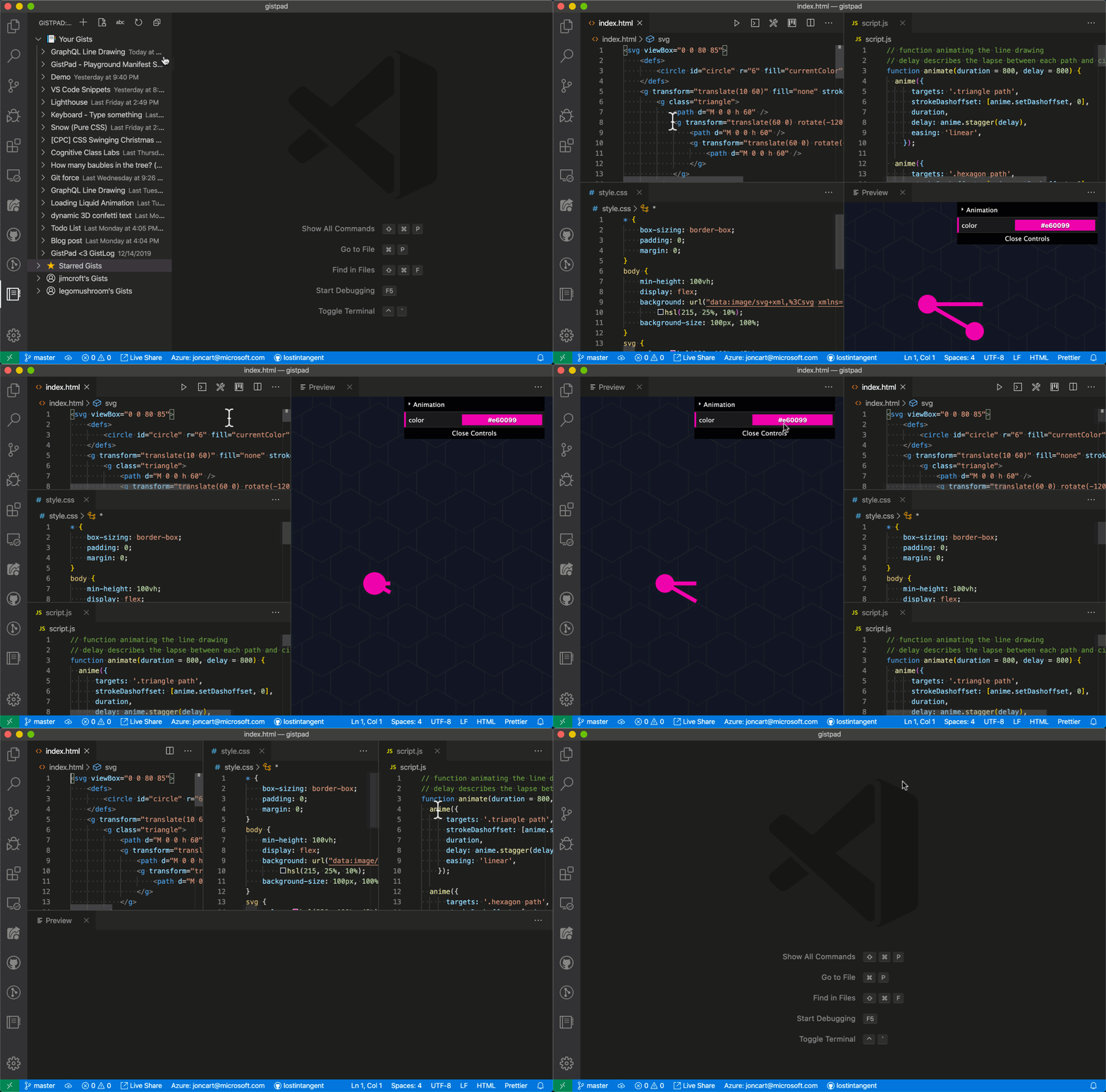
Additionally, if you create a swing, that looks best in a specific layout, you can set the layout property in the swing's codeswing.json file to either: grid, preview, splitBottom, splitLeft, splitLeftTabbed, splitRight, splitRightTabbed or splitTop. Then, when you or someone else opens this swing, it will be opened with the specified layout, as opposed to the user's configured default layout.
Console Output
The swing also provides an output window in order to view any logs written via the console.log API. You can bring up the output window, as well as run the swing or open the Chrome Developer Tools, by clicking the respective command icon in the editor toolbar. If you'd like to always open the console when creating/opening swings, you can set the CodeSwing: Show Console setting to true.
Additionally, if you create a swing that depends on the console, you can set the showConsole property in the swing's codeswing.json file to true. Then, when you or someone else opens this swing, the console will be automatically opened, regardless whether the end-user has configured it to show by default.
External Libraries
If you need to add any external JavaScript libraries (e.g. react) or stylesheets (e.g. font-awesome) to your swing, simply click the Add swing Library command in the swing "action bar" (or run CodeSwing: Add Library from the command palette). This will allow you to search for a library or paste a custom library URL. When you select a library, it will be automatically added to your swing.
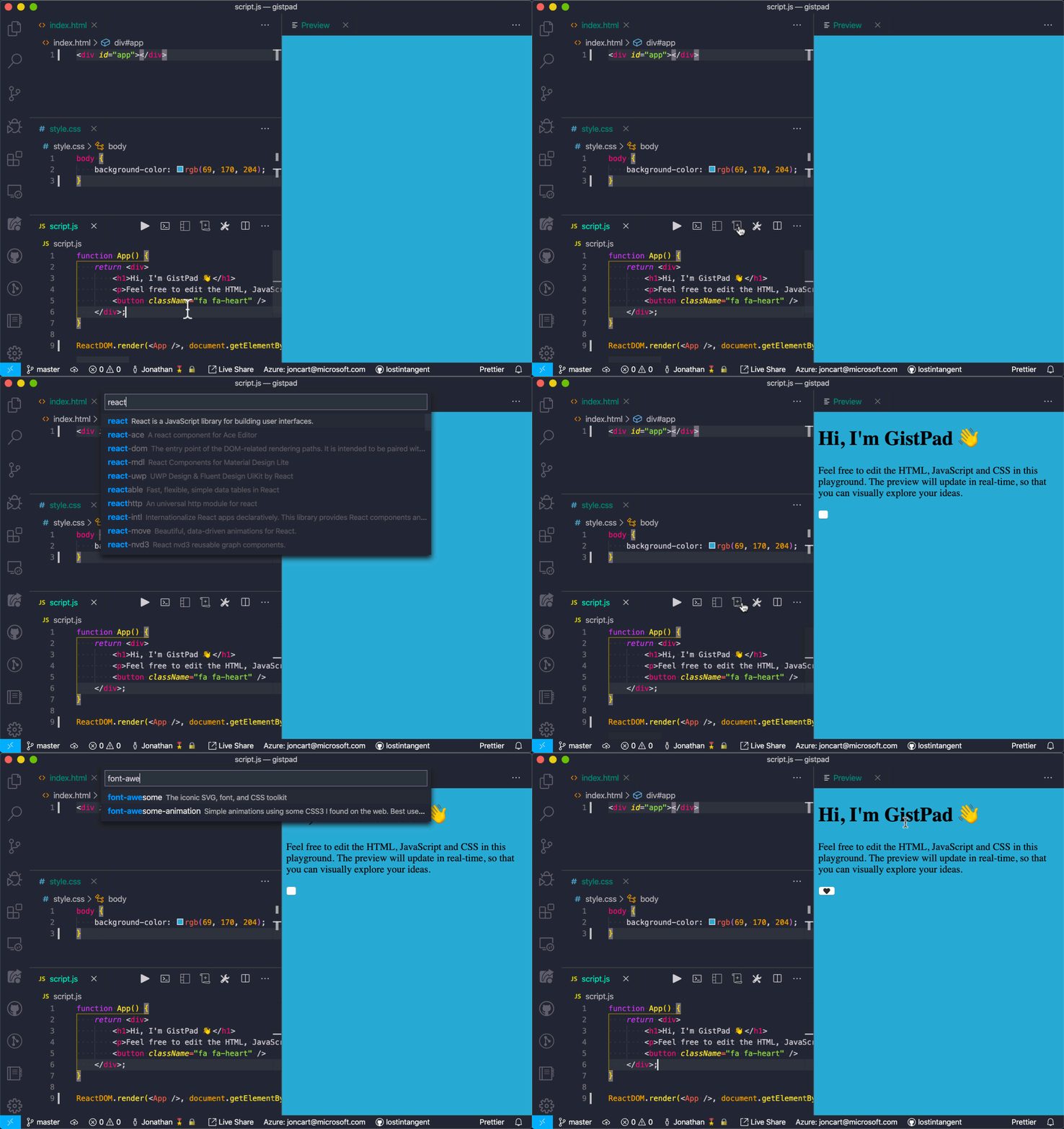
Behind the scenes, this command updates the swing's manifest file (codeswing.json), which you can also open/edit yourself manually if you'd prefer. For more details about the Script module option, see JavaScript modules.
Toolbar
When you create/open a swing, this activates the "swing toolbar", which is a collection of helpful utilities that are displayed in the editor's title bar. The following describes the available actions:
- Run Swing - Re-runs the HTML, JavaScript and CSS of your swing. This can be useful when wanting to reset a swing's state and/or if you've disabled the auto-run behavior for swings.
- Open Console - Opens the
CodeSwingconsole, which allows you
