
ImageCompressor
Scan, preview, compress and shrink images in batches
Install / Use
/learn @kyleotoole91/ImageCompressorREADME
Turbo Image Compressor
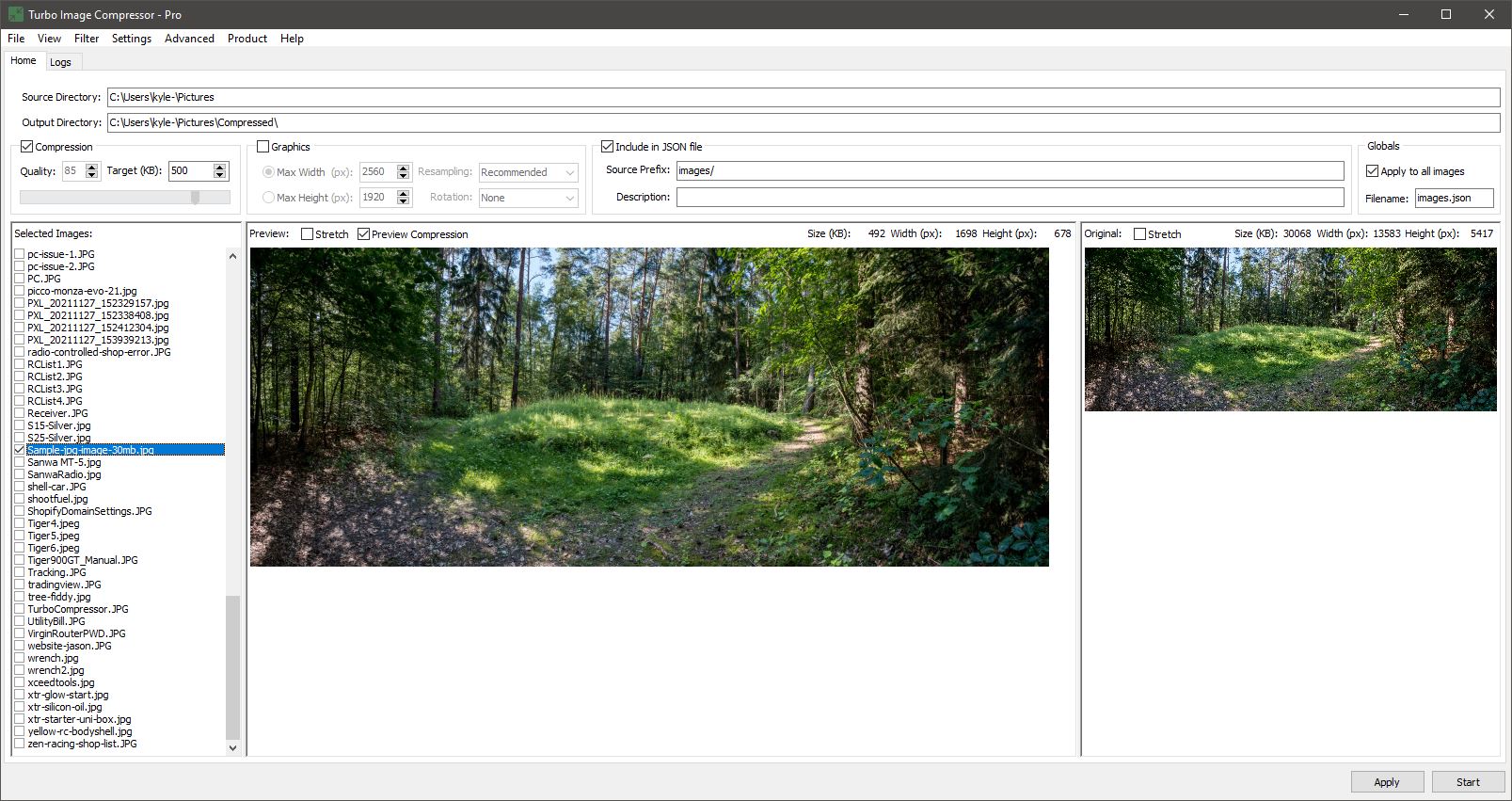
This project was written in Delphi (Object Pascal), built using RAD Studio 10.4. It makes use of the Image32 graphics library and the superobject JSON writer/parser. InnoSetup was used for the installation wizard.
This was created to quickly and easily compress images for websites or email attachments.
The application lets you scan a directory for images, apply compression, resizing, resampling and rotation to images.
You can change compression settings independantly for each image and execute the compression in a batch of selected images. You can select which images you wish to include, indicated by the ticked state of the checkboxes in the images list.
You can activate Preview Compression to see the image quality change in realtime as you adjust the compression settings.
For compression, you may state a target kilobytes, when set to a value higher than 0, it will keep compressing the image incementally reducing quality until it reaches as close to the target value as possible. You may need to reduce the size of the image aswell in order to get to your taget (250KB is ideal for websites).
In the graphics settings group, you can reduce the height and width of an image by specifying a max width or max height, this will maintain the aspect ratio. Here you can chose your desired resamping method for improved image quality. You can also rotate the image 90, 180 or 270 degrees.
You have an option to include a json file in the output directory, you may import this file into a NoSQL document database such as MongoDB. It includes all the images compressed, you may set the description and prefix independantly for each image.
In View options, Apply Best Fit will increase image preview quality by apply a scale to the JPEG to prevent the TImage from squashing it down to fit which results in pixellation. If DevExpress is installed, a TdxSmartImage graphic may be applied to the TImage, this results in better image preview quality at all sizes, removing the need for Apply Best Fit.
Currently only supports .JPG image files.
Product info and support page: https://eireware.com
Published on Softpedia: https://www.softpedia.com/get/Multimedia/Graphic/Digital-Photo-Tools/Turbo-Image-Compressor.shtml
Please ignore the Windows Smart Screen warning, the file is not dangerous, it simply hasn't been signed yet or downloaded enough times.
Turbo Image Compressor CLI
A command-line interface for compressing JPEG images to target file sizes while maintaining the best possible quality. The tool can also generate thumbnails and preserves the original directory structure in the output.
Features
- Compress JPEG images to a target file size in kilobytes
- Generate thumbnails with customizable dimensions
- Preserve directory structure when processing folders
- Process multiple images in batch
- Detailed console output with compression statistics
Usage
TurboImageCompressorCLI.exe <input> <output_dir> <target_kb> [options]
Parameters
input: Path to a single JPEG file or a directory containing JPEG imagesoutput_dir: Directory where compressed images will be savedtarget_kb: Target file size in kilobytes (0 for quality-based compression)
Options
-t: Create thumbnails for each processed image-s <size>: Set thumbnail size in pixels (default: 150)
Examples
Process a single image, targeting 500KB file size:
TurboImageCompressorCLI.exe C:\Photos\image.jpg C:\Output 500
Process all images in a directory, targeting 500KB file size:
TurboImageCompressorCLI.exe C:\Photos C:\Output 500
Process a single image and create thumbnail:
TurboImageCompressorCLI.exe C:\Photos\image.jpg C:\Output 500 -t
Process images with custom thumbnail size:
TurboImageCompressorCLI.exe C:\Photos C:\Output 500 -t -s 200
Output
The tool provides detailed feedback in the terminal for each operation:
Processing Output
For each processed image, the tool will display:
- Original file path
- Output file path
- Thumbnail path (if enabled)
- Original file size in KB
- Compressed file size in KB
Example terminal output:
Scanning directory: C:\Photos
Found 3 JPEG files
Starting compression...

Compressed: C:\Photos\image1.jpg
Output: C:\Output\image1.jpg
Thumbnail: C:\Output\image1_thumb.jpg
Original size: 1024 KB
Compressed size: 500 KB

Compressed: C:\Photos\image2.jpg
Output: C:\Output\image2.jpg
Thumbnail: C:\Output\image2_thumb.jpg
Original size: 2048 KB
Compressed size: 500 KB

Failed to process C:\Photos\image3.jpg
Error: Unable to compress file to target size

Summary:
Total files processed: 3
Successful: 2
Failed: 1
Exit Code: 2
Error Messages
The tool will display clear error messages for common issues:
- "Error: Input and output paths are required."
- "Error: Input file must be a JPEG file"
- "Error: Input path does not exist: [path]"
- "Error: No JPEG files found to process."
- "Error: Failed to create output directory: [error details]"
Exit Codes
The application returns the following exit codes:
- 0: Success (all images processed successfully)
- 1: General error (invalid parameters, input/output paths issues, or no files found)
- 2: Partial failure (some images failed to process)
- 3: Complete failure (all images failed to process)
These exit codes can be used in scripts to determine if the compression was successful:
TurboImageCompressorCLI.exe input output 500
IF %ERRORLEVEL% EQU 0 echo All images processed successfully
IF %ERRORLEVEL% EQU 2 echo Warning: Some images failed to process
IF %ERRORLEVEL% EQU 3 echo Error: All images failed to process
Requirements
- Windows operating system
- Delphi runtime
Building from Source
To build the project, you need:
- Delphi IDE
- The following dependencies:
- SuperObject library
- Image32 library
Batch Processing
A batch script (process_parallel.bat) is included for processing multiple images in parallel:
Configuration
The script settings can be customized by editing the variables at the top of the script:
:: Maximum number of parallel compression processes
set "MaxProcesses=10"

:: Output directory (relative to working directory)
set "OutputDir=compressed"

:: Compression settings
set "TargetKB=500"
set "CreateThumbnails=false"
set "ThumbnailSize=150"

:: Enable logging of individual process output
set "EnableLogging=true"
Features
- Automatically processes all JPEG files in the current directory
- Runs up to 10 compression processes simultaneously
- Creates individual log files for each processed image
- Shows progress and final summary
- Preserves exit codes from individual processes
- Reports total processing time
Usage
process_parallel.bat
The script will:
- Create a
compressedsubdirectory for output - Process all
.jpgand.jpegfiles in parallel - Store individual process logs in the output directory
- Show a summary when complete
Output Example
Found 25 JPEG files to process
Starting compression with maximum 10 parallel processes...
Using configured settings:
- Target size: 500 KB
- Output directory: compressed
- Thumbnails enabled: 150 px

Started processing: image1.jpg [0 completed of 25]
Started processing: image2.jpg [0 completed of 25]
...

Processing complete!
--------------------------------
Total files processed: 25
Successful: 23
Partial failures: 2
Complete failures: 0
Total time: 45.367 seconds

Log files can be found in: compressed/*.log
Linux Usage
A Linux version of the batch processing script (process_parallel.sh) is also available. You can either use the native Linux script or run the Windows executable through Wine.
Using the Windows CLI with Wine
- Ensure Wine is installed:
sudo apt update
sudo apt install wine64
- Run the CLI tool using Wine:
# Basic usage
wine TurboImageCompressorCLI.exe input.jpg output/ 500

# Process directory
wine TurboImageCompressorCLI.exe "~/Pictures" "~/compressed" 500

# With thumbnails
wine TurboImageCompressorCLI.exe input.jpg output/ 500 -t -s 200

# Note: Use forward slashes (/) for paths, Wine will convert them correctly
Path Handling with Wine
When using the Windows executable through Wine:
- Both Windows-style (backslash) and Unix-style (forward slash) paths are accepted
- For paths with spaces, use double quotes:
"My Photos/image.jpg" - Environment variables like %UserProfile% won't work; use full paths
- Wine automatically maps some common paths:
Z:\points to/~/maps to your home directory- Windows drives are available as
C:\,D:\, etc.
Examples with different path styles:
# Using Unix paths (recommended)
wine TurboImageCompressorCLI.exe ~/Pictures/photo.jpg ~/compressed 500

# Using Windows paths
wine TurboImageCompressorCLI.exe "C:\users\username\Pictures\photo.jpg" "C:\output" 500

# Using absolute Unix paths
wine TurboImageCompressorCLI.exe /home/user/Pictures/photo.jpg /home/user/output 500
Using the Parallel Processing Script with Wine
- Install required dependencies:
# Install Wine and bc
sudo apt update
sudo apt install wine64 bc
- Place the Windows executable and script in your working directory:
# Ensure both files are in your working directory
ls
TurboImageCompressorCLI.exe  process_parallel.sh
- Make the script executable and run:
chmod +x process_parallel.sh
./process_parallel.sh
The script will automatically:
- Check for Wine installation
- Verify the Windows executable exists
- Convert paths for Wine compatibility
- Process files in parallel using Wine
Using the Native Linux Script
Prerequisites
Before running the script, ensure you have the required dependencies:
# Install bc for floating-point calculations
sudo apt-get install bc
Related Skills
node-connect
347.2kDiagnose OpenClaw node connection and pairing failures for Android, iOS, and macOS companion apps
frontend-design
108.0kCreate distinctive, production-grade frontend interfaces with high design quality. Use this skill when the user asks to build web components, pages, or applications. Generates creative, polished code that avoids generic AI aesthetics.
openai-whisper-api
347.2kTranscribe audio via OpenAI Audio Transcriptions API (Whisper).
qqbot-media
347.2kQQBot 富媒体收发能力。使用 <qqmedia> 标签,系统根据文件扩展名自动识别类型(图片/语音/视频/文件)。
