Taskbook
Tasks, boards & notes for the command-line habitat
Install / Use
/learn @klaudiosinani/TaskbookREADME
Description
By utilizing a simple and minimal usage syntax, that requires a flat learning curve, taskbook enables you to effectively manage your tasks and notes across multiple boards from within your terminal. All data are written atomically to the storage in order to prevent corruptions, and are never shared with anyone or anything. Deleted items are automatically archived and can be inspected or restored at any moment.
Read this document in: Albanian - Shqip, Polski, 简体中文, Русский, Français, Deutsch, Portuguese, 日本語, 한국어, Spanish, Bulgarian.
You can now support the development process through GitHub Sponsors.
Visit the contributing guidelines to learn more on how to translate this document into more languages.
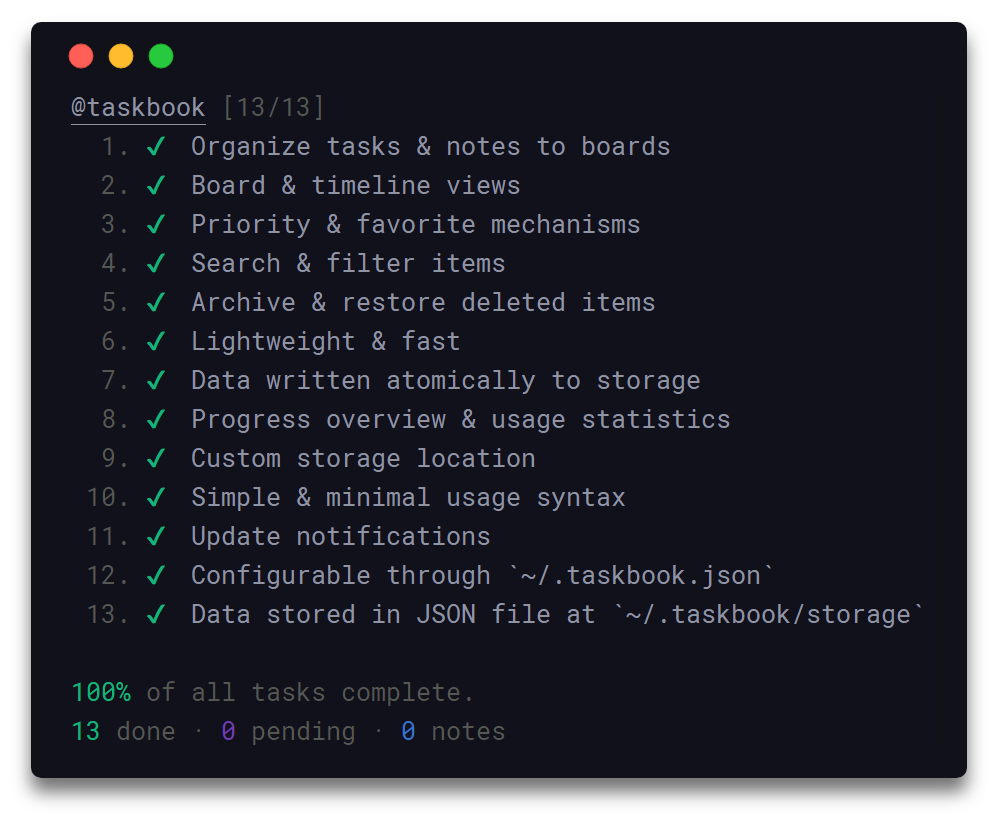
Highlights
- Organize tasks & notes to boards
- Board & timeline views
- Priority & favorite mechanisms
- Search & filter items
- Archive & restore deleted items
- Lightweight & fast
- Data written atomically to storage
- Custom storage location
- Progress overview
- Simple & minimal usage syntax
- Update notifications
- Configurable through
~/.taskbook.json - Data stored in JSON file at
~/.taskbook/storage - Data location can be overwritten at runtime
View highlights in a taskbook board.
Contents
- Description
- Highlights
- Install
- Usage
- Views
- Configuration
- Flight Manual
- Development
- Related
- Team
- Sponsors
- License
Install
Yarn
yarn global add taskbook
NPM
npm install --global taskbook
Snapcraft
snap install taskbook
snap alias taskbook tb # set alias
Note: Due to the snap's strictly confined nature, both the storage & configuration files will be saved under the $SNAP_USER_DATA environment variable instead of the generic $HOME one.
Usage
$ tb --help

  Usage
    $ tb [<options> ...]

    Options
        none             Display board view
      --archive, -a      Display archived items
      --begin, -b        Start/pause task
      --check, -c        Check/uncheck task
      --clear            Delete all checked items
      --copy, -y         Copy item description
      --delete, -d       Delete item
      --edit, -e         Edit item description
      --find, -f         Search for items
      --help, -h         Display help message
      --list, -l         List items by attributes
      --move, -m         Move item between boards
      --note, -n         Create note
      --priority, -p     Update priority of task
      --restore, -r      Restore items from archive
      --star, -s         Star/unstar item
      --taskbook-dir     Define a custom taskbook directory
      --task, -t         Create task
      --timeline, -i     Display timeline view
      --version, -v      Display installed version

    Examples
      $ tb
      $ tb --archive
      $ tb --begin 2 3
      $ tb --check 1 2
      $ tb --clear
      $ tb --copy 1 2 3
      $ tb --delete 4
      $ tb --edit @3 Merge PR #42
      $ tb --find documentation
      $ tb --list pending coding
      $ tb --move @1 cooking
      $ tb --note @coding Mergesort worse-case O(nlogn)
      $ tb --priority @3 2
      $ tb --restore 4
      $ tb --star 2
      $ tb --taskbook-dir .custom-taskbook-dir
      $ tb --task @coding @reviews Review PR #42
      $ tb --task @coding Improve documentation
      $ tb --task Make some buttercream
      $ tb --timeline
Views
Board View
Invoking taskbook without any options will display all saved items grouped into their respective boards.
<div align="center"> <img alt="Boards" width="60%" src="media/header-boards.png"/> </div>Timeline View
In order to display all items in a timeline view, based on their creation date, the --timeline/-i option can be used.
Configuration
To configure taskbook navigate to the ~/.taskbook.json file and modify any of the options to match your own preference. To reset back to the default values, simply delete the config file from your home directory.
The following illustrates all the available options with their respective default values.
{
  "taskbookDirectory": "~",
  "displayCompleteTasks": true,
  "displayProgressOverview": true
}
In Detail
taskbookDirectory
- Type:
String - Default:
~
Filesystem path where the storage will be initialized, i.e: /home/username/the-cloud or ~/the-cloud
If left undefined the home directory ~ will be used and taskbook will be set-up under ~/.taskbook/.
displayCompleteTasks
- Type:
Boolean - Default:
true
Display tasks that are marked as complete.
displayProgressOverview
- Type:
Boolean - Default:
true
Display progress overview below the timeline and board views.
Flight Manual
The following is a minor walkthrough containing a set of examples on how to use taskbook. In case you spotted an error or think that an example is not to clear enough and should be further improved, please feel free to open an issue or pull request.
Create Task
To create a new task use the --task/-t option with your task's description following right after.
$ tb -t Improve documentation
Create Note
To create a new note use the --note/-n option with your note's body following right after.
$ tb -n Mergesort worse-case O(nlogn)
Create Board
Boards are automatically initialized when creating a new task or note. To create one or more boards, include their names, prefixed by the @ symbol, in the description of the about-to-be created item. As a result the newly created item will belong to all of the given boards. By default, items that do not contain any board names in their description are automatically added to the general purpose; My Board.
$ tb -t @coding @docs Update contributing guidelines
Check Task
To mark a task as complete/incomplete, use the --check/-c option followed by the ids of the target tasks. Note that the option will update to its opposite the complete status of the given tasks, thus checking a complete task will render it as pending and a pending task as complete. Duplicate ids are automatically filtered out.
$ tb -c 1 3
Begin Task
To mark a task as started/paused, use the --begin/-b option followed by the ids of the target tasks. The functionality of this option is the same as the one of the above described --check option.
$ tb -b 2 3
Star Item
To mark one or more items as favorite, use the --star/-s option followed by the ids of the target items. The functionality of this option is the same as the one of the above described --check option.
$ tb -s 1 2 3
Copy Item Description
To copy to your system's clipboard the description of one or more items, use the --copy/-y option followed by the ids of the target items. Note that the option will also include the newline character as a separator to each pair of adjacent copied descriptions, thus resulting in a clear and readable stack of sentences on paste.
$ tb -y 1 2 3
Display Boards
Invoking taskbook without any options will display all of saved items grouped into their respective boards.
$ tb
Display Timeline
In order to display all items in a timeline view, based on their creation date, the --timeline/-i option can be used.
$ tb -i
Set Priority
To set a priority level for a task while initializing it, include the p:x syntax in the task's description, where x can be an integer of value 1, 2 or 3. Note that all tasks by default are created with a normal priority - 1.
1- Normal priority2- Medium priority3- High priority
$ tb -t @coding Fix issue `#42` p:3
To update the priority level of a specific task after its creation, use the --priority/-p option along with the id the target task, prefixed by the @ symbol, and an integer of value 1, 2 or 3. Note that the order in which the target id a
Related Skills
node-connect
338.7kDiagnose OpenClaw node connection and pairing failures for Android, iOS, and macOS companion apps
frontend-design
83.6kCreate distinctive, production-grade frontend interfaces with high design quality. Use this skill when the user asks to build web components, pages, or applications. Generates creative, polished code that avoids generic AI aesthetics.
openai-whisper-api
338.7kTranscribe audio via OpenAI Audio Transcriptions API (Whisper).
commit-push-pr
83.6kCommit, push, and open a PR