
PagingKit
PagingKit provides customizable menu UI. It has more flexible layout and design than the other libraries.
Install / Use
/learn @kazuhiro4949/PagingKitREADME





PagingKit provides customizable menu & content UI. It has more flexible layout and design than the other libraries.
What's this?
There are many libraries providing "Paging UI" which have menu and content area. They are convenient but not customizable because your app has to be made compatible with the libraries' layout and view components. When a UI desgin in your app doesn't fit the libraries, you need to fork them or find another one.
PagingKit has more flexible layout and design than the other libraries. You can construct "Menu" and "Content" UI, and they work together. That's all features this library provides. You can fit any design to your apps as you like.
Customized layout
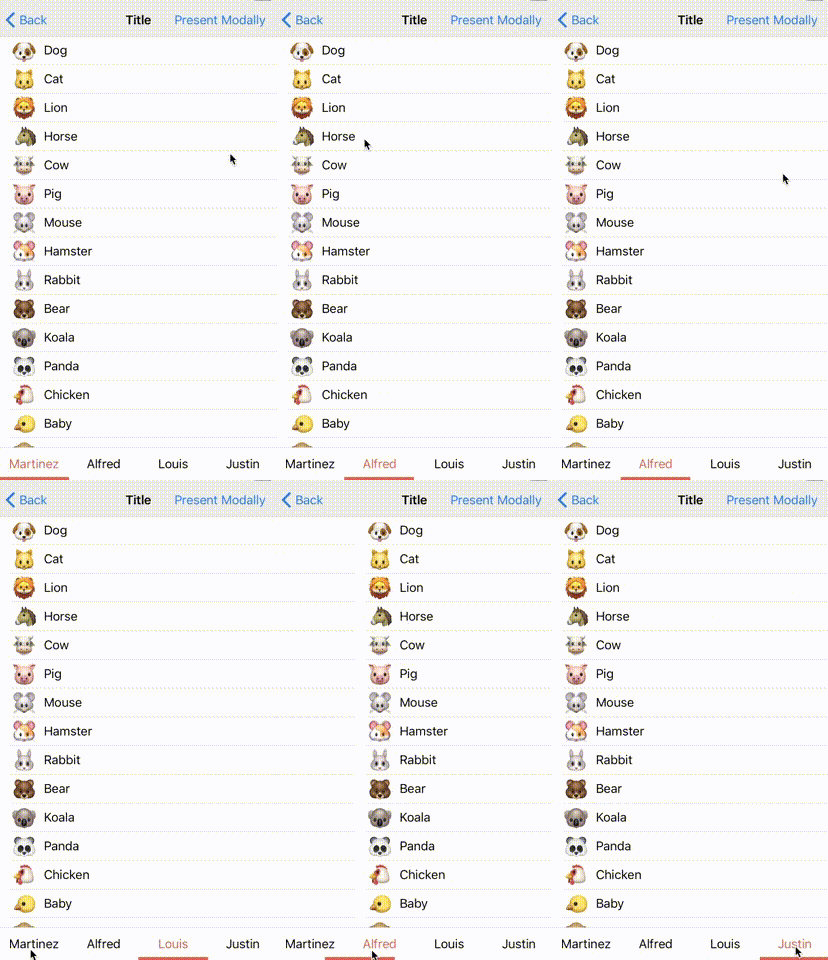
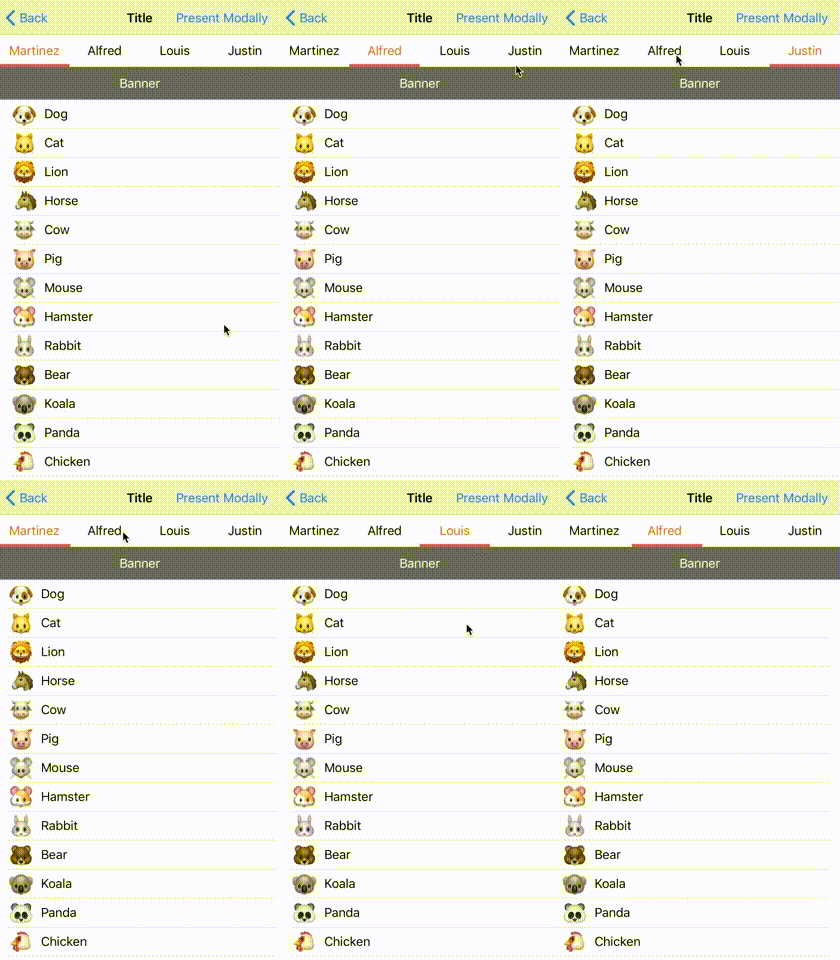
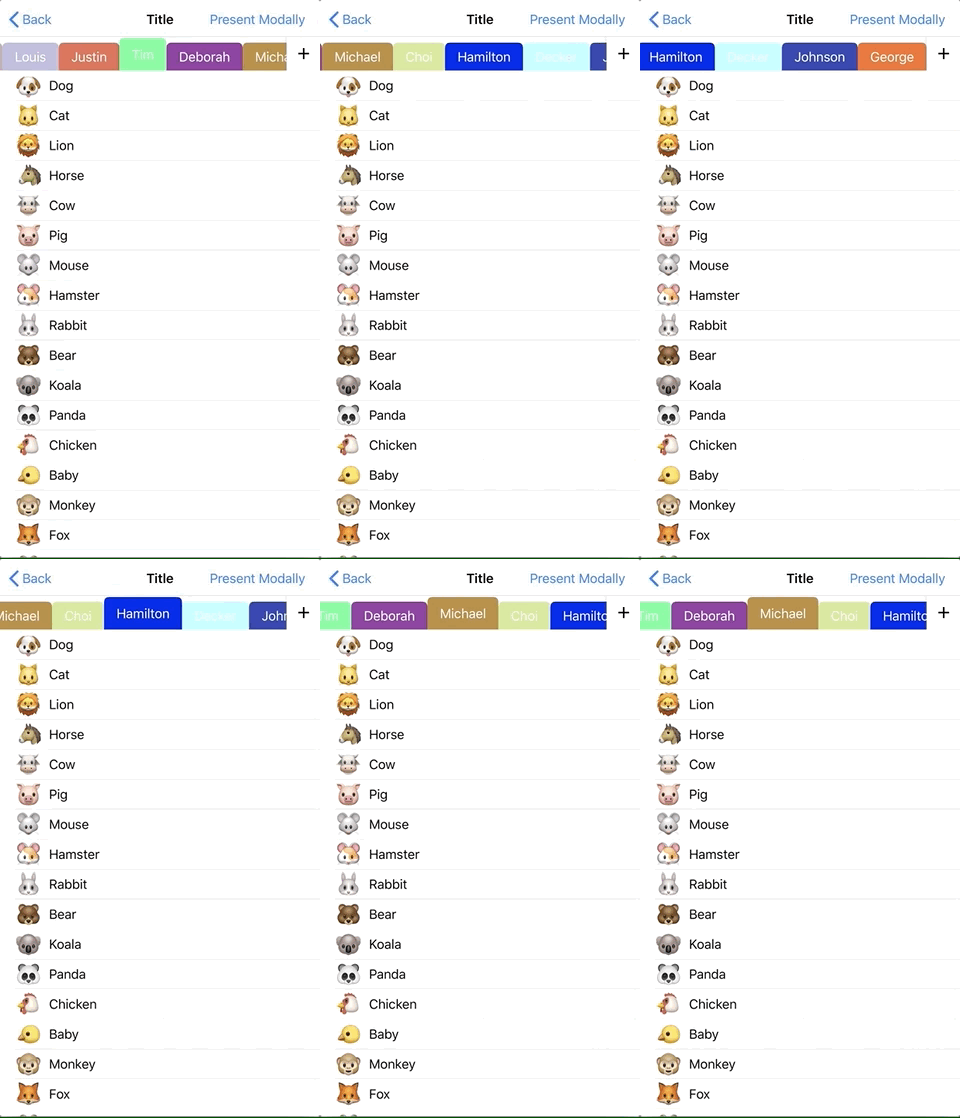
You can align views as you like.
| changing position | placing a view between content and menu | added floating button on right-side | on navigation bar |
|:------------:|:------------:|:------------:|:------------:|
|  |
|  |
|  | <img width="320" alt="2018-12-04 10 00 51" src="https://user-images.githubusercontent.com/18320004/49411286-aa187d00-f7ab-11e8-9672-094e10853778.png"> |
Customized menu design
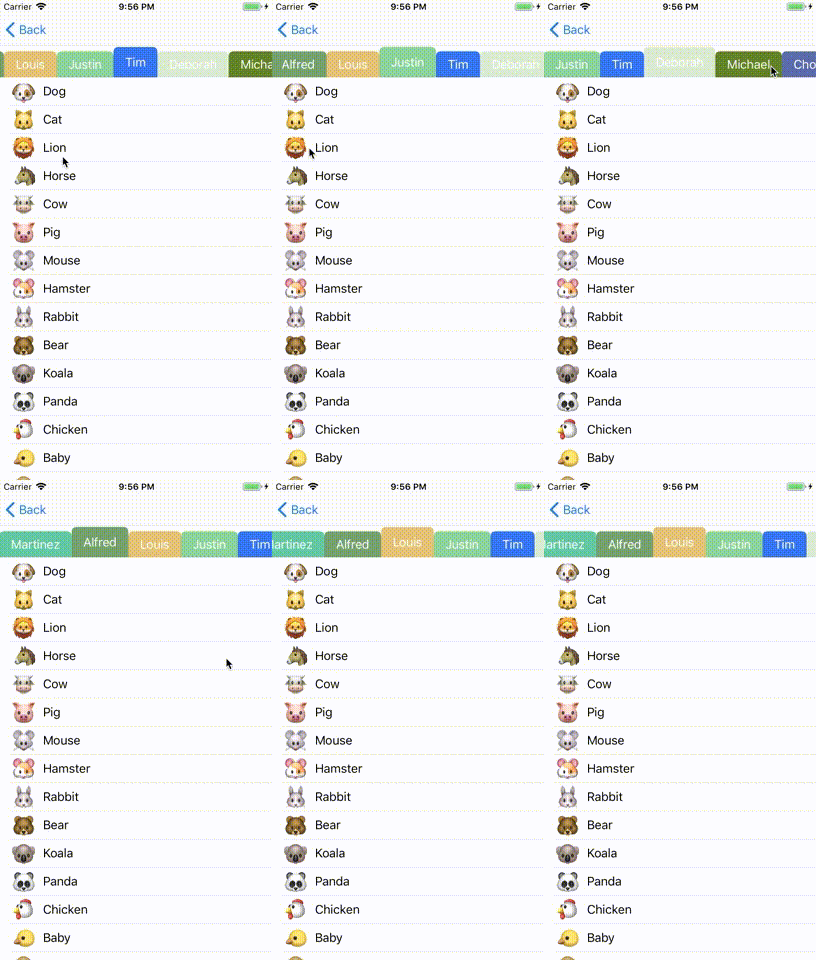
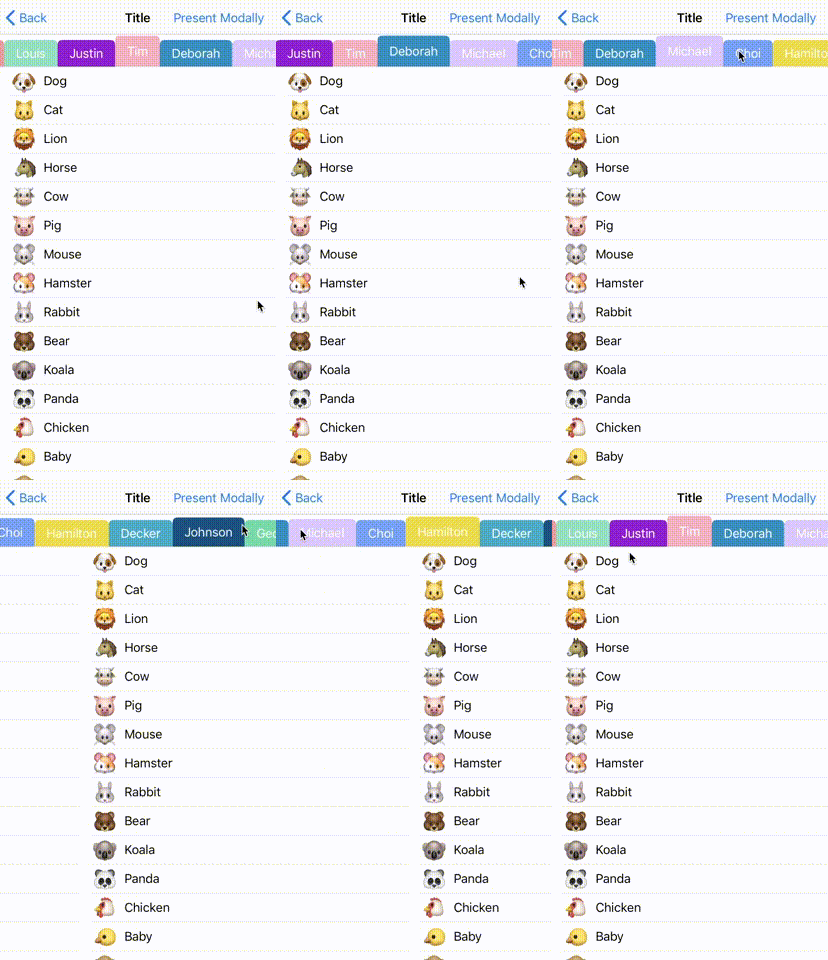
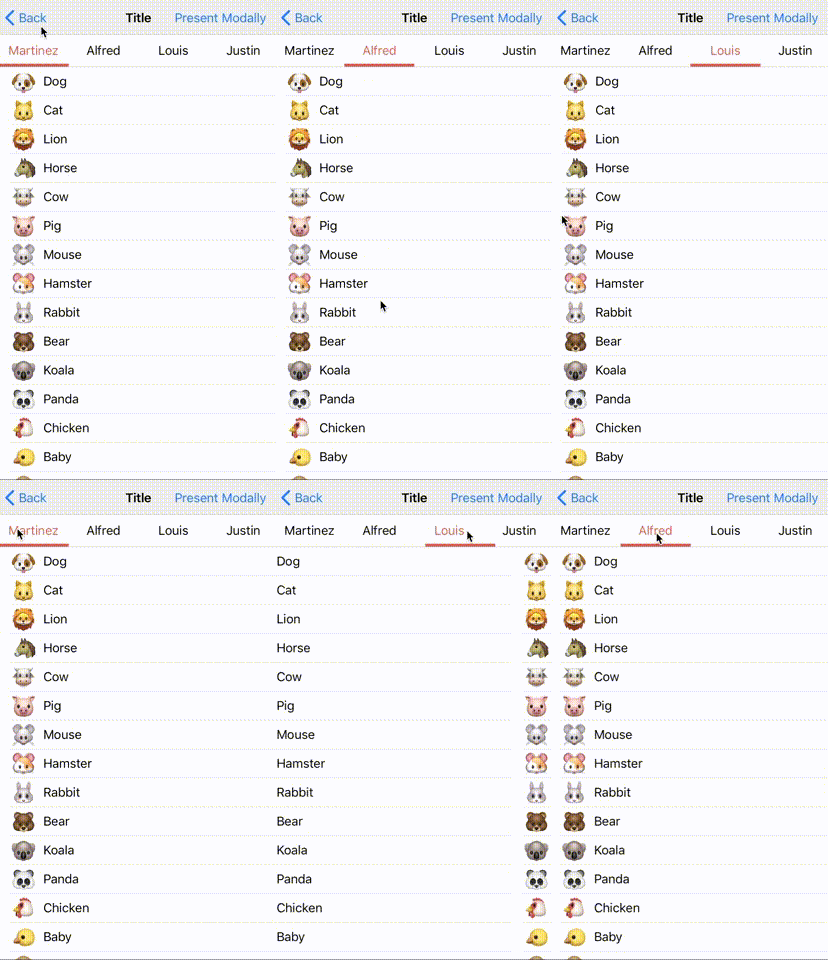
You can customize menu as you like.
| tag like menu | text highlighted menu | underscore menu | App Store app like indicator |
|:------------:|:------------:|:------------:|:------------:|
|  | <img src="https://user-images.githubusercontent.com/18320004/49323491-a42e5c00-f55f-11e8-9690-295acc2c3341.gif" width=280> |
  |
|  |
|
I'm looking for a pull request of your custom menu design :)
Feature
- [x] easy to construct Paging UI
- [x] customizable layout and design
- [x] UIKit like API
- [x] Supporting iPhone, iPad and iPhone X
Requirements
- iOS 9.0+
- Xcode 11.0+
- Swift 5.1
Installation
Swift Package Manager
open Swift Packages (which is next to Build Settings). You can add and remove packages from this tab.
See Adding Package Dependencies to Your App
CocoaPods
- Install CocoaPods
> gem install cocoapods
> pod setup
- Create Podfile
> pod init
- Edit Podfile
target 'YourProject' do
  use_frameworks!

  pod "PagingKit" # add

  target 'YourProject' do
    inherit! :search_paths
  end

  target 'YourProject' do
    inherit! :search_paths
  end

end
- Install
> pod install
open .xcworkspace
Carthage
- Install Carthage from Homebrew
> ruby -e "$(curl -fsSL https://raw.githubusercontent.com/Homebrew/install/master/install)"
> brew update
> brew install carthage
- Move your project dir and create Cartfile
> touch Cartfile
- add the following line to Cartfile
github "kazuhiro4949/PagingKit"
- Create framework
> carthage update --platform iOS
- In Xcode, move to "Genera > Build Phase > Linked Frameworks and Library"
- Add the framework to your project
- Add a new run script and put the following code
/usr/local/bin/carthage copy-frameworks
- Click "+" at Input file and Add the framework path
$(SRCROOT)/Carthage/Build/iOS/PagingKit.framework
- Write Import statement on your source file
import PagingKit
Getting Started
There are some samples in this library.
https://github.com/kazuhiro4949/PagingKit/tree/master/iOS%20Sample/iOS%20Sample
You can fit PagingKit into your project as the samples do. Check out this repository and open the workspace.
PagingKit has two essential classes.
- PagingMenuViewController
- PagingContentViewController
PagingMenuViewController provides interactive menu for each content. PagingContentViewController provides the contents on a scrollview.
If you make a new project which contains PagingKit, follow the steps.
- Add PagingMenuViewController & PagingContentViewController
- Assign them to properties
- Create menu UI
- display data
- Synchronize Menu and Content view controllers
1. Add PagingMenuViewController & PagingContentViewController
First, add PagingMenuViewController & PagingContentViewController on container view with Stroyboard.
1. Put container views on Storyboard
Put container views on stroyboard for each the view controllers.
<img width="1417" alt="2017-08-25 16 33 51" src="https://user-images.githubusercontent.com/18320004/29704102-491f0e72-89b3-11e7-9d69-7988969ef18e.png">2. Change class names
input PagingMenuViewController on custom class setting. <img width="1418" alt="2017-08-25 16 36 36" src="https://user-images.githubusercontent.com/18320004/29704183-a59ab390-89b3-11e7-9e72-e98ee1e9abc0.png">
input PagingContentViewController on custom class setting.
<img width="1415" alt="2017-08-25 16 36 54" src="https://user-images.githubusercontent.com/18320004/29704184-a669f344-89b3-11e7-91b6-90669fa2190f.png">2. Assign them to properties
Assign them on code of the container view controller.
1. Declare properties for the view controllers
Declare properties in container view controller.
class ViewController: UIViewController {

    var menuViewController: PagingMenuViewController!
    var contentViewController: PagingContentViewController!
2. override prepare(segue:sender:) and assign the view controllers
Assigin view controllers to each the property on prepare(segue:sender:).
    override func prepare(for segue: UIStoryboardSegue, sender: Any?) {
        if let vc = segue.destination as? PagingMenuViewController {
            menuViewController = vc
        } else if let vc = segue.destination as? PagingContentViewController {
            contentViewController = vc
        }
    }
3. Build App
Change menu color. <img width="1097" alt="2017-08-25 17 47 58" src="https://user-images.githubusercontent.com/18320004/29706662-922732ac-89bd-11e7-8969-bd6fbe394a8a.png">
Build and check the current state.
<img width="487" alt="2017-08-25 17 47 29" src="https://user-images.githubusercontent.com/18320004/29706651-84749258-89bd-11e7-9239-6919a0175a17.png">It shows a container view controller that has PagingMenuViewController and PagingContentViewController.
3. Create menu UI
Next, you needs to prepare the menu elements.
1. Inherite PagingMenuViewCell and create custom cell
PagingKit has PagingMenuViewCell. PagingMenuViewController uses it to construct each menu element.
import UIKit
import PagingKit

class MenuCell: PagingMenuViewCell {
    @IBOutlet weak var titleLabel: UILabel!
}
2. Inherite PagingFocusView and create custom view
PagingKit has PagingFocusView. PagingMenuViewController uses it to point the current focusted menu.
<img width="1420" alt="2017-08-25 16 59 07" src="https://user-images.githubusercontent.com/18320004/29704919-bd3d8f06-89b6-11e7-88dc-c8546979dbde.png">3. register the above views to PagingMenuViewController
class ViewController: UIViewController {

    var menuViewController: PagingMenuViewController!
    var contentViewController: PagingContentViewController!

    override func viewDidLoad() {
        super.viewDidLoad()

        menuViewController.register(nib: UINib(nibName: "MenuCell", bundle: nil), forCellWithReuseIdentifier: "MenuCell")
        menuViewController.registerFocusView(nib: UINib(nibName: "FocusView", bundle: nil))
    }
4. display data
Then, implement the data sources to display contents. They are a similar to UITableViewDataSource.
1. prepare data
class ViewController: UIViewController {
    static var viewController: (UIColor) -> UIViewController = { (color) in
       let vc = UIViewController()
        vc.view.backgroundColor = color
        return vc
    }

    var dataSource = [(menuTitle: "test1", vc: viewController(.red)), (menuTitle: "test2", vc: viewController(.blue)), (menuTitle: "test3", vc: viewController(.yellow))]
2. set menu data source
Return number of menus, menu widthes and PagingMenuViewCell objects.
    override func prepare(for segue: UIStoryboardSegue, sender: Any?) {
        if let vc = segue.destination as? PagingMenuViewController {
            menuViewController = vc
            menuViewController.dataSource = self // <- set menu data source
        } else if let vc = segue.destination as? PagingContentViewContr
