
Gbt
Highly configurable prompt builder for Bash, ZSH and PowerShell written in Go.
Install / Use
/learn @jtyr/GbtREADME
Go Bullet Train (GBT)
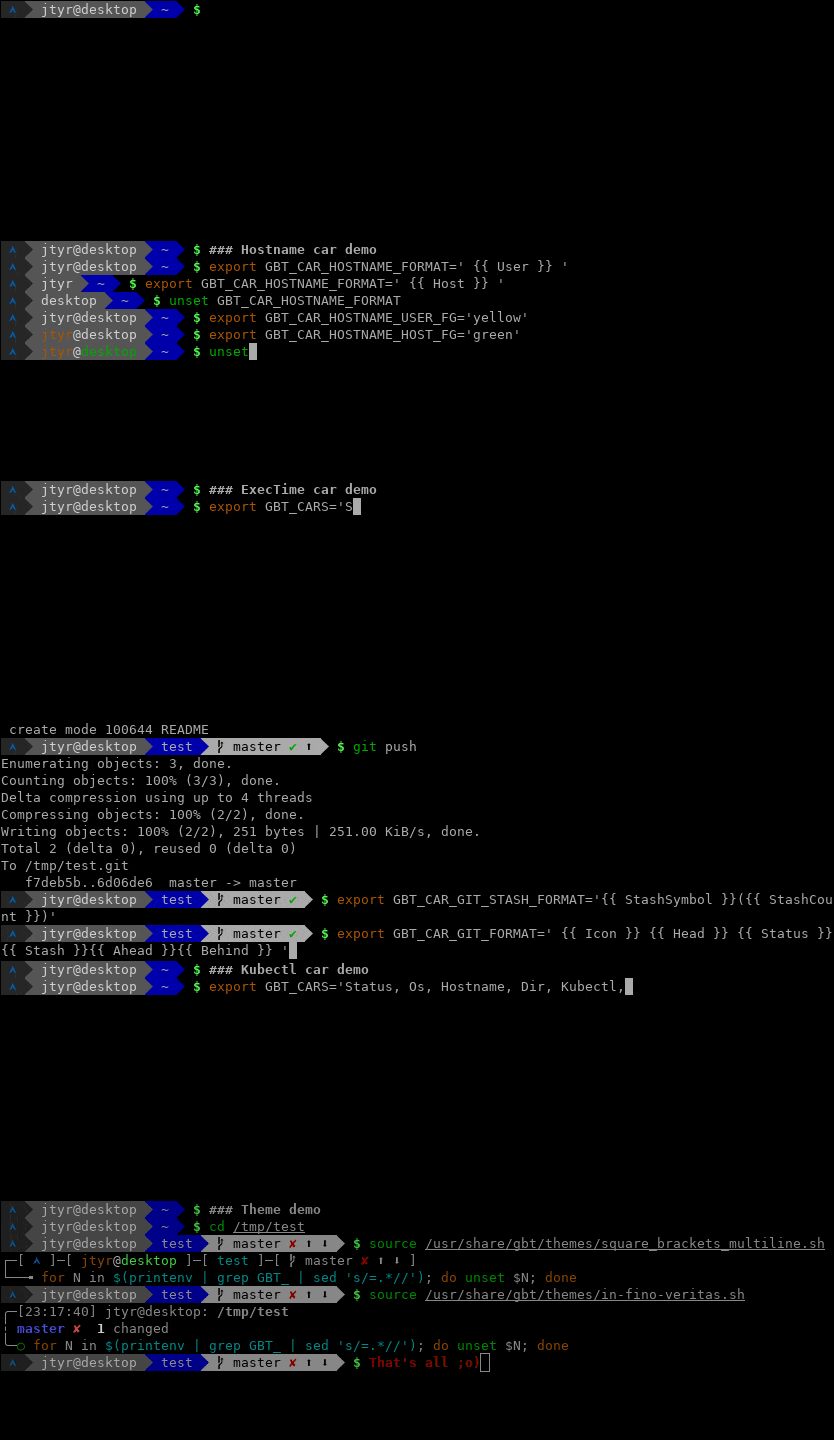
Highly configurable prompt builder for Bash, ZSH and PowerShell written in Go. It's inspired by the Oh My ZSH Bullet Train theme but runs significantly faster.
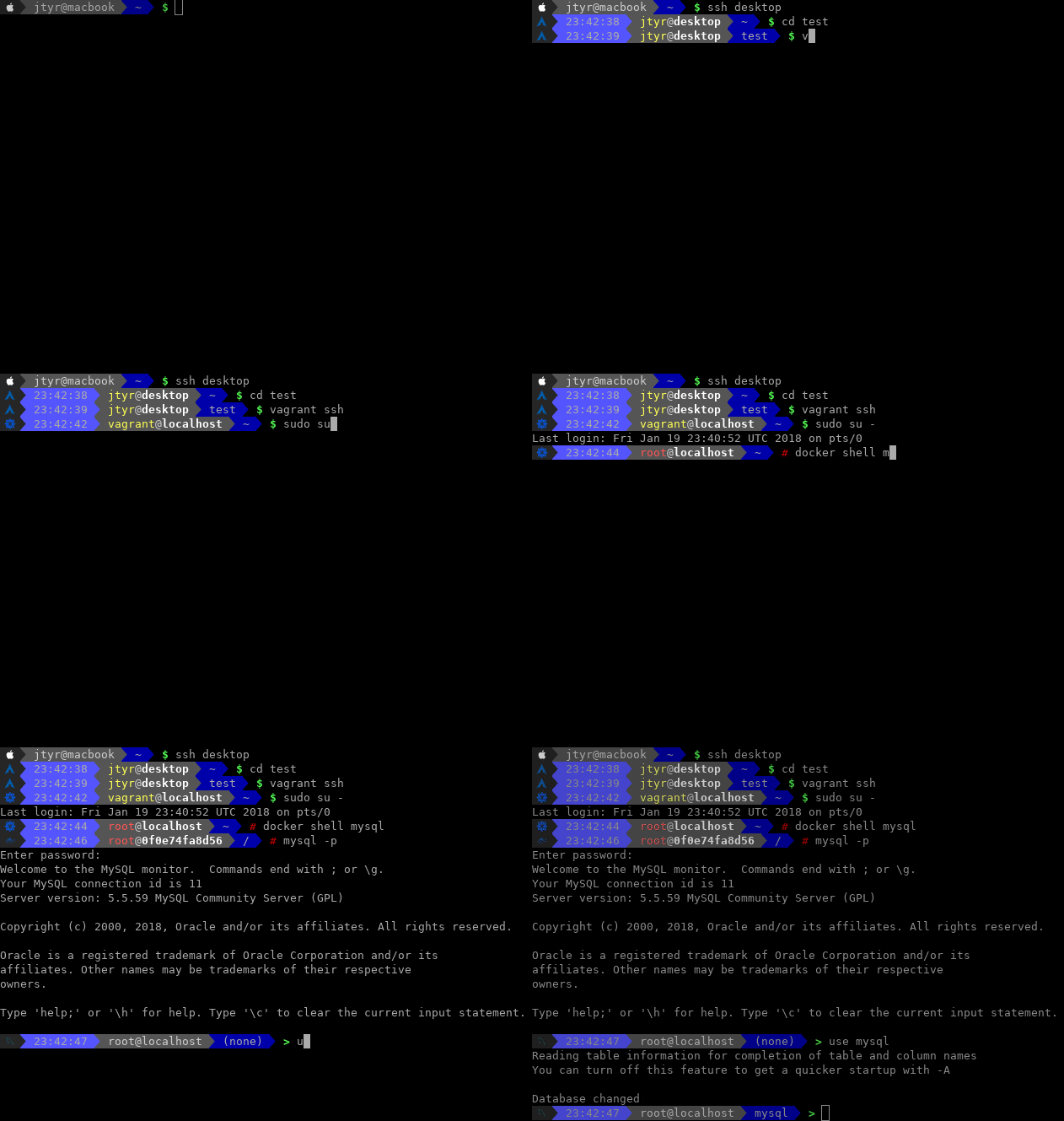
GBT comes with an interesting feature called prompt forwarding which allows to forward user-defined prompt to a remote machine and have the same-looking prompt across all machines via SSH but also in Docker, Kubectl, Vagrant, MySQL or in Screen without the need to install anything remotely.
All the above works well on Linux (Terminator, Konsole, Gnome Terminal), Mac (Terminal, iTerm), Android (Termux) and Windows (PowerShell, Windows Terminal).




Table of contents
Setup
In order to setup GBT on your machine, you have to install it, activate it and setup a special font in your terminal (optional).
Installation
Arch Linux
yaourt -S gbt
Or install gbt-git if you would like to run the latest greatest from the
master branch.
CentOS/RHEL
Packages hosted by Packagecloud:
echo '[gbt]
name=GBT YUM repo
baseurl=https://packagecloud.io/gbt/release/el/7/$basearch
gpgkey=https://packagecloud.io/gbt/release/gpgkey
       https://packagecloud.io/gbt/release/gpgkey/gbt-release-4C6E79EFF45439B6.pub.gpg
gpgcheck=1
repo_gpgcheck=1' | sudo tee /etc/yum.repos.d/gbt.repo >/dev/null
sudo yum install gbt
Use the exact repository definition from above for all RedHat-based distribution regardless its version.
Ubuntu/Debian
Packages hosted by Packagecloud:
curl -L https://packagecloud.io/gbt/release/gpgkey | sudo apt-key add -
echo 'deb https://packagecloud.io/gbt/release/ubuntu/ xenial main' | sudo tee /etc/apt/sources.list.d/gbt.list >/dev/null
sudo apt-get update
sudo apt-get install gbt
Use the exact repository definition from above for all Debian-based distribution regardless its version.
Mac
Using brew:
brew tap jtyr/repo
brew install gbt
Or install gbt-git if you would like to run the latest greatest from the
master branch:
brew tap jtyr/repo
brew install --HEAD gbt-git
Windows
Using choco:
choco install gbt
Using scoop:
scoop install gbt
Or manually by copying the gbt.exe file into a directory listed in the PATH
environment variable (e.g. C:\Windows\system32).
Android
Install Termux from Google Play Store and then type this in the Termux app:
apt update
apt install gbt
From the source code
Make sure Go is installed and then run the following on Linux and Mac:
mkdir ~/go
export GOPATH=~/go
export PATH="$PATH:$GOPATH/bin"
go get github.com/jtyr/gbt/cmd/gbt
Or the following on Windows using PowerShell:
mkdir ~/go
$Env:GOPATH = '~/go'
$Env:PATH = "~/go/bin;$Env:PATH"
go install github.com/jtyr/gbt/cmd/gbt@latest
Activation
After GBT is installed, it can be activated by calling it from the shell prompt variable:
# For Bash
PS1='$(gbt $?)'

# For ZSH
PROMPT='$(gbt $?)'
If you are using ZSH together with some shell framework (e.g. Oh My ZSH), your shell is processing a fair amount of shell scripts upon ever prompt appearance. You can speed up your shell by removing the framework dependency from your configuration and replacing it with GBT and a simple ZSH configuration. Combining pure ZSH configuration with GBT will provide the best possible performance for your shell.
To activate GBT in PowerShell, run the following in the console or store it to
the PowerShell profile file (echo $profile):
function prompt {
    $rc = [int]$(-Not $?)
    $Env:GBT_SHELL = 'plain'
    $Env:PWD = get-location
    $Env:GBT_CAR_CUSTOM_EXECUTOR='powershell.exe'
    $Env:GBT_CAR_CUSTOM_EXECUTOR_PARAM='-Command'
    $gbt_output = & @({gbt $rc},{gbt.exe $rc})[$PSVersionTable.PSVersion.Major -lt 6 -or $IsWindows] | Out-String
    $gbt_output = $gbt_output -replace ([Environment]::NewLine + '$'), ''
    Write-Host -NoNewline $gbt_output
    return [char]0
}
# Needed only on Windows
[console]::InputEncoding = [console]::OutputEncoding = New-Object System.Text.UTF8Encoding
Fonts and colors
Although GBT can be configured to use only ASCII characters (see
basic theme), the default configuration uses
some UTF-8 characters which require special font. In order to display all
characters of the default prompt correctly, the shell should support UTF-8 and
Nerd fonts (or at least the
DejaVuSansMono
Nerd
font) should be installed. On Linux, you can install it like this:
mkdir ~/.fonts
curl -L -o ~/.fonts/DejaVuSansMonoNerdFontCompleteMono.ttf https://github.com/ryanoasis/nerd-fonts/raw/master/patched-fonts/DejaVuSansMono/Regular/complete/DejaVu%20Sans%20Mono%20Nerd%20Font%20Complete%20Mono.ttf
fc-cache
On Mac, it can be installed via brew:
brew tap homebrew/cask-fonts
brew install --cask font-dejavu-sans-mono-nerd-font
On Windows, it can be installed via choco:
choco install font-nerd-DejaVuSansMono
Or via scoop:
scoop bucket add nerd-fonts
scoop install DejaVuSansMono-NF
Or just download the font, open it and then install it.
Once the font is installed, it has to be set in the terminal application to
render all prompt characters correctly. Search for the font name DejaVuSansMono Nerd Font Mono on Linux and Mac and DejaVuSansMono NF on Windows.
In order to have the Nerd font in Termux on Android, you have to install
Termux:Styling
application. Then longpress the terminal screen and select MORE... → Style
→ CHOOSE FONT and there choose the DejaVu font.
Some Unix terminals might not use 256 color palette by default. In such case try to set the following:
export TERM='xterm-256color'
Configuration
The prompt (train) is assembled from several elements (cars). The look and
behavior of whole train as well as each car can be influenced by a set of
environment variables. To set the environment variable, use export in the
Linux and Mac shell and $Env: on Windows.
Colors
The value of all _BG and _FG variables defines the background and
foreground color of the particular element. The value of the color can be
specified in 3 ways:
Color name
Only a limited number of named colors is supported:
blackredgreenyellowbluemagentacyanlight_graydark_gray- 