
AlohaKit.Animations
AlohaKit.Animations is a library designed for .NET MAUI that aims to facilitate the use of animations to developers.
Install / Use
/learn @jsuarezruiz/AlohaKit.AnimationsREADME
AlohaKit Animations - Animation Library for .NET MAUI
<div align="center"> <a href="https://www.nuget.org/packages/AlohaKit.Animations"><img src="https://img.shields.io/nuget/v/AlohaKit.Animations?color=blue&style=flat-square&logo=nuget"></a> <a href="https://www.nuget.org/packages/AlohaKit.Animations"><img src="https://img.shields.io/nuget/dt/AlohaKit.Animations.svg?style=flat-square"></a> <a href="./LICENSE"><img src="https://img.shields.io/github/license/jsuarezruiz/AlohaKit.Animations?style=flat-square"></a> </div>AlohaKit.Animations is a library designed for .NET MAUI that aims to facilitate the use of animations to developers. Very simple use from C# and XAML code.
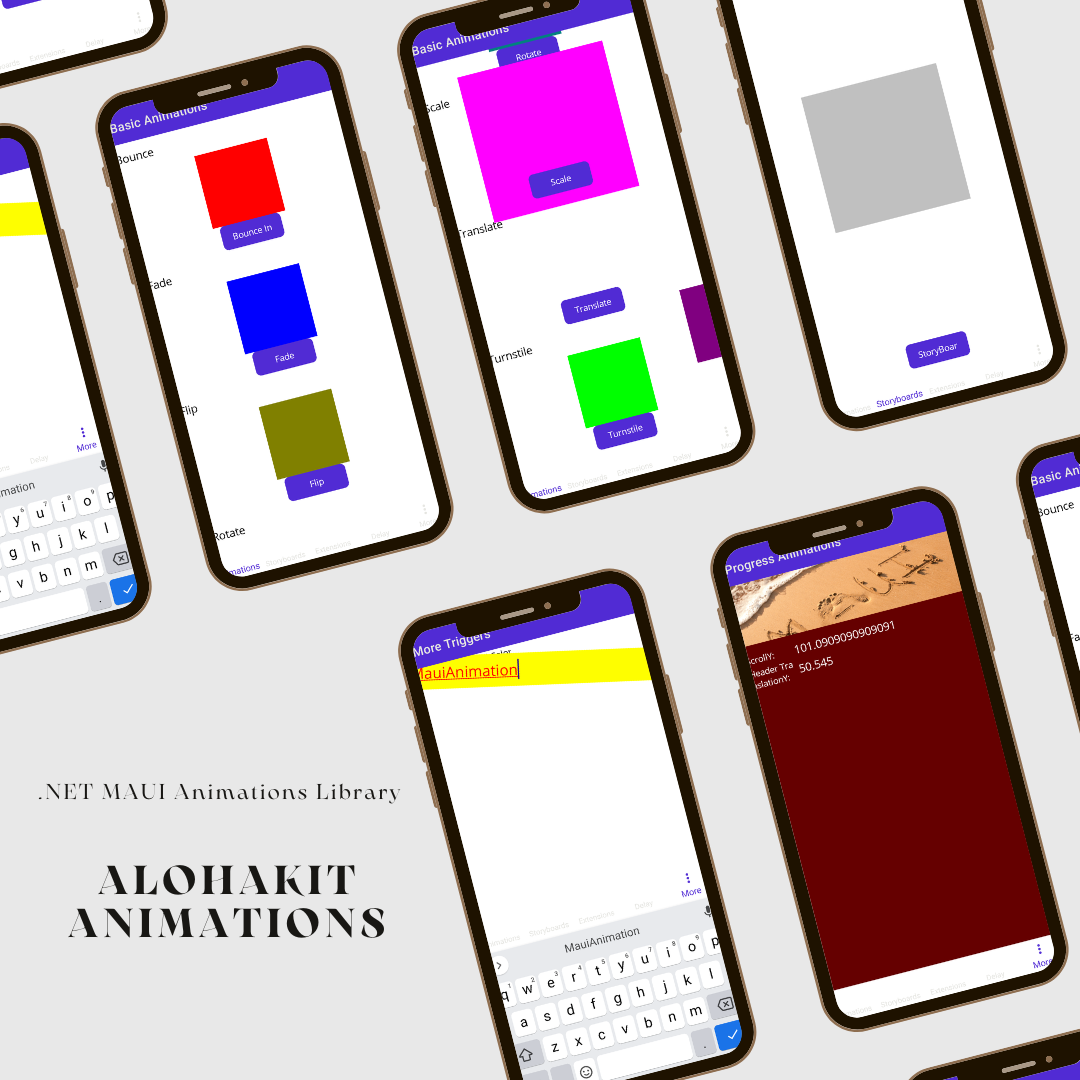
NOTE: This library is a port of Xamanimation to .NET MAUI.
We can define animations in XAML to a visual element when loading through a Behavior, use a trigger in XAML to execute the animation or from C# code.
Available animations:
- Color
- FadeTo
- Flip
- Heart
- Jump
- Rotate
- Scale
- Shake
- Translate
- Turnstile
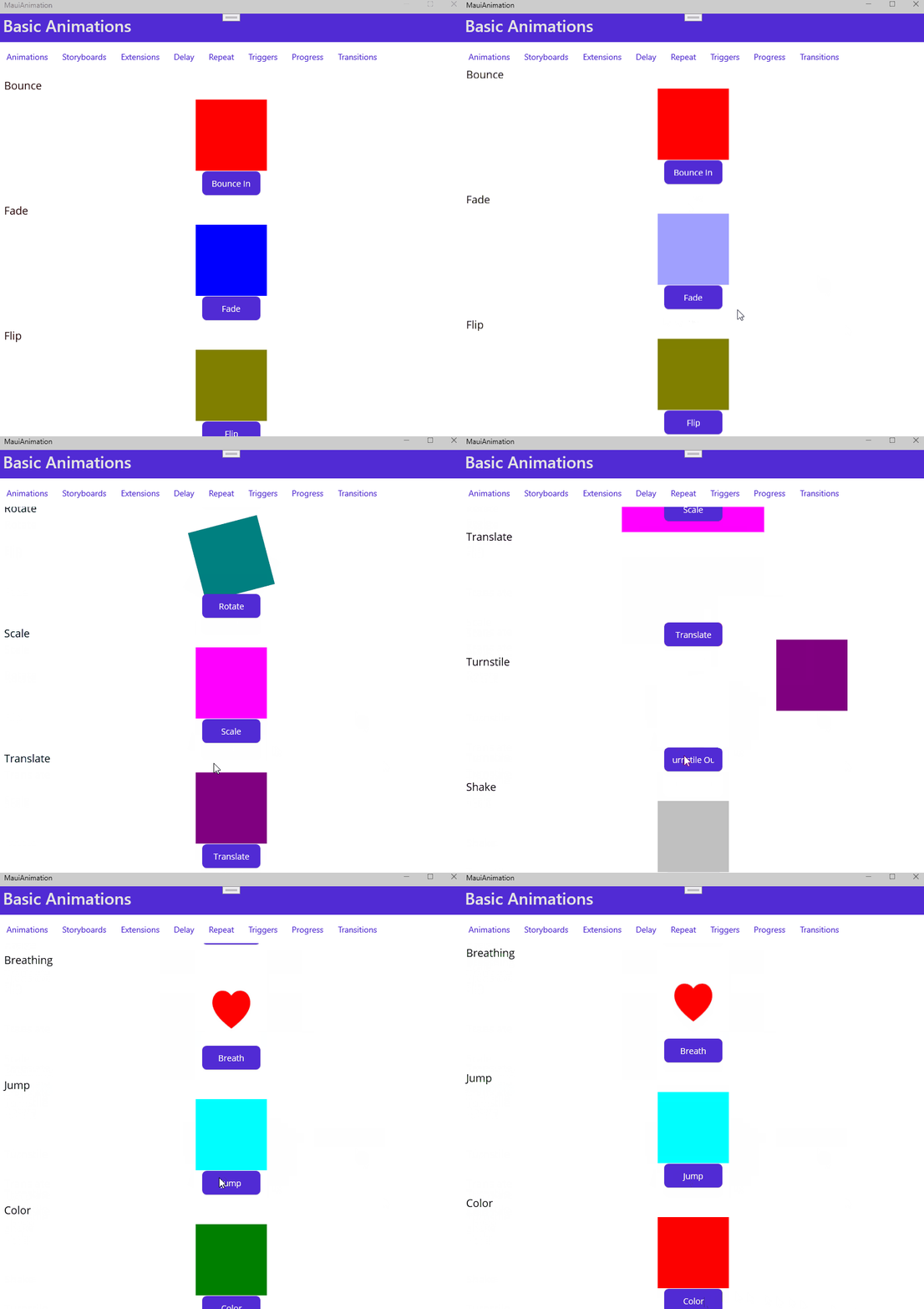
Usage
Step 1: Include the AlohaKit.Animations package reference in your project.
Step 2: Enjoy coding!.
Animations directly from XAML
One of the main advantages of the library is the possibility of using animations from XAML. We must use the following namespace:
xmlns:AlohaKit.Animations="clr-namespace:AlohaKit.Animations;assembly=AlohaKit.Animations"
Let's animate a BoxView:
<BoxView
    x:Name="FadeBox"
    HeightRequest="120"
    WidthRequest="120"
    Color="Blue" />
we can define animations directly in XAML (as Application or Page Resources):
<alohakit:FadeToAnimation
    x:Key="FadeToAnimation"
    Target="{x:Reference FadeBox}"
    Duration="2000"
    Opacity="0"/>
Using the namespace of AlohaKit.Animations, we have access to the whole set of animations of the library. In all of them there are a number of common parameters such as:
- Target: Indicate the visual element to which we will apply the animation.
- Duration: Duration of the animation in milliseconds.
Depending on the animation type used, we will have more parameters to customize the specific animation. For example, in the case of Fade Animation we will have an Opacity property to set how we modify the opacity.
To launch the animation we have two options:
- Trigger: Called BeginAnimation that allows us to launch an animation when a condition occurs.
- Behavior: We have a Behavior called BeginAnimation that we can associate to a visual element so that indicating the desired animation, we can launch the same when the element load occurs.
Using the Clicked event of a button we can launch the previous animation using the trigger provided:
<Button
    Text="Fade">
    <Button.Triggers>
        <EventTrigger Event="Clicked">
            <alohakit:BeginAnimation
                Animation="{StaticResource FadeToAnimation}" />
        </EventTrigger>
    </Button.Triggers>
</Button>
We also have the concept of Storyboard as a set of animations that we can execute over time:
<alohakit:StoryBoard
    x:Key="StoryBoard"
    Target="{x:Reference StoryBoardBox}">
    <alohakit:ScaleToAnimation  Scale="2"/>
    <alohakit:ShakeAnimation />
</alohakit:StoryBoard>
Using C#
In the same way that we can use the animations of the library from XAML, we can do it from C# code. We have an extension method called Animate that expects an instance of any of the available animations.
If we want to animate a BoxView called AnimationBox:
<BoxView
    x:Name="AnimationBox"
    HeightRequest="120"
    WidthRequest="120"
    Color="Blue" />
Access the element, use the Animate method with the desired animation:
AnimationBox.Animate(new HeartAnimation());
Take control of the animation
You can control the duration of the animation using the Duration property. In addition to the type of Easing to use. Now, new properties have also been added such as:
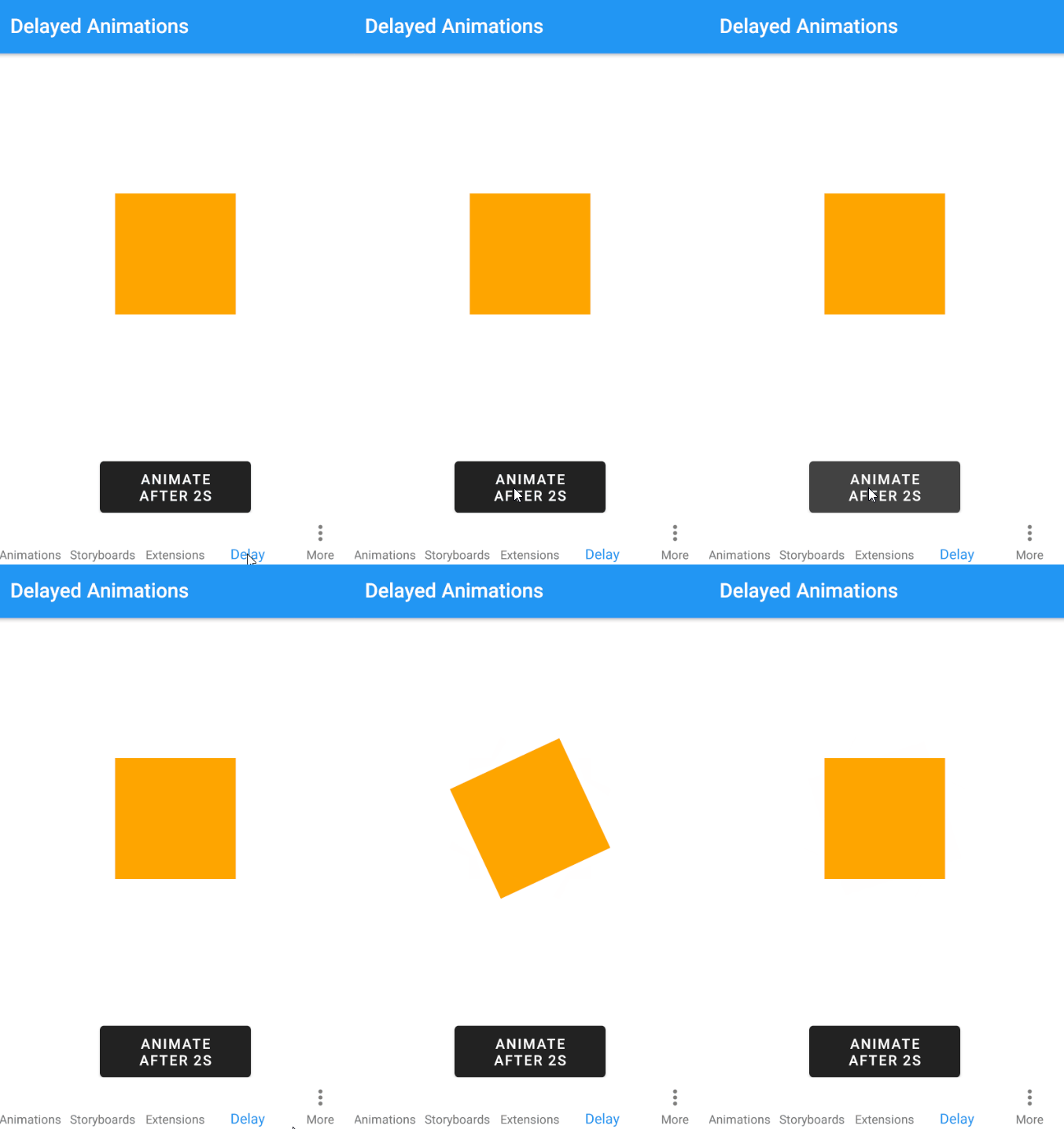
Delay Add a delay before play the animation.
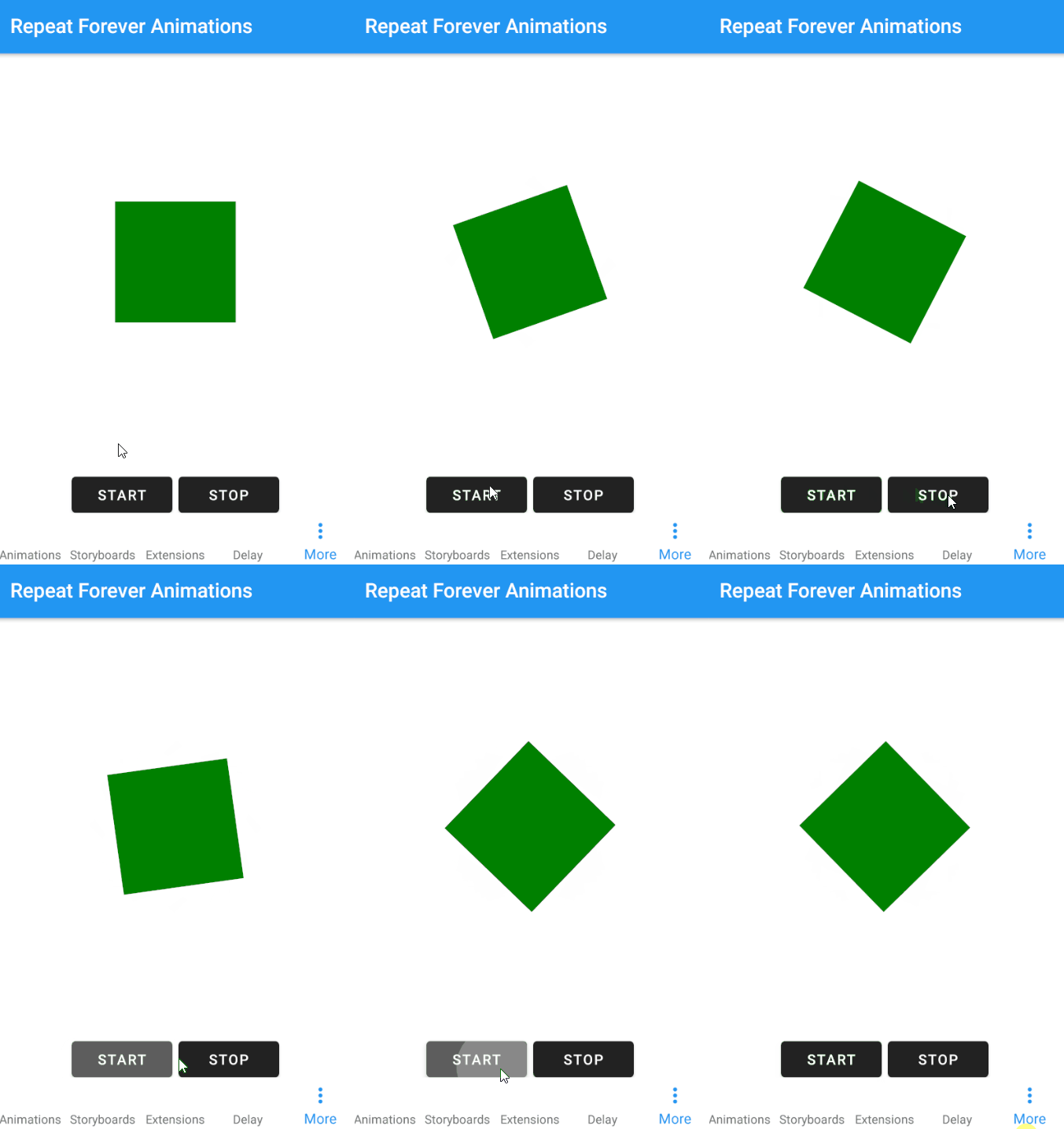
Repeat Forever Now you can create infinite animations if you need it.
Triggers!
Triggers allow you to start animations declaratively in XAML based on events or property changes.
<Entry
    FontSize="16"
    BackgroundColor="LightGray">
    <Entry.Triggers>
        <Trigger TargetType="Entry" Property="IsFocused" Value="True">
            <Trigger.EnterActions>
                <alohakit:AnimateDouble TargetProperty="Entry.FontSize" To="24"/>
                <alohakit:AnimateColor TargetProperty="Entry.TextColor" To="Red"/>
                <alohakit:AnimateColor TargetProperty="VisualElement.BackgroundColor" To="Yellow" Delay="1000"/>
                <alohakit:AnimateDouble TargetProperty="VisualElement.Rotation" To="12" Duration="100"/>
            </Trigger.EnterActions>
            <Trigger.ExitActions>
                <alohakit:AnimateDouble TargetProperty="{x:Static Entry.FontSizeProperty}" To="16"/>
                <alohakit:AnimateColor TargetProperty="{x:Static Entry.TextColorProperty}" To="Black"/>
                <alohakit:AnimateColor TargetProperty="{x:Static VisualElement.BackgroundColorProperty}" To="LightGray"/>
                <alohakit:AnimateDouble TargetProperty="{x:Static VisualElement.RotationProperty}" To="0"/>
            </Trigger.ExitActions>
        </Trigger>
    </Entry.Triggers>
</Entry>
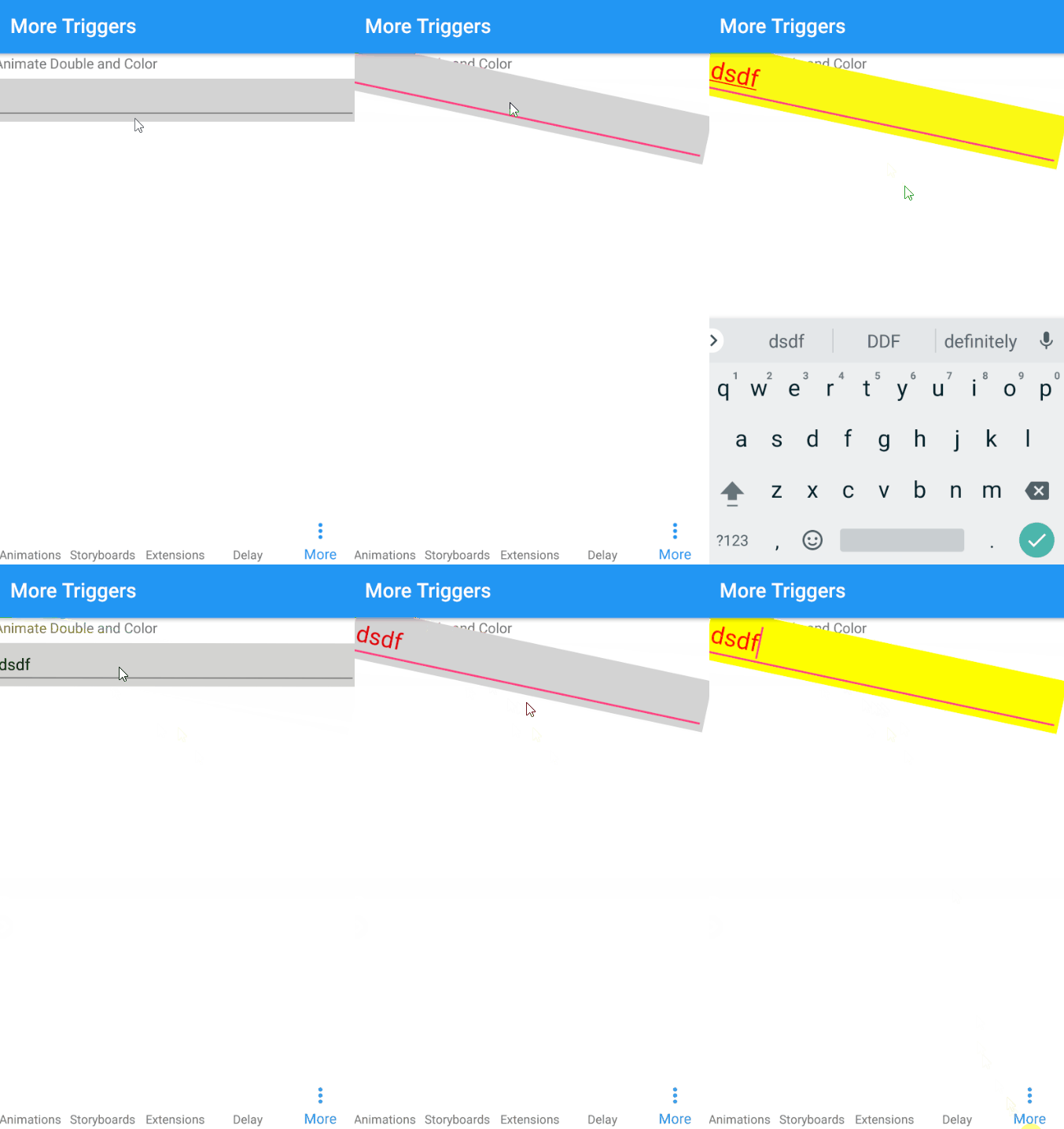
You can animate any property of type Int, Double, Color, Thickness or CornerRadius. Available options:
- AnimateInt
- AnimateColor
- AnimateCornerRadius
- AnimateDouble
- AnimateThickness
Progress Animations
Sometimes you need to animate something based on a value that changes over time, for example as a a the result of a user interaction.
A common scenario is using a scroll. A parallax effect, etc.
<BoxView
    BackgroundColor="Red"
    CornerRadius="24, 24, 0, 0">
    <VisualElement.Behaviors>
        <alohakit:AnimateProgressColor
            TargetProperty="VisualElement.BackgroundColor"
            Progress="{Binding ScrollY, Source={x:Reference ScrollBehavior}}"
            Minimum="0"
            Maximum="200"
            From="Black"
            To="Red"/>
        <alohakit:AnimateProgressCornerRadius
            TargetProperty="BoxView.CornerRadius"
            Progress="{Binding ScrollY, Source={x:Reference ScrollBehavior}}"
            Minimum="0"
            Maximum="200"
            From="24, 24, 0, 0"
            To="0,0,0,0"/>
    </VisualElement.Behaviors>
</BoxView>
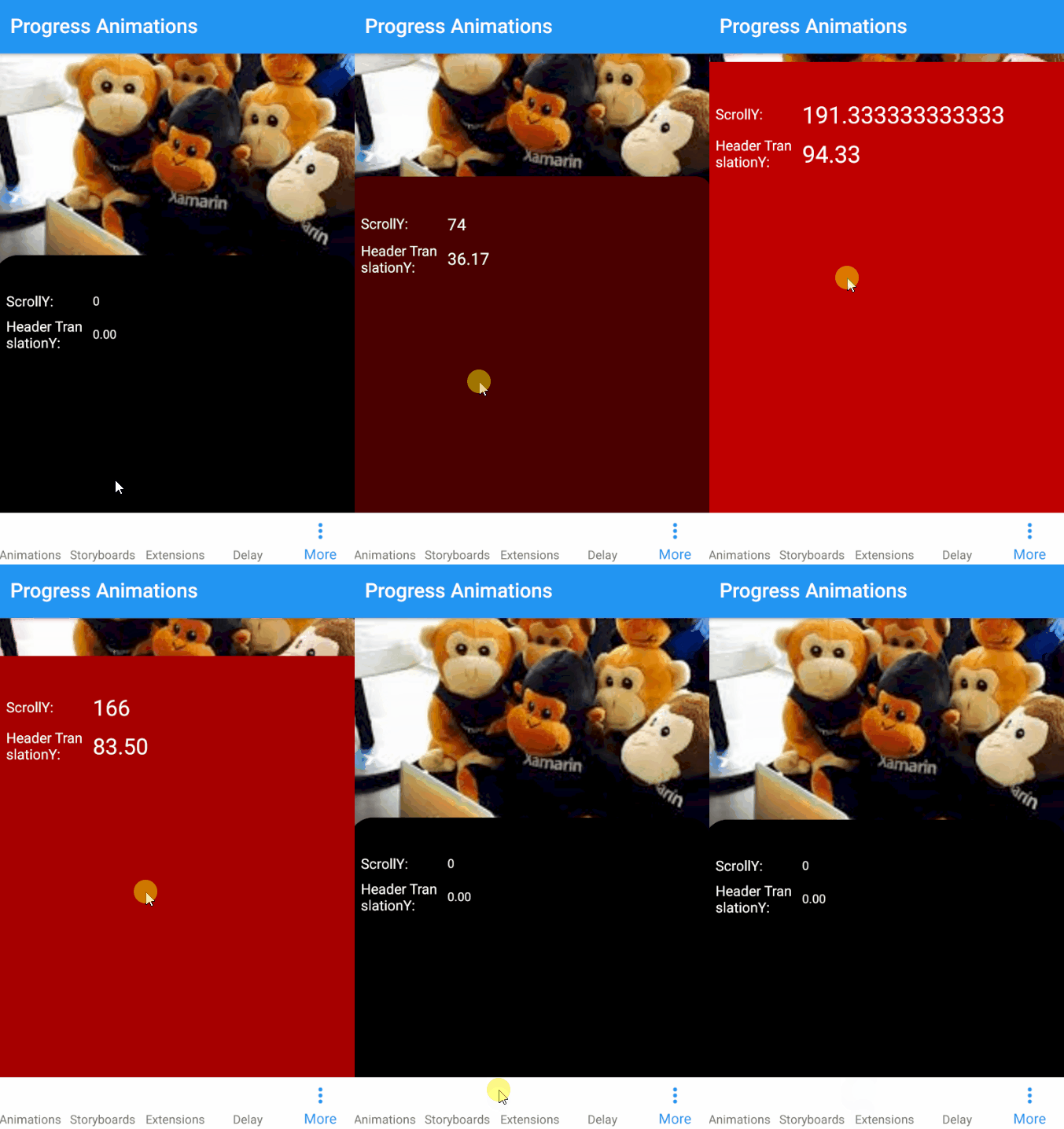
Available options:
- AnimateProgressInt
- AnimateProgressColor
- AnimateProgressCornerRadius
- AnimateProgressDouble
- AnimateProgressThickness
Feedback
Please use GitHub issues for questions or comments.
Copyright and license
Code released under the MIT license.
Related Skills
diffs
341.8kUse the diffs tool to produce real, shareable diffs (viewer URL, file artifact, or both) instead of manual edit summaries.
clearshot
Structured screenshot analysis for UI implementation and critique. Analyzes every UI screenshot with a 5×5 spatial grid, full element inventory, and design system extraction — facts and taste together, every time. Escalates to full implementation blueprint when building. Trigger on any digital interface image file (png, jpg, gif, webp — websites, apps, dashboards, mockups, wireframes) or commands like 'analyse this screenshot,' 'rebuild this,' 'match this design,' 'clone this.' Skip for non-UI images (photos, memes, charts) unless the user explicitly wants to build a UI from them. Does NOT trigger on HTML source code, CSS, SVGs, or any code pasted as text.
openpencil
1.9kThe world's first open-source AI-native vector design tool and the first to feature concurrent Agent Teams. Design-as-Code. Turn prompts into UI directly on the live canvas. A modern alternative to Pencil.
ui-ux-designer
Use this agent when you need to design, implement, or improve user interface components and user experience flows. Examples include: creating new pages or components, improving existing UI layouts, implementing responsive designs, optimizing user interactions, building forms or dashboards, analyzing existing UI through browser snapshots, or when you need to ensure UI components follow design system standards and shadcn/ui best practices.\n\n<example>\nContext: User needs to create a new dashboard page for team management.\nuser: "I need to create a team management dashboard where users can view team members, invite new members, and manage roles"\nassistant: "I'll use the ui-ux-designer agent to design and implement this dashboard with proper UX considerations, using shadcn/ui components and our design system tokens."\n</example>\n\n<example>\nContext: User wants to improve the user experience of an existing form.\nuser: "The signup form feels clunky and users are dropping off. Can you improve it?"\nassistant: "Let me use the ui-ux-designer agent to analyze the current form UX and implement improvements using our design system and shadcn/ui components."\n</example>\n\n<example>\nContext: User wants to evaluate and improve existing UI.\nuser: "Can you take a look at our pricing page and see how we can make it more appealing and user-friendly?"\nassistant: "I'll use the ui-ux-designer agent to take a snapshot of the current pricing page, analyze the UX against Notion-inspired design principles, and implement improvements using our design tokens."\n</example>
