
SideMenu
Simple side/slide menu control for iOS, no code necessary! Lots of customization. Add it to your project in 5 minutes or less.
Install / Use
/learn @jonkykong/SideMenuREADME
▤ SideMenu





If you like SideMenu, give it a ★ at the top right of this page.
SideMenu needs your help! If you're a skilled iOS developer and want to help maintain this repository and answer issues asked by the community, please send me an email.
Hi, I'm Jon Kent and I am an iOS designer, developer, and mobile strategist. I love coffee and play the drums.
- Hire me to help you make cool stuff. Note: If you're having a problem with SideMenu, please open an issue and do not email me.
- Check out my website to see some of my other projects.
- Building and maintaining this free library takes a lot of my time and saves you time. Please consider paying it forward by supporting me with a small amount to my PayPal. (only 13 people have donated since 12/23/15 but thank you to those who have!)
Overview
SideMenu is a simple and versatile side menu control written in Swift.
- [x] It can be implemented in storyboard without a single line of code.
- [x] Eight standard animation styles to choose from (there's even a parallax effect if you want to get weird).
- [x] Highly customizable without needing to write tons of custom code.
- [x] Supports continuous swiping between side menus on boths sides in a single gesture.
- [x] Global menu configuration. Set-up once and be done for all screens.
- [x] Menus can be presented and dismissed the same as any other view controller since this control uses custom transitions.
- [x] Animations use your view controllers, not snapshots.
- [x] Properly handles screen rotation and in-call status bar height changes.
Check out the example project to see it in action!
Preview Samples
| Slide Out | Slide In | Dissolve | Slide In + Out |
| --- | --- | --- | --- |
| 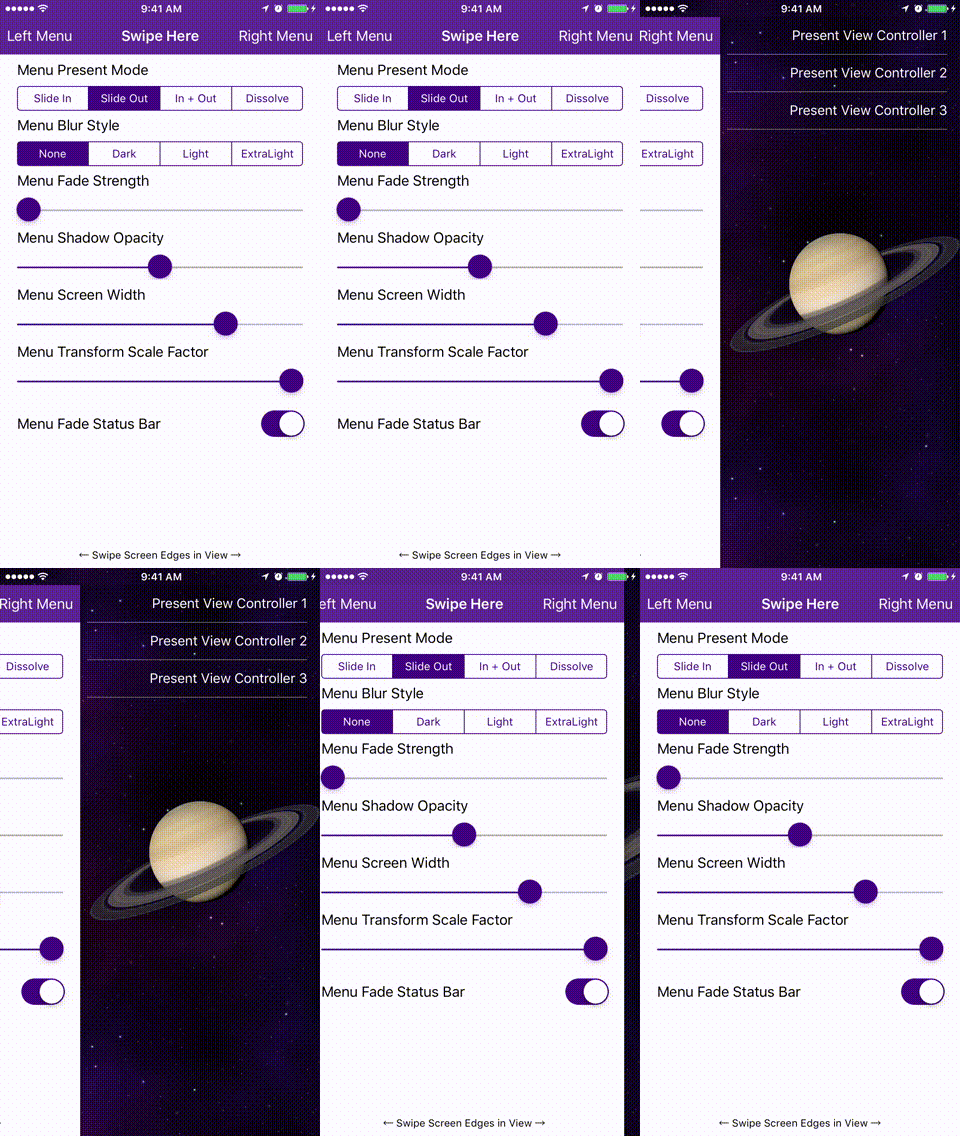 |
| 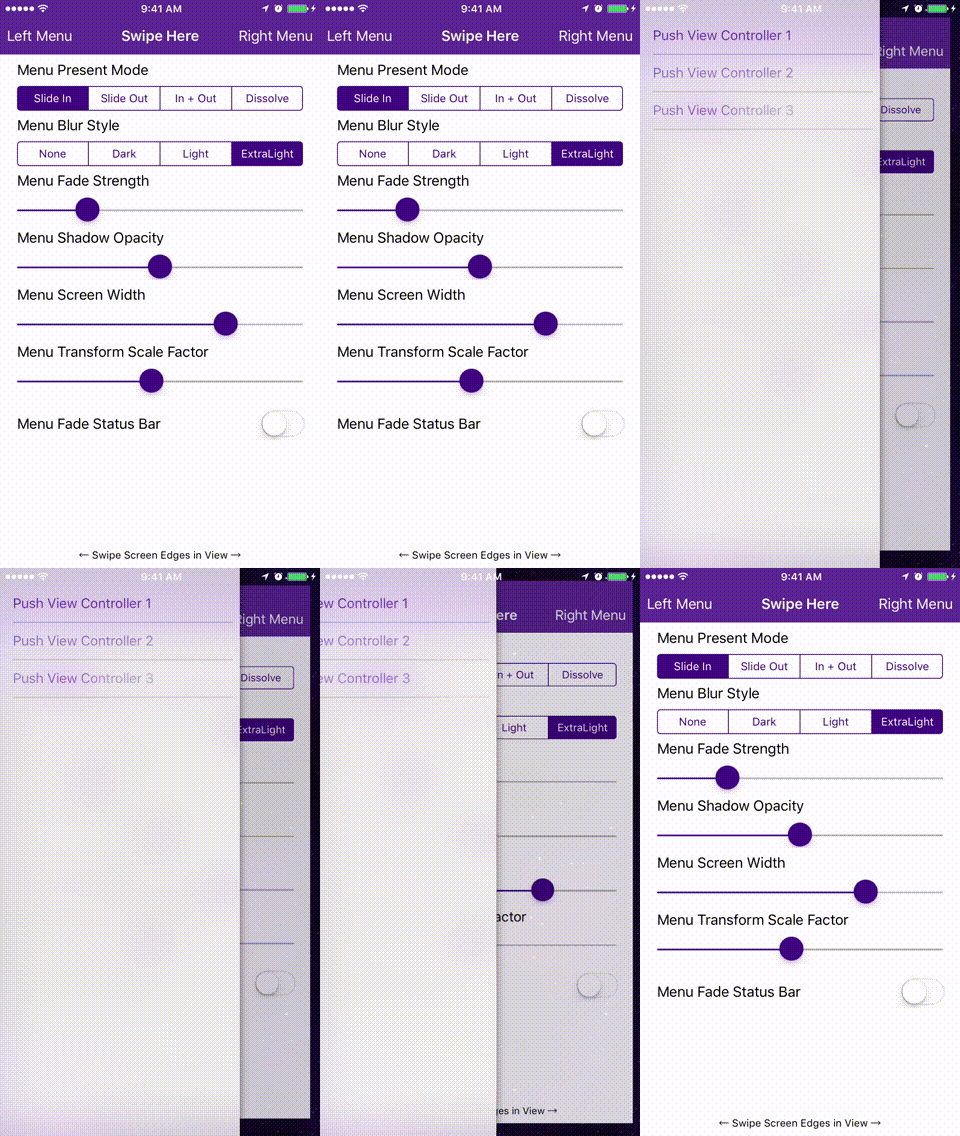 |
| 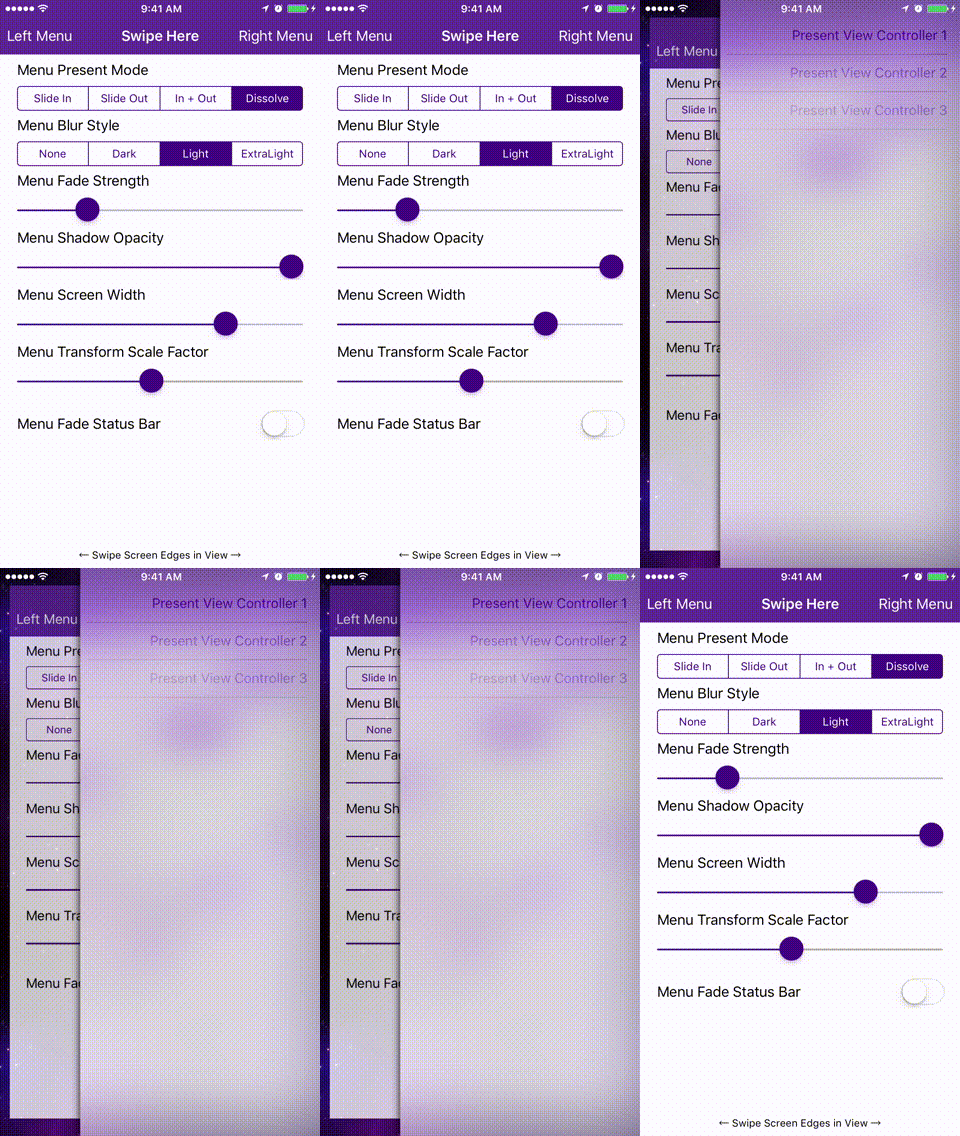 |
| 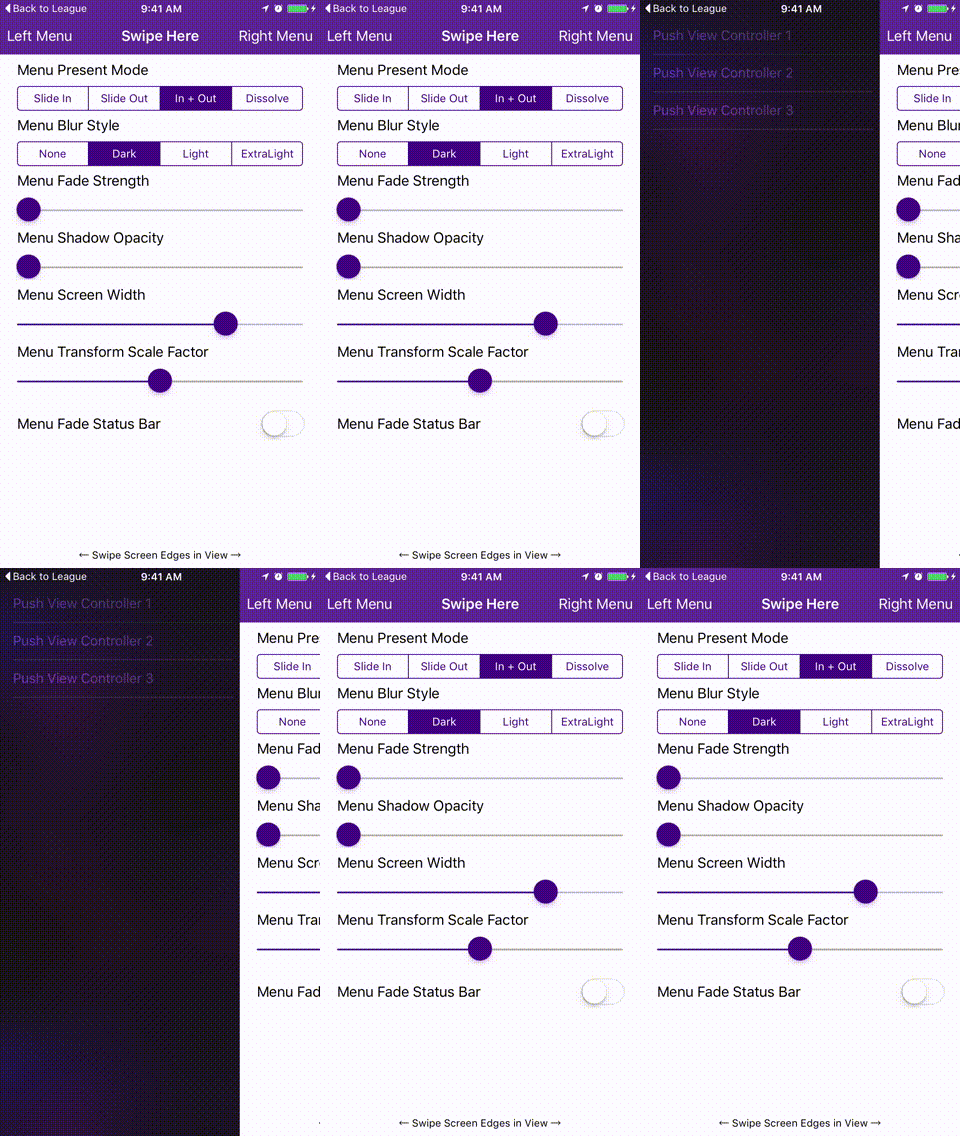 |
|
Requirements
- [x] Xcode 11.
- [x] Swift 5.
- [x] iOS 10 or higher.
Installation
CocoaPods
CocoaPods is a dependency manager for Cocoa projects. You can install it with the following command:
$ gem install cocoapods
To integrate SideMenu into your Xcode project using CocoaPods, specify it in your Podfile:
source 'https://github.com/CocoaPods/Specs.git'
platform :ios, '10.0'
use_frameworks!

pod 'SideMenu'

# For Swift 5 use:
# pod 'SideMenu', '~> 6.0'

# For Swift 4.2 (no longer maintained) use:
# pod 'SideMenu', '~> 5.0'
Then, run the following command:
$ pod install
Carthage
Carthage is a decentralized dependency manager that builds your dependencies and provides you with binary frameworks.
You can install Carthage with Homebrew using the following command:
$ brew update
$ brew install carthage
To integrate SideMenu into your Xcode project using Carthage, specify it in your Cartfile:
github "jonkykong/SideMenu" "master"
Swift Package Manager
The Swift Package Manager is a tool for automating the distribution of Swift code and is integrated into the swift compiler. It is in early development, but SideMenu does support its use on supported platforms.
Once you have your Swift package set up, adding SideMenu as a dependency is as easy as adding it to the dependencies value of your Package.swift.
dependencies: [
    .package(url: "https://github.com/jonkykong/SideMenu.git", from: "6.0.0")
]
Usage
Code-less Storyboard Implementation
-
Create a Navigation Controller for a side menu. Set the
Custom Classof the Navigation Controller to beSideMenuNavigationControllerin the Identity Inspector. Set theModuletoSideMenu(ignore this step if you've manually added SideMenu to your project). Create a Root View Controller for the Navigation Controller (shown as a UITableViewController below). Set up any Triggered Segues you want in that view controller.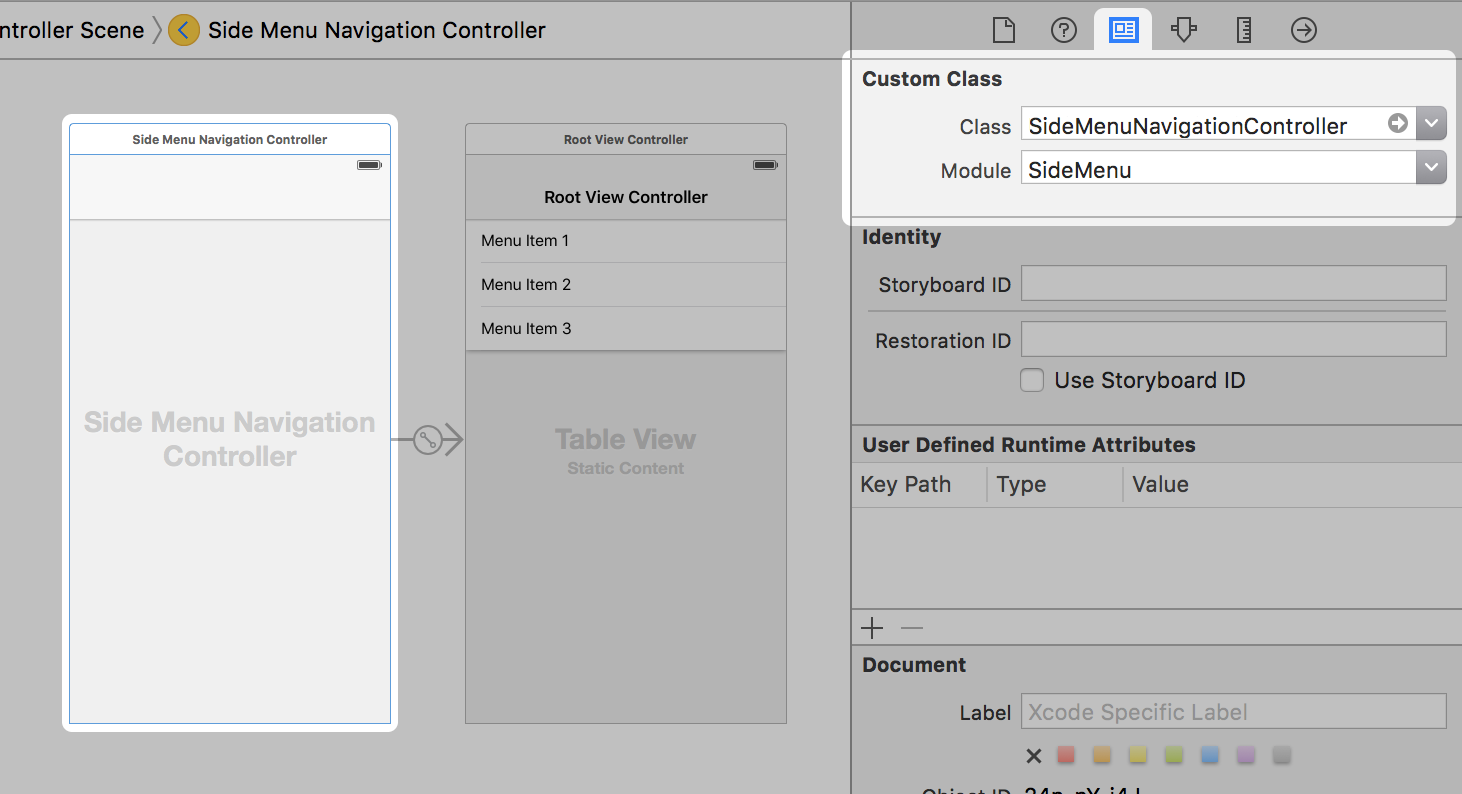
-
Set the
Left Sideproperty of theSideMenuNavigationControllerto On if you want it to appear from the left side of the screen, or Off/Default if you want it to appear from the right side.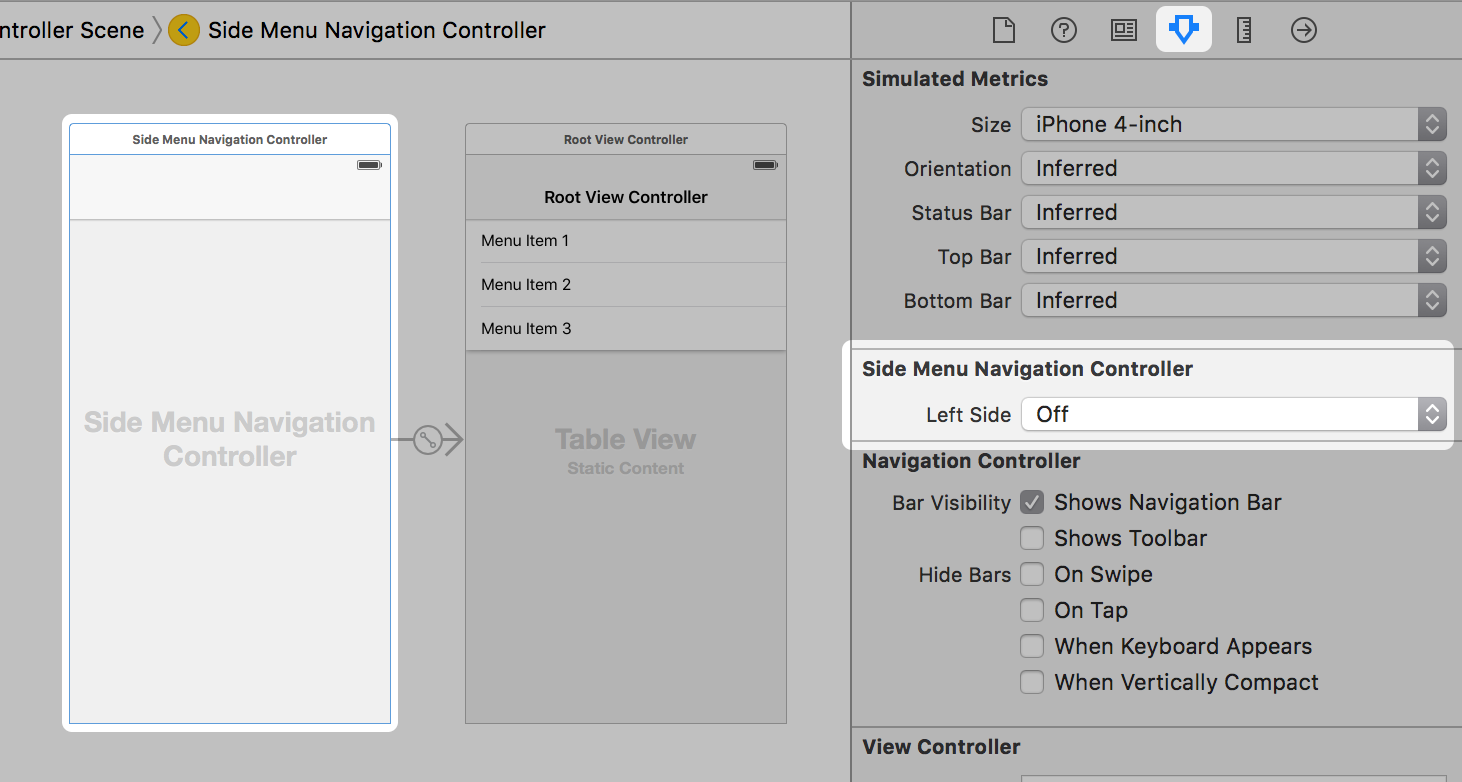
-
Add a UIButton or UIBarButton to a view controller that you want to display the menu from. Set that button's Triggered Segues action to modally present the Navigation Controller from step 1.
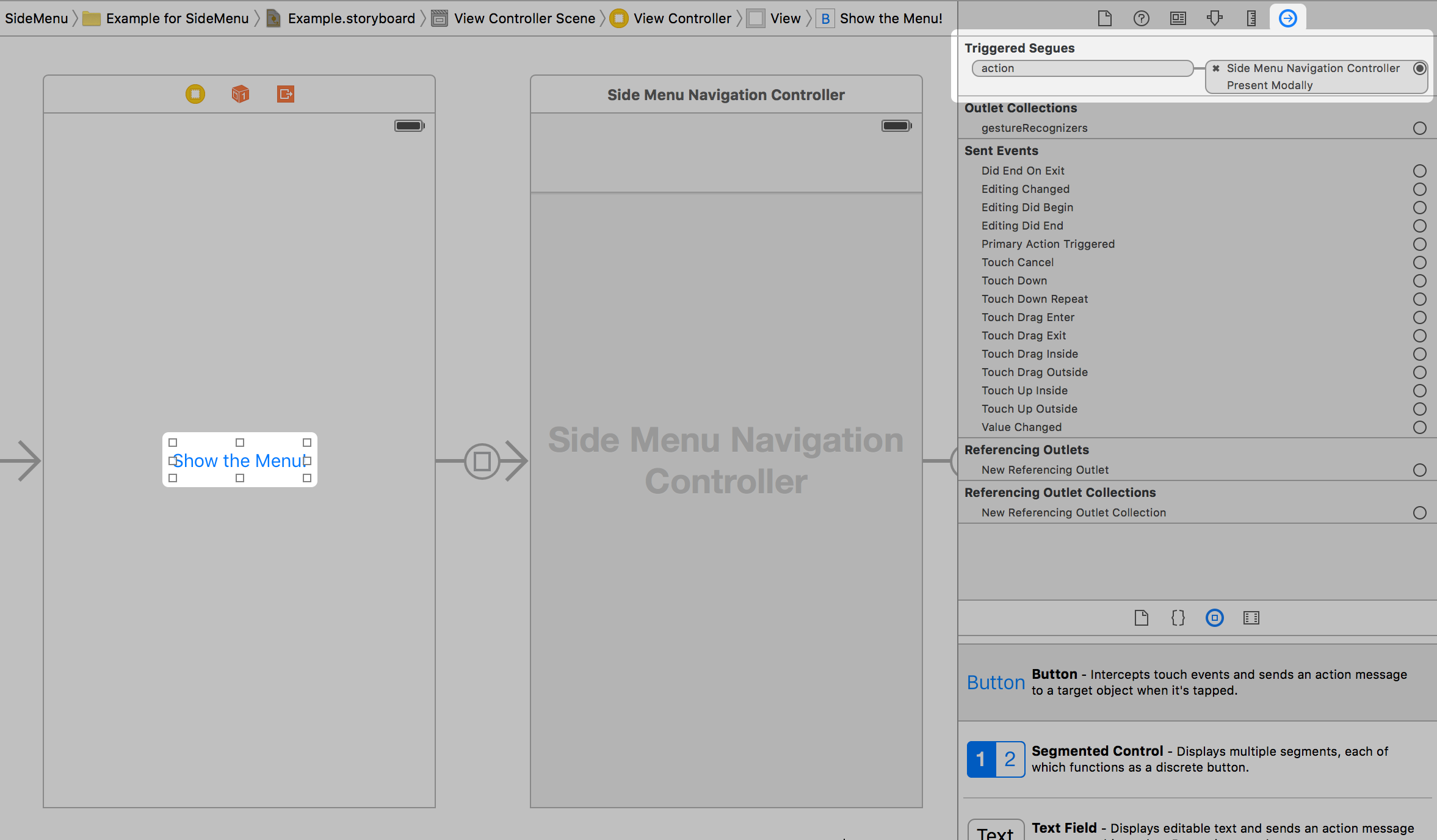
That's it. Note: you can only enable gestures in code.
Code Implementation
First:
import SideMenu
From a button, do something like this:
// Define the menu
let menu = SideMenuNavigationController(rootViewController: YourViewController)
// SideMenuNavigationController is a subclass of UINavigationController, so do any additional configuration
// of it here like setting its viewControllers. If you're using storyboards, you'll want to do something like:
// let menu = storyboard!.instantiateViewController(withIdentifier: "RightMenu") as! SideMenuNavigationController
present(menu, animated: true, completion: nil)
To dismiss a menu programmatically, do something like this:
dismiss(animated: true, completion: nil)
To use gestures you have to use the SideMenuManager. In your AppDelegate do something like this:
// Define the menus
let leftMenuNavigationController = SideMenuNavigationController(rootViewController: YourViewController)
SideMenuManager.default.leftMenuNavigationController = leftMenuNavigationController

let rightMenuNavigationController = SideMenuNavigationController(rootViewController: YourViewController)
SideMenuManager.default.rightMenuNavigationController = rightMenuNavigationController

// Setup gestures: the left and/or right menus must be set up (above) for these to work.
// Note that these continue to work on the Navigation Controller independent of the view controller it displays!
SideMenuManager.default.addPanGestureToPresent(toView: self.navigationController!.navigationBar)
SideMenuManager.default.addScreenEdgePanGesturesToPresent(toView: self.navigationController!.view)

// (Optional) Prevent status bar area from turning black when menu appears:
leftMenuNavigationController.statusBarEndAlpha = 0
// Copy all settings to the other menu
rightMenuNavigationController.settings = leftMenuNavigationController.settings
That's it.
Customization
SideMenuManager
SideMenuManager supports the following:
/// The left menu.
open var leftMenuNavigationController: SideMenuNavigationController?
/// The right menu.
public var rightMenuNavigationController: SideMenuNavigationController?
/**
 Adds screen edge gestures for both left and right sides to a view to present a menu.

 - Parameter toView: The view to add gestures to.

 - Returns: The array of screen edge gestures added to `toView`.
 */
@discardableResult public func addScreenEdgePanGesturesToPresent(toView view: UIView) -> [UIScreenEdgePanGestureRecognizer]
/**
 Adds screen edge gestures to a view to present a menu.

 - Parameter toView: The view to add gestures to.
 - Parameter forMenu: The menu (left or right) you want to add a gesture for.

 - Returns: The screen edge gestures added to `toView`.
 */
@discardableResult public func addScreenEdgePanGesturesToPresent(toView view: UIView, forMenu side: PresentDirection) -> UIScreenEdgePanGestureRecognizer
/**
 Adds a pan edge gesture to a view to present menus.

 - Parameter toView: The view to add a pan gesture to.

 - Returns: The pan gesture added to `toView`.
 */
@discardableResult public func addPanGestureToPresent(toView view: UIView) -> UIPanGestureRecognizer
SideMenuNavigation
Related Skills
node-connect
333.3kDiagnose OpenClaw node connection and pairing failures for Android, iOS, and macOS companion apps
frontend-design
82.0kCreate distinctive, production-grade frontend interfaces with high design quality. Use this skill when the user asks to build web components, pages, or applications. Generates creative, polished code that avoids generic AI aesthetics.
openai-whisper-api
333.3kTranscribe audio via OpenAI Audio Transcriptions API (Whisper).
commit-push-pr
82.0kCommit, push, and open a PR
