
Notebook Navigator
Replace the default file explorer in Obsidian with a clean two-pane interface featuring folder tree, tag browsing, file previews, keyboard navigation, drag-and-drop, pinned notes, and customizable display options.
Install / Use
npx skills add johansan/notebook-navigatorInstalls into whichever agent you are using.
README
Read in your language: English • العربية • Deutsch • Español • فارسی • Français • Bahasa Indonesia • Italiano • Nederlands • Polski • Português • Português (Brasil) • Русский • ไทย • Türkçe • Українська • Tiếng Việt • 日本語 • 한국어 • 中文简体 • 中文繁體

Turn Obsidian into a fast, customizable notes browser with folders, tags, properties and shortcuts in one view. Visual previews. Full keyboard navigation. Dual-pane layout. Mobile optimized. Works with 100,000+ notes.
If you love using Notebook Navigator, please consider ☕️ Buying me a coffee or Sponsor on GitHub ❤️.
Coming from another app? Read the switching guides for Evernote, Apple Notes, Bear, OneNote and Day One.
<br/>




1 Installation
- Install Obsidian - Download and install from obsidian.md
- Enable community plugins - Go to Settings → Community plugins → Turn on community plugins
- Install Notebook Navigator - Click "Browse" → Search for "Notebook Navigator" → Install
- Install Style Settings (optional) - For customizing colors and appearance, install Style Settings plugin by searching for "Style Settings" in Community plugins
2 Getting started
Here is the official tutorial for learning and mastering Notebook Navigator:
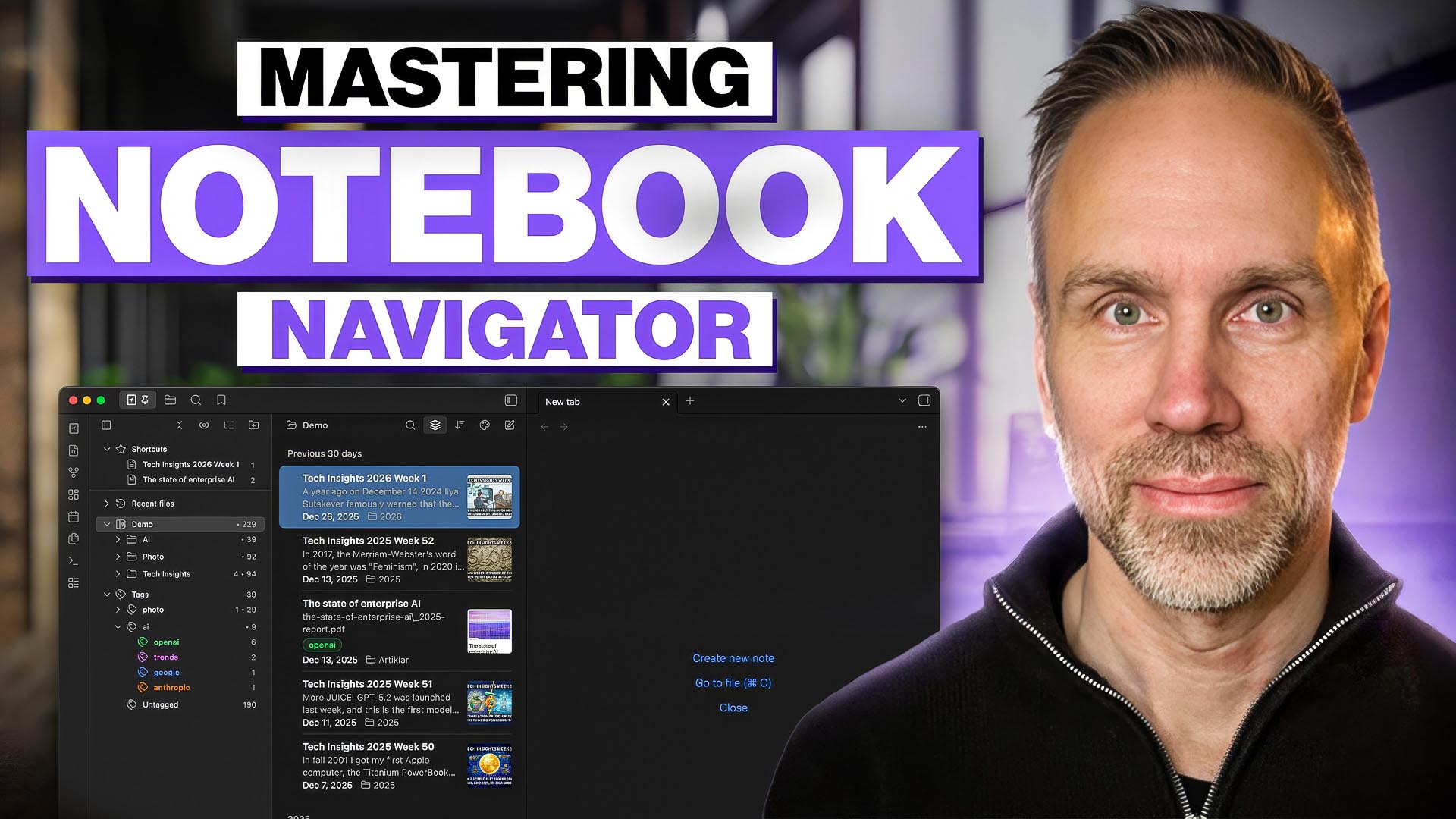
The video has subtitles in 21 languages.
<br/>3 Security and quality
Notebook Navigator is checked with TypeScript, ESLint with the official Obsidian ESLint plugin, Prettier, Vitest and a production build before changes are merged. The build must complete with zero errors and zero warnings.
Security checks run through CodeQL, with scan history in the CodeQL workflow runs, and the OpenSSF Scorecard. Current status is shown in the badges at the top of this page.
Notebook Navigator runs locally, but some features make documented HTTP requests for updates, downloads, and remote content. See section 11 - Network and Diagnostics Disclosure for the full list.
<br/>Table of contents
- 4 Documentation
- 5 Keyboard shortcuts
- 6 Synced and local settings
- 7 Search
- 8 Custom hotkeys
- 9 Commands
- 10 Features
- 11 Network and Diagnostics Disclosure
- 12 Contact
- 13 Questions or issues?
- 14 License
4 Documentation
-
API Reference - Public API documentation. Covers metadata management, navigation control and event subscriptions for JavaScript/TypeScript developers.
-
Theming Guide - Guide for theme developers. Includes CSS class reference, custom properties, and theme examples for light and dark modes.
-
Startup Process - Plugin initialization sequence. Cold boot vs warm boot flows, metadata cache resolution, deferred cleanup, and content generation pipeline. Includes Mermaid diagrams.
-
Metadata Pipeline - Cache rebuild sequence, provider pipeline stages, and completion signals. Includes Mermaid diagrams.
-
Storage Architecture - Guide to storage containers (IndexedDB, Local Storage, Memory Cache, Settings). Data flow patterns and usage guidelines.
-
Rendering Architecture - React component hierarchy, virtual scrolling with TanStack Virtual, performance optimizations, and data flow.
-
Scroll Orchestration - How the plugin ensures accurate scrolling when tree structures change (tag visibility, settings, etc.)
-
Service Architecture - Business logic layer: MetadataService, FileSystemOperations, ContentProviderRegistry. Dependency injection patterns and service data flow.
5 Keyboard shortcuts
| Key | Action | | ----------------------------------- | ----------------------------------------------------------------------------------------------------------------------------------------------------------------------------------------- | | ↑/↓ | Navigate up/down in current pane | | ← | In navigation pane: collapse or go to parent<br>In list pane: switch to navigation pane | | → | In navigation pane: expand or switch to list pane<br>In list pane: switch to editor | | Tab | In navigation pane: switch to list pane<br>In list pane: switch to editor<br>In search field: switch to list pane | | Shift+Tab | In list pane: switch to navigation pane<br>In search field: switch to navigation pane | | Enter (macOS)<br>F2 (Windows/Linux) | Rename item inline in navigation pane or list pane | | Enter | In navigation pane: open folder note on Windows/Linux by default (when enabled)<br>In list pane: open selected file on all systems (when enabled)<br>In search field: switch to list pane | | Escape | In search field: close search and focus list pane | | PageUp/PageDown | Scroll up/down in navigation pane and list pane | | Home/End | Jump to first/last item in current pane | | Delete<br>Backspace | Delet
Related Skills
node-connect
385.5kDiagnose OpenClaw Android, iOS, or macOS node pairing, QR/setup code, route, auth, and connection failures.
blender-python-addon
40.5kBlender Python add-on rules for operators, panels, properties, registration, testing, and API-safe scripting
flutter-development-guidelines-cursorrules-prompt-file
40.5kCursor rules for Flutter development with MVVM architecture, Riverpod state management, Material widgets, and Dart style guidelines.
commit-push-pr
140.7kCommit, push, and open a PR
